

Introduction
Does your Windows PC take a long time to start, open programs slowly, or freeze when you have a few tabs open? You are not alone, and in most cases you do not need to buy a new computer right away.
A slow PC is often caused by simple things: too many programs starting with Windows, a nearly full drive, old updates, or settings that waste resources. This guide gives you a safe, step-by-step checklist to check those things in order, from easiest to more advanced. Do the steps one by one, and test your PC after each group of steps.
Before you start, save your open work and close programs you do not need. Never download a “PC booster” from an unknown website, and never delete system files you do not recognise. The steps below use only built-in Windows tools.
Step 1: Restart and Check What Is Running
Start with a full restart, not just sleep or hibernate. A restart clears temporary memory and closes programs that have been running in the background for days.
After restarting, open Task Manager by pressing Ctrl + Shift + Esc. Click “Processes” and look at the CPU, Memory, and Disk columns. If one program is using a very large share for a long time, and you do not need it right now, you can end that task from Task Manager. Be careful not to end Windows system processes you do not recognise — if you are unsure, leave it alone and move to the next step.
This quick check often shows the real problem: a browser with dozens of tabs, a cloud sync app, or an update running in the background.
Step 2: Stop Unnecessary Startup Apps
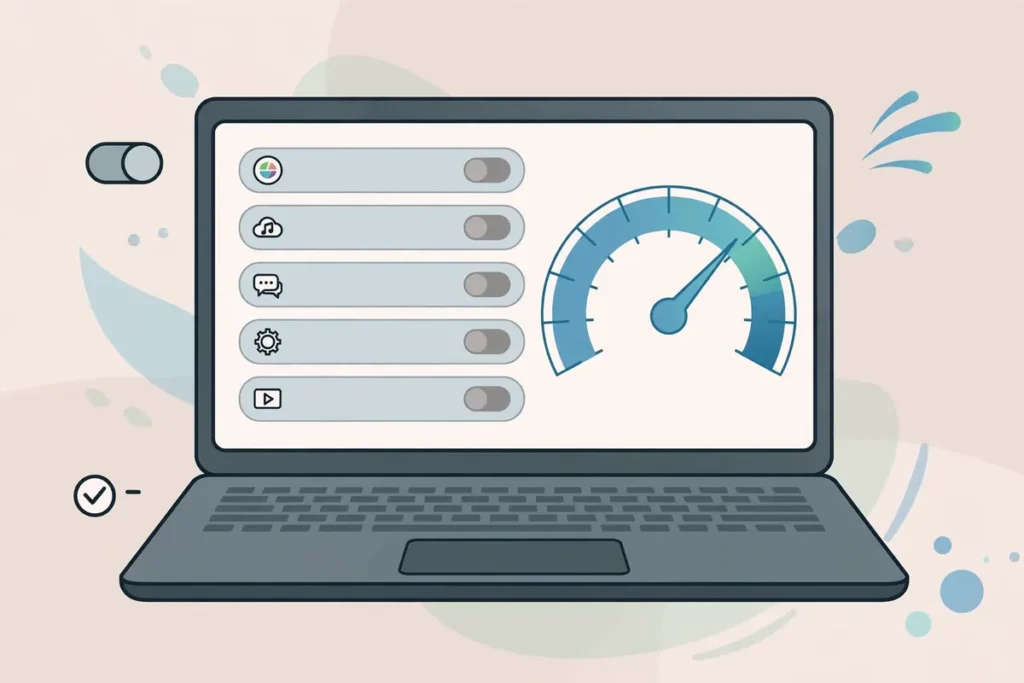
Many programs set themselves to start automatically with Windows, even if you rarely use them. Each one adds a little time to startup and uses memory in the background.
In Windows 11, go to Settings > Apps > Startup. In Windows 10, go to Task Manager > Startup. You will see a list of apps with a toggle or an “Enabled” status.
Turn off startup for apps you do not need immediately when Windows starts, such as chat apps, music players, or game launchers you use only sometimes. Keep your antivirus and essential drivers enabled. If you are unsure about an app, search its name first, or leave it enabled for now. You can always turn it back on later. This step alone often makes startup noticeably faster.
Step 3: Free Up Disk Space
When your main drive is almost full, Windows has less room for temporary files and updates, and performance can drop.
Go to Settings > System > Storage. Windows will show what is using space. Use Storage Sense or the temporary files cleanup to remove temporary files, old update files, and items in the Recycle Bin that you no longer need. Do not delete personal files just to free space — instead, move large videos or old downloads to an external drive or cloud storage if you need them later.
Aim to keep at least 15 to 20 percent of your main drive free if you can. If your drive is still almost full after cleanup, that is a sign you may need a larger drive, not just more cleanup tricks.
Step 4: Update Windows and Your Drivers
Updates do more than add features. They often fix bugs and security problems that can slow down your PC.
Go to Settings > Windows Update and check for updates. Install available updates, then restart when asked. Also check for driver updates from your PC maker or through Windows Update, especially for graphics and network drivers. Avoid downloading drivers from random third-party sites — use Windows Update or the manufacturer’s official website.
If an update fails, note the error message and try again after a restart. Do not turn off Windows Update permanently to “save speed” — that leaves your PC less secure.
Step 5: Check for Malware and Unused Programs
Malware can slow down a PC in the background, show unwanted ads, or use your internet connection. Run a full scan with Windows Security, which is built into Windows. Go to Settings > Privacy & security > Windows Security > Virus & threat protection, and run a full scan.
Next, uninstall programs you no longer use. Go to Settings > Apps > Installed apps, sort by size or date, and remove apps you recognise and no longer need. Do not uninstall programs with names you do not recognise if they might be drivers or system tools — search the name first.
Step 6: Adjust Visual Effects and Power Settings
Windows visual effects look nice, but on an older PC they can use resources. You can reduce them without harming your work.
Search for “Adjust the appearance and performance of Windows” and open it. Under Visual Effects, you can choose “Adjust for best performance”, or uncheck individual effects such as animations and shadows. Keep the settings you like, and test how your PC feels after changing them.
Also check your power plan. On a laptop, go to Settings > System > Power & battery. A “Best performance” or “Balanced” plan usually works better than a power-saving plan when you need speed, though it may use more battery. Choose the plan that fits how you use your PC.
Step 7: When Hardware Might Be the Limit
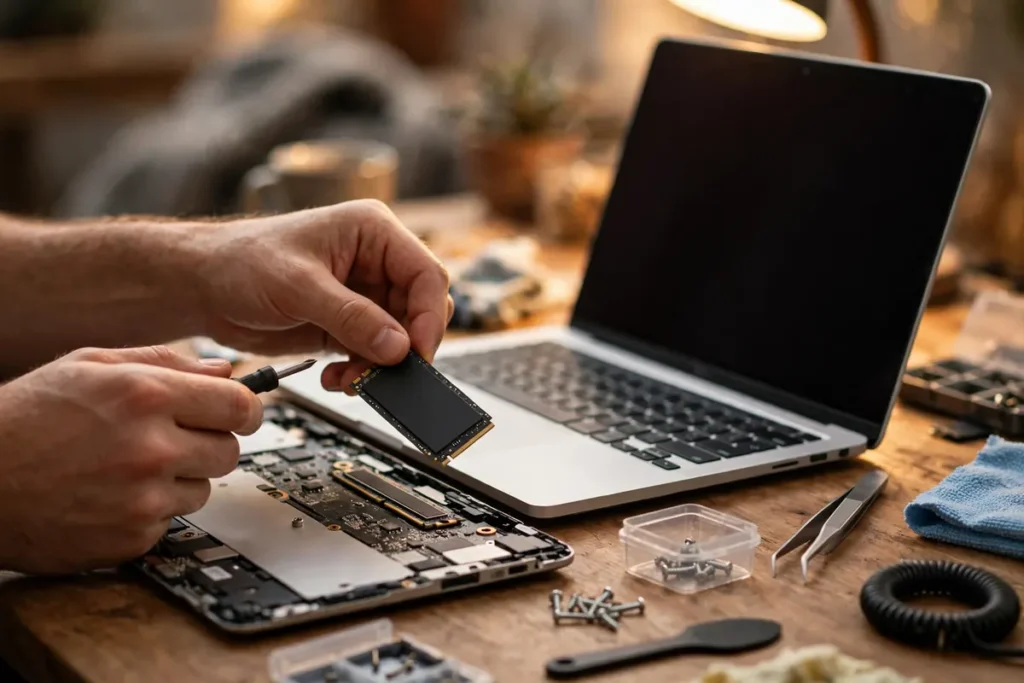
If you have done all the steps above and your PC is still very slow, hardware may be the limit. Two common upgrades help the most on older PCs: adding more RAM, and replacing an old hard disk drive (HDD) with a solid-state drive (SSD). An SSD in particular can make startup and program loading much faster.
Before buying any upgrade, check your PC model and what it supports. If you are not comfortable opening a computer, ask a trusted technician for help, and back up your important files first. A hardware upgrade is not needed for most everyday slowdowns, so try the software steps first.
A Simple Weekly Habit
Once your PC feels faster, keep it that way with a short weekly habit: restart at least once a week, close browser tabs you no longer need, check for Windows updates, and empty the Recycle Bin. That five-minute routine prevents many slowdowns from building up again.
Frequently Asked Questions
Will deleting temporary files delete my documents? No, if you use Windows Storage cleanup correctly. Temporary files are different from your documents, photos, and downloads. Read each item before confirming deletion, and do not delete files from folders you do not recognise.
Do I need a third-party cleaner app? Usually no. Windows has built-in cleanup, Task Manager, and security tools that cover most needs. Third-party cleaners can sometimes delete useful files or install unwanted software, so avoid them unless you fully trust the source.
Why is my PC slow only when I open a browser? A browser with many tabs, extensions, or heavy websites can use a lot of memory. Try closing unused tabs, removing extensions you do not use, and checking Task Manager while the browser is open to see how much memory it uses.
Is it safe to turn off startup apps? Yes, for most apps. Turning off startup does not uninstall the app — it just means the app will not open automatically when Windows starts. You can still open it manually when you need it.
Conclusion
A slow Windows PC is frustrating, but it is often fixable with simple, safe steps: restart, check Task Manager, turn off unneeded startup apps, free up space, update Windows, scan for malware, and adjust a few settings. Work through this checklist in order, and stop when your PC feels fast enough for your everyday tasks.
If your PC is still slow after all these steps, it may be time to consider a hardware upgrade or professional help — but for most users, the checklist above is enough to bring back a smoother experience.