

Introduction
Is your Android phone slower than it used to be? Apps take longer to open, the keyboard lags, or the phone freezes when you switch between apps. Before you think about buying a new phone, try the steps in this guide. Most slowdowns are caused by storage, background apps, or settings, not by a broken phone.
Work through the steps in order, and test your phone after each group. Do not install a random “booster” or “cleaner” app from an unknown source, and do not delete system files you do not recognise. The steps below use built-in Android tools.
Step 1: Restart and Check Storage
Start with a restart. Press and hold the power button, then choose Restart. A restart closes apps running in the background and clears temporary memory.
Next, check storage. Go to Settings > Storage. If your phone is almost full, it will feel slow, because Android needs free space for updates and temporary files. Free up space by backing up photos first, then deleting old downloads, duplicate files, and apps you no longer use. Aim to keep at least 10 to 15 percent free if you can.
If storage is the main problem, this step alone often makes a noticeable difference.
Step 2: Remove or Disable Apps You No Longer Use
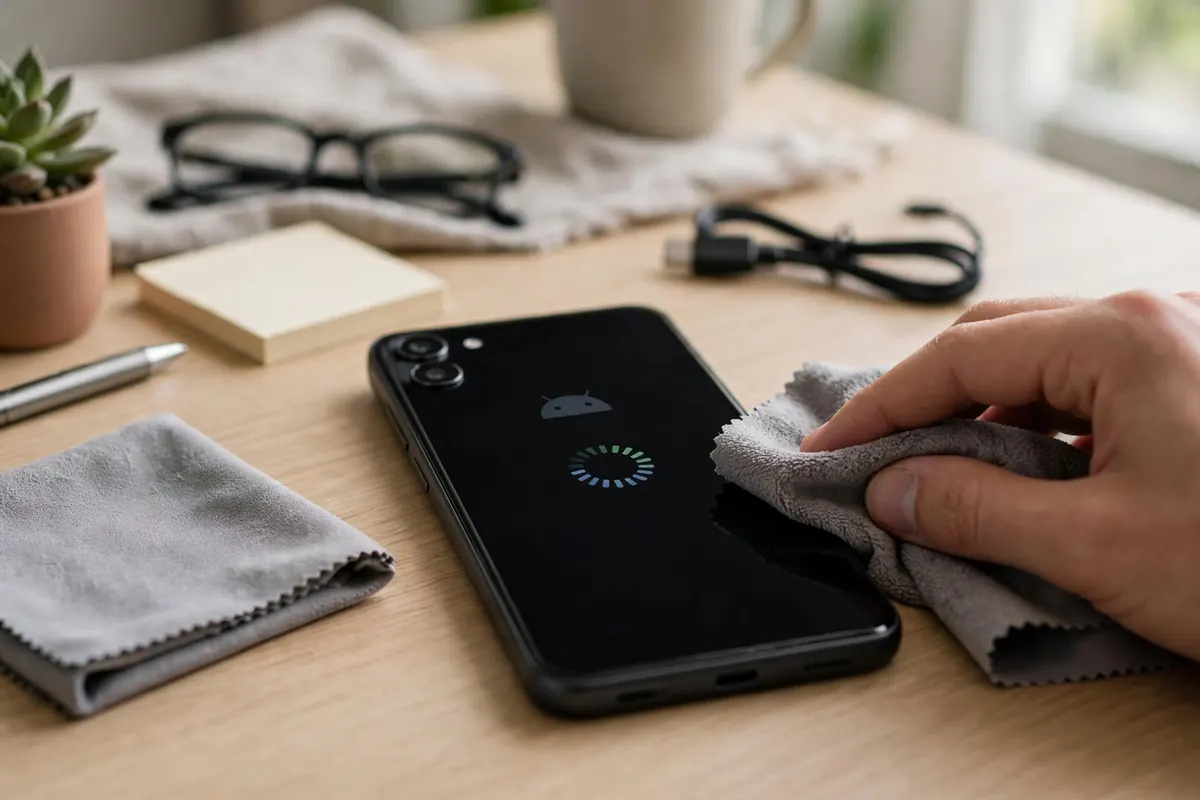
Apps you do not use can still run in the background, use storage, and send notifications. Go to Settings > Apps, sort by last used if your phone offers that option, and uninstall apps you recognise and no longer need.
For pre-installed apps you cannot uninstall, you may be able to disable them. Disabling stops the app from running, without deleting system files. Do not disable apps with names you do not recognise, as they may be needed for your phone to work. If you are unsure, search the app name first, or leave it alone.
After removing apps, restart your phone again and see how it feels.

Step 3: Clear Cache for Heavy Apps
Cache files help apps load faster, but over time they can take up a lot of space, especially for browsers, social media, and video apps.
Go to Settings > Apps, choose a large app, tap Storage & cache, and tap Clear cache. This does not delete your photos, messages, or login in most apps. Do not tap Clear storage or Clear data unless you understand that it may log you out and delete app data.
Start with the largest apps, and check how much space you recover. Repeat for other heavy apps if needed, but you do not need to clear cache for every app every day.
Step 4: Reduce Animations and Background Activity
Animations look nice, but they can make an older phone feel slower. You can reduce them in Developer Options, if your phone has them enabled, by setting Window animation scale, Transition animation scale, and Animator duration scale to 0.5x or Off. If you do not see Developer Options, you can skip this step safely — it is optional.
Also check background activity. Go to Settings > Apps, choose an app that you do not need running all the time, and check its battery or background settings. Restricting background activity for social media or shopping apps you rarely use can save battery and speed.
Be careful not to restrict background activity for messaging, email, or alarm apps you depend on, or you may miss notifications.
Step 5: Update Android and Your Apps
Updates often fix bugs and performance problems. Go to Settings > System > System update, and install any available Android update. Then open the Play Store, tap your profile, and update your apps.
If an update fails, try again on Wi-Fi, with enough storage free, and with your phone charged. Do not turn off updates permanently to save space, as updates also fix security problems.
After updating, restart your phone and test the apps that were slow before.
Step 6: Check Battery Health and Overheating
A phone that is very hot will often slow down to protect itself. If your phone feels hot, close heavy apps, move it out of direct sunlight, and let it cool down before using it heavily again.
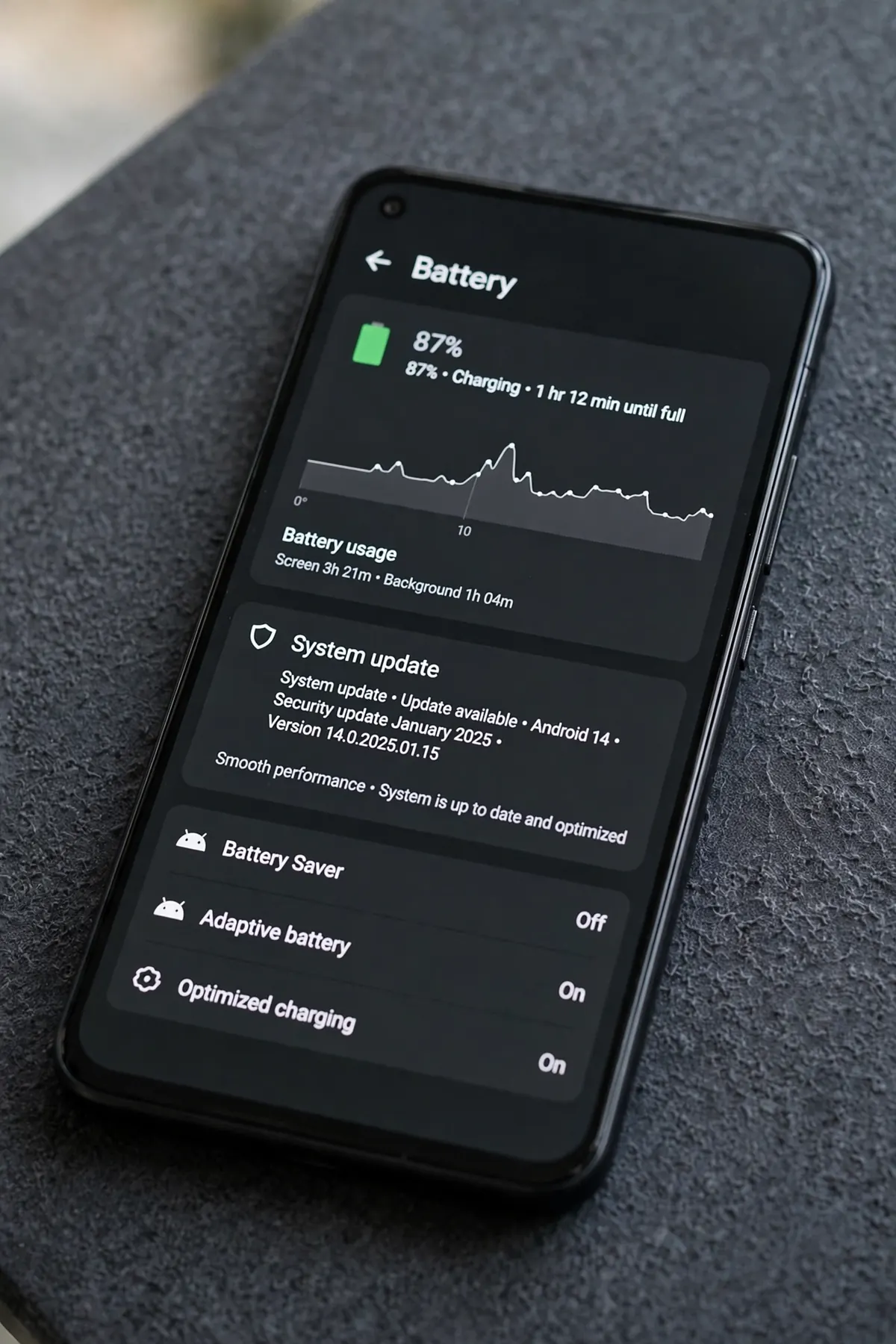
Check battery usage in Settings > Battery to see which apps use the most battery. An app that uses a lot of battery in the background may also be slowing your phone down. Consider restricting it, or using a lighter alternative for the same task.
If your battery drains very quickly even after these steps, and your phone is several years old, the battery itself may be worn out. In that case, a battery replacement from a trusted repair shop may help more than more software cleanup.
When a New Phone Might Make Sense
If you have tried all the steps above, and your phone is still very slow for basic tasks like calling, messaging, and browsing, and it no longer receives Android updates, it may be time to consider a new phone. That is especially true if the phone is more than five years old, or if the screen or battery is damaged.
For most phones that are only a few years old, however, the steps in this guide are enough to bring back a smoother experience, without spending money on a new device.
Frequently Asked Questions
Will clearing cache delete my photos? Clearing cache usually does not delete your photos, messages, or account. Clearing storage or data is different, so read the button carefully before tapping it.
Do I need a cleaner app to speed up my phone? Usually no. Android has built-in storage, app, and battery tools that cover most needs. Third-party cleaner apps can show ads, collect data, or delete useful files, so avoid them unless you fully trust the source.
Why is my phone slow only with one app? That app may be heavy, outdated, or using a lot of background data. Update it, clear its cache, and check its permissions. If it is still slow, try a lighter alternative, or use the website version instead.
Is it safe to disable pre-installed apps? Disabling a pre-installed app usually just stops it from running. You can usually enable it again later. Do not disable system apps you do not recognise, and do not uninstall system apps with untrusted tools.
Conclusion
A slow Android phone is frustrating, but it is often fixable: restart, free up storage, remove unused apps, clear cache for heavy apps, reduce animations and background activity, update Android, and check for overheating. Work through this checklist in order, and stop when your phone feels fast enough for everyday use.
If it is still slow after all these steps, a battery check or a new phone may be worth considering — but for most users, this checklist is enough.