

Introduction
“Storage is almost full.” If you have seen this message on your Android phone, you know how annoying it can be. You cannot take new photos, update apps, or download files, and your phone may start to feel slow.
The good news is that you can usually free up a lot of space without deleting your memories. The key is to back up first, then clean in the right order: photos and videos, cache, downloads, and apps you no longer use. This guide shows you how, step by step, with safety checks so you do not lose anything important.
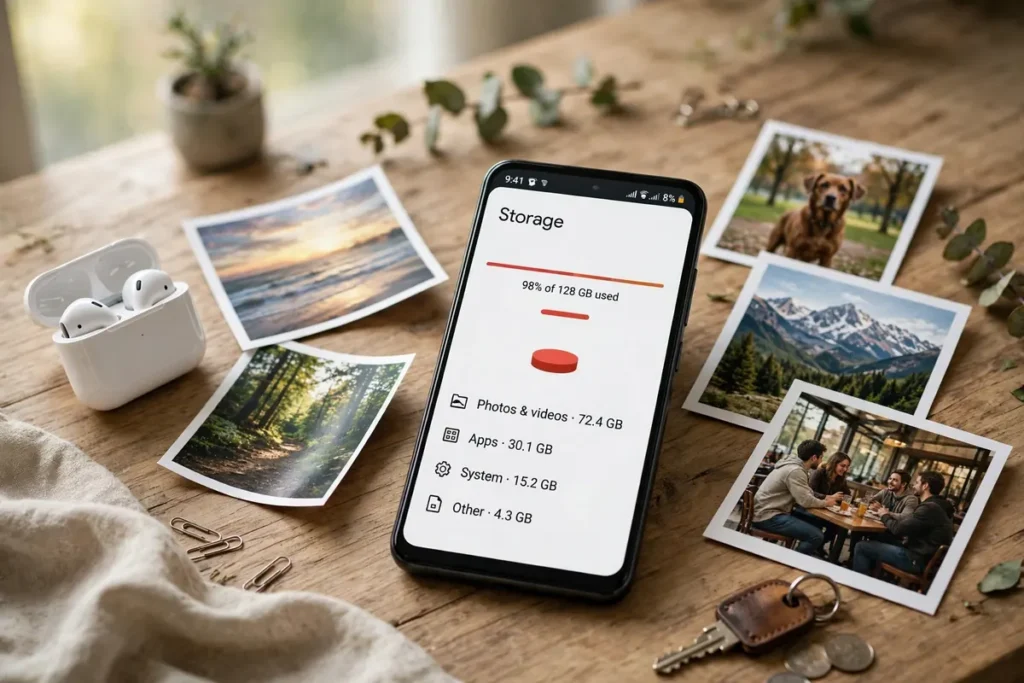
Step 1: Back Up Your Photos Before You Delete Anything
Never delete photos or videos before you have a backup you can check. The safest way for most people is Google Photos, if it is already on your phone.
Open Google Photos, sign in, and turn on backup if it is not already on. Wait until the backup is complete, especially on Wi-Fi, and then open photos.google.com on another device or browser to check that your recent photos are really there. Only when you can see them in the backup should you use the “Free up space” option in Google Photos, which removes device copies of photos that are already backed up.
If you do not use Google Photos, copy your photos to a computer, an external drive, or another trusted cloud service first, and check the copy before deleting anything from your phone. This one step prevents most accidental losses.
Step 2: Use Android’s Built-in Storage Tools
Android has built-in tools that show exactly what is using space, so you do not have to guess.
Go to Settings > Storage. You will see categories such as Apps, Photos & videos, Audio, Downloads, and System. Tap each category to see the details. On many phones, you will also see a “Free up space” or “Clean up” suggestion. Use those suggestions carefully, and read each item before confirming.
This view often reveals surprises: a large game you finished months ago, offline maps, or downloaded videos you forgot about. Deleting those is usually safe and frees space quickly.
Step 3: Clear Cache, Not Important Data
Cache files are temporary files that apps save to work faster. Over time, they can take up a lot of space, especially for browsers, social media, and video apps.
Go to Settings > Apps, choose an app that uses a lot of storage, then tap Storage & cache, and tap “Clear cache”. This does not delete your photos, messages, or account login in most apps. Do not tap “Clear storage” or “Clear data” unless you understand that it may log you out and delete app data — that is different from clearing cache.
Start with large apps you use every day, such as your browser or a social media app, and check how much space you recover. Repeat for other large apps if needed.

Step 4: Clean Downloads and Duplicate Files
The Downloads folder is another common source of wasted space. It often contains PDFs, images, and files you downloaded once and never opened again.
Open your Files app, go to Downloads, and sort by size or date. Delete files you no longer need, especially large videos and duplicate downloads. If you are unsure about a file, move it to cloud storage or your computer first, instead of deleting it right away.
Also check for duplicate photos and screenshots. Many phones save screenshots, edited copies, and original photos separately. Your gallery or Files app may have a cleanup suggestion for duplicates — use it carefully, and keep the best copy.
Step 5: Remove Apps You No Longer Use
Apps take space not only for the app itself, but also for its data and cache. If you have not opened an app in months, it is a good candidate for removal.
Go to Settings > Apps, sort by last used if your phone offers that option, and uninstall apps you recognise and no longer need. For apps you might need later, remember that you can usually reinstall them from the Play Store, and your account data is often saved in the cloud.
Do not uninstall system apps or apps with names you do not recognise, as they may be needed for your phone to work. If you are unsure, search the app name first, or leave it alone.
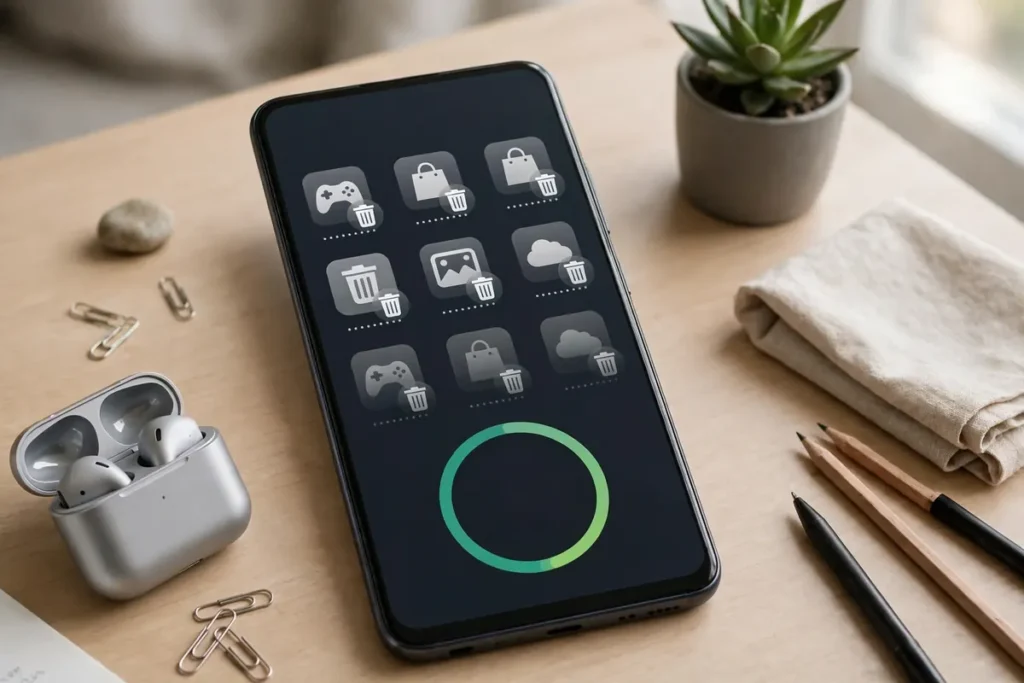
Step 6: Manage Videos, WhatsApp Media, and Offline Content
Videos use far more space than photos. Check your camera folder for long videos you no longer need on your phone, and move the important ones to backup first.
WhatsApp and other chat apps can also store many photos and videos. In WhatsApp, go to Settings > Storage and data > Manage storage to see large files and chats using the most space. Delete media you no longer need, after backing up anything important.
Finally, check offline content: downloaded music, maps, podcasts, and streaming videos. Remove offline downloads for content you have already watched or listened to. You can download them again later if you need them.
What Not to Do
Do not use random “cleaner” apps from unknown sources. Some of them show ads, collect data, or delete useful files. Android’s built-in tools and Google Photos are usually enough.
Do not delete the “Android” system folder or files in system folders, and do not factory reset your phone just to free space. A factory reset deletes everything and should only be a last resort, after a full backup, and only if you have a specific reason.
Do not turn off backups to save space in the cloud, and then delete photos from your phone. That is the fastest way to lose memories permanently.
A Simple Monthly Routine
Once you have freed space, keep it free with a short monthly routine: back up photos, check Storage, clear cache for large apps, delete old downloads, and remove apps you no longer use. Five minutes a month is usually enough, and it prevents the “storage full” message from coming back suddenly.
Frequently Asked Questions
Will clearing cache delete my photos or messages? Clearing cache usually does not delete your photos, messages, or account. Clearing storage or data is different and can log you out or delete app data, so read the button carefully before tapping it.
If I free up space in Google Photos, will my photos disappear? No, if the backup is complete. The “Free up space” option removes device copies of photos that are already backed up in the cloud. Check the backup on another device first, so you are sure your photos are safe.
How much free space should I keep? Try to keep at least 10 to 15 percent of your storage free, or a few gigabytes on most phones. That gives Android room for updates, temporary files, and new photos without warnings.
Can I move apps to an SD card? Some Android phones allow moving parts of certain apps to an SD card, but many newer phones do not have an SD card slot, and not all apps support it. Check Settings > Apps for the app you want to move, and look for a storage option. A cloud backup is usually more reliable than relying on an SD card alone.
Conclusion
Freeing up Android storage does not mean losing your photos. Back up first, check what is actually using space, clear cache safely, clean downloads and duplicates, and remove apps you no longer use. In that order, you can usually recover gigabytes of space in less than an hour, without risking your memories.
Start with the backup step today, and your phone will have room for new photos, updates, and apps again.