

Few things are more annoying than a phone that was full in the morning and nearly empty by lunch, even when you did not use it much. Before you assume the battery is dead, or buy a new phone, check a few settings first. In most cases, one or two apps, or one setting, is doing most of the draining.
This guide gives ten practical fixes, starting with finding the culprit, then fixing the common causes, then improving your charging habits. Work through them in order, testing each big change for a day.
1. Find Which App Is Draining the Battery
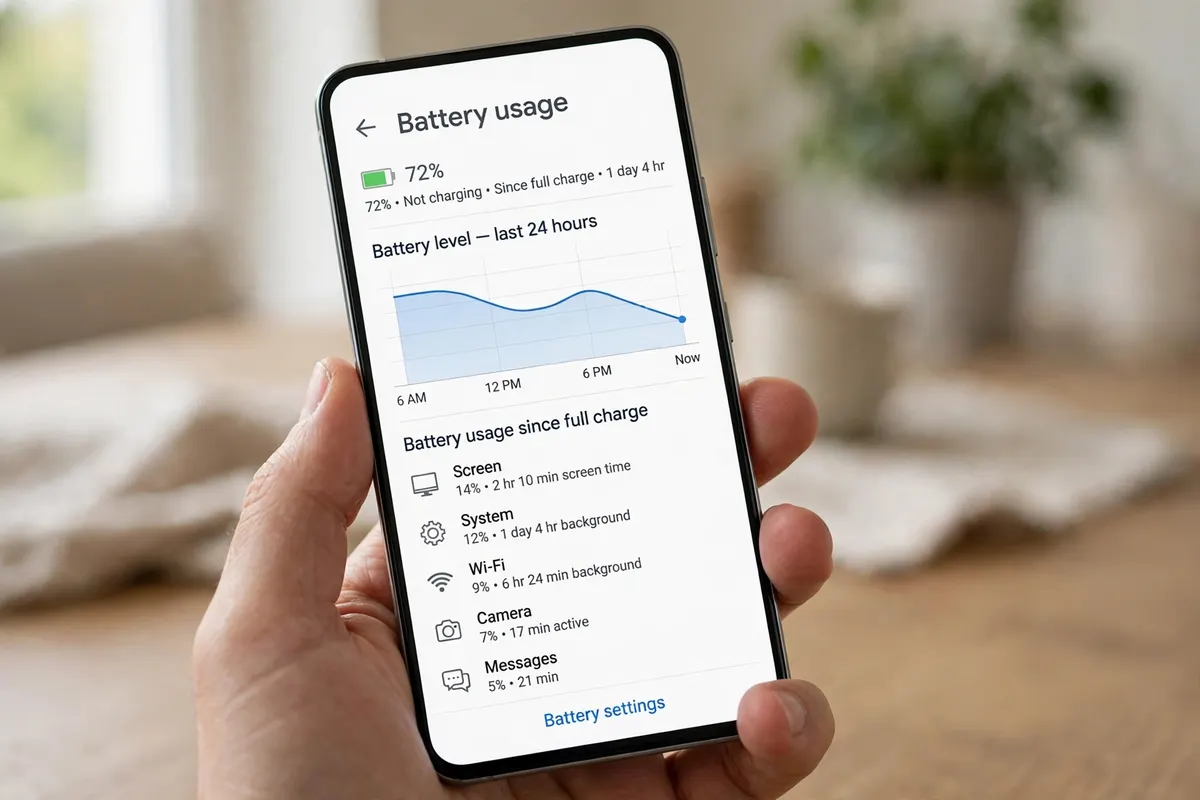
- Do not guess. Check first: on most Android phones, go to Settings, then Battery, then Battery usage. You will see each app’s use in the last 24 hours, in the foreground or in the background.
- If one app stands out — for example, a game or video app using a large share in the background — that is your first suspect.
- Restrict its background activity, or use it less, and you may see a big improvement the same day.
2. Turn Down the Screen, the Biggest Drain
- The screen is usually the single biggest battery user. A very bright screen, a long screen timeout, and a high refresh rate together can drain a phone faster than any app.
- Use automatic brightness, or turn it down indoors. Set screen timeout to 30 seconds or 1 minute, so the screen does not stay on in your pocket. If your phone offers 120 Hz, try 60 Hz for a day and compare battery life.
- Dark mode can also help on OLED screens, where black pixels use less power.

3. Stop Apps Running in the Background
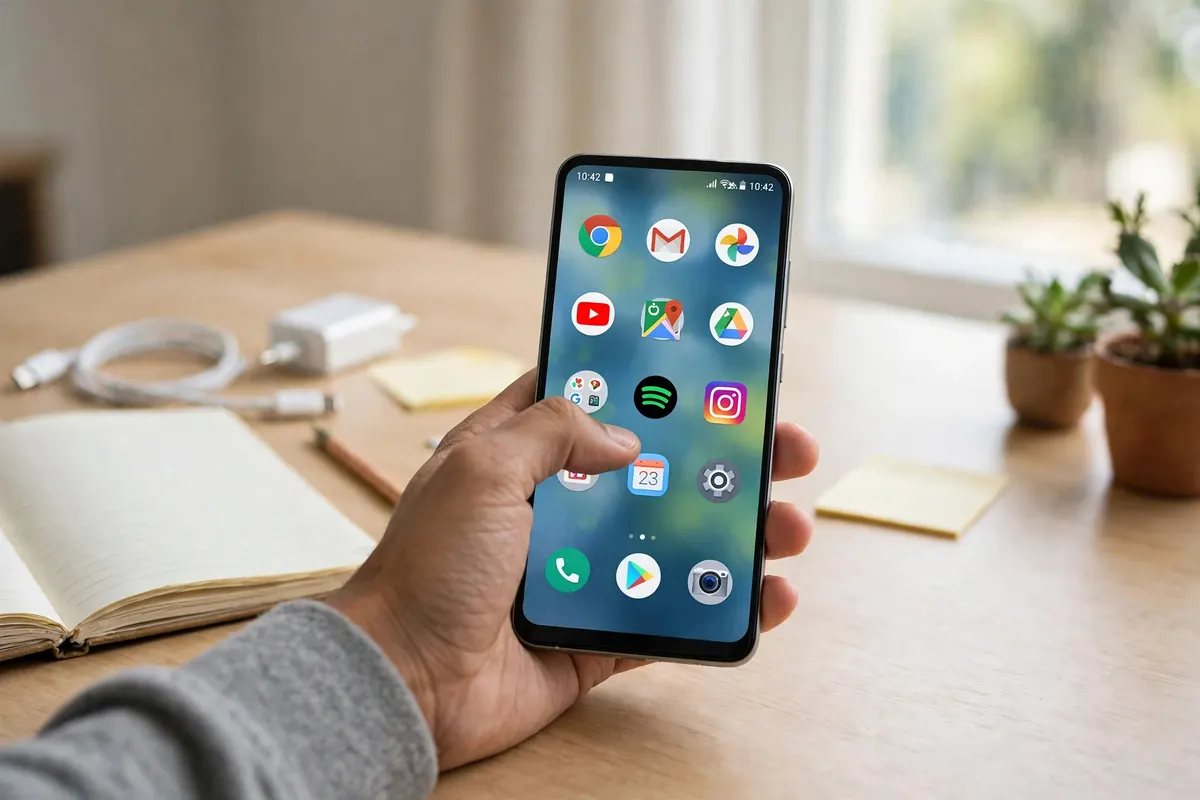
- Many apps keep working in the background: checking messages, updating feeds, or syncing data. A little is useful; a lot, from apps you rarely open, is waste.
- Restrict background activity for apps you do not need updated constantly, such as games and shopping apps you use weekly. Keep it on for messaging, email and maps, where a delay matters.
- Also check location permission: apps using location “all the time” drain far more than those using it “only while using the app”. Change it for apps such as photo editors or games.
4. Check Signal, Wi-Fi and Bluetooth
- A weak mobile signal is a hidden drain: a phone struggling to stay connected works harder and uses more power. Hours in a poor-signal building alone can explain a fast drain.
- Where Wi-Fi is reliable, use it instead of mobile data: it usually uses less power than a weak mobile connection.
- Turn off Bluetooth and hotspot when not using them, and use aeroplane mode only when you do not need calls or messages.
5. Update Your Phone and Apps
- Battery problems sometimes come from a software bug, not your habits. System and app updates often include drain fixes, especially after a major update.
- Check Settings, then System, then System update, and update your most-used apps in the Play Store.
- If drain started right after an update, check the app’s reviews or the manufacturer’s support page; a fix often follows within days, and restricting that app can help meanwhile. Updates also help overall speed — see our guide on how to speed up a slow Android phone.
6. Turn Off Always-On Display and Extra Features
- Always-on display keeps the time and notifications visible on a locked screen, but uses power all day. Turn it off, or set it to show only when you tap the screen.
- The same applies to live wallpapers, constant vibration, and “Hey Google” wake-word listening. Turn off the ones you do not use.
- Keep notifications for important apps only, so your phone is not waking up every few minutes.
7. Use Battery Saver, But Understand Its Limits
- Battery Saver limits background activity, lowers brightness, and reduces performance to stretch the remaining charge. It is useful at 20 percent when you need the phone to last until evening.
- Do not leave it on all the time as a permanent fix, though. It can delay messages and notifications, and it hides the real cause of the drain.
- Use it as an emergency tool, and fix the culprit app or setting as the real solution.
8. Fix Your Charging Habits

- How you charge matters over months, not just today. Avoid long periods at 0 percent, and avoid keeping the phone at 100 percent on a hot charger all night if your phone offers an 80 or 85 percent charging limit.
- Heat is the real enemy. Do not charge under a pillow, in direct sunlight, or while playing a heavy game. If the phone feels hot, unplug it, let it cool, and charge again in a cooler spot.
- Use a reputable charger and cable, not a very cheap unknown one, which can heat and damage the battery.
9. Check Battery Health and Age
- If your phone is three or more years old, its battery may simply hold less charge than when new. That is normal wear, and no setting can restore lost capacity.
- Some phones show battery health in Settings, under Battery; others need a manufacturer diagnostic or a well-reviewed battery health app.
- If capacity is well below its original level and the fixes above do not help, a replacement battery is often much cheaper than a new phone.
10. Reset as a Last Resort, Not a First Step
- If the drain is still severe after the fixes above, a factory reset can help, but only after a full backup. It removes apps and settings that may be causing the problem.
- Back up photos, contacts and files first, using our phone backup guide. Then reset and reinstall apps one group at a time, watching battery use for a day after each group.
- Never reset without a backup: losing photos and contacts to fix a battery problem is a bad trade.
Frequently Asked Questions
Does closing apps from the recent apps list save battery? Usually not much. Android manages background apps itself, and reopening an app can use more power than leaving it paused. Restrict background activity for the worst apps instead.
Is it bad to charge my phone overnight? Modern phones manage charging at full, so it is less harmful than it once was. Heat and long periods at 100 percent still wear the battery faster, so charge in a cooler spot.
Why does my battery drain overnight when I am not using it? Usually background sync, a weak signal, or a night-time app update. Check Battery usage, restrict the worst app, and use Wi-Fi where you can.
Should I use a battery saver app from the Play Store? Usually no. Most do little that Android’s own settings do not already do, and some run constantly themselves, using more battery.
Conclusion
A fast-draining Android battery is usually a detective job, not a death sentence for the phone: find the culprit app, turn down the screen, limit background and location use, use Wi-Fi where signal is weak, keep software updated, and charge without heat. If the battery is old, a replacement is often the cheapest fix.
Start with step one today. One app, one setting, one day of testing — that is often enough to find the answer, and it costs nothing to try.



This is a genuinely practical guide — starting with finding the culprit app in Battery usage before changing anything else is exactly the right order, and it is the step most people skip. I also liked the point about a weak mobile signal being a hidden drain; hours in a poor-signal building really can explain a fast drain. The advice to treat Battery Saver as an emergency tool rather than a permanent fix is spot on, and the reminder to back up before a factory reset is important.
Thank you so much, Saira! Really glad the guide helped — you’re right, checking Battery usage first saves a lot of guesswork, and the weak-signal drain surprises most people. We publish a new guide every day, so do check back — and feel free to ask if you ever get stuck with anything on your phone!