You sit down to work, and within two minutes a message pops up, then an email, then a video you did not plan to watch. An hour later, the work is barely started. Learning how Focus Sessions Windows 11 works can change that: one task, one timer, and quiet notifications until the timer ends.
Focus Sessions is free and built into Windows 11, inside the Clock app. It runs a countdown timer, adds short breaks, hides notification banners, and can show one task and some music while you work.
Focus Sessions Windows 11: What Happens When a Session Starts
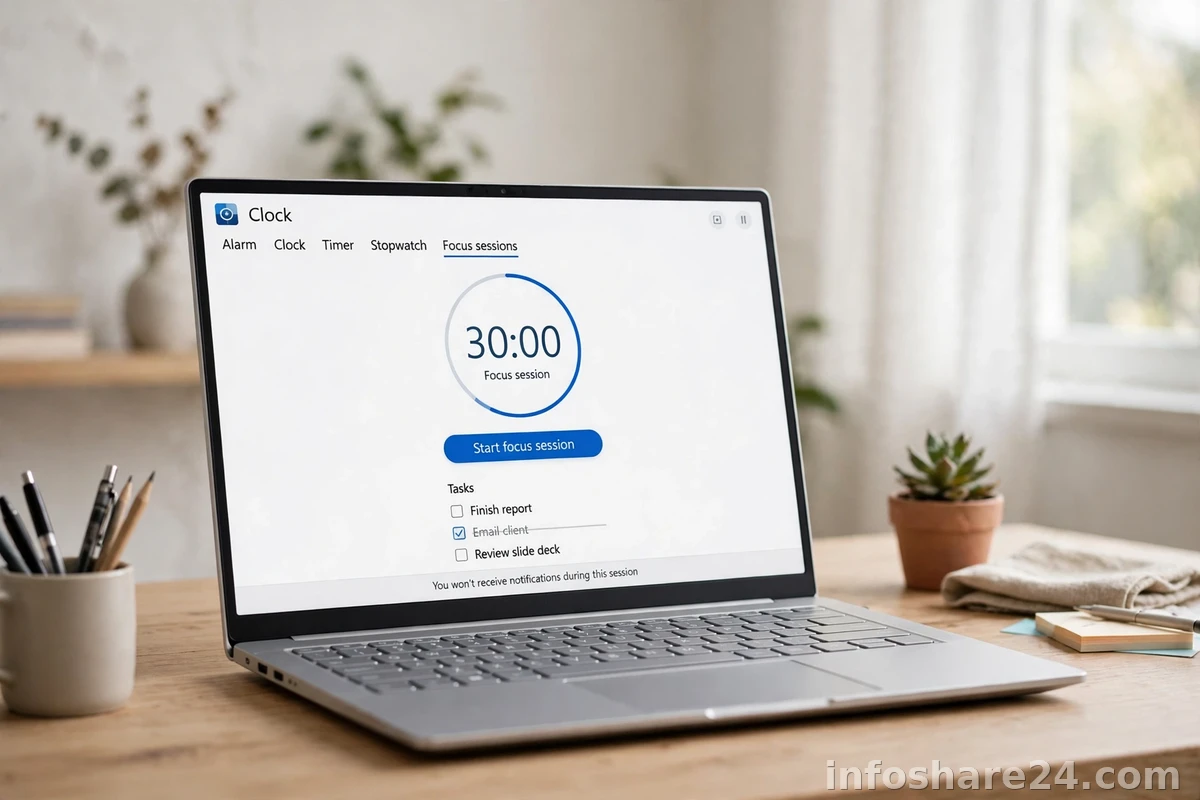
A Focus Session is a timed block of work. You choose a length, press start, and Windows counts down. When the time ends, a gentle sound plays and a break begins.
While the session runs, Do Not Disturb turns on: banners and alert sounds stay quiet, and taskbar icons stop flashing. The timer keeps counting even if you switch windows.
A session can last from 5 minutes to 240 minutes (four hours). The default is 30 minutes. Short sessions run straight through; longer ones are split into focus periods with short breaks, which you can turn off with Skip breaks. Note what it cannot do: it does not close apps, block websites, or stop email. It silences the noise — staying on one task is still your choice.
How to Start Your First Focus Session
You only need the Clock app, which comes with Windows 11. If it is missing, install Windows Clock again free from the Microsoft Store.
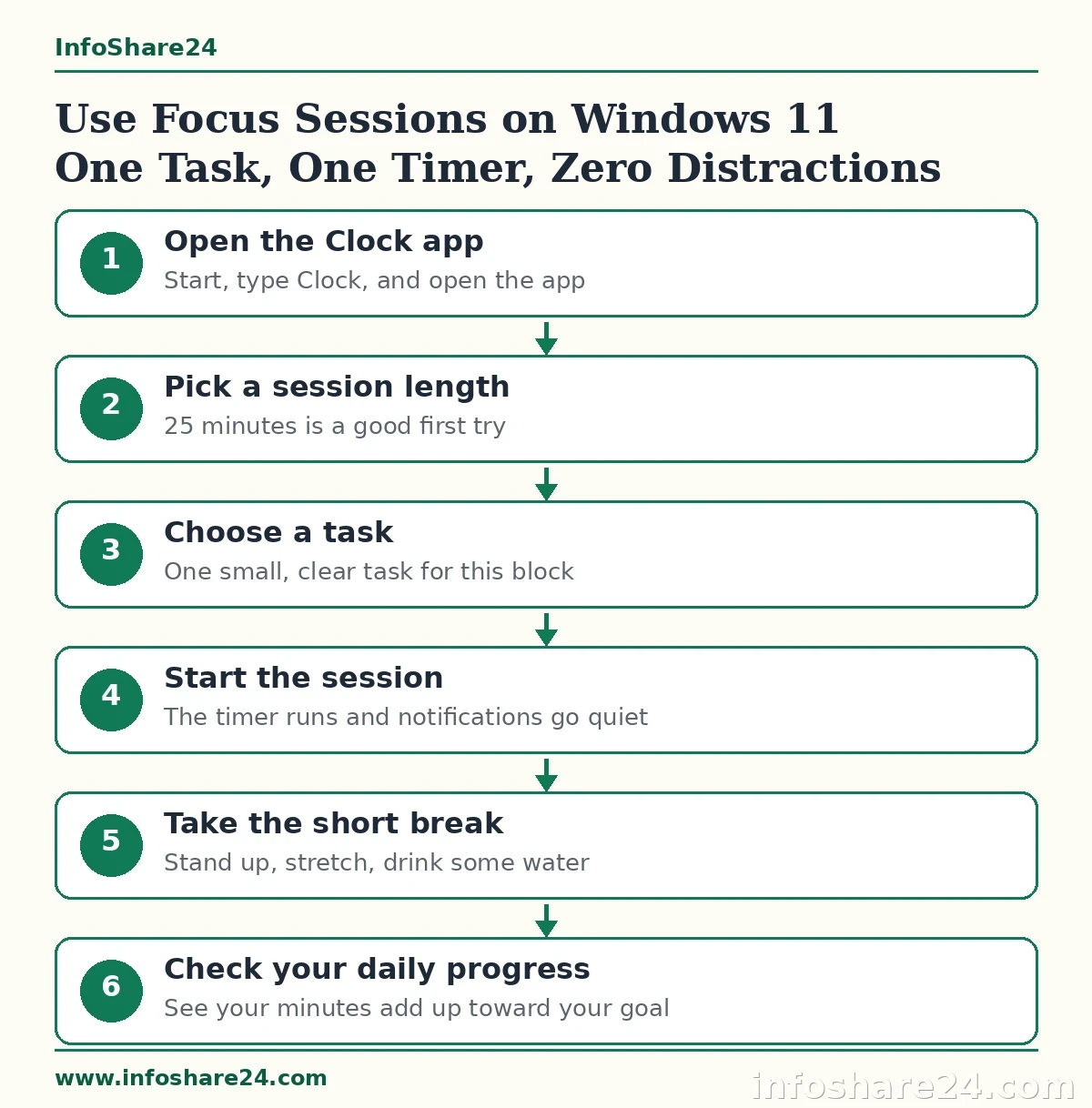
- Open the Clock app. Click Start, type Clock, and open the app from the search results.
- Select Focus sessions. Click Focus sessions in the left-hand menu. The first time, you may need to click Get started.
- Set the session length. Use the plus and minus buttons around the timer. For your first try, choose 25 minutes, the classic Pomodoro length, and leave breaks on.
- Pick one task. Choose a task from the Tasks panel below the timer, or type a short one, such as “Finish the report draft”.
- Click Start focus session. The timer starts counting down, and Do Not Disturb turns on.
- Work on that one task until the timer ends. When the chime plays, take the short break, then start the next block.
That is the whole routine. Repeat it three or four times for a solid morning, with a longer break after the fourth. For more Windows tricks, see 10 Windows 11 Tips to Work Faster Every Day.
Set the Right Length and Breaks
The default 30-minute session suits most tasks. Short jobs fit a 25-minute block, while deep work such as writing often feels better at 45 or 50 minutes.
To change the lengths, click the Settings gear at the bottom of the Clock app’s left pane and look under Focus sessions. There you can set the Focus period and the Break period, and choose the end sounds. Start short and build up: use 25-minute sessions for a week, and try 45 minutes only when those feel easy. If your PC feels slow while you work, fixing that helps focus too — see How to Speed Up a Slow Windows PC: A Step-by-Step Checklist.
Link Do Not Disturb So Notifications Stay Quiet
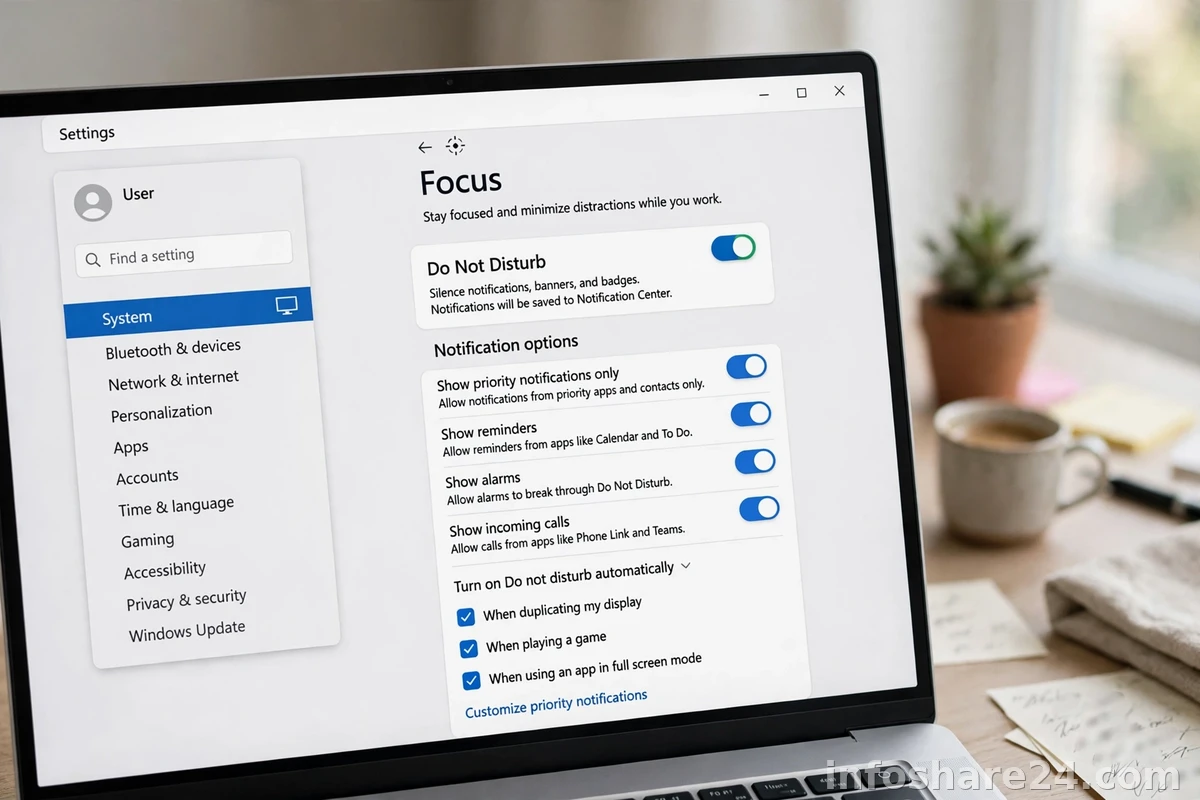
A timer that lets every ping through is just a clock. Check that the link to Do Not Disturb is turned on.
Go to Settings, then System, then Focus, and turn on “Turn on Do Not Disturb when I start a focus session”. On the same page, you can still allow calls and reminders through. If Do Not Disturb was already on before your session, it stays on after it ends.
You can also start a quick session without the Clock app: press Windows key + N, pick a length under the calendar, and select Focus. This quick way has no task list or daily goal, so use the Clock app for the full version.
Add One Task With Microsoft To Do
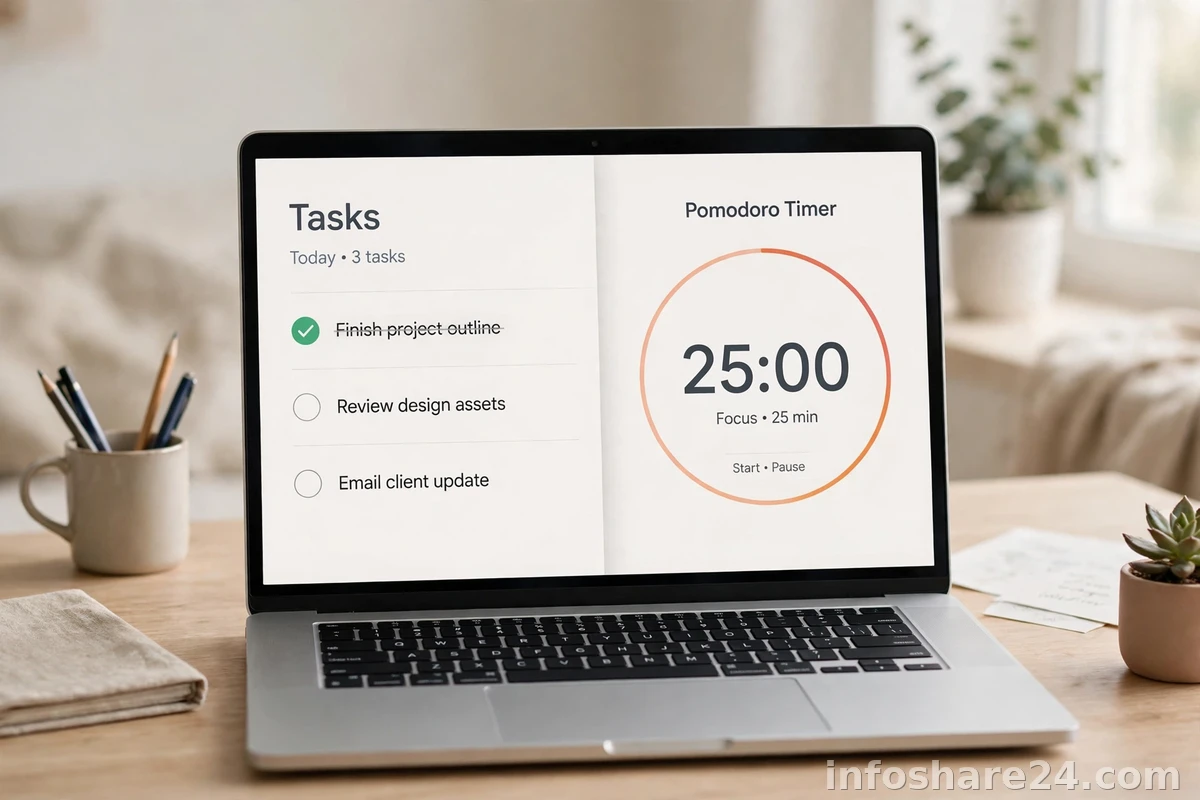
Focus Sessions can show one task from Microsoft To Do while you work. Sign in to the Clock app with your Microsoft account, and your To Do tasks will appear in the Tasks panel.
Pick a task before you start, and it stays highlighted for the whole session. You can add a task from the panel and tick it off between sessions, and the list stays in sync with the To Do app on your phone. Keep it small and clear: “Write the first two pages of the report” is a task you can finish; “Write the report” is too vague.
Add Music With Spotify (Optional)
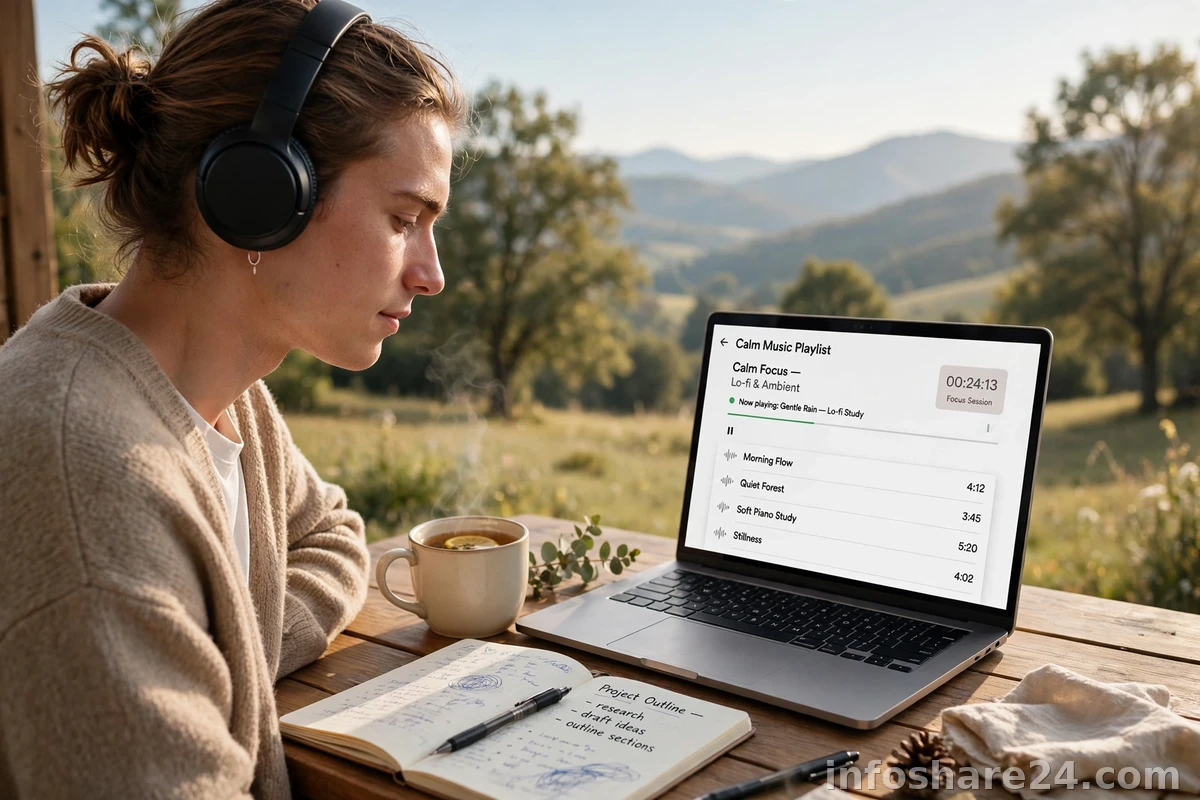
If music helps you concentrate, Focus Sessions can link to Spotify. In the Spotify panel, select Link your Spotify and sign in. Whatever you pick starts playing when the session starts and pauses when a break begins.
You need your own Spotify account, and the feature may vary by region. It is fully optional — many people focus better in silence. If you do use it, pick calm music without lyrics, such as soft piano.
Track Your Daily Goal and Streak
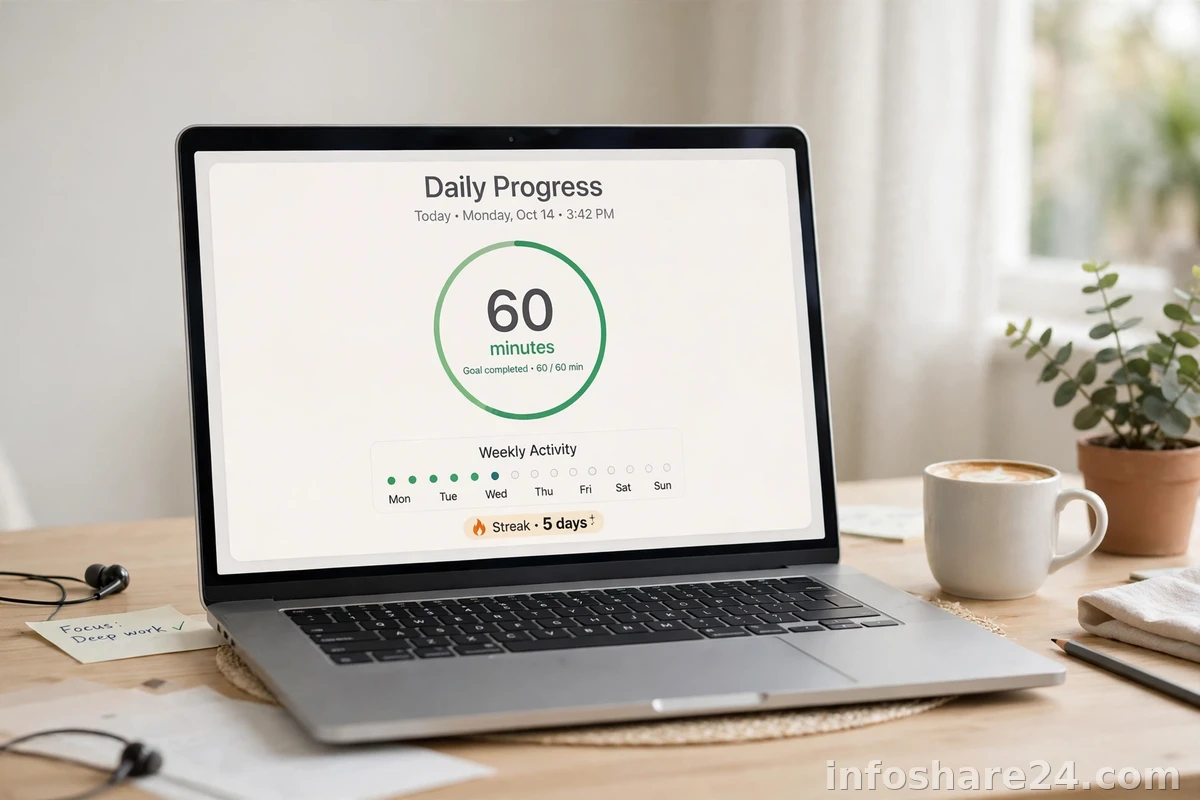
The Daily progress panel adds up your finished sessions and compares them with a daily goal. It also shows how much you focused yesterday and a Streak, the days in a row you hit your goal. Click the pencil icon to change the goal, choose when your day resets, and decide whether weekends count.
A realistic goal is 120 to 180 minutes of focused work per day. Set it low at first — 60 minutes a day — and raise it only after you hit it for a full week.
What Focus Sessions Cannot Do (and What Helps Instead)
Focus Sessions silences notifications, but it does not stop a browser tab, a game, or a short video feed. Close the extra tabs before you press start and put your phone on silent in another room. For phone distractions, see How to Use Android Digital Wellbeing to Reduce Screen Time. It also needs a person to press start — it will not begin by itself at 9 AM — so start your first session at the same time every day. If Windows itself needs attention first, such as an update that keeps failing, fix that before your focus block — see How to Fix Windows Update Errors. One task per session is the rule: if a new idea pops up, write it down and deal with it in the break.
Frequently Asked Questions
Is Focus Sessions free on Windows 11?
Yes. It is built into the Clock app on Windows 11, so there is nothing to buy or install. If the Clock app is missing, reinstall Windows Clock free from the Microsoft Store.
How long should a Focus Session be?
Start with 25 minutes, the classic Pomodoro length, with a 5-minute break after it. When that feels easy, try 45 or 50 minutes. Sessions can be set from 5 minutes up to 240 minutes.
Does Focus Sessions turn on Do Not Disturb automatically?
Yes, when the link is turned on in Settings, then System, then Focus. It turns on when the session starts and off again when it ends, unless it was already on before.
Conclusion
Focus Sessions Windows 11 is a small, free tool that solves a real problem: it gives your work a clear start, a clear end, and quiet in between. Open the Clock app, pick 25 minutes, choose one task, and press Start focus session.
Try it for one week, with a daily goal of just 60 minutes. You may be surprised how much you finish when the timer, not your inbox, decides what happens next.