You think of something important while you are out — a gift idea, a bill to pay — and by the time you get home, it is gone. Google Keep is Google’s free note-taking app, built for exactly that moment. Open it, type a few words, and the thought is saved. It works on Android, iPhone, and at keep.google.com, and every note syncs to your Google Account.
Keep is not a heavy app for long documents. It is a pocket full of digital sticky notes: quick to open, easy to scan, and simple to search. You can make text notes, checklists, voice notes, drawings, and photo notes, then organise them with colours and labels.
What Is Google Keep and What Can It Do?
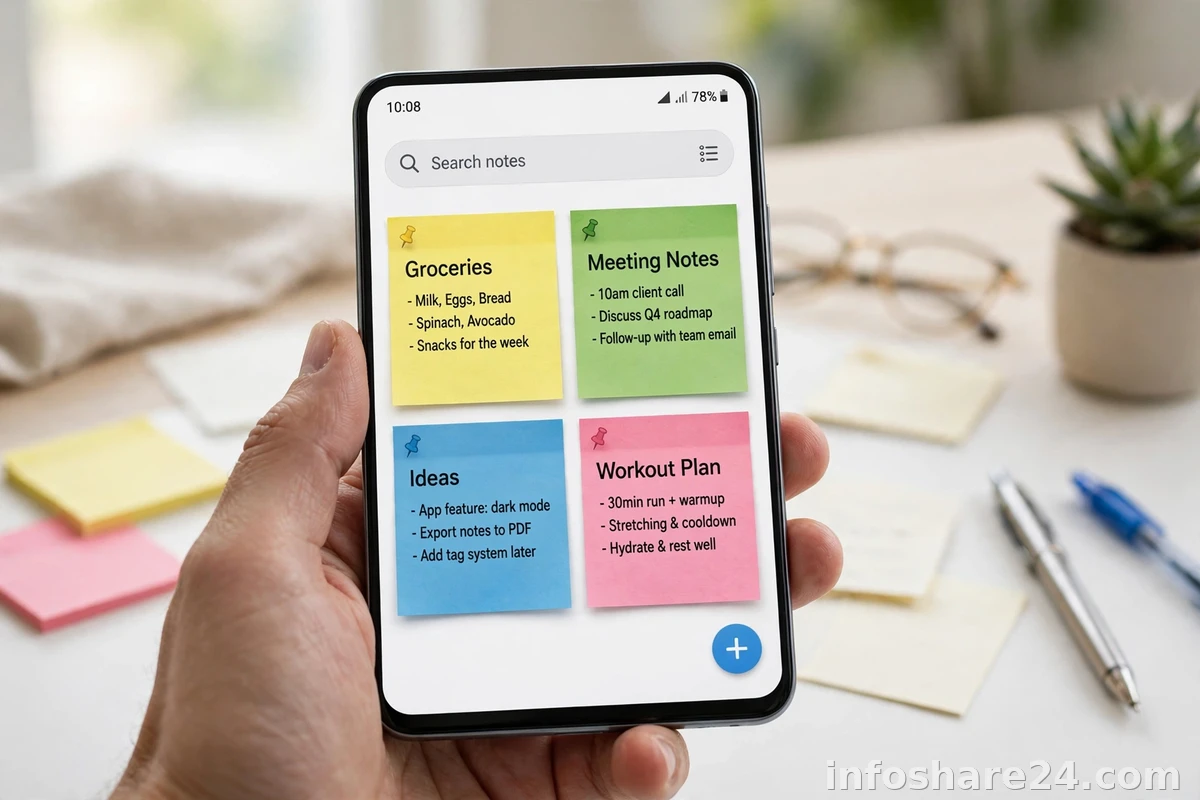
Google Keep is a free app from Google for quick notes — no paid version, no subscription. If you have a Google Account, you already have it. Most Android phones come with it installed; iPhone users can download it free, and on a computer you just open keep.google.com.
Keep handles five kinds of notes: text, checkbox lists, photos, voice notes transcribed into searchable text, and drawings. Everything syncs through your Google Account, so a note made on the bus is on your laptop when you sit down. You can also work offline. Your notes are backed up with your account — one more reason to keep your phone backed up, as explained in Back Up Your Phone in 5 Minutes: Photos, Contacts and Files — and it sits among the Best Android Apps for Everyday Life in 2026 because it does one job well: remembering things.
How to Use Google Keep: Your First Note in 5 Steps
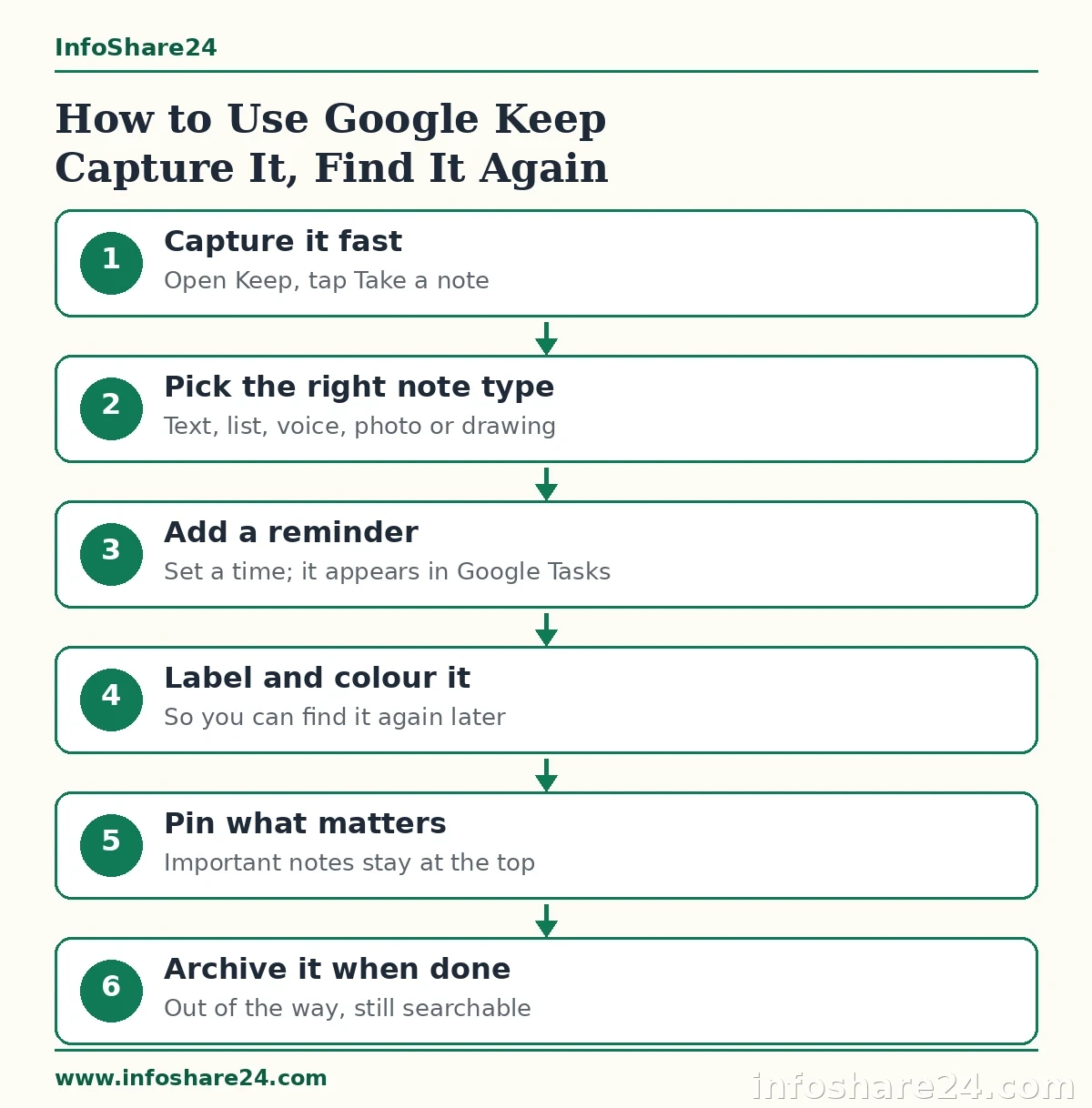
Your first note takes less than a minute.
- Open Google Keep and sign in. On Android, look for the yellow lightbulb icon. On iPhone, install it from the App Store. On a computer, go to keep.google.com.
- Tap “Take a note” and write a title. Give it a short title, such as “Gift ideas for Mum”, then write the details below.
- Pick the right kind of note. For shopping, tap the checklist icon so every line becomes a tick box. While driving, tap the microphone and speak. For a poster or price tag, tap the image icon and take a photo.
- Give it a colour or a label. Tap the palette icon to colour it — red for urgent, yellow for ideas, green for money. For labels, open a note, tap More, then Add label. You can have up to 50 labels.
- Pin it or set a reminder. Tap the pin icon and the note stays at the top until you unpin it. To be reminded later, tap “Remind me” and pick a date and time.
Make Lists That Actually Get Done
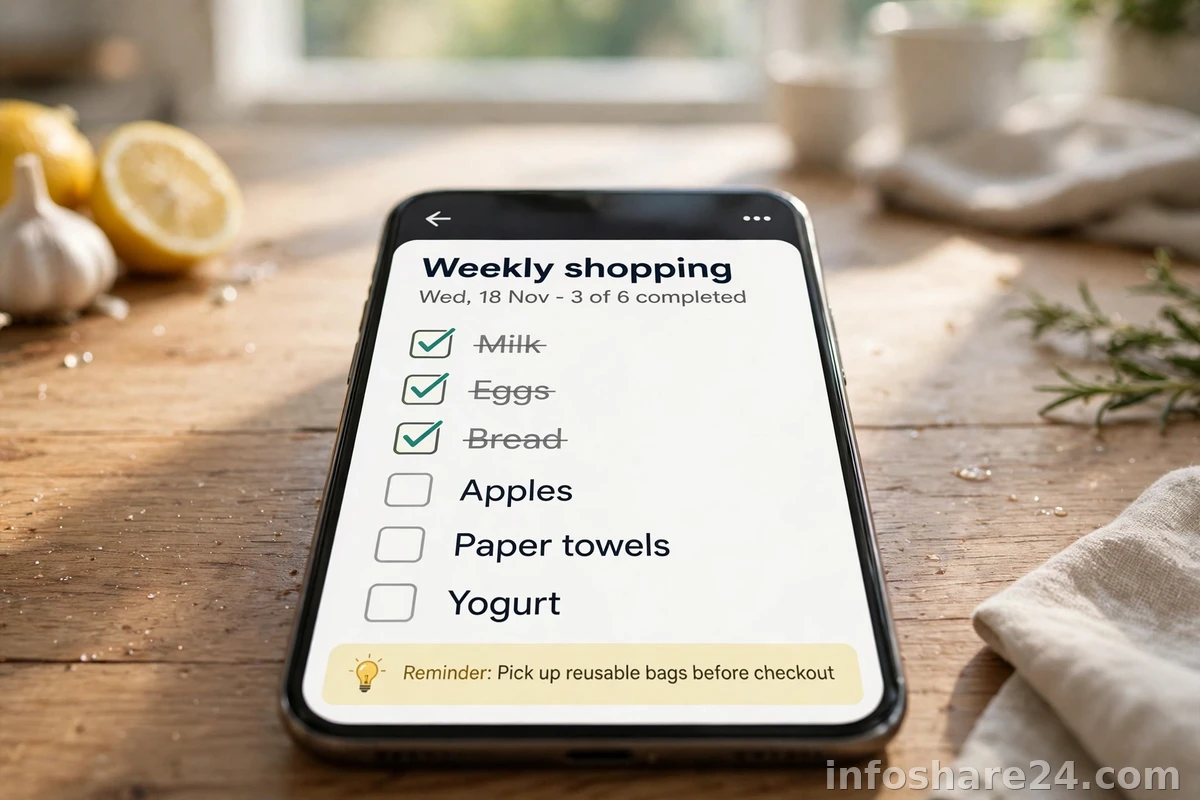
Lists are where Google Keep earns its place: a checklist asks to be finished. Start with one list per job — “Weekly shopping”, “Packing for Dhaka trip”. Tap an item to tick it off, and it drops to the bottom, greyed out.
Share a list when someone else needs it too: open it, tap the collaborator icon, and add their email address. They can tick items off from their own phone. But if the owner deletes a shared note, it disappears for everyone.
Keep is a notes app, not a task manager — no folders, no bold or headings. A note is capped at around 20,000 characters. If a note grows into a full document, send it to Google Docs from the More menu.
Reminders in Google Keep: What Changed in 2025
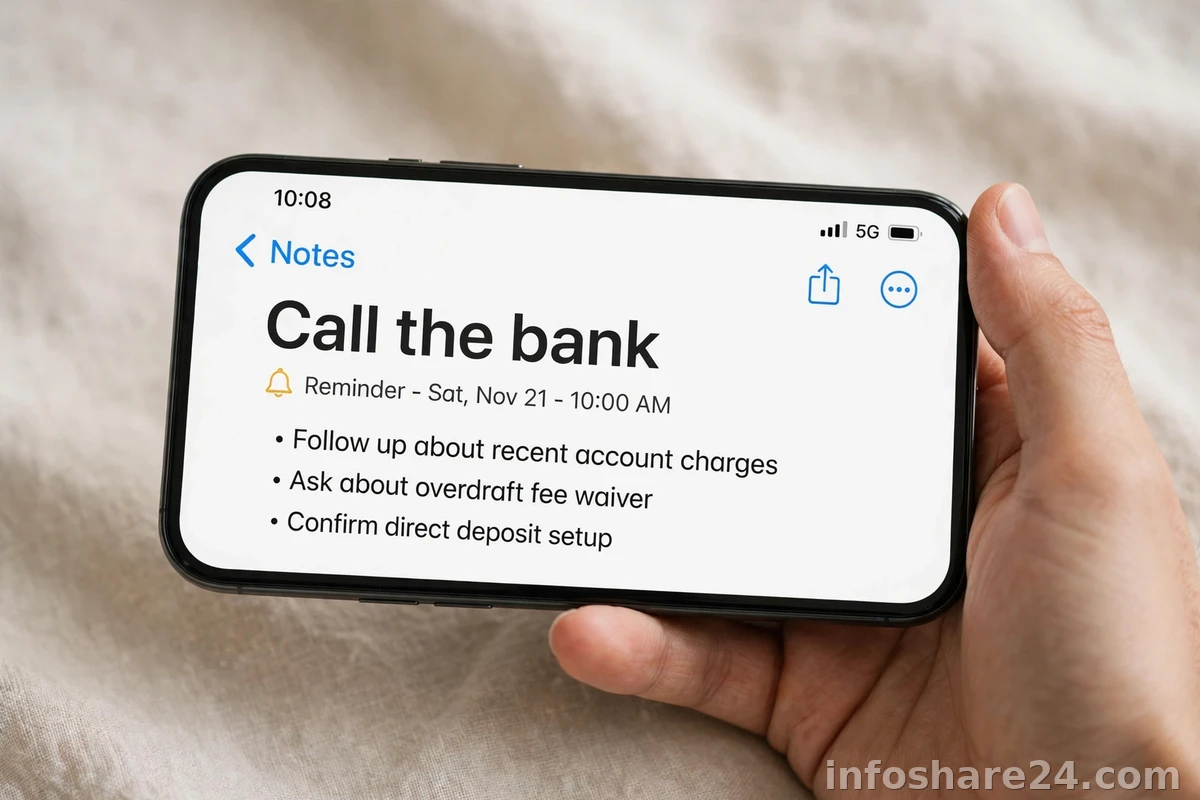
Reminders changed recently, so older guides get this wrong. Here is the current picture, checked in November 2026.
Time reminders still work: open a note, tap “Remind me”, and pick a date and time, or a repeating schedule. Since October 2025, Google has been moving Keep reminders into Google Tasks — your reminder still fires, but the notification comes from Tasks. If you cannot find it in Keep later, check Tasks first.
Location reminders are gone. You used to be able to set one that fired when you arrived at a place, such as “buy milk when I reach the market”, but Google removed that feature from Keep and Tasks — use a time reminder instead. Keep also shows an overdue reminder in red but does not keep notifying you.
Find Any Note in Seconds: Labels, Colours, Pins and Archive
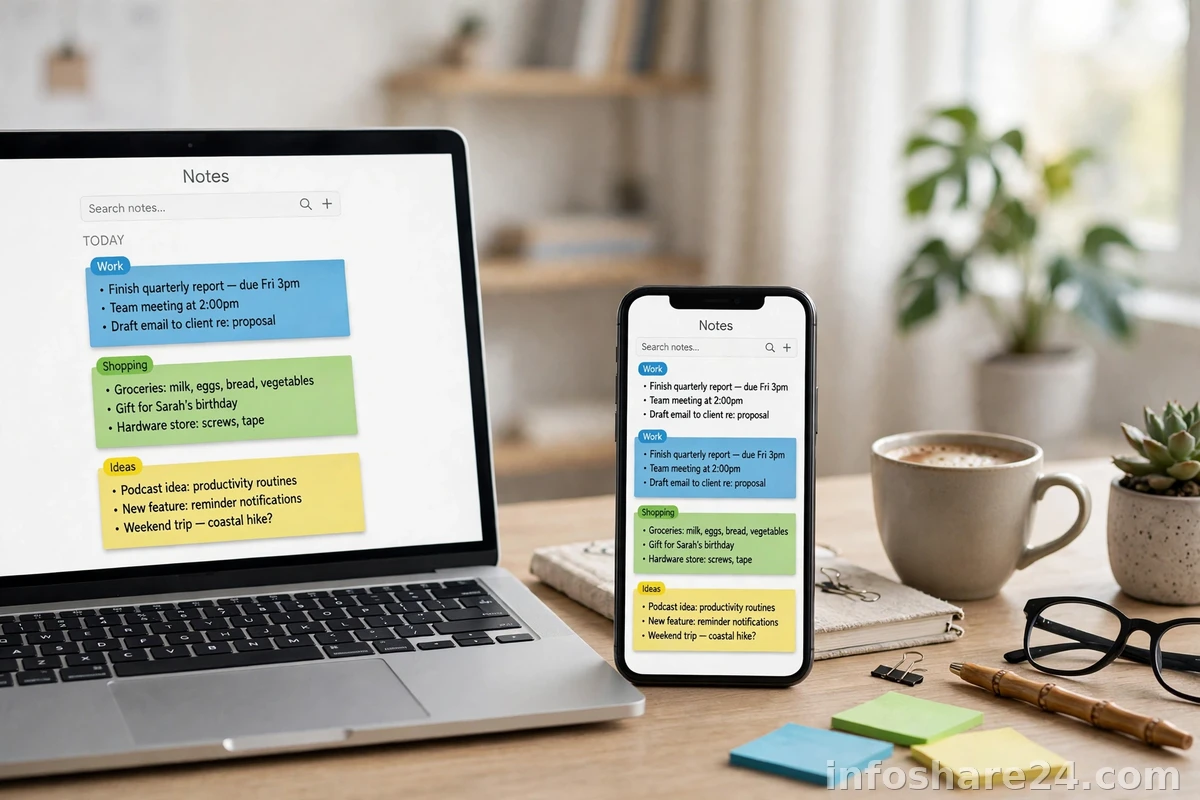
Labels are your filing system. Since Keep has no folders, create labels like “Work” or “Gift Ideas” and attach them to notes. Tap a label to see every note with it.
Colours are your second system: labels for the topic, colour for the state — red for urgent, yellow for ideas, blue for reference. Pins keep today visible: pin the few notes you need this week and they stay at the top; unpin them when the week is over.
Archive instead of delete. Finished with a note but might want it again? Tap Archive: it leaves the main screen but stays searchable. Deleted notes sit in Trash for only 7 days, then they are gone for good — much shorter than Google Drive’s 30 days.
Then there is search: it finds words in your notes and labels, and even text inside photos. It is the same cloud sync described in What Is Cloud Storage and How to Choose the Right One.
Voice Notes, Photos and Drawings
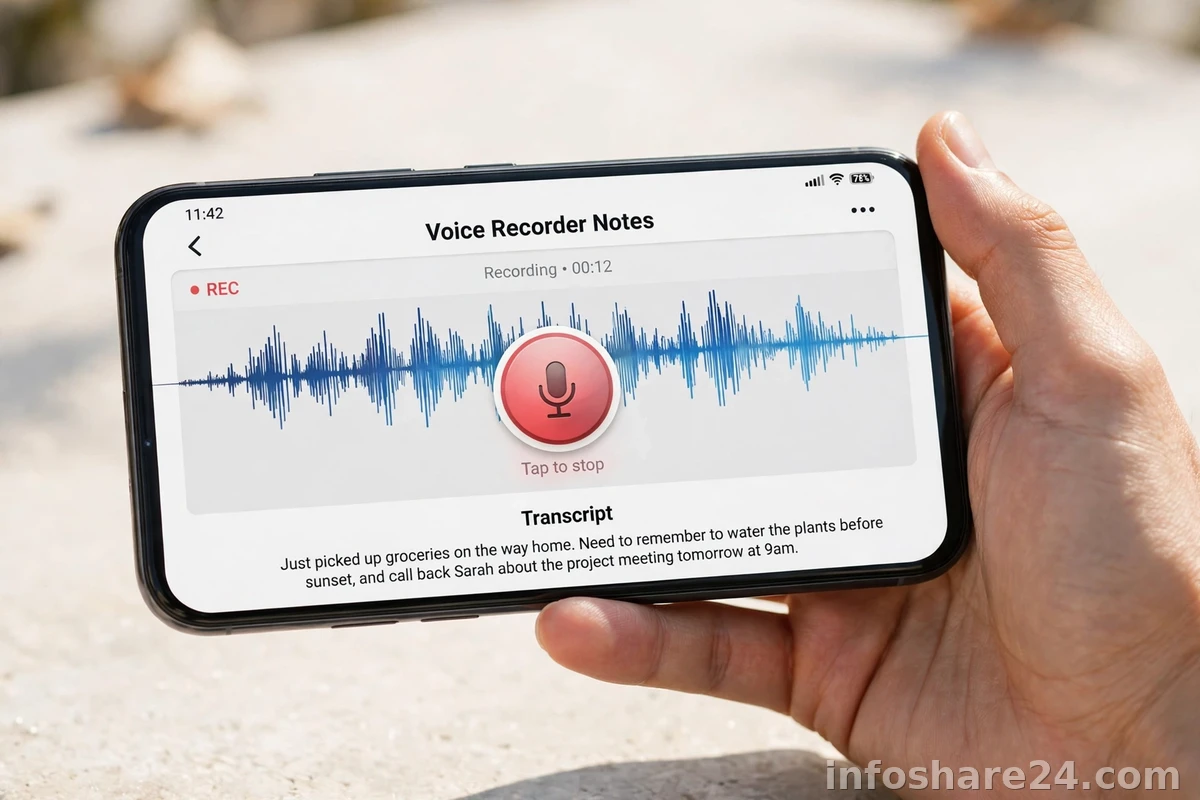
Some thoughts are faster spoken than typed. Tap the microphone and talk: you get the recording and a written transcript, and the transcript is searchable. Voice notes work on mobile only, not on the web.
Photos turn Keep into a visual memory: snap a whiteboard, a price tag, or a business card, and add a line of text so you remember why you saved it. For documents you want clean and readable, a proper scan works better — see How to Scan Documents with Your Phone Camera. Drawings are for the rest: a quick sketch or hand-written note, made with a finger or stylus.
5 Simple Habits That Make Google Keep Work for You
- Capture in under ten seconds. A quick note beats a perfect note you never make.
- One note, one job. “Shopping” and “Call the bank” belong in two notes, not one.
- Archive ruthlessly. A note you have not opened in a month can be archived — search will still find it.
- Use colour as a signal, not decoration. Pick four colours, give each one a meaning, and stick to it.
- Do a two-minute weekly tidy. Every Friday, tick off finished lists and archive done notes.
Frequently Asked Questions
Is Google Keep really free?
Yes. Google Keep is completely free with any Google Account — no paid version, no subscription. Google sells a separate Google AI plan that adds an AI voice feature called Keep Live, but everything in this guide costs nothing.
Can I use Google Keep without installing the app?
Yes. Open keep.google.com in any browser and sign in — you get the same notes, synced. Only voice recording is missing on the web; that works on the mobile app only.
What happens when I delete a note in Google Keep?
It goes to Trash, where you can restore it for 7 days; after that it is deleted permanently. If you only want a note out of the way, use Archive instead — archived notes stay searchable.
Conclusion
Google Keep works because it asks almost nothing of you: open it, write a few words, and the thought is safe. Start with one list and one pinned note today. Capture it fast, label it once, archive it when it is done.