You post a photo you are proud of — a family picture, a product shot, or a landscape from a trip. A week later you find the same photo on someone else’s page, with no credit. If you want to protect photos from being stolen online, you need more than one trick: no single setting makes a photo theft-proof, because anyone who can see a photo can screenshot it.
A few layers together make theft much harder to spot and stop: a watermark, privacy settings, location removal, and a monthly search.
Why Your Photos Get Stolen (and What Actually Stops It)

Most photo theft is not done by hackers. Ordinary people and automated accounts copy anything that looks good: product photos for a fake shop, portraits for a fake profile, travel photos for a blog that never asked. A public photo is, in practice, a photo anyone can take.
So before you share a photo, ask three questions. Who can see it? Does it carry your name? Does it carry hidden information about you? If the answers are “everyone”, “no”, and “I don’t know”, the photo is easy to steal and hard to prove as yours.
How to Protect Photos from Being Stolen Online in 6 Steps
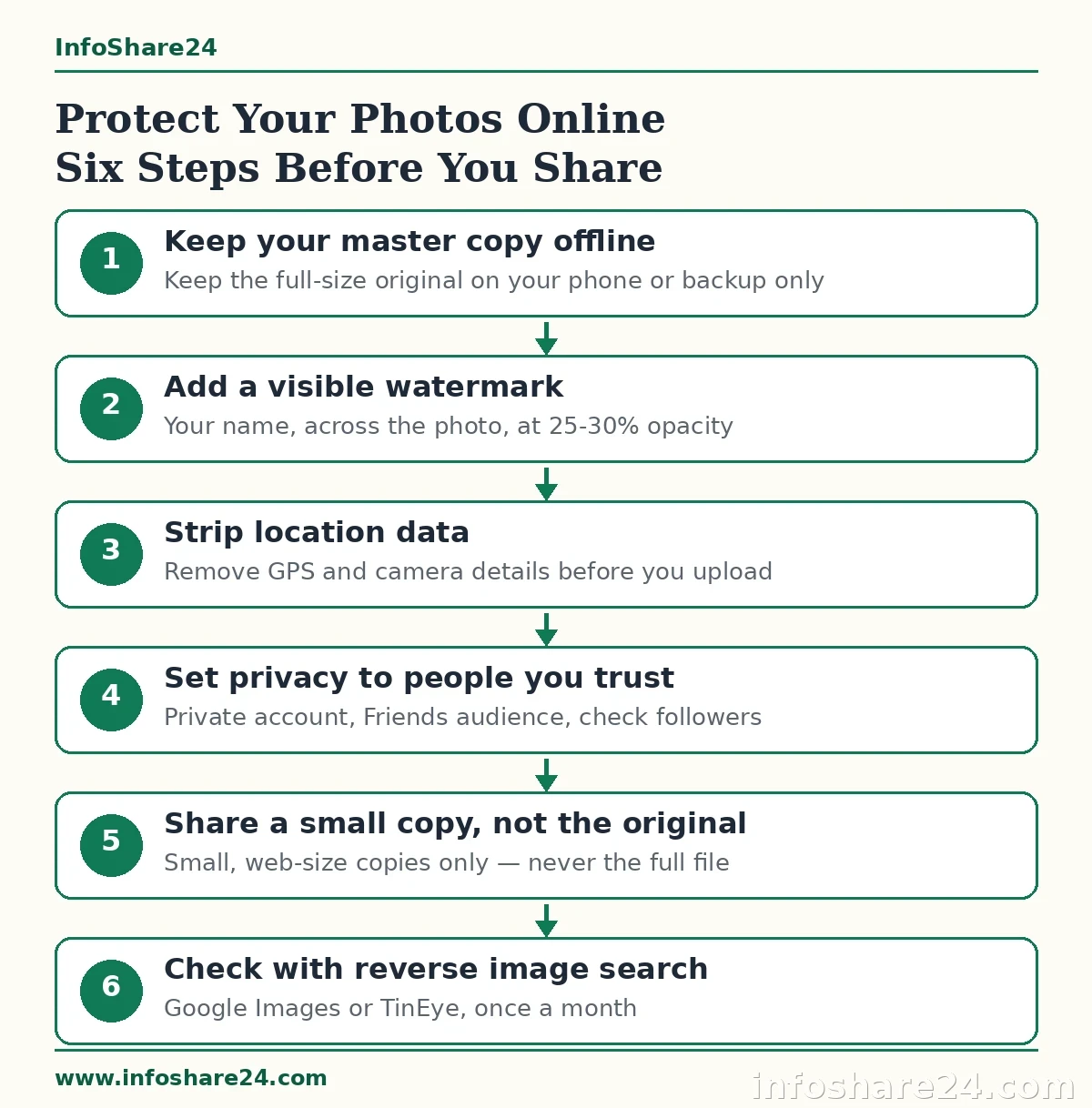
Follow these six steps before you share a photo. They take about ten minutes the first time.
- Keep your master copy offline. Save the full-size original in a private backup (Back Up Your Phone in 5 Minutes), and share only a smaller copy. A web-size photo cannot be printed large or sold as stock.
- Add a visible watermark. Put your name across an important part of the photo, not in a corner that can be cropped off, at about 25 to 30 percent opacity.
- Strip the location data. Phone photos can carry GPS coordinates and the date and time. Remove that hidden data before you share, as explained below.
- Set your privacy to people you trust. Switch to private or share with Friends only, and remove followers you do not know.
- Share a small copy, not the original. Export at around 1200 pixels on the long side, and keep the full-resolution file to yourself.
- Check once a month with reverse image search. Upload your most important photos to Google Images or TinEye and see where else they appear.
Add a Watermark That Is Hard to Remove
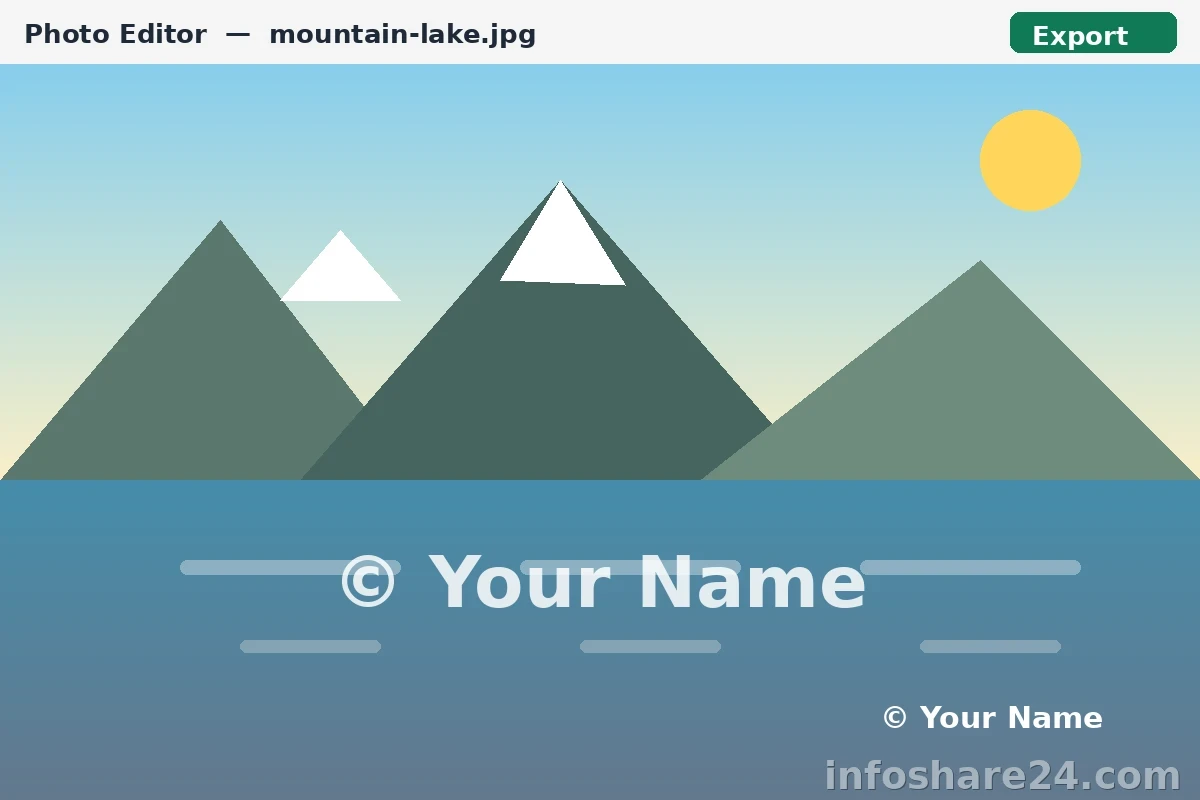
A watermark is your name, written on the photo itself, so every viewer knows who made it and a stolen copy looks stolen. The example in the photo above is “© Your Name” — replace “Your Name” with your real name, your shop name, or your website.
Use a free editor such as Canva, Photopea, or your phone’s built-in editor, and add the text as the last step before you export. Put it across the main subject, not in an empty corner, in a light colour with a slight shadow. A corner watermark can be cropped away in two seconds; one across the middle cannot be removed without damaging the photo.
Tighten Your Privacy Settings on Instagram and Facebook
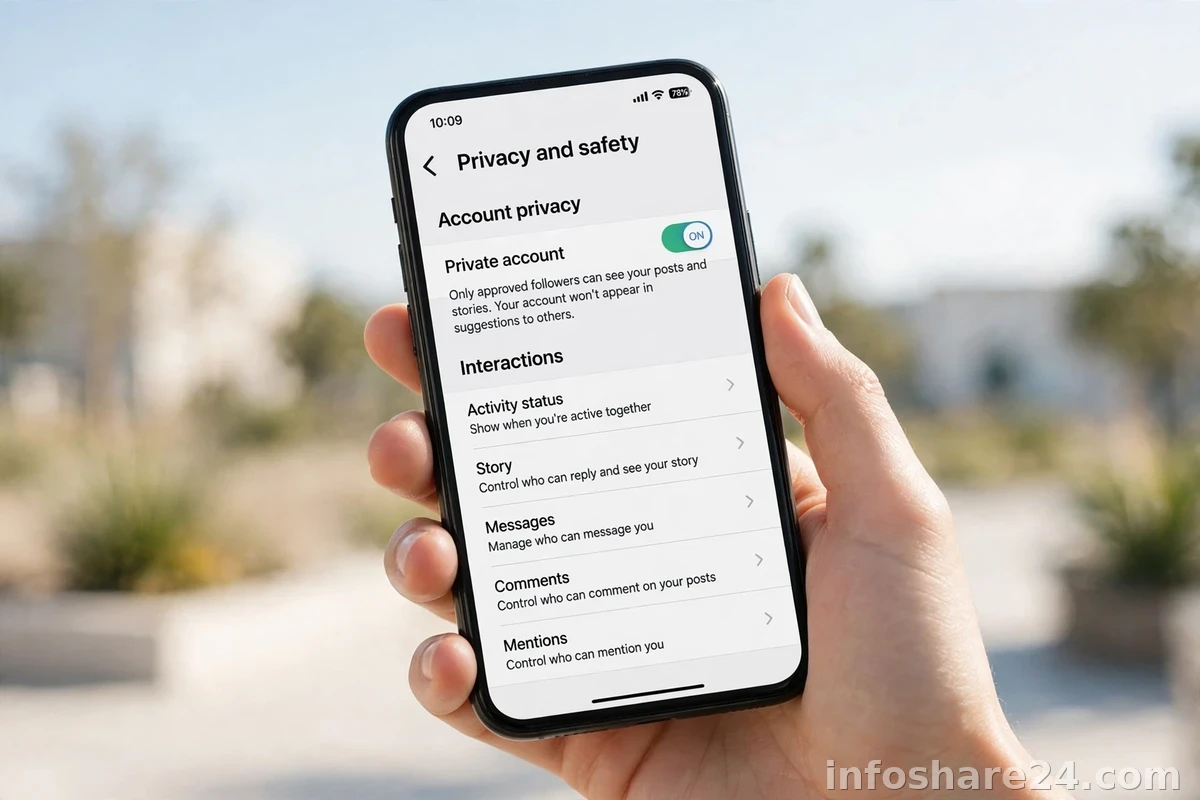
Privacy settings are the first wall around your photos. They do not take back a screenshot someone already saved — but they decide who can see your photos in the first place, and that is where most theft starts.
On Instagram, go to Settings, then Privacy, then Account privacy, and turn on Private account. Only approved followers can then see your posts, stories and Reels. A private account still shows your profile photo, name, username and bio to everyone, and business and creator accounts cannot be switched to private.
On Facebook, open a photo or post, tap the audience icon next to it — a globe, a friends icon, or a lock — and change it to Friends, or to Only Me. One exception: your current profile picture and cover photo are always public on Facebook. To protect the account itself, read How to Protect Your Facebook Account from Hackers.
Also turn on two-factor authentication — a stolen password gives a thief your whole photo library. See What Is Two-Factor Authentication and How to Turn It On.
Remove Location Data Before You Share
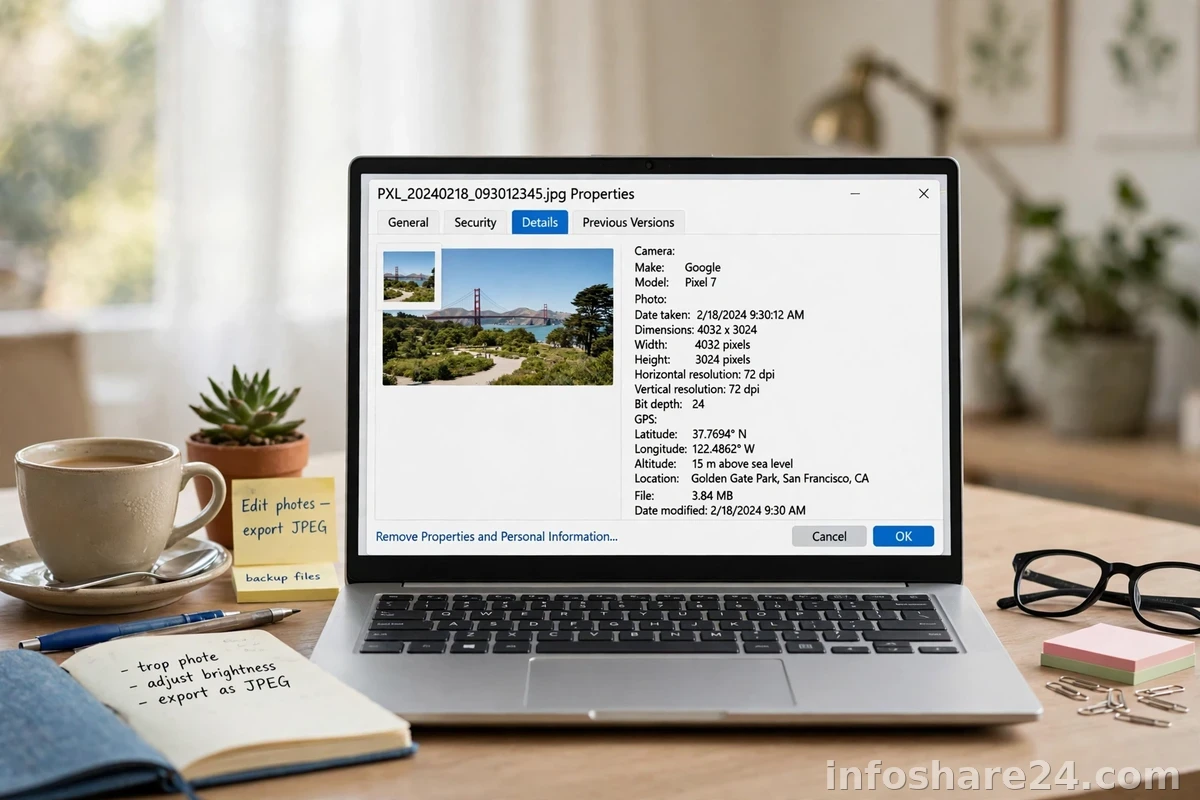
Every photo from a phone carries hidden information called EXIF data: the camera model, the date and time, and — if location was turned on — the exact GPS coordinates where the photo was taken. That location can be accurate enough to point to a house. Social networks usually strip this data, but email, messaging apps and file-sharing links often pass the original file along untouched.
On Windows, right-click the photo, choose Properties, open the Details tab, and click “Remove Properties and Personal Information”, then tick the GPS location and click OK. On an iPhone, go to Settings, then Privacy and Security, then Location Services, find Camera, and set it to Never. On Android, turn off “Save location” in the Camera app settings.
Find Stolen Photos and Get Them Taken Down

Even with good habits, a photo can still be copied. The way to find out is reverse image search: instead of searching with words, you search with the picture itself. Go to Google Images and click the camera icon, or open TinEye, and upload your photo — or paste the link to your original. Save screenshots of any copy you find, with the web address visible, as proof.
When you find a stolen copy, start with the platform’s own copyright form — Instagram, Facebook, TikTok, Pinterest, X and YouTube all have one. Report the exact post link, not just the profile, and include a link to your original. You do not need a lawyer or a registered copyright: your copyright exists from the moment you take the photo.
If the copy is on a website rather than a social app, send a DMCA takedown notice — a formal written request under a United States law from 1998, asking the host to remove content that infringes your copyright. It must include your signature, a description of your original work, the exact address of the copy, your contact details, and a statement under penalty of perjury that you are the owner. Send it to the site’s copyright agent or its host, and keep a copy. Most platforms act within a few days.
Also ask Google to remove the copy from search results — that alone does not remove the photo from the website, so do both steps. If your account itself was taken over, see How to Recover Your Hacked Facebook Account.
Frequently Asked Questions
Can someone steal my photo even if my account is private?
Yes, but it is much harder. A follower can still screenshot a photo, so a private account only limits who gets the chance.
Does a watermark stop all photo theft?
No. A watermark stops casual copying and proves the photo is yours, but a skilled editor can remove it — so this guide uses several layers together.
What should I do first if I find my photo on another website?
Take a screenshot with the web address visible, save the link, and report it through the platform’s copyright form or a DMCA takedown notice. Do not pay anyone who offers to remove it for a fee first.
Conclusion
To protect photos from being stolen online, start before you share: keep the full-size original to yourself, add a watermark with your name, strip the location data, and share only with people you trust. Then check monthly with a reverse image search, and act quickly when a copy turns up.
No method makes a photo completely theft-proof. But these six steps make your photos a poor target: hard to reuse, easy to trace, and quick to remove.