Type a sentence, and a few seconds later you have a moving video. That is the promise of free AI video generators — and in 2026, it mostly works. You can turn a photo into a short clip, or build a faceless video for Shorts, TikTok, or Reels without a camera. But “free” has limits: most free plans give you clips of about 5 seconds, a small pool of credits, and a watermark. Here are the best options as of November 2026.
What “Free” Really Means in 2026
A free AI video generator gives you a small allowance: credits that refill daily, credits that refill monthly, or a one-time pile that never comes back. When they run out, you wait — or pay.
Three limits matter most. First, clip length: most free clips run about 5 seconds. Second, watermarks: most free exports carry a visible logo, and removing it costs money. Third, commercial use: free clips are usually for personal use only. Two famous names are gone: OpenAI’s Sora shut down in April 2026, and Luma Dream Machine no longer lists a free plan.
Best Free AI Video Generators at a Glance
| Tool | Free plan (Nov 2026) | Clip length | Watermark |
|---|---|---|---|
| Kling AI | Daily login credits | About 5 seconds | Yes |
| Hailuo AI | Welcome credits, a few clips a day | About 6 seconds | Yes |
| Runway | 125 credits, one-time only | About 5 seconds | Yes |
| Pika | About 80 credits a month | 5–10 seconds | Yes |
| Google Flow | 50 credits a day | 4–8 seconds | Invisible mark |
| Canva Magic Media | Only a handful, in total | 4 seconds | No |
| CapCut | Free editor, metered AI tools | Full-length editing | Only on Pro items |
| InVideo AI | About 10 minutes a week | Full videos | Yes |
1. Kling AI — Best for Realistic Motion
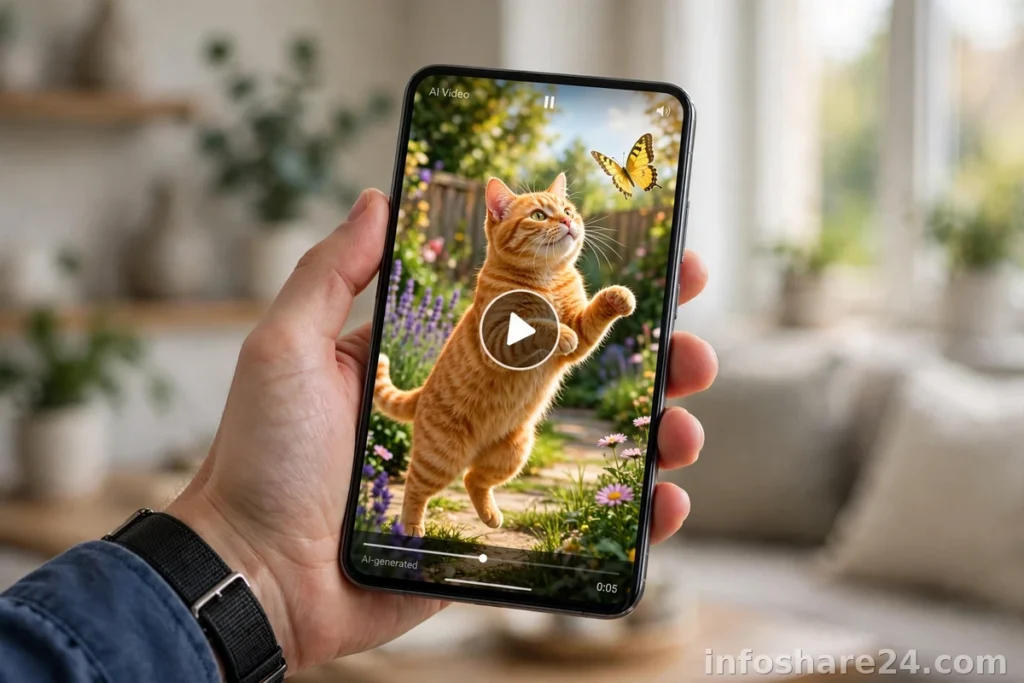
Kling, from Kuaishou, is the first free tool to try when realism matters. Free accounts get login credits — commonly reported as around 66 a day, though some November 2026 checks found the grant is monthly, so check your own account. Free clips run about 5 seconds at 720p, watermarked, personal use only.
2. Hailuo AI — Best for Faces and Camera Moves
Hailuo, from MiniMax, is the best free choice for expressive faces and dramatic camera moves. The free offer is a welcome-credit pack: recent November 2026 checks describe about two or three short clips a day, each about 6 seconds at 768p, watermarked and for personal use only. Welcome credits may expire within a few days.
3. Runway — Best for Testing a Serious Workflow
Runway is the most professional tool on this list, and its free plan is honest about what it is: a trial, not a supply. New accounts get 125 credits once — they never refresh — enough for a handful of short clips with Gen-4 Turbo image-to-video. Free exports are watermarked, capped at 720p, for personal use only.
4. Pika — Best for Fun Short Clips
Pika is the easiest tool on this list to learn. Its free Basic plan gives about 80 video credits a month in recent checks, built for short social clips, memes, and playful effects. Free clips are capped at 480p, watermarked, and not licensed for commercial use. Caution: Pika’s pricing page has at times listed zero free credits.
5. Google Flow (Veo 3.1) — Best Daily Free Credits

Google Flow is the most generous daily free offer here, per Google’s own help pages. Every account gets 50 Flow credits a day, and they do not roll over. A Veo 3.1 Lite clip costs 10 credits — up to five short clips a day. Two catches: free users may be blocked at peak hours, roughly 2 PM to 5 PM UTC, and Google retires Veo 3.1 Fast and Quality from Flow on 5 December 2026.
6. Canva Magic Media — Best Inside a Design Tool
Canva’s Magic Media turns a text prompt into a short video clip inside your design, with no watermark on the clip itself — rare on this list. The limit is small: recent November 2026 checks put the free allowance at only 5 video generations in total, not per month; each clip is 4 seconds and silent. Clean cut-outs make AI video thumbnails look better — see How to Remove Background from Photo Free.
7. CapCut — Best for Finishing a Real Video
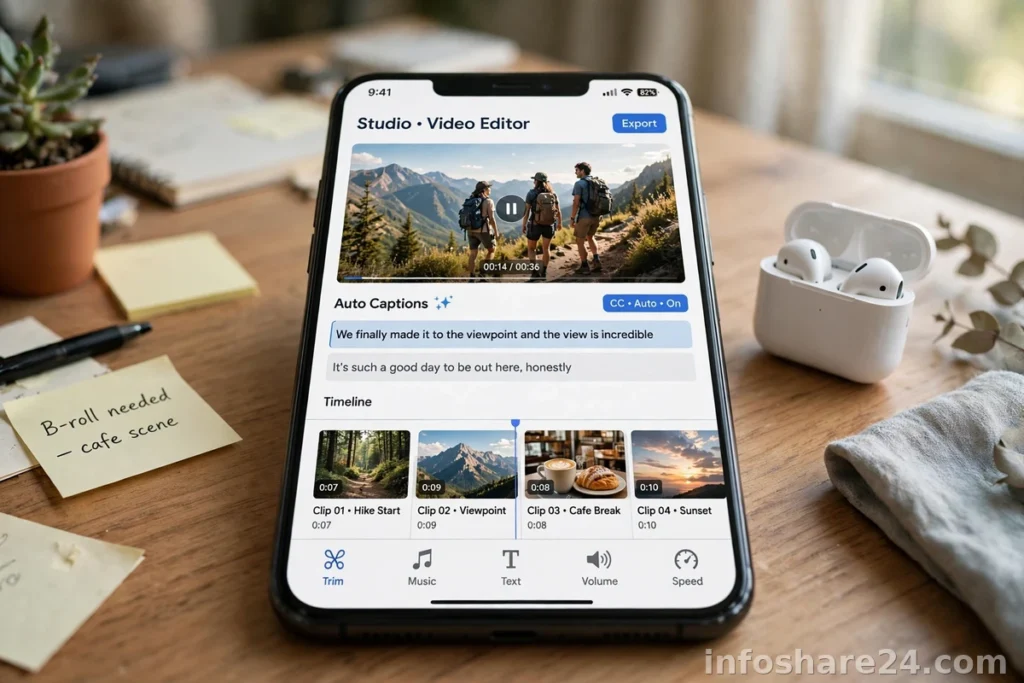
CapCut is not mainly a text-to-video generator — it is a free editor with AI tools on top. Its Script to Video turns a prompt into a script, stock clips, voiceover, and captions in one flow. A normal export of your own footage has no watermark, and you can edit full-length videos at 1080p. The catches: Pro-marked templates can add a watermark on the free plan, and the AI tools are metered. If you also film yourself, learn How to Record Your Screen on Windows and Android.
8. InVideo AI — Best for Faceless Videos from One Prompt
InVideo AI is different: one prompt becomes a complete video — script, stock footage, voiceover, and editing, all in one flow. It is the fastest route to a faceless video. The free plan allows roughly 10 minutes of AI generation per week at 720p, and every free export is watermarked. For more free AI tools, start with 5 Free AI Tools for Beginners: What They Do and How to Start Safely.
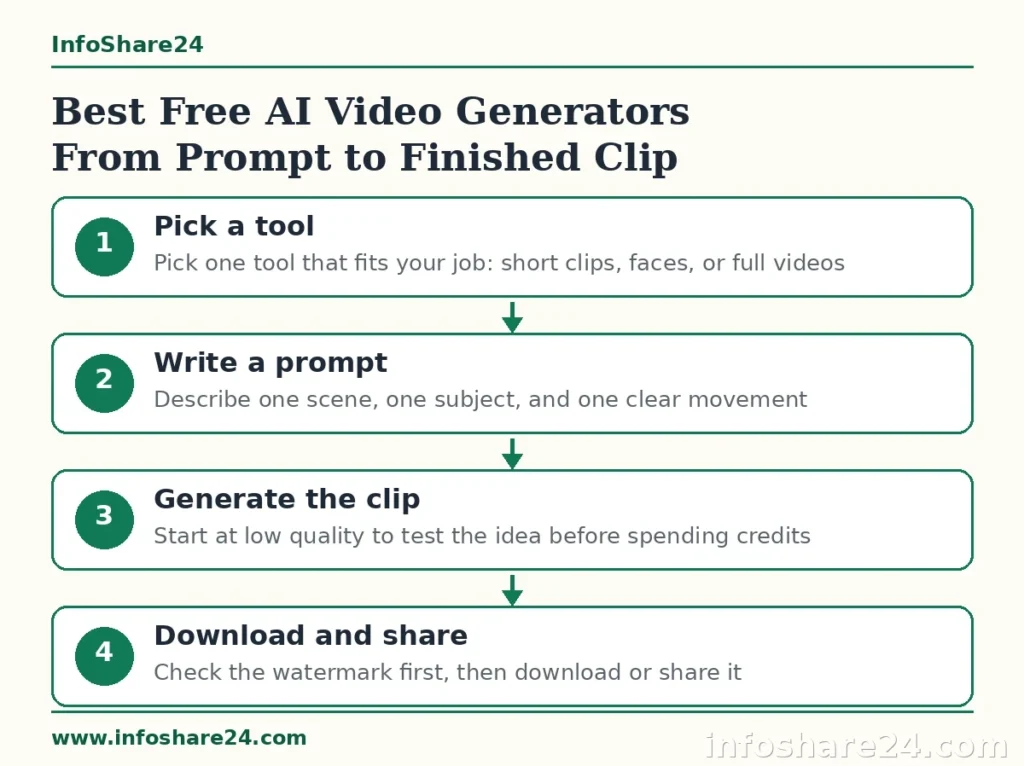
How to Make Your First Free AI Video in 5 Steps
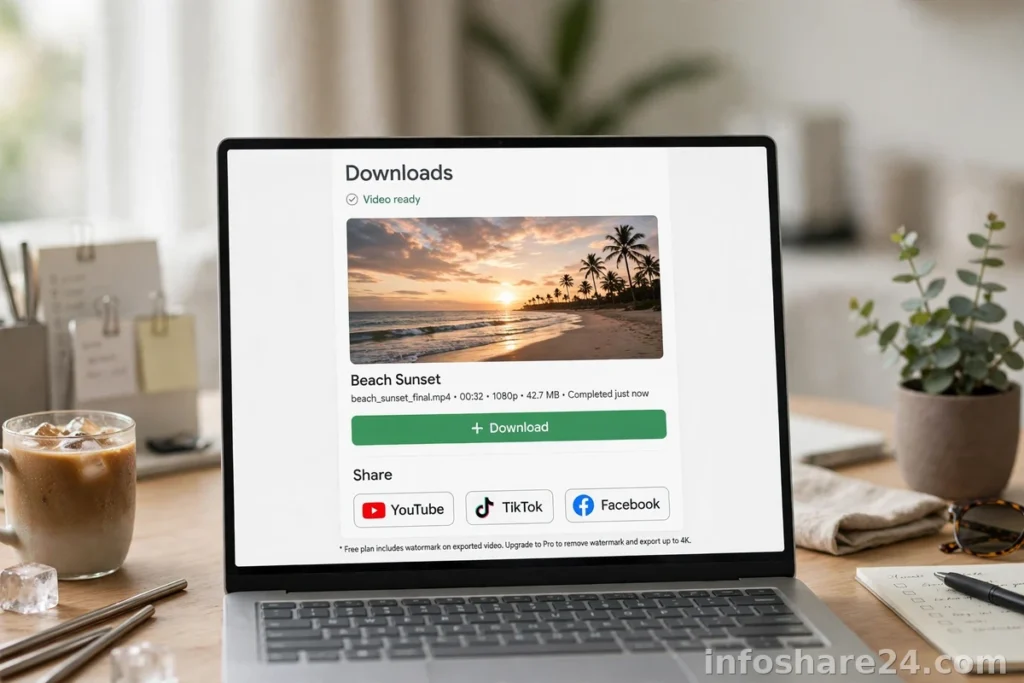
- Pick one tool from the list above. Kling for realism, Hailuo for faces, Google Flow for daily clips with sound, InVideo AI for a full faceless video.
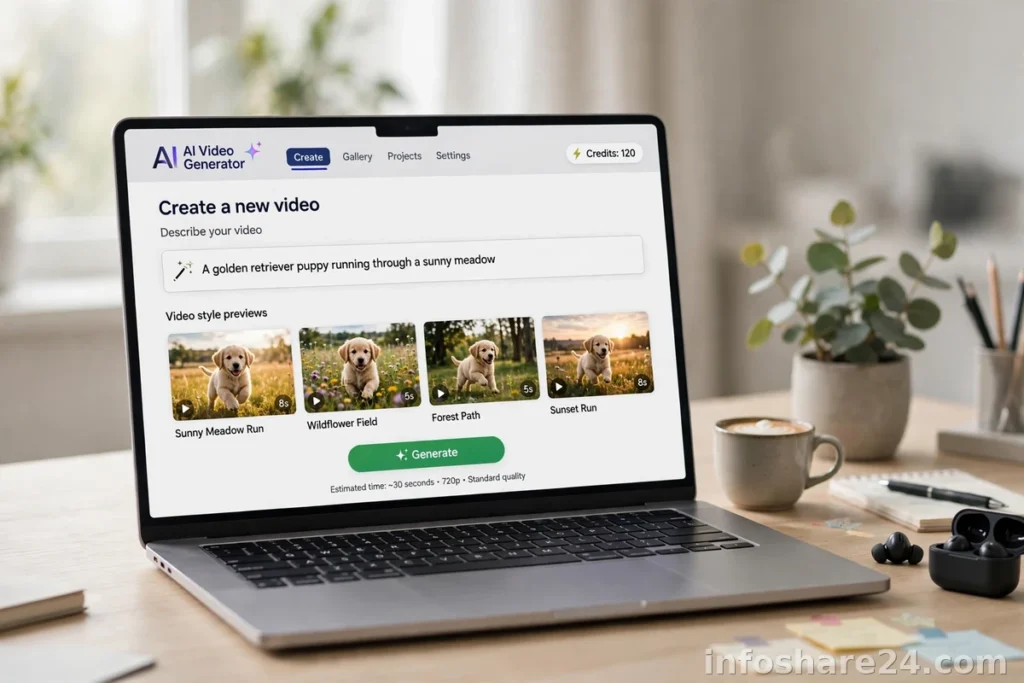
- Write one clear prompt. Describe one scene, one subject, and one movement, such as “a golden retriever puppy running through a sunny meadow”. For better prompts, see How to Write Better Prompts for AI Chatbots: A Beginner’s Guide.
- Generate at low quality first. Start with the cheapest setting to test the idea. Only spend credits on a high-quality version once the cheap test looks right.
- Check the clip first. Watch for warped hands, flickering faces, and text that turns into gibberish.
- Download it and finish it in CapCut. Add captions, music, and a hook in the first two seconds.
3 Mistakes That Waste Your Free Credits
- Writing vague prompts. “A nice video of a dog” burns the same credits as a good prompt and gives you a worse clip. Name the subject, place, and movement.
- Generating at top quality first. Test cheap, then re-run the winner at higher quality.
- Asking for too much in one clip. One scene, one action — a clip that tries to do three things fails at all of them.
Frequently Asked Questions
Which free AI video generator has no watermark?
Almost none, as of November 2026. Canva Magic Media clips have no watermark, but you only get a handful. Google Flow adds an invisible mark, and CapCut exports of your own footage have no watermark. Never crop a watermark out: it breaks the terms.
Conclusion
The best free AI video generators in 2026 are good enough for real work — short social clips, product shots, and faceless videos — if you accept the limits: about 5 seconds a clip, a small credit pool, and usually a watermark. Start with Kling or Google Flow for daily clips, add CapCut to finish them, and check the pricing page before you rely on any number here.