Open your gallery and scroll for a few seconds. How many times does the same sunset or smiling face appear? Duplicates quietly eat up storage and can slow your phone down. The good news: you do not need to delete them one by one. To find and remove duplicate photos on Android, use the free built-in tools — they find the copies for you, and you only check and confirm. Here are four safe methods, starting with the first thing you must do: back up your photos.
Before You Delete Anything
Deleting is easy; getting a photo back after it is gone forever is not. Before you remove a single duplicate, back up every photo you care about to the cloud.
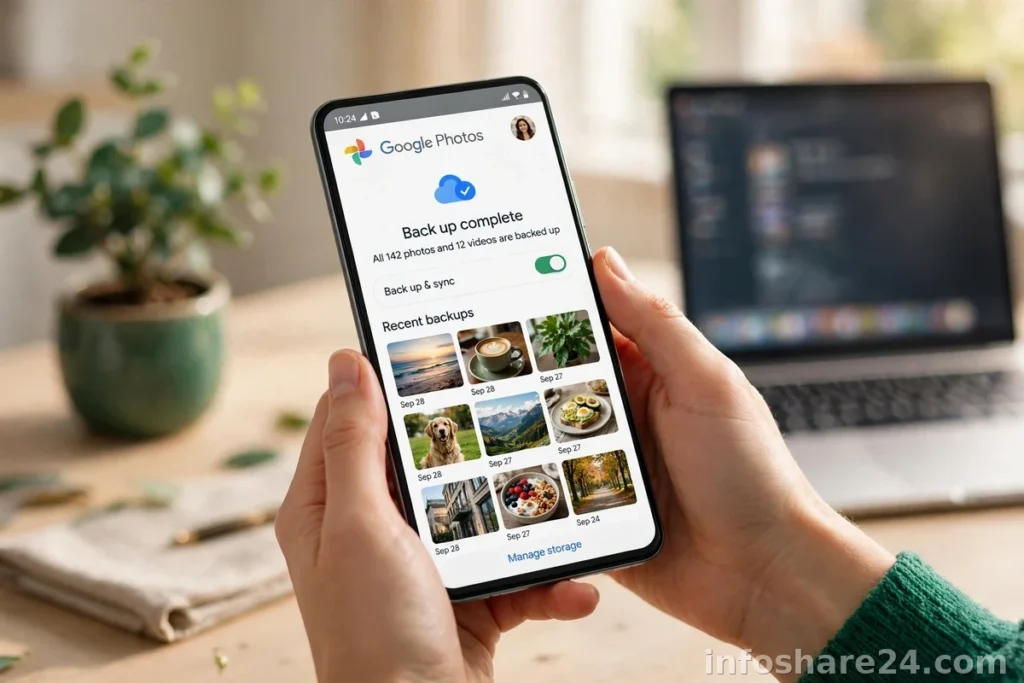
- Open Google Photos and check that backup is on. Tap your profile picture, then “Photos settings” and “Backup”. The switch should be on.
- Wait for the backup to finish on Wi-Fi. Connect to Wi-Fi, plug in your charger, and wait until it says “Back up complete”.
- Check your backup in a browser to be extra sure. Open photos.google.com on your computer with the same Google account. If your photos are there, they are safe. For a full backup plan, see: Back Up Your Phone in 5 Minutes.
Once backup is complete, delete with confidence — deleted photos stay in the Trash for 30 days, so a mistake is easy to undo.
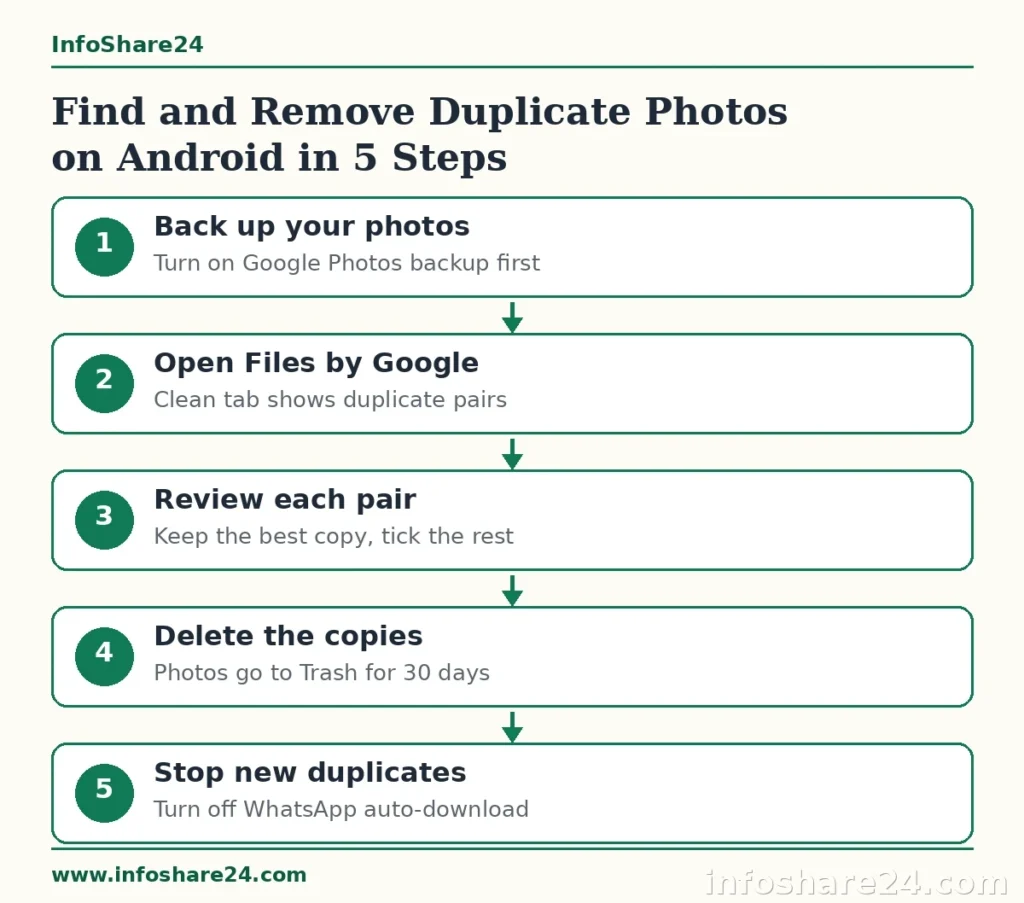
Step 1: Find and Remove Duplicate Photos on Android with Files by Google
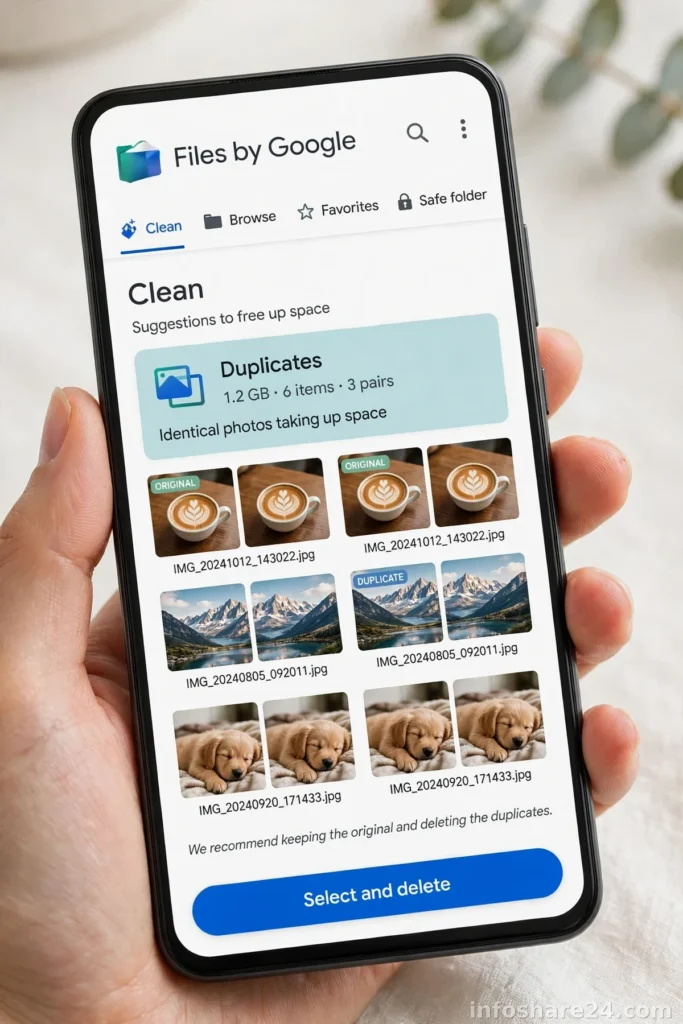
Files by Google is free, made by Google, and already installed on many Android phones. Its Clean tab finds exact duplicates and groups them in pairs.
- Open Files by Google and tap the Clean tab. It sits at the bottom of the screen, with a small broom icon.
- Find the “Duplicates” card and tap “Select files”. The card tells you how many duplicates it found and how much space they take up. No Duplicates card? Try Step 2.
- Review each pair before you select anything. The app usually ticks the copy and leaves the original unticked. Tap a photo to open it full-screen, compare sharpness, and keep the best one.
- Tap “Delete” and confirm. The selected copies move to the Trash, where they stay for 30 days.
This is the fastest method for most people: it shows only exact copies and never deletes anything on its own.
Step 2: Use Google Photos
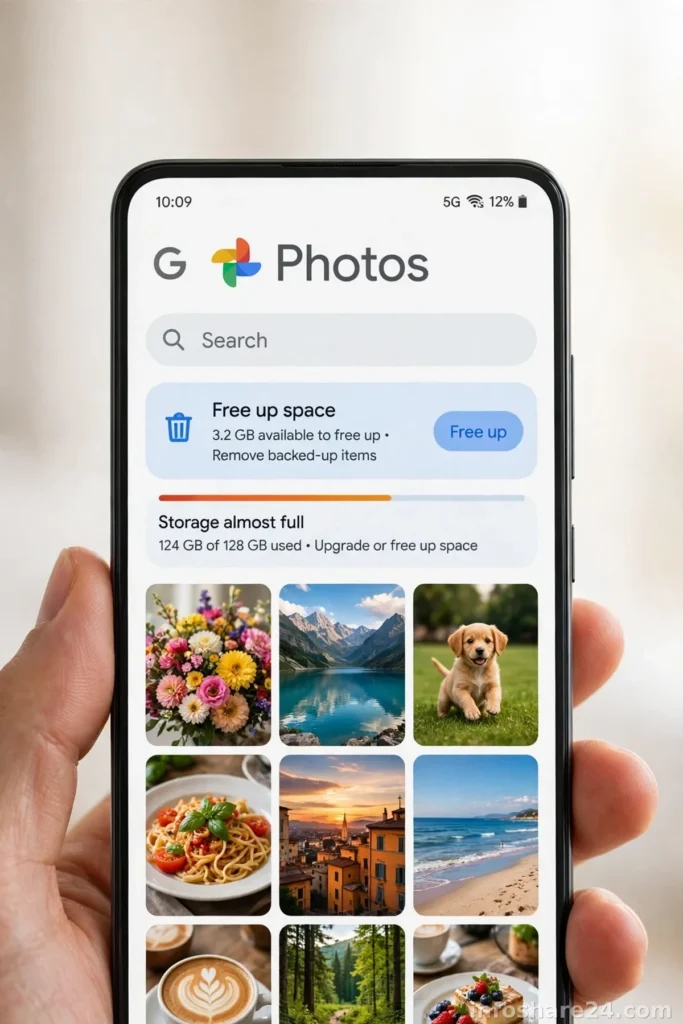
Google Photos helps in two ways: it finds similar photos, and it frees up space by removing copies already backed up. That is useful when duplicates are not exact — for example, five burst shots of the same moment.
- Open Google Photos and search for a subject. Type a word such as “beach” or “birthday” in the search bar. Photos of the same event appear together, so you can spot the near-identical ones.
- Compare burst shots and keep only the best one or two. Open a group of similar photos, zoom in, and check faces, focus, and lighting. Delete the blurry ones and keep the sharpest.
- Use “Free up space” to remove backed-up copies from your phone. Tap your profile picture, then “Free up space”. Google Photos deletes device copies of photos already safely backed up, freeing several gigabytes at once. For more ideas, see: How to Free Up Storage on Android Without Losing Photos.
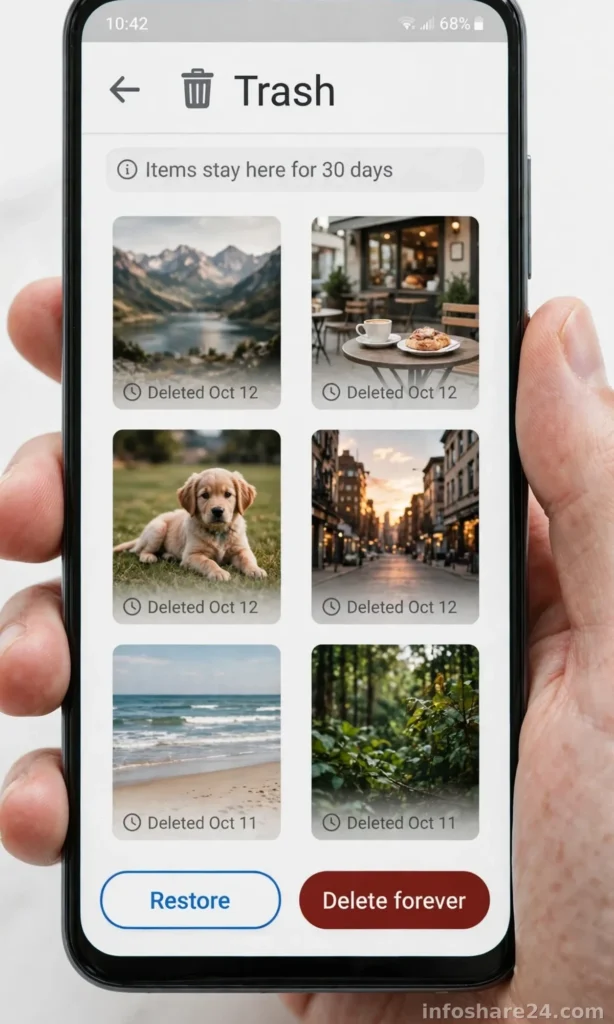
- Check the Trash if you delete the wrong photo. Deleted photos stay in the Trash for 30 days. In Google Photos, tap “Collections”, then “Trash”, and tap “Restore”.
“Free up space” only removes photos that are already backed up — which is why the backup step matters so much.
Step 3: Check Your Gallery App
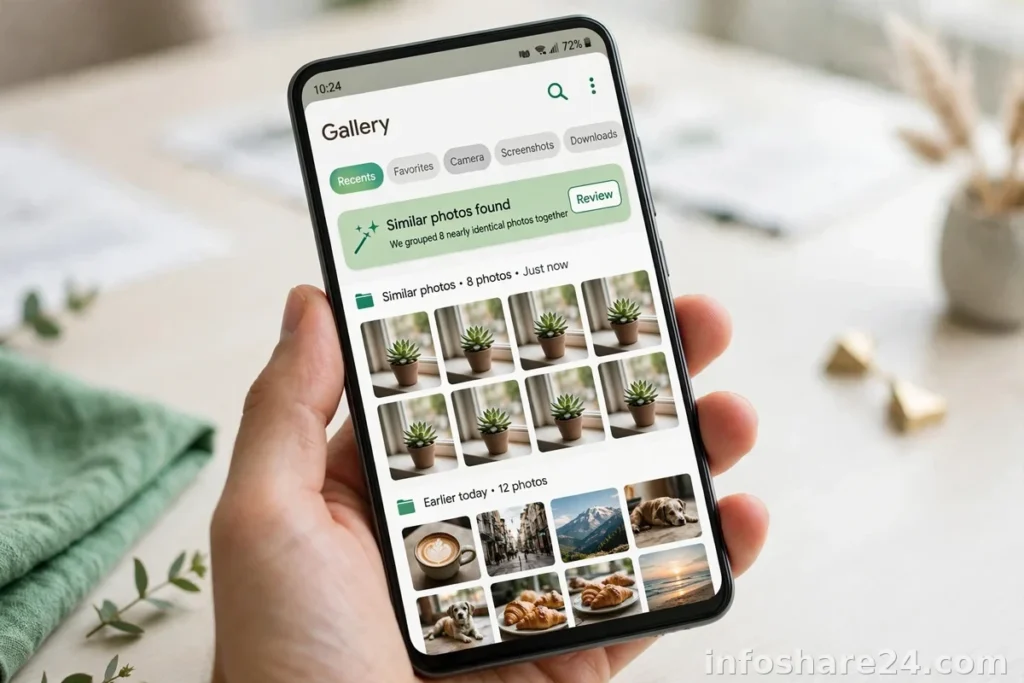
Your phone’s own gallery app may also find duplicates. Samsung Gallery groups similar photos and suggests which ones to keep; other brands, such as Xiaomi, Oppo, and Vivo, have similar features called “Similar photos” or “Clean up”.
- Open your gallery app and look for a suggestion or album. On Samsung, open Gallery, tap the menu, and look for “Delete similar pictures”. On other phones, check the Albums tab for “Similar photos”.
- Open the group and review the photos one by one. The app groups near-identical photos and usually marks the best one to keep. Do not trust the suggestion blindly — check each photo yourself.
- Select the extra copies and delete them. Keep the sharpest version and delete the rest. No duplicate feature in your gallery? Steps 1 and 2 already cover most cases.
If your gallery finds nothing, the copies may hide in another folder, such as WhatsApp Images or Downloads. Files by Google checks the whole phone, so scan again with Step 1.
Step 4: Remove Them Safely
Finding duplicates is only half the job — removing them safely is the other half.
- Delete in small batches, not all at once. Clear one group, check your gallery, then move to the next.
- Use a duplicate-finder app only if you really need one, and choose carefully. Pick a well-known app from the Play Store with many downloads and recent updates. Read the permissions first: a photo-cleaning app needs your photos, not your contacts, messages, or calls. Avoid apps that ask for access they clearly do not need, or demand payment before showing you anything.
- Never let any app delete photos automatically. A trusted app can find duplicates, but always review and confirm each deletion yourself — automatic deletion is how good photos get lost.
- Check the Trash after every cleanup. Open your gallery or Google Photos Trash and confirm only the copies you meant to delete are there. If a good photo ended up there, restore it right away.
Fixing Common Problems
If Files by Google shows no Duplicates card, your duplicates may be similar but not identical — burst shots with tiny differences, or the same photo at different sizes. Use Google Photos or your gallery app instead: they compare similar photos, not only exact copies.
If a deleted photo comes back, a cloud sync or messaging app is probably restoring it. Delete it from your cloud backup too, and turn off auto-download in WhatsApp.
If storage is still full, the problem is probably large videos, not photos. Sort your gallery by size, move big videos to cloud storage, and delete the ones you do not need.
Frequently Asked Questions
Will deleting duplicates delete my backed-up photos too?
It depends on where you delete them. Delete in Google Photos with backup on, and the photo leaves your backup too — but it stays in the Trash for 30 days. Delete only the device copy with “Free up space”, and the backed-up copy stays safe.
Why do I keep getting duplicate photos?
The main causes are burst mode, which saves many shots of one moment; WhatsApp and other apps, which save every photo you receive; and edited copies, where each edit saves a new version.
How can I stop duplicates from coming back?
Turn off auto-download in WhatsApp: Settings, then Storage and data, then set media auto-download to off. Avoid burst mode unless you need it, and clean out duplicates once a month.
Conclusion
Duplicate photos are a storage problem with a simple fix: back up first, let Files by Google find the exact copies, use Google Photos for the similar ones, and delete in small batches. The whole job takes under fifteen minutes and can free up gigabytes of space.
Do the backup today, run the Files by Google scan tonight, and repeat it monthly. Your gallery will be cleaner, and the next time you search for a photo, you will find one copy — the good one — instead of five.