Introduction
Slow Wi-Fi is frustrating, especially when the problem comes and goes. One room works fine, another buffers, and a video call freezes at the worst moment. Before you pay for a faster internet plan, it is worth checking a few things at home, because the problem is often the Wi-Fi signal in your house, not the connection coming into it.
This guide gives seven practical fixes, in order from easiest to more involved. Try them one at a time, and test after each change, so you know which one actually helped.
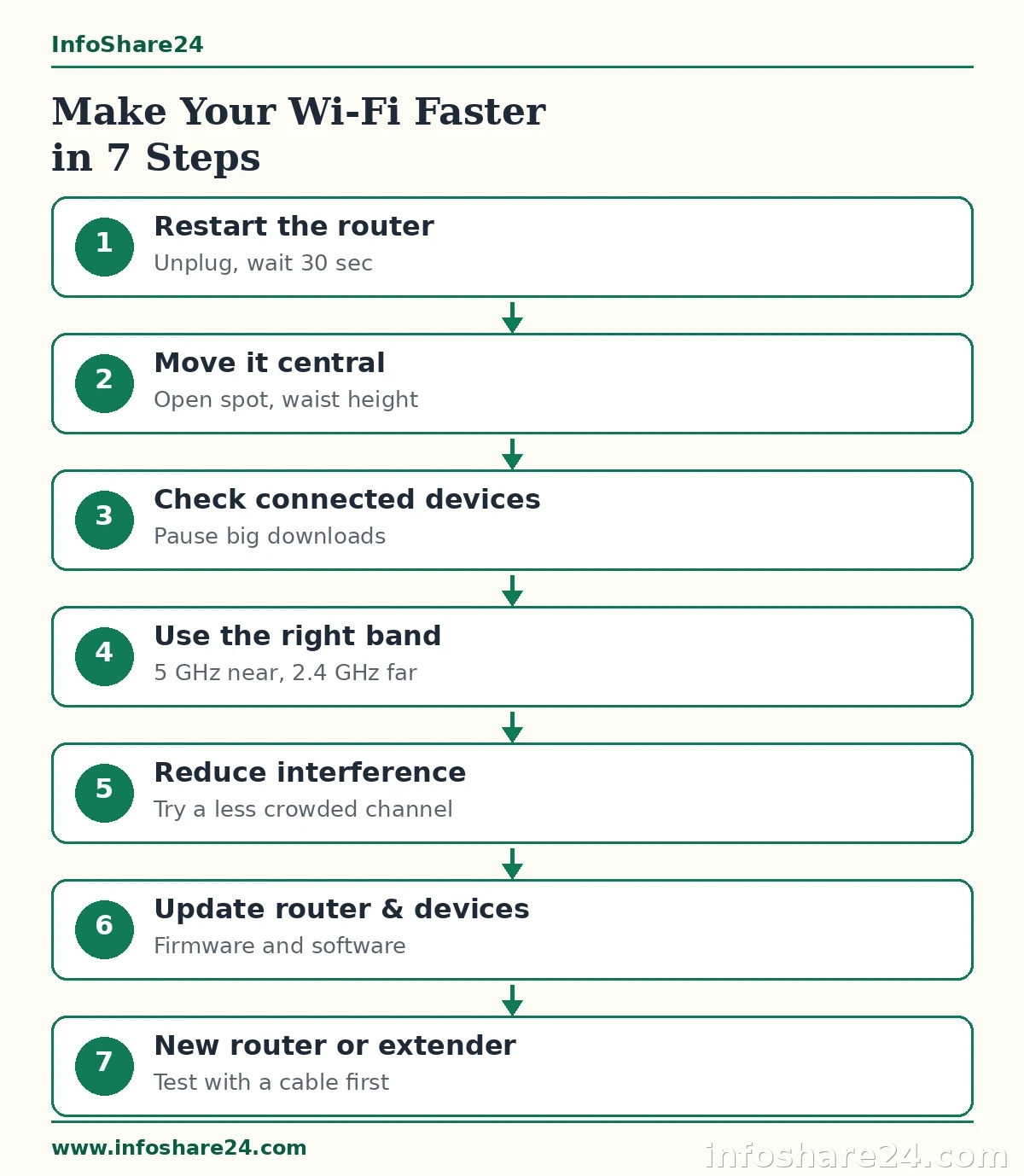
1. Restart Your Router Properly
- Unplug the router, wait about 30 seconds, then plug it back in and wait two to three minutes for all the lights to settle. Restarting from a button, or from an app, often works too, but a full unplug-and-wait restart is the most reliable version.
- Do this once, then test. If the speed improves for a day or two and then drops again, the problem is probably elsewhere in this list, not a one-off glitch.
- A restart clears temporary glitches, frees memory, and lets the router pick a cleaner channel.
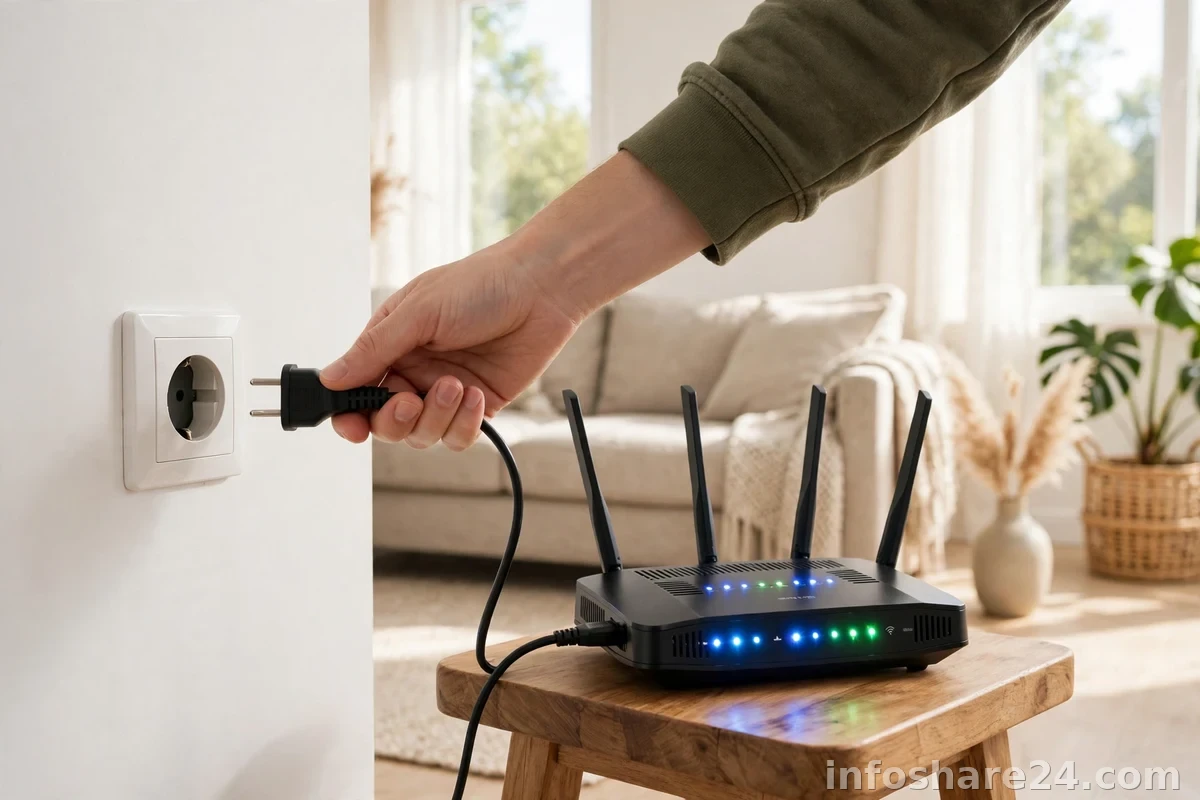
2. Move the Router to a Better Spot
- Put the router in a central spot, out in the open, roughly at waist height or higher, away from thick walls, metal cabinets and large appliances.
- Avoid placing it right next to a microwave or a large fish tank, both of which can interfere with the signal.
- If you work in one room most of the day, moving the router even one room closer to that room can make a noticeable difference. You do not need a perfect central location, just a better one than a closed corner.
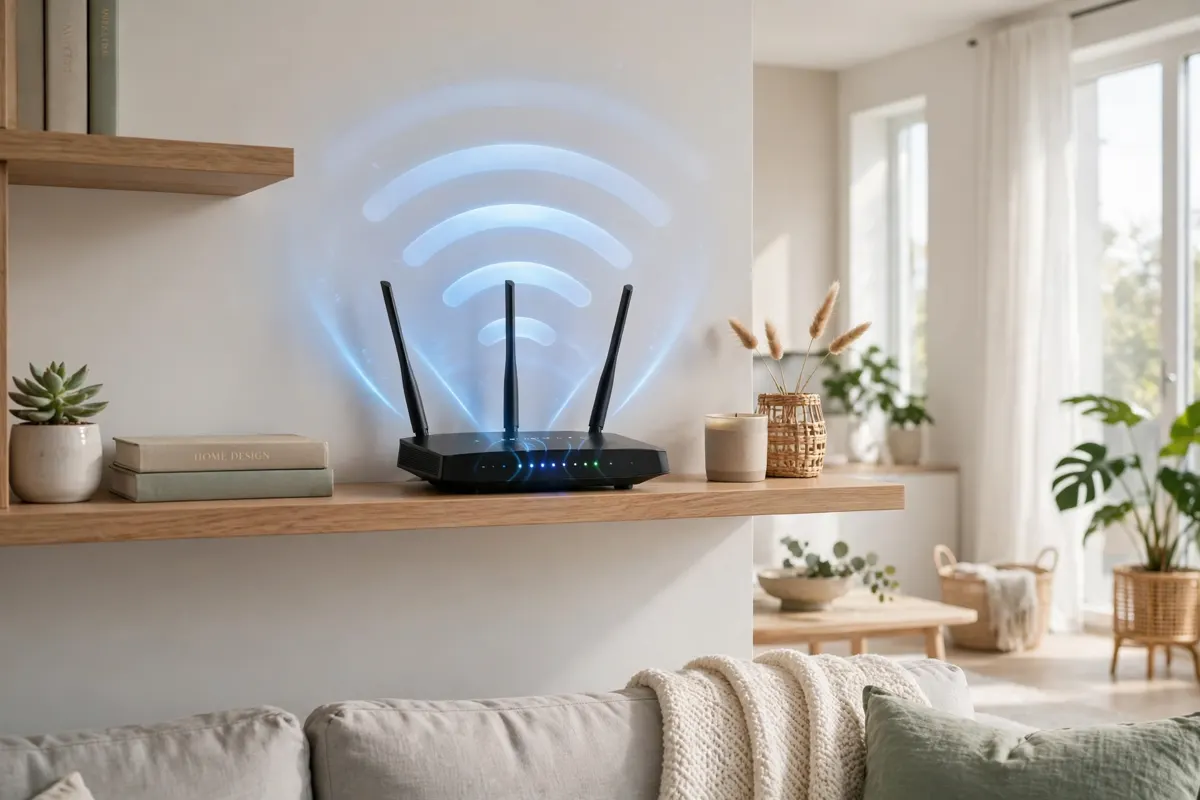
3. Check How Many Devices Are Connected
A home connection is shared. When several phones, laptops, televisions and smart devices are streaming, updating and backing up at the same time, each one gets a smaller share.
- Open your router app, or its settings page in a browser, and look at the connected devices list. You may find an old phone, a guest device, or a smart television downloading updates in the background.
- Turn off Wi-Fi on devices you are not using, pause large downloads and cloud backups while you are on a video call, and ask family members to avoid starting a big download during an important meeting.
- If a device you do not recognise is connected, change your Wi-Fi password and reconnect only your own devices.
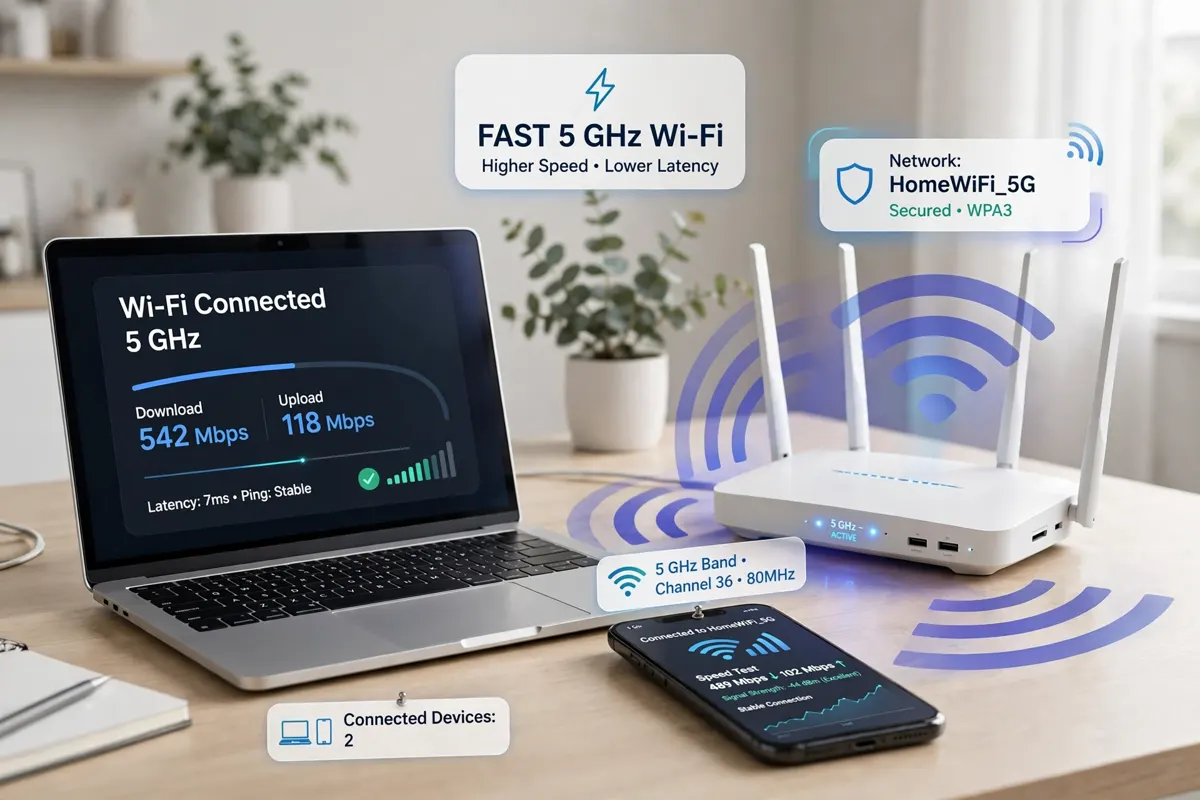
4. Use the Right Band: 2.4 GHz or 5 GHz
Most modern routers offer two bands. The 2.4 GHz band reaches further through walls, but it is slower and more crowded. The 5 GHz band is faster, but its range is shorter.
- Use 5 GHz when you are in the same room as the router, or close to it, especially for video calls, streaming and gaming.
- Use 2.4 GHz for devices far away, or for smart home devices that only need a small amount of data.
- If your phone or laptop lets you choose a network name for each band, pick the right one for where you are. If the router combines them into one name, it will usually choose for you, but moving closer to the router often helps it switch to the faster band.
5. Reduce Interference From Neighbours
In flats and busy neighbourhoods, many routers compete on the same channels, especially on the 2.4 GHz band. That crowding can slow everyone down, even if your internet plan is fast.
- In your router settings, look for a channel setting. If it is set to automatic, a restart often lets the router pick a less crowded channel on its own.
- If you can change it manually, try a different channel and test the speed, then keep the one that works best.
- Only change one setting at a time and write down what you changed, in case you want to go back. This is a trial-and-error step, not a guaranteed fix.
6. Update the Router and Your Devices
- Check your router app, or its settings page, for a firmware update, and install it if one is available. The router will usually restart during the update, so do this when nobody is in the middle of a call.
- Also update your phone, laptop and television software. An old Wi-Fi driver or system update can hold back a single device, even when the rest of the house is fast.
- If only one device is slow, updating that device is often the fix, not changing anything about the router.
7. Know When a New Router or Extender Helps
If you have tried the steps above and one room is still dead, the answer may be hardware, not settings. A very old router may not support modern speeds, and a large house may need more than one Wi-Fi point.
- Before buying anything, test with a cable if you can. If a laptop connected by cable to the router is fast, but Wi-Fi in the same room is slow, the problem is Wi-Fi coverage.
- If the cable connection is also slow, the problem is more likely the internet plan or the line itself, and a new router will not fix it.
- A Wi-Fi extender, or a mesh system with two or three units, can help in a large or multi-floor home. An extender is cheaper, but it can halve the speed in the far room. A mesh system costs more, but it usually gives a more even speed across the house.

A Quick Test You Can Do in Two Minutes
- Run a speed test three times: once next to the router, once in the room where you usually work, and once with only one device connected. Write down the three results.
- If the speed is good next to the router but poor in your workroom, focus on position, band and coverage.
- If it is poor everywhere, even next to the router, focus on restart, updates, device load, and then your internet plan. This simple test stops you from changing settings at random.

Frequently Asked Questions
Will a faster internet plan always fix slow Wi-Fi?
Not always. If the Wi-Fi signal is weak in your room, a faster plan still has to travel over that weak signal. Fix coverage first, then consider a faster plan if cable tests are also slow.
Is it safe to change router settings?
Changing the channel, band or password is safe if you change one thing at a time and note what you changed. Avoid settings you do not understand, and do not turn off security features such as the router password or encryption.
How often should I restart my router?
You do not need to restart it every day. Restart it when speed drops, after a firmware update, or about once a month as a simple reset. Frequent restarts are a sign that something else needs fixing.
Does a Wi-Fi extender slow down the internet?
An extender can help in a dead zone, but it often gives a lower speed than the main router, because it has to receive and resend the signal. Place it halfway between the router and the dead room, not inside the dead room itself.
Conclusion
Faster Wi-Fi usually comes from small, practical steps: restart the router, move it to a better spot, check connected devices, use the right band, reduce interference, and keep software updated. Only after those steps should you spend money on an extender, a mesh system, or a faster plan.
Start with the two-minute test, try one fix at a time, and keep the change that actually improves your speed.