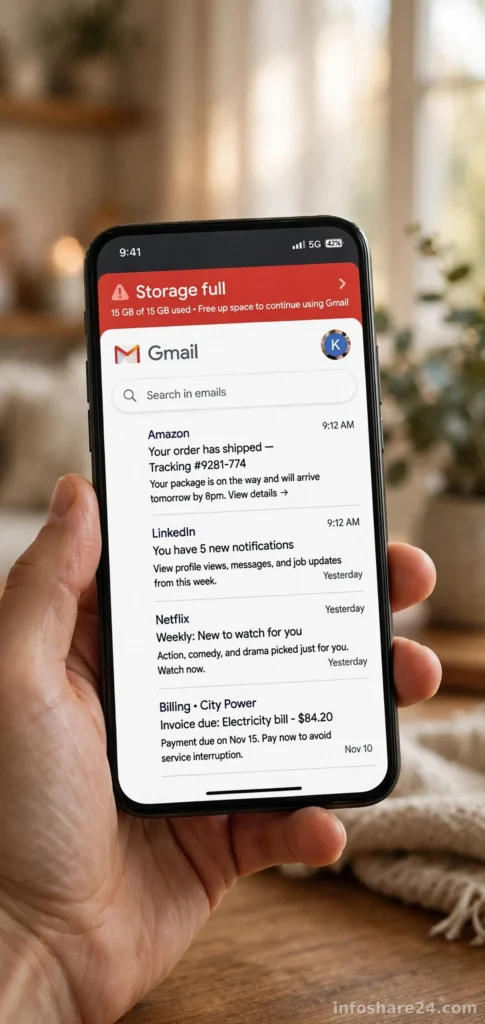
Seeing a “Gmail storage full” warning is stressful. Your mail stops sending, and new messages can bounce back to the sender — often with no warning at all.
The good news: you can usually free up several gigabytes in about 15 minutes, without deleting a single important email — using only Google’s own free tools.
Why Is Gmail Storage Full?
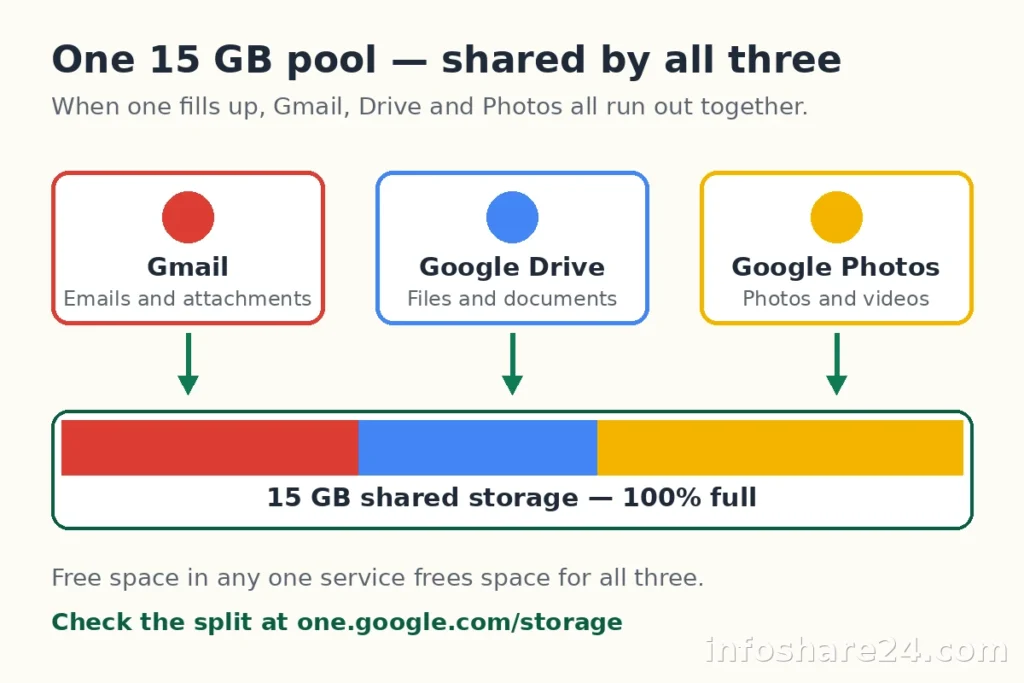
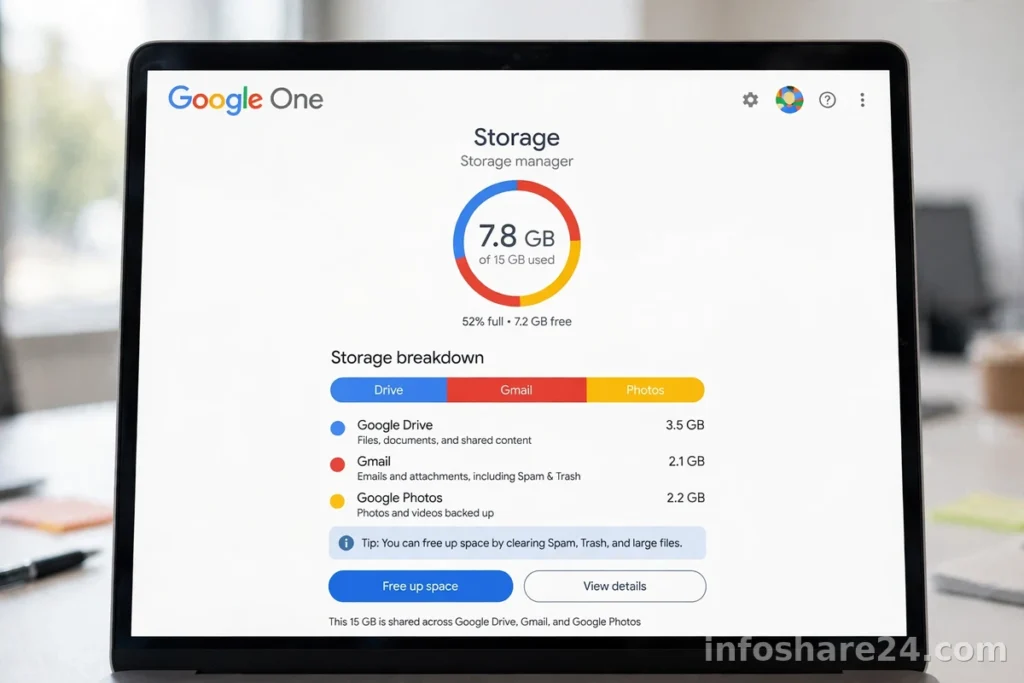
Every free Google account gets 15 GB of storage, shared across Gmail, Google Drive, and Google Photos — Google’s own help page says so. So even if you barely send email, your account can fill up from photos, videos, and files.
Inside Gmail, large attachments are almost always the cause. A plain text email is tiny, but a single video or batch of photos can be 20 MB or more.
Two hidden culprits surprise most people. First, your Trash and Spam folders still count against your storage until they are permanently cleared. Second, Android WhatsApp backups count toward the same 15 GB, according to Google’s help page. That is why deleting a few emails often changes nothing: the space is sitting somewhere else.
What Happens When Gmail Storage Is Full?
When your account reaches its storage limit, Google blocks the services that need space. You cannot send or receive emails in Gmail, and messages sent to you go back to the sender. You also cannot upload files to Drive, or back up photos and videos to Google Photos.
A bounced email is the part that hurts most. The sender gets a delivery failure notice, and the message is gone unless they send it again. If you are waiting for a job reply, a bill, or an important document, that lost email matters. Google also warns that staying over the limit for two years may lead to your content being deleted — so fix this now.
Free Up Gmail Storage in 6 Steps
Follow them in order, and stop as soon as your storage is back under the limit.
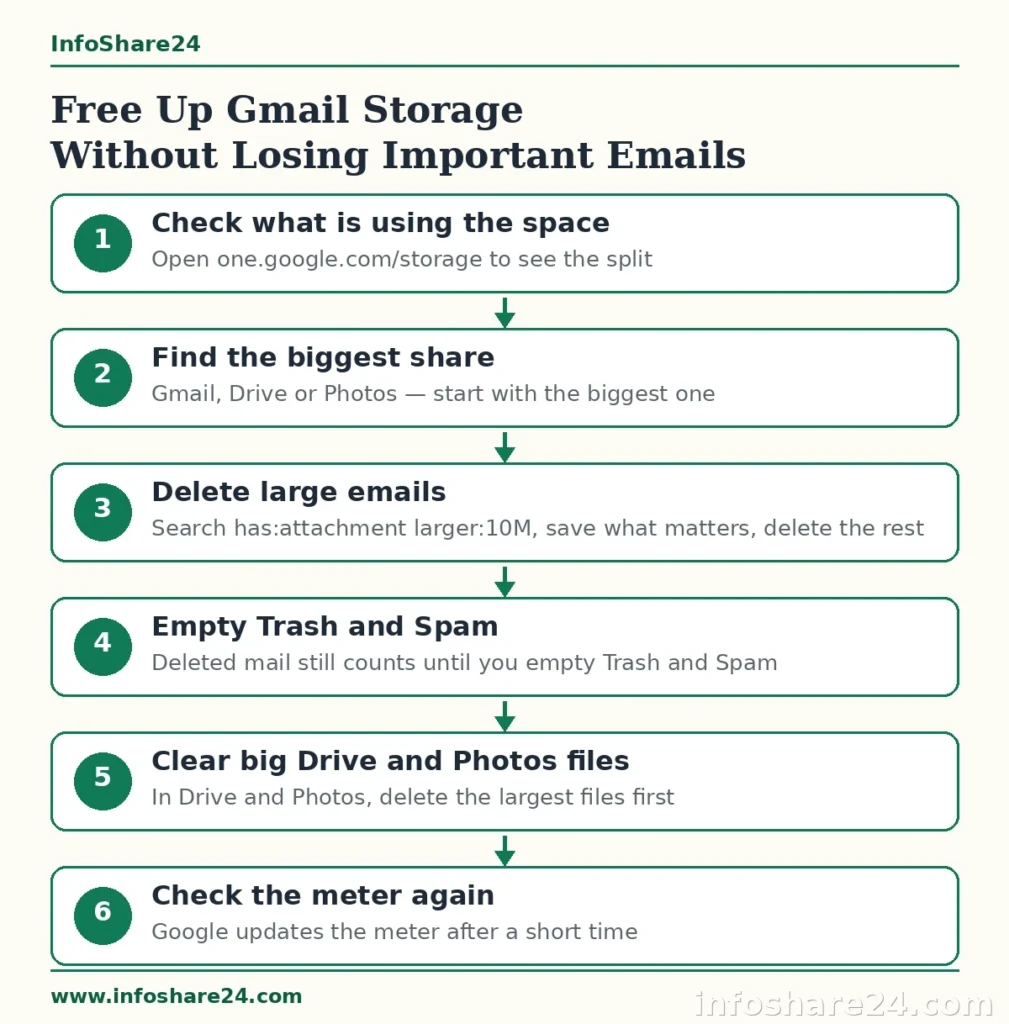
- Check what is using the space. Open one.google.com/storage, Google’s free storage manager, to see how much space Gmail, Drive, and Photos each use. If Gmail is the biggest slice, your emails are the problem. If Photos or Drive is biggest, start there instead — cleaning Gmail alone will not help.
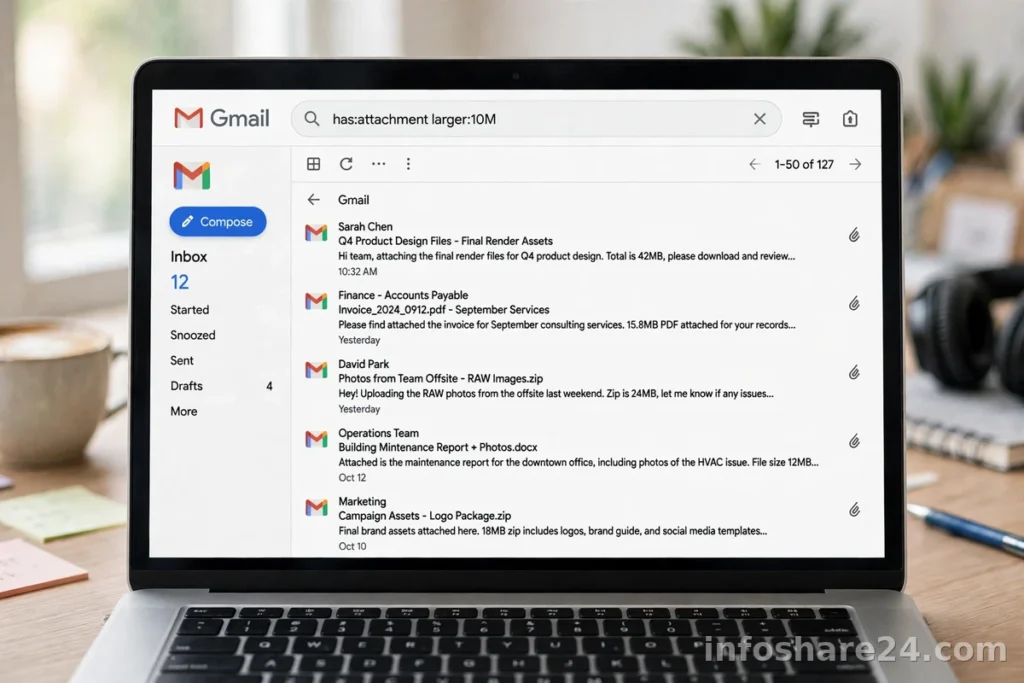
- Find and delete your largest emails. In the Gmail search bar, type
has:attachment larger:10Mand press Enter. This lists every email with an attachment bigger than 10 MB. Start even higher withlarger:25Mto see the very worst offenders first. Open each result, save any attachment you still need to your computer, then delete the email. Also tryolder_than:2y has:attachment.
- Empty Trash and Spam. Deleting an email only moves it to Trash, where it keeps counting against your storage for up to 30 days. Open Trash in the left sidebar, click Empty Trash now, then do the same in Spam. Many people free gigabytes here alone. Do this after every round of deleting, or nothing you deleted actually frees space yet.
- Clear large files in Google Drive. Open drive.google.com/drive/quota, or click Storage in the left menu of Drive. Your files list from largest to smallest automatically. Delete videos, old installers, and duplicate files you no longer need — files named “Copy of” or ending in “(1)” are often duplicates. Then empty the Drive Trash too.
- Free space in Google Photos. Open photos.google.com and look for large videos first — a few minutes of video can weigh more than thousands of photos. Delete blurry shots and videos you have already saved elsewhere. If your phone backs up every photo at Original quality, switch future backups to Storage Saver quality, which uses far less space. For phone photos, see our guide on how to free up storage on Android without losing photos.
- Check the meter again. Go back to one.google.com/storage. Google says space updates after a short period. If it still shows full after 30 minutes, check the Trash folders in Drive and Photos too — each service has its own Trash.
Save Important Emails Before You Delete Anything
Before you remove a large email, download its attachment to your computer or an external drive. Moving it into Google Drive does not free space, because Drive shares the same 15 GB pool.
For emails themselves, keep a second copy outside Google: forward the email to another address you own. If your phone holds photos and files you want to keep, follow our guide to back up your phone in 5 minutes — photos, contacts, and files before you start deleting. Once Trash is emptied, a deleted email is gone for good.
Beware of Paid “Gmail Cleaner” Apps
Search for this problem online and the top results will try to sell you a cleaner app. You do not need one — Google’s own free storage manager finds the same large emails and files.
Worse, many cleaner apps ask for full access to your inbox to work. That means a stranger’s app can read your emails — including password resets, bank messages, and private conversations. If an app promises to clean Gmail for a monthly fee, close the tab and use one.google.com/storage instead. For keeping the account itself safe, read our guide on how to create a strong Gmail account and keep it secure.
How to Stop Gmail Storage Filling Up Again
Cleaning once is good, but a small habit keeps the warning away for good. Once a month, spend five minutes searching older_than:1y in Gmail and deleting old promotions and newsletters you never open.
On your phone, switch photo backup to Storage Saver quality. When someone emails you a large file, download it to your computer and delete the email. If you save files to your Windows PC instead, our guide on how to free up disk space on Windows without deleting important files shows the same careful approach for your computer.
When Paying for Google One Makes Sense
If you clean everything and still need more room, Google One is Google’s paid storage plan, adding storage across Gmail, Drive, and Photos. That is a fair option if you genuinely keep a lot of photos and files. But do not pay before you clean — most people find several free gigabytes hiding in Trash, Spam, and forgotten attachments.
Frequently Asked Questions
Does deleting emails free up Gmail storage right away?
Only after you empty Trash — deleted mail still counts for up to 30 days. Click Empty Trash now; Google says the meter updates after a short period.
Why is my Gmail storage still full after I deleted everything?
Check Trash and Spam in Gmail, plus the Trash in Drive and Photos. Also check whether Drive or Photos — not Gmail — is using most of the 15 GB at one.google.com/storage.
Will I lose important emails by cleaning up?
Not if you save first. Download attachments you need before deleting. Emptying Trash is permanent, so double-check first.
Can I get more free Gmail storage?
No — the free limit is 15 GB shared across Gmail, Drive, and Photos. Free up space, or pay for a Google One plan.
Final Words
A full Gmail account feels like a locked door, but the key is usually already in your hands. Check the storage breakdown, delete the biggest attachments, empty Trash and Spam, and give the meter a short time to update. Most people get their email working again in under half an hour.