You have seen them everywhere — on restaurant tables, tickets, and posters. A square code that opens a menu, a website, or a Wi-Fi network in one tap. The good news is that you do not need a special app or any technical skill to read one. This guide shows you how to scan a QR code with your phone camera on iPhone and Android — plus codes already on your own screen, and how to stay safe before you tap.
What Is a QR Code?
A QR code — short for Quick Response code — is a square barcode made of small black and white squares. It stores a website link, a Wi-Fi password, or a short message, and your phone camera reads the pattern and turns it into an action: open a page, join a network, or show some text.
Unlike a normal barcode, which holds only a number, a QR code can hold a full web address. You will find them on menus, tickets, and parcels.
How to Scan a QR Code with Your Phone Camera
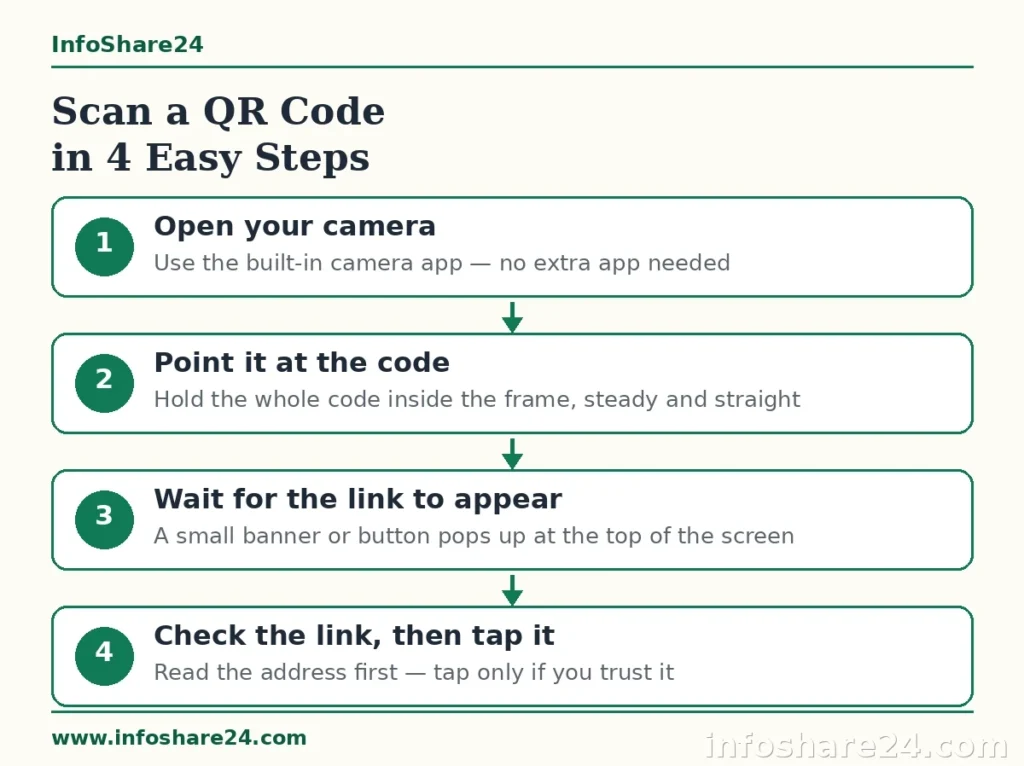
On most modern phones, the built-in camera app is also a QR code scanner — you do not need to download anything. The steps are almost the same on iPhone and Android.
On iPhone
- Open the Camera app. Use the normal camera, not a separate scanner app.
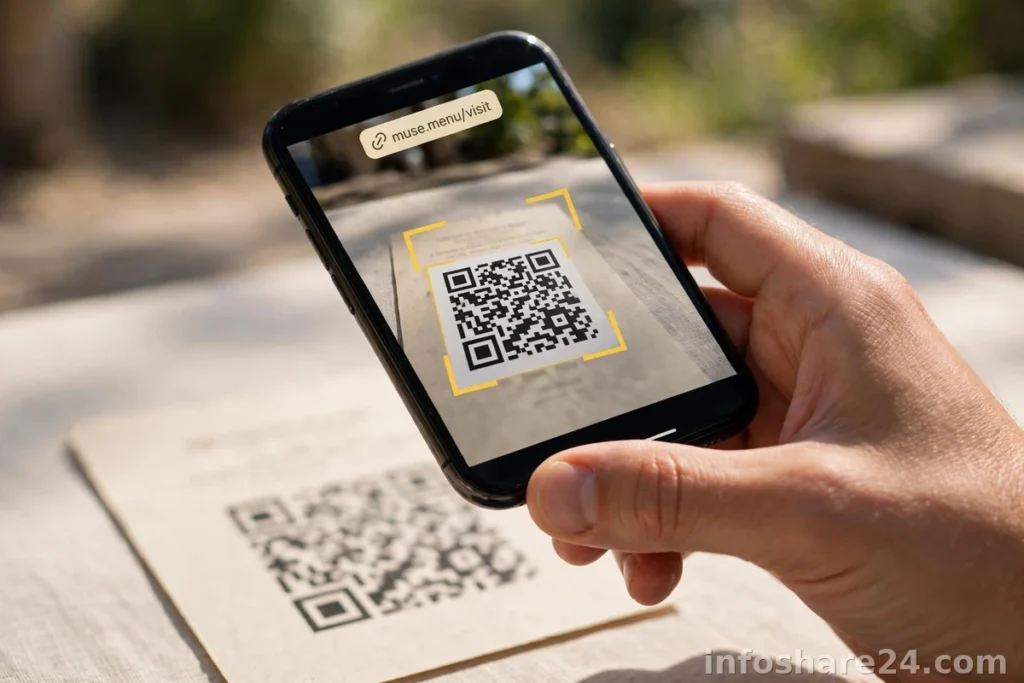
- Point the camera at the QR code. Hold the whole code inside the frame, and keep your hand steady.
- Wait for the yellow banner to appear. It pops up at the top of the screen and shows the link.
- Tap the banner to open the link. If the banner does not appear, check that Scan QR Codes is turned on in Settings, under Camera.
On Android
- Open the Camera app. On Samsung, Pixel, and most other Android phones, the normal camera scans QR codes.
- Point the camera at the code. Keep the whole code in the frame and hold still for a second or two.
- Tap the link that appears. It usually shows as a small button near the bottom of the screen.
If nothing appears, try Google Lens in the next section — on some older Android phones, the camera does not scan QR codes at all.
Scan with Google Lens
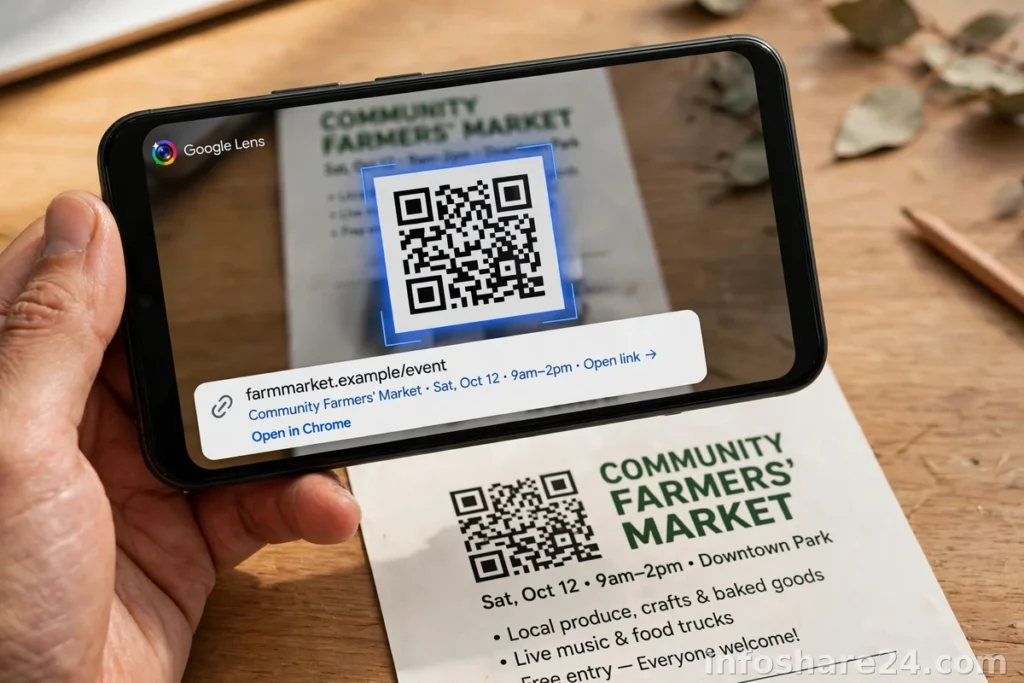
Google Lens is Google’s free camera tool, built into many Android phones. It is the best fallback when the normal camera will not scan a code.
- Open the Google app. On many Android phones, Lens is inside it — tap the camera icon in the search bar. On Pixel phones, Lens is also a mode in the Camera app.
- Point Lens at the QR code. Lens draws a frame around the code as soon as it recognises it.
- Tap the link Lens shows at the bottom of the screen.
On iPhone, you can use Lens too: install the free Google app, open it, and tap the camera icon. Lens also reads codes that are small, damaged, or at an angle.
Scan a QR Code That Is Already on Your Screen
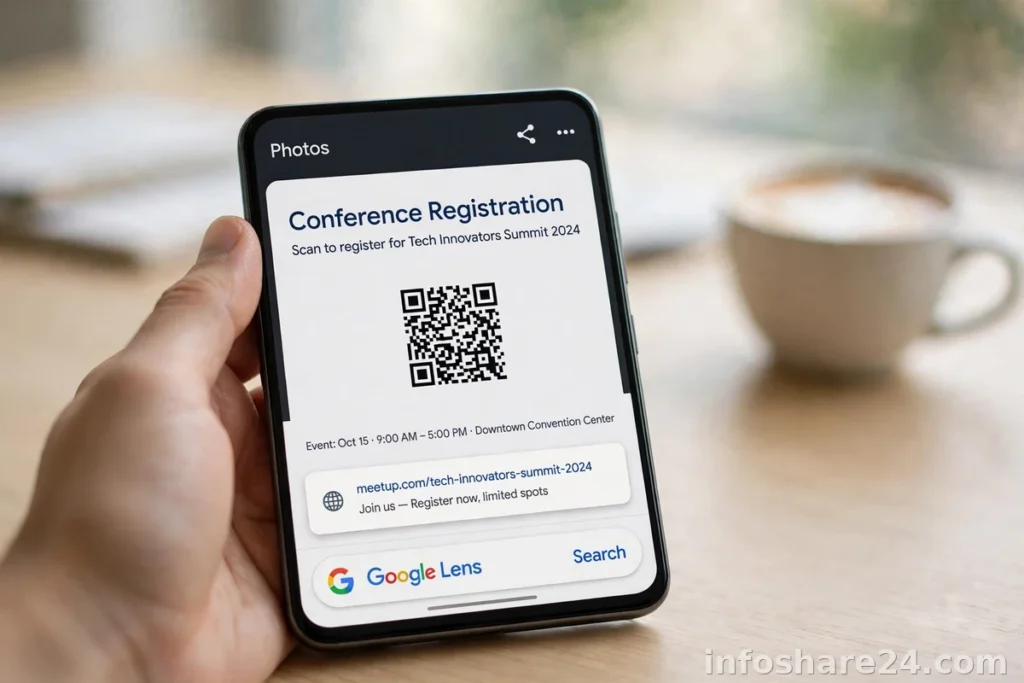
Sometimes the code is not on paper — it is in a photo or a message on your own phone. You cannot point your camera at your own screen, so use one of these tricks instead.
From a screenshot with Google Lens
- Take a screenshot of the code. If you are not sure how, see: How to Take a Screenshot on Windows, Android and iPhone: A Simple Guide.
- Open the screenshot in Google Photos and tap the Lens icon.
- Tap the link Lens finds.
With Circle to Search (Samsung and newer Android phones)
- Long-press the home button or the bottom bar to start Circle to Search.
- Circle the QR code on your screen. The phone reads it and shows the link.
- Tap the link to open it.
On iPhone, the same trick works with the Google app: open it, tap the camera icon, then tap the photo icon and choose your screenshot. If the code came in an email or a chat, check whether the message also has the link written out — tapping it is even quicker.
Scan a Wi-Fi QR Code
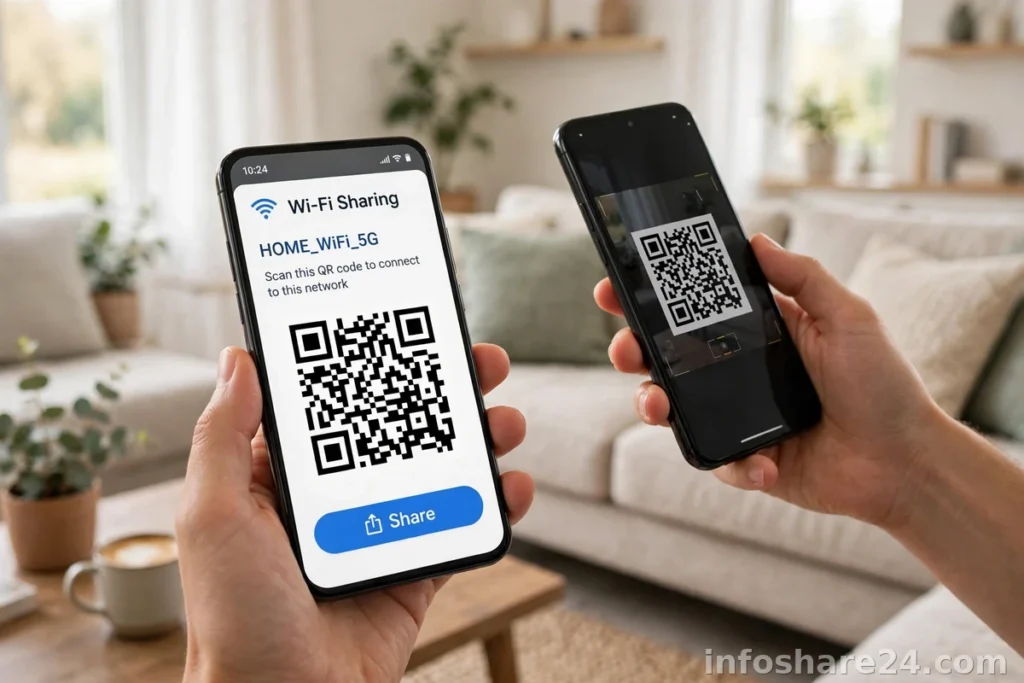
A Wi-Fi QR code connects you to a network without typing the password.
- Open your camera and point it at the Wi-Fi QR code. The phone shows a “Join network” button.
- Tap Join or Connect. Your phone joins the network straight away — no password typing.
On Android, you can also join from Settings: open Wi-Fi, tap the QR code icon, and scan the code. To share your own Wi-Fi, open your network in Settings and tap Share — only with people you trust. Joining a network is not the same as being safe on it: How to Stay Safe on Public Wi-Fi: A Simple Guide for Cafes, Airports and Hotels.
What to Do If the Code Will Not Scan
Most scanning failures have a simple cause. Work through this list.
Move closer, then further away. Hold the phone about 15 to 30 cm from the code and keep it straight and steady — too close and the camera cannot focus, too far and the code is too small.
Give it more light. Step into brighter light, or turn on your phone’s torch.
Clean the camera lens. Wipe it gently with a soft cloth — a fingerprint is a common cause of blurry scans.
Check the code itself. A torn, faded, or very small code may be unreadable — ask for a fresh copy.
Update your phone. An old camera app or an old version of Android or iOS may not scan codes.
If the code is on a shiny surface, tilt the phone until the glare moves off it. If a code on a screen will not scan, turn the screen brightness up.
Stay Safe: Check the Link Before You Tap
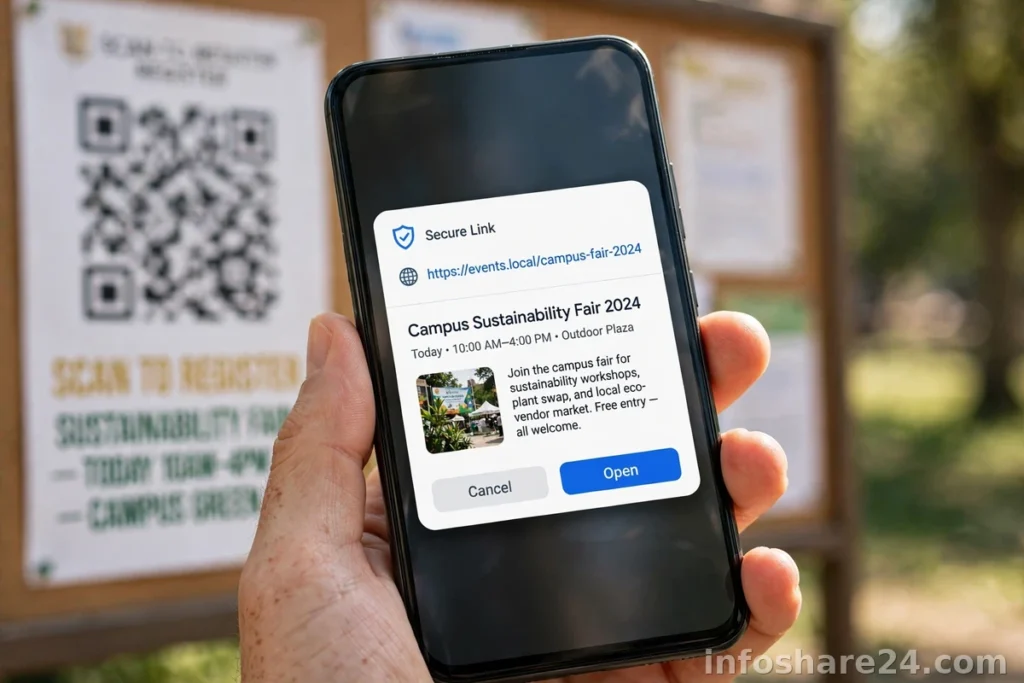
A QR code can point anywhere — including to a fake website. Always check before you tap.
Read the address first. Your phone shows the link before you open it — if it looks strange or misspelled, do not tap it.
Never scan a code that promises money. A code that claims you have won a prize, or offers cash for scanning, is almost always a scam.
Never enter a password after scanning. A real menu, ticket, or Wi-Fi code never asks for your password, bank details, or a one-time code. If the page asks, close it — see: How to Spot a Phishing Message in 30 Seconds.
Scanning a code is safe by itself — the risk only starts when you tap a bad link or type in private information.
Frequently Asked Questions
Do I need an app to scan a QR code?
No. On most modern phones, the built-in camera app scans QR codes.
Can I scan a QR code from a photo in my gallery?
Yes. Open the photo in Google Photos and tap the Lens icon, or use Circle to Search on Android.
Why does my camera not scan QR codes?
The most common reasons are poor light, a dirty lens, holding the phone too close, or an old phone.
Is it safe to scan any QR code?
Scanning is safe — the risk is in tapping a bad link. Read the address first.
Conclusion
That is all there is to it: open your camera, point it at the code, check the link, and tap. For codes already on your screen, a screenshot and Google Lens do the job.