Most people remove an app by deleting its desktop shortcut, or by deleting its folder, and think the job is done. It is not. The app is still installed, and its files are still on your computer. If you want to uninstall apps on Windows the right way, use the tools Windows gives you: the Start menu, Settings, or Control Panel. This guide shows you all three methods, so you can remove apps cleanly and keep your PC fast.
A clean uninstall matters more than most people think. Done the right way, Windows also removes the app’s settings, startup entries, and shortcuts. Done the wrong way, those leftovers stay behind — slowing your startup and eating disk space. The whole job takes only a few minutes.
Why the Right Way Matters
When you install an app, it does not put all its files in one place. It spreads them out: the main program in Program Files, settings in your user folders, and sometimes an entry that starts with Windows. Deleting only the desktop shortcut removes none of that.
Over time, this adds up. Forgotten apps keep their startup entries, so Windows takes longer to start, and leftover files eat disk space a little at a time. If your PC already feels slow, a cleanup like this is a good first step — for a full checklist, see: How to Speed Up a Slow Windows PC.
How to Uninstall Apps on Windows the Right Way
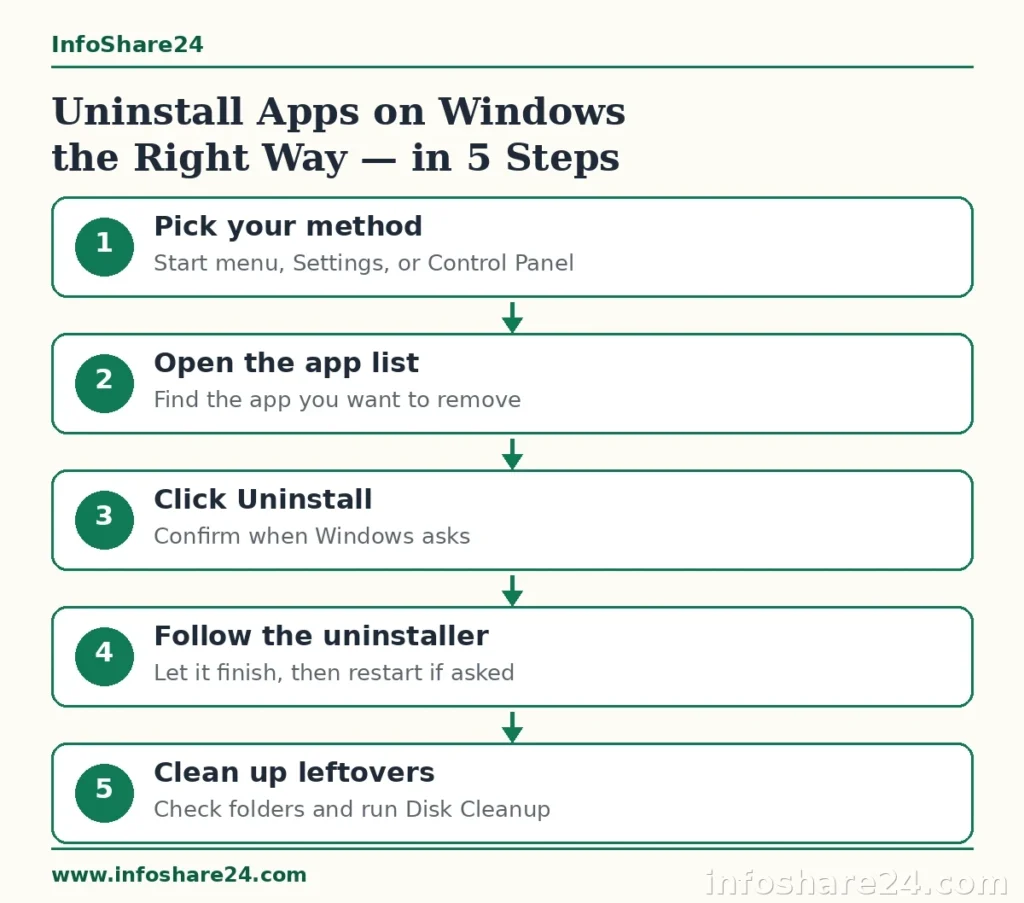
All three methods below do the same job: they run the app’s own uninstaller, which removes its files and settings properly.
Method 1: Uninstall from the Start Menu
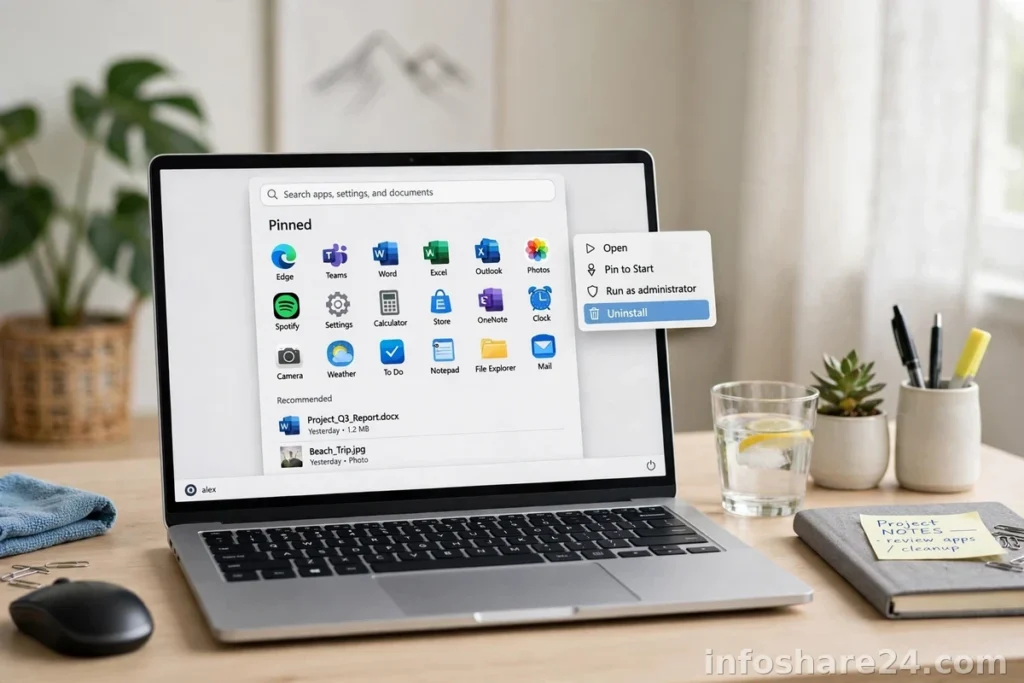
This is the fastest way, and it works for most apps you installed yourself.
- Click the Start button and find the app. Open Start, or type the app’s name in the search box.
- Right-click the app icon. A small menu will appear.
- Click Uninstall. It is usually at the bottom of the menu.
- Click Uninstall again to confirm. This cannot be undone.
- Follow the uninstaller if one appears. Click Uninstall or Next until it finishes.
Method 2: Uninstall from Settings
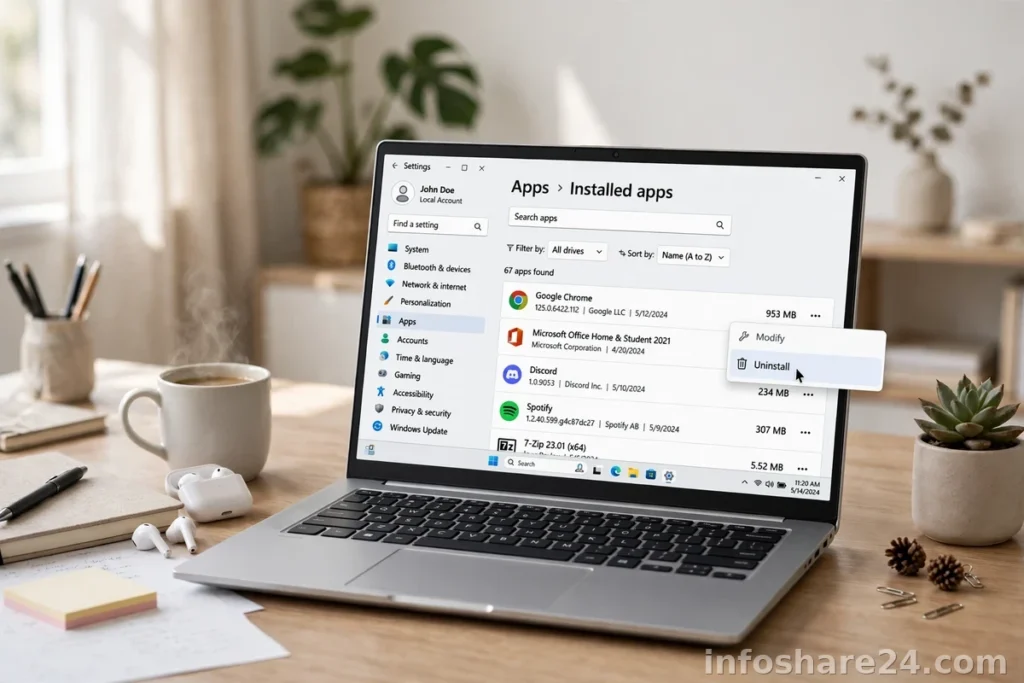
Settings lists every app on your PC, with the space each one takes — the best way to find the biggest apps.
- Open Settings with Windows + I. Or click Start, then the Settings gear icon.
- Click Apps, then Installed apps.
- Find the app you want to remove. Scroll, or type its name in the search box.
- Click the three dots (…) next to the app and choose Uninstall.
- Click Uninstall again to confirm. Wait until it finishes before closing Settings.
Method 3: Uninstall Classic Programs from Control Panel
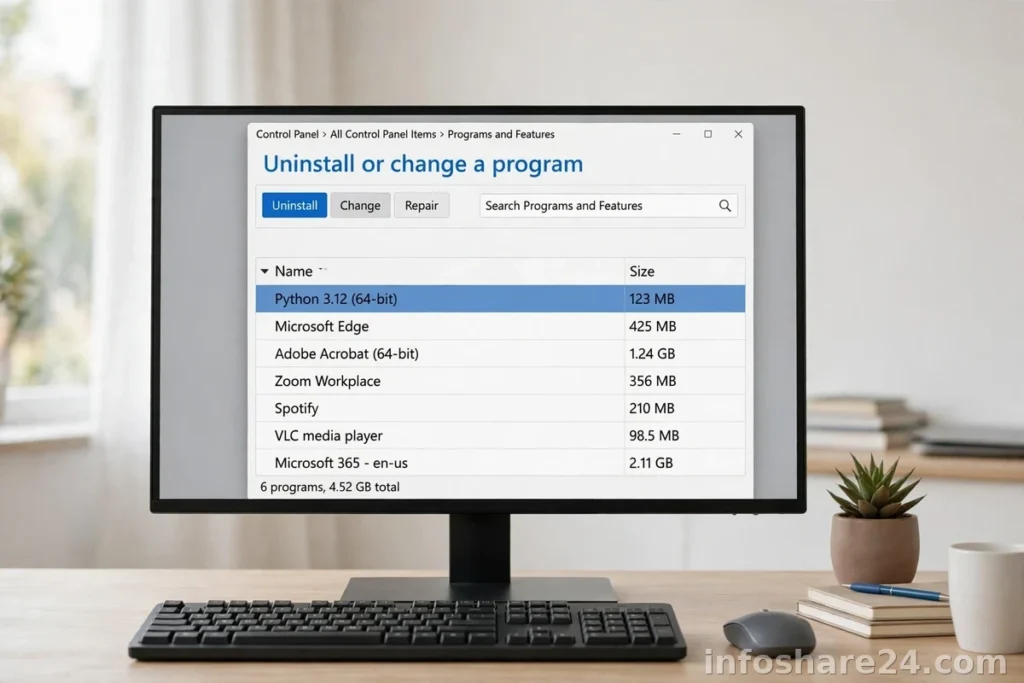
Older desktop programs, installed with a setup file years ago, sometimes do not appear properly in Settings. For those, Control Panel still works best.
- Open Control Panel. Click Start, type “Control Panel”, and open it.
- Click Programs, then “Uninstall a program”.
- Click the program you want to remove. Sort by name, size, or install date to find it.
- Click Uninstall at the top of the list.
- Follow the uninstaller and restart if it asks you to.
Do not delete a program’s folder by hand — the uninstaller also removes settings a manual delete leaves behind.
What If an App Has No Uninstall Button?
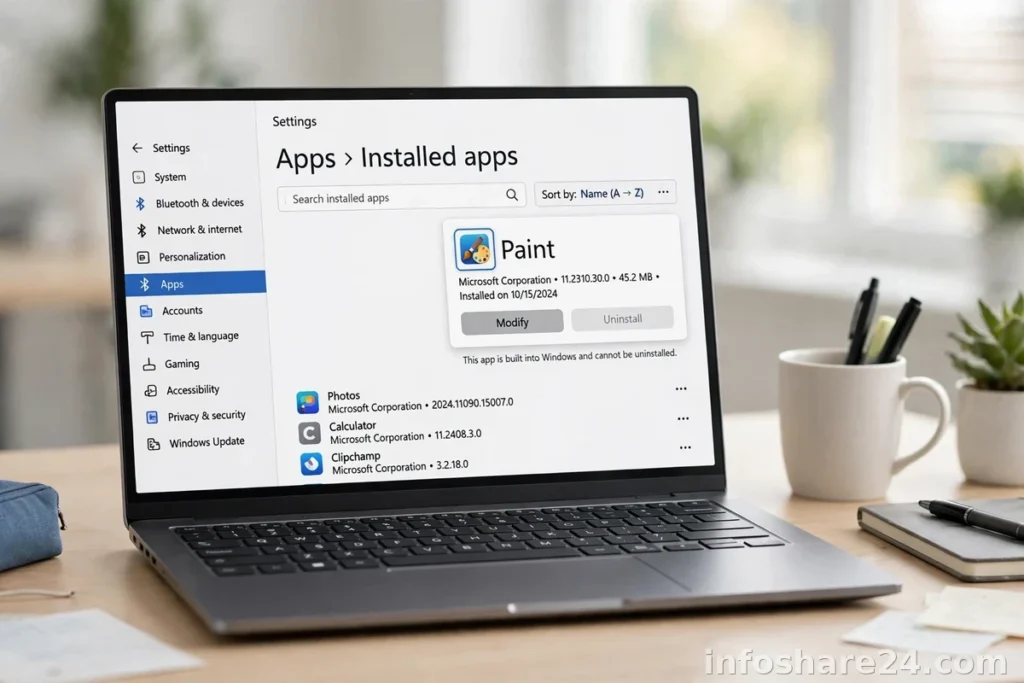
Sometimes you will open Settings, click the three dots next to an app, and find Uninstall greyed out. This usually means the app is built into Windows — like Microsoft Edge in many regions — or a small system app Windows needs. Leave these alone: they are small, and force-removing them can break parts of Windows.
If a built-in app bothers you, make it quieter instead. Unpin it from Start, turn off its notifications, and stop it running in the background under Settings > Apps > Installed apps > Advanced options.
Do not force-remove built-in apps with commands or third-party tools — they can delete something Windows depends on, and the damage is hard to undo.
Clean Up Leftover Files After Uninstalling
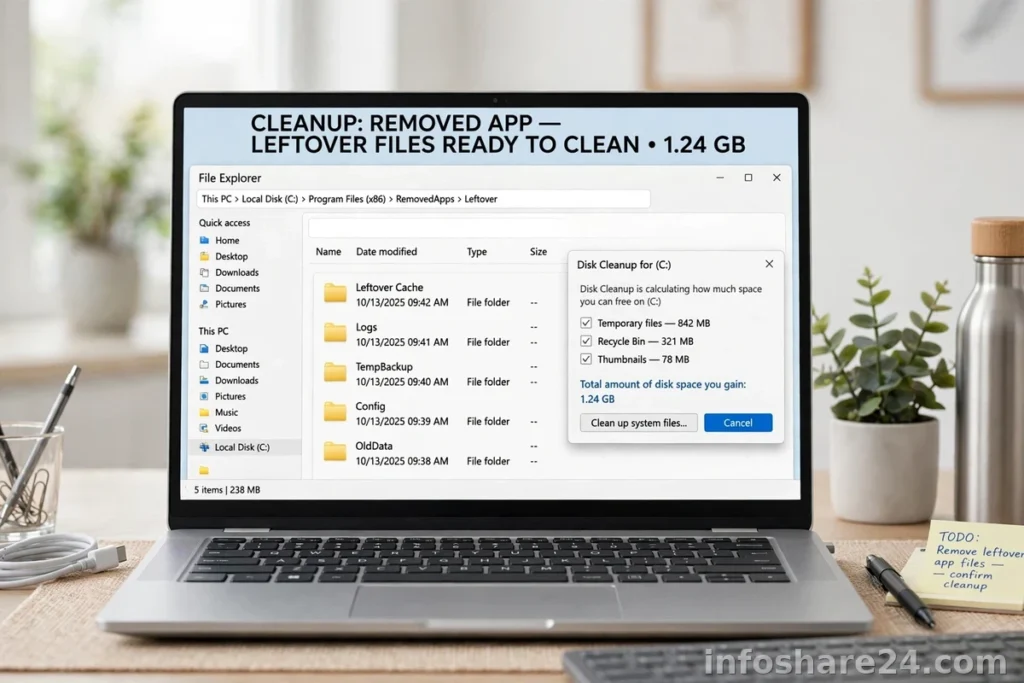
Even a proper uninstall can leave a few small folders behind. If you want a fully clean removal, check these places.
- Check Program Files for a leftover folder. Open File Explorer, go to C: > Program Files, and delete any folder with the app’s name.
- Check your AppData folder. Press Windows + R, type %appdata%, press Enter, and delete any folder with the app’s name.
- Empty the Recycle Bin. Right-click it on your desktop and choose Empty Recycle Bin.
- Run Disk Cleanup. Search for Disk Cleanup, choose your C: drive, tick Temporary files, and click OK.
Only delete folders that clearly belong to the app you removed. If you are not sure what a folder is, leave it alone.
What to Do If an Uninstall Fails
Sometimes an uninstall stops halfway, shows an error, or finishes but the app is still listed. Try these steps in order.
- Restart your PC and try again. A restart closes any part of the app still running — often the whole problem.
- Close the app first, then uninstall. If it is open or running in the background, its uninstaller cannot remove it. End it in Task Manager if needed.
- Use the program’s own uninstaller. In the app’s folder in Program Files, look for uninstall.exe, double-click it, and follow the steps.
- Reinstall the app, then uninstall it again. If the uninstaller is damaged, installing over the top repairs it, and a fresh uninstall then usually works.
If the app is gone but its name is still listed, restart once more — the list usually fixes itself.
A Note on Winget for Advanced Users
If you are comfortable with the command line, Windows includes a tool called winget — the Windows Package Manager — that can uninstall apps with a single command: open Terminal, type winget uninstall followed by the app’s name, and press Enter. It is fast for removing several apps at once, but it is meant for advanced users, so for most people the Start menu or Settings is faster and safer — only use winget if you know exactly which app you are removing.
Frequently Asked Questions
Does uninstalling an app delete my files?
No. Uninstalling removes the app and its settings, not the files you created with it. Your documents, photos, and projects stay where they are.
Can I uninstall Microsoft Edge?
In most regions, Edge has no Uninstall button in Settings, because it is built into Windows. Leave it installed and use your preferred browser instead — you can set any browser as your default.
Should I use a third-party uninstaller app?
For most people, no. The tools built into Windows remove apps properly, and they are free. Many free “uninstaller” apps show ads or bundle extra software. Only consider one if a normal uninstall keeps failing.
Conclusion
Uninstalling apps the right way is a small habit that keeps your PC fast and tidy. Use the Start menu for a quick removal, Settings to see everything at once, and Control Panel for older desktop programs — then take one extra minute to check for leftovers.
Pick one app you no longer use and remove it today, the right way. Your future self, waiting for a faster startup, will thank you.