Typing a long password every time you open your laptop gets old fast. The good news is that you can set up Windows Hello on a Windows 10 or Windows 11 PC and sign in with your face, your fingerprint, or a short PIN instead. It takes about five minutes per method.
Windows Hello is already built into Windows — no app to buy, no new account to create. This guide covers each method, PIN first, then fingerprint, then face, plus what to do when recognition fails.
What Is Windows Hello, and What Do You Need?
Windows Hello is the name for three sign-in methods that replace typing your password: a PIN, fingerprint recognition, and facial recognition. The PIN works only on your device — it is not sent to Microsoft — and your fingerprint and face data stay on your device too.
Each method needs different hardware. A PIN works on almost every PC, which is why it is the first step for everyone. Fingerprint sign-in needs a fingerprint reader — many laptops have one built into the power button, and desktop users can buy a small USB reader. Face unlock needs a Windows Hello-compatible infrared (IR) camera: a normal webcam is not enough, because the IR camera maps your face and checks you are a real person, not a photo.
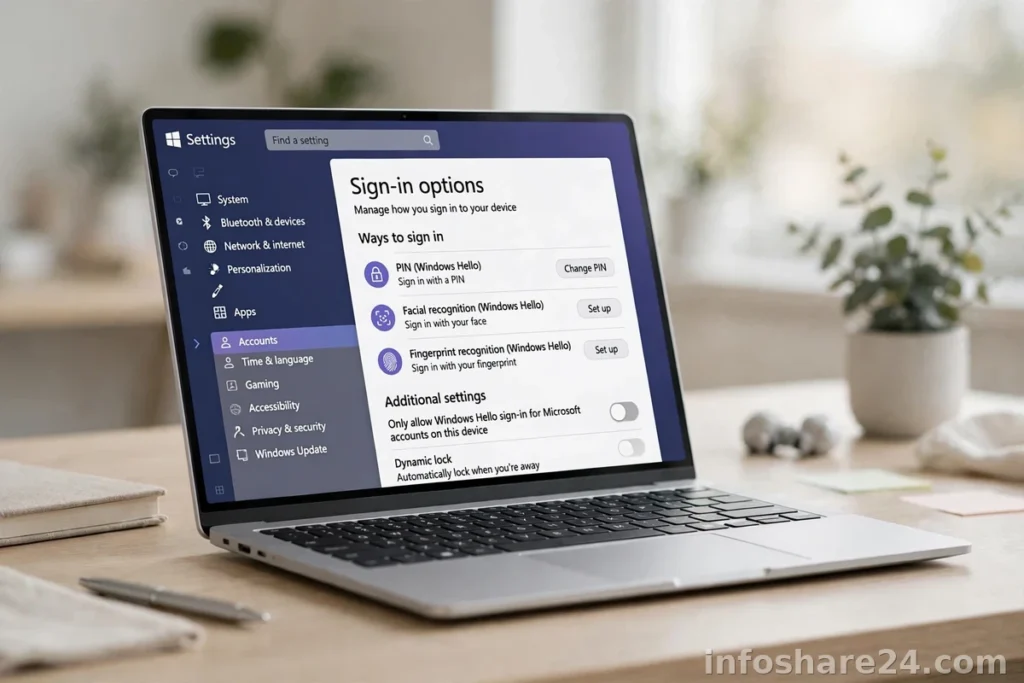
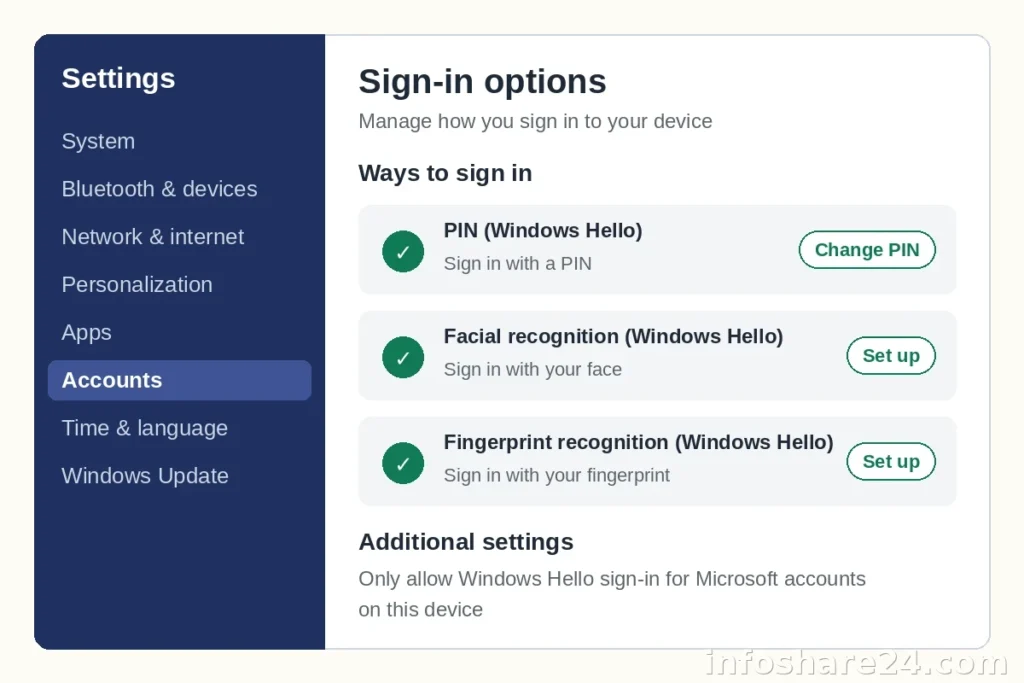
To see what your PC supports, press the Windows key + I, then go to Accounts > Sign-in options. Under “Ways to sign in” you will see the methods your hardware allows. If a method is missing, your PC does not have that sensor.
Before you begin, make sure Windows is up to date — missing drivers are the most common reason a reader or IR camera does not appear. If updates are failing, read How to Fix Windows Update Errors first.
How to set up Windows Hello fingerprint

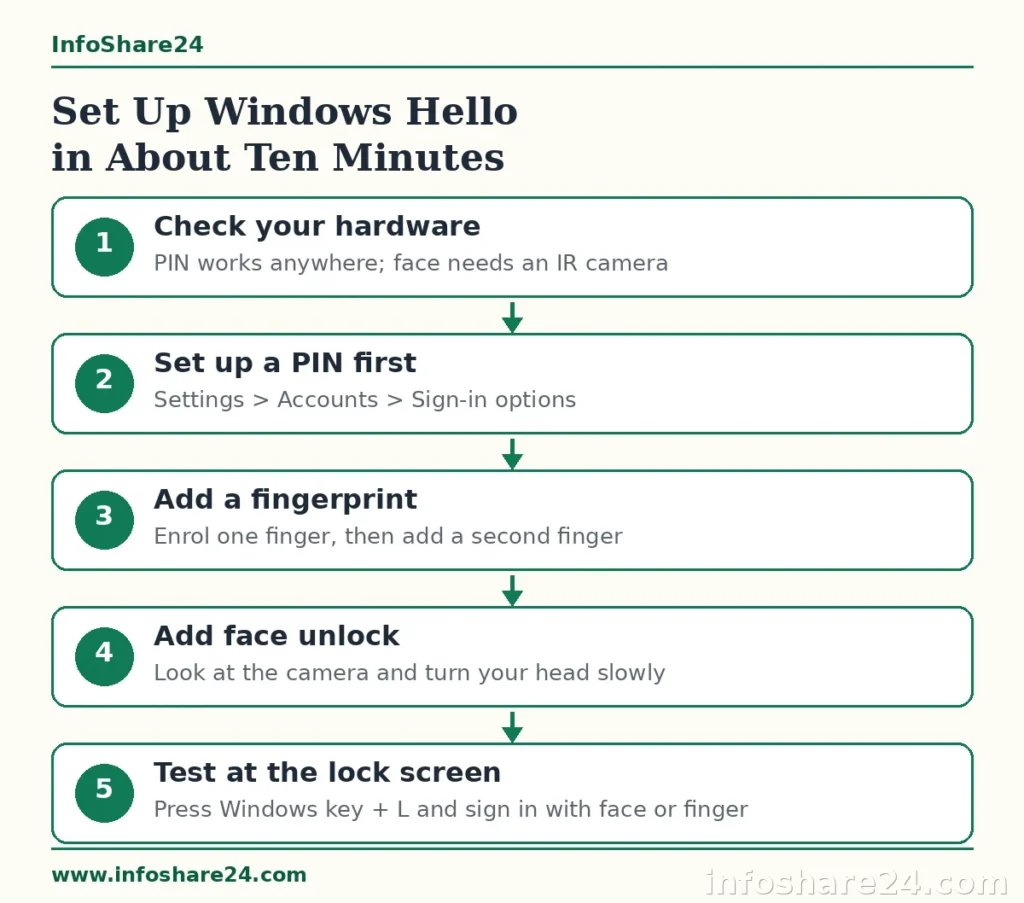
Fingerprint sign-in is quick and works even in a dark room. But first, you must set up a PIN — Windows uses it as the backup when your finger is not recognised.
- Open Sign-in options. Press the Windows key + I, then click Accounts, then Sign-in options.
- Set up a PIN first. Click PIN (Windows Hello), then Set up. Enter your account password, then type a PIN of at least four digits and confirm it.
- Open Fingerprint recognition. Back on the Sign-in options page, click Fingerprint recognition (Windows Hello), then Set up, then Get started. Confirm with your new PIN.
- Enrol your finger. Place one finger flat on the reader, then lift it and rest it again each time Windows asks, until Windows has recorded the whole fingertip. Keep your finger clean and dry.
- Add a second finger. Click Add a finger and enrol a finger from your other hand, as a backup for days when one hand is busy or wet.
- Test it right away. Press the Windows key + L to lock your PC, then touch the reader. Your desktop should appear in a second or two.
How to set up Windows Hello face unlock
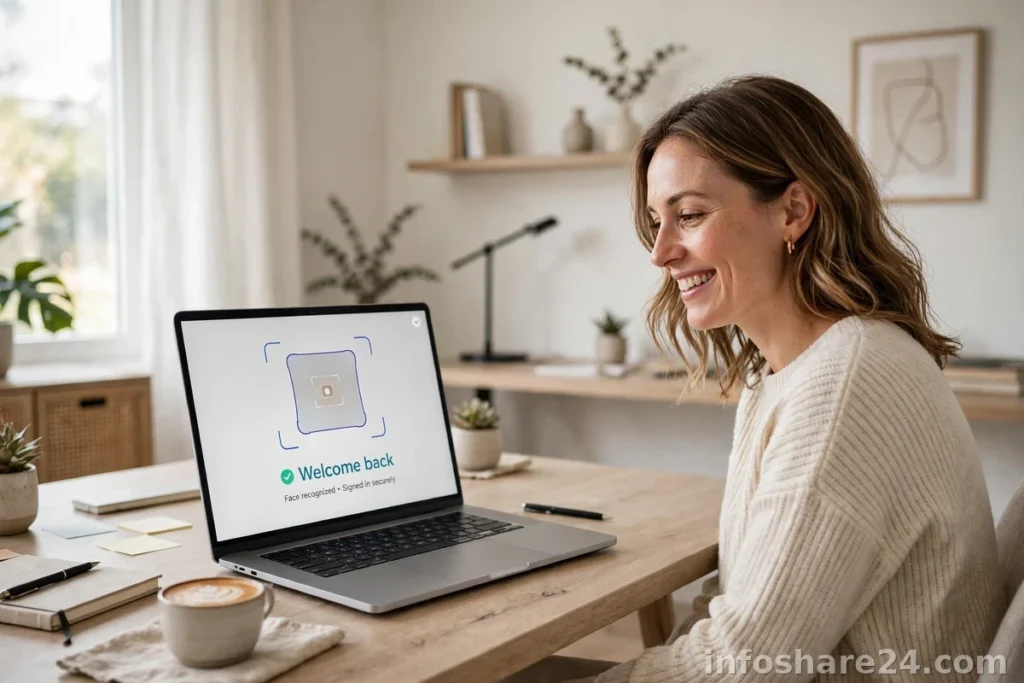
Face unlock is the fastest method: you open the lid, look at the screen, and you are in. It only works with an IR camera — if “Facial recognition (Windows Hello)” is not listed on the Sign-in options page, skip this section.
- Open Sign-in options. Press the Windows key + I, then go to Accounts > Sign-in options.
- Start face setup. Click Facial recognition (Windows Hello), then Set up, then Get started. Confirm with your PIN.
- Look at the camera. Sit in normal room light, take off sunglasses, and look straight at the camera. Turn your head slowly as Windows asks, keeping your face inside the frame until it says it is done.
- Improve recognition later if needed. If glasses or a new hairstyle stop Windows recognising you, go back to Facial recognition (Windows Hello) and click Improve recognition.
- Test it at the lock screen. Press the Windows key + L, then look at the camera. It should open within a couple of seconds. If it asks for your PIN instead, that is the backup working as it should.
But face unlock struggles if the lens is dirty, if bright sunlight shines into it, or if your face is half covered.
Using Windows Hello Every Day
At the lock screen, look at the camera or touch the fingerprint reader — Windows tries the ready method first, and falls back to your PIN if neither works. The same methods work after your PC wakes from sleep.
You can change or remove any method from the same page. To change your PIN, open PIN (Windows Hello) and click Change. To remove a fingerprint or face, open that method and click Remove. If you forget your PIN, click “I forgot my PIN” — with a Microsoft account, Windows verifies you online and lets you set a new one.
One warning: Windows Hello only protects the person sitting at your keyboard. It does not replace a strong password or two-factor authentication for your online accounts — see What Is Two-Factor Authentication and How to Turn It On and How to Create a Strong Password You Can Actually Remember.
Windows Hello Not Working? Try These Fixes

Most Windows Hello problems have a simple cause. Work through this list before starting over.
- Clean the sensor or lens. Wipe the fingerprint reader and camera lens with a soft, dry cloth. Grease and smudges are the most common reason recognition fails.
- Dry your hands and check the light. Wet or very dry fingers scan badly — dry them first. For face unlock, face a lamp or a window, not bright light behind you.
- Remove and re-add the method. If one finger keeps failing, delete that fingerprint and enrol it again. The same applies to a face scan that no longer matches you.
- Update Windows and your drivers. A reader that worked last month and stopped today usually needs a driver update. Run Windows Update, then check Device Manager under “Biometric devices” and “Cameras”.
- Check the “only allow Windows Hello” setting. Under Additional settings, the toggle “For improved security, only allow Windows Hello sign-in for Microsoft accounts on this device” hides the password option. That is normal — your PIN still works.
- Still stuck? Reset the method. Remove the fingerprint or face, restart the PC, and set it up again. If the option is missing entirely, your sensor may be disabled in the BIOS or blocked by a work policy — check with IT.
Frequently Asked Questions
Is Windows Hello safe?
Yes. Your fingerprint and face data are stored on your device, not sent to Microsoft, and your PIN only works on that one PC.
Can I use Windows Hello with a local account?
Yes. It works the same way on both. The only difference is that a local account has no online “I forgot my PIN” reset — so keep your PIN written down somewhere safe.
Do I still need my password?
Yes. Your password is still needed for some changes, for signing in on a new device, and for turning off the “only allow Windows Hello” setting.
Conclusion
To set up Windows Hello, open Settings, go to Accounts and then Sign-in options, create a PIN first, then add your fingerprint and face. Enrol a second finger as a backup and test everything at the lock screen. In about ten minutes you will have a faster, safer way to unlock your PC.
If your laptop feels slow on top of all this, a quicker sign-in will not fix it — try How to Speed Up a Slow Windows PC: A Step-by-Step Checklist next.