Your PC was fast yesterday, and today every click takes forever. Before you restart it for the third time, try a better first step: you can use Task Manager to find what slows down your PC in less than a minute. Task Manager is a free tool already built into Windows, and it shows you exactly which app is eating your processor, memory, or disk.
This guide shows you how to open it three ways, read its numbers, end a frozen app safely, and stop the apps that slow your startup. Nothing to download — just the tool Windows already gave you.
What Is Task Manager?

Task Manager is Windows’ own control panel for everything running on your computer. It lists every open app and background process, and next to each one it shows how much of your computer’s power that app is using.
When your PC feels slow, it tells you where the problem is — one greedy app, too many startup programs, or a disk working flat out.
3 Ways to Open Task Manager
Use whichever method you remember most easily. They all open the same window.
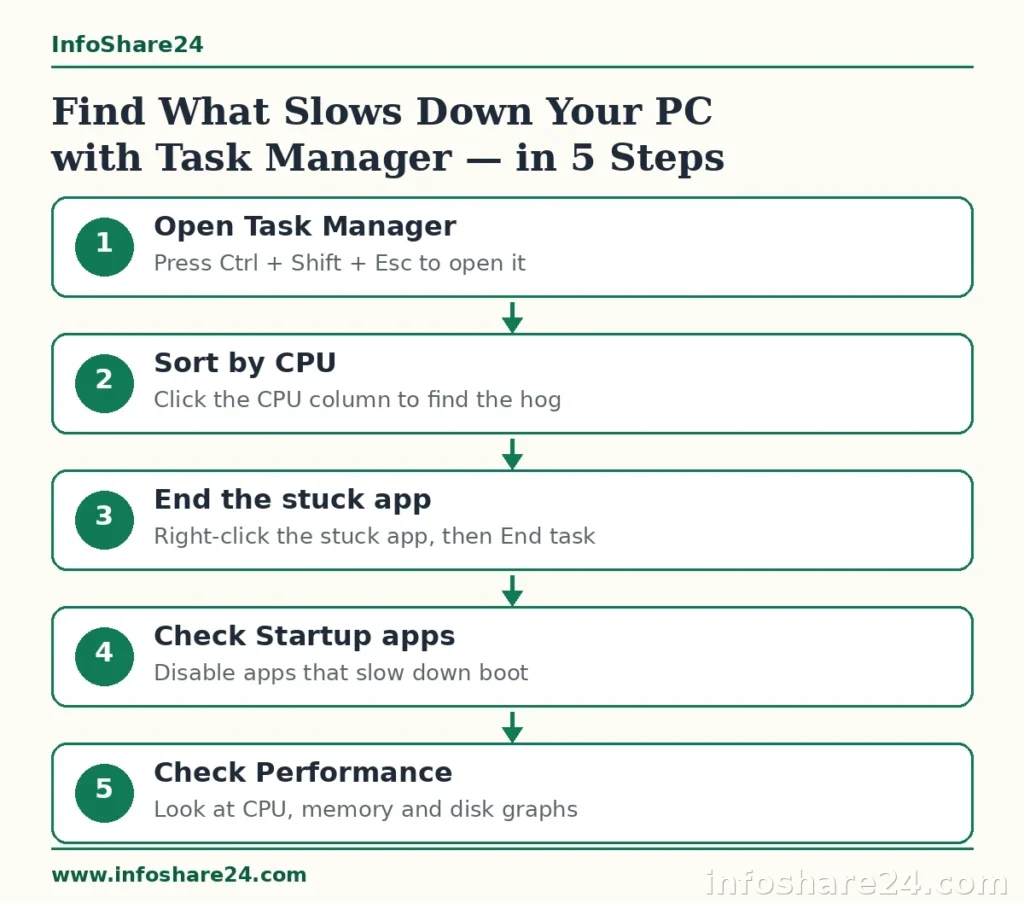
- Press Ctrl + Shift + Esc. The fastest way. Hold all three keys at once, and Task Manager opens straight away — even when clicks do nothing.
- Right-click the taskbar and choose Task Manager. Right-click an empty part of the taskbar at the bottom of your screen, then click Task Manager in the menu.
- Press Ctrl + Alt + Delete, then choose Task Manager. Use this one when your PC is frozen so badly that nothing else responds.
If it opens as a small window, click More details at the bottom left for the full view.
How to use Task Manager to find what slows down your PC
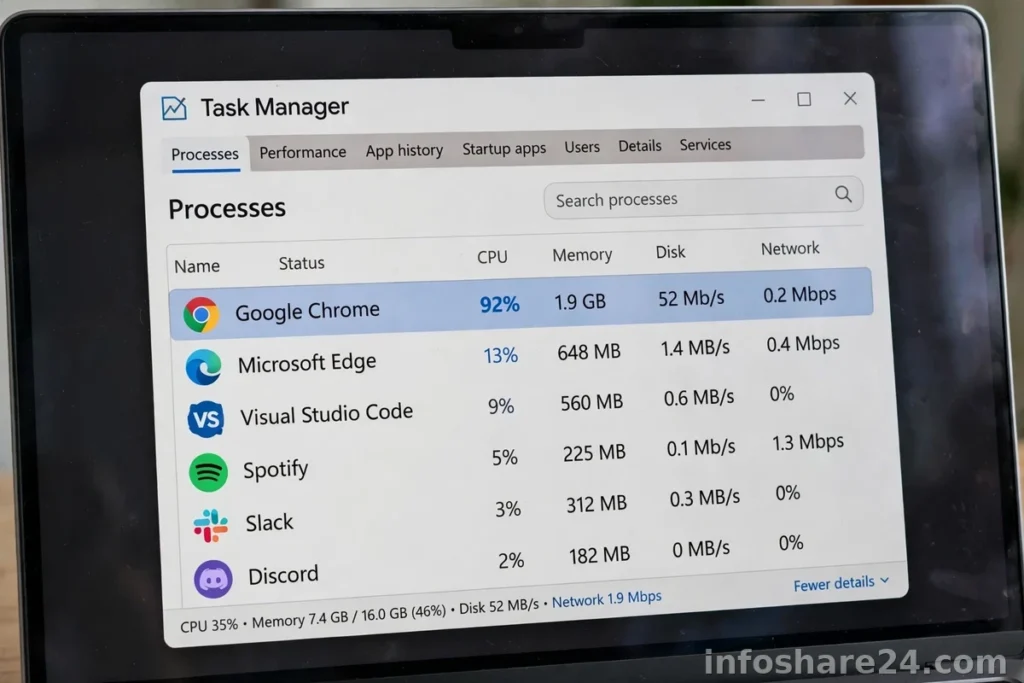
Follow these steps to find the culprit. The whole check takes about a minute.
- Click the Processes tab. Every running app is listed here, with a number next to it for CPU, Memory, Disk and Network.
- Click the CPU column header to sort by CPU. The biggest processor user jumps to the top. If one app uses 80% or 90% of your CPU, it is almost certainly why your PC feels slow.
- Check the Memory column too. Look for an app using several gigabytes (GB), especially if your PC only has 8 GB — a browser with dozens of open tabs is the usual suspect.
- Look at the Disk column. If one app reads or writes to your disk non-stop, everything else waits behind it — common just after Windows starts, when updates and cloud apps all work at once.
- Match the numbers to what you were doing. High numbers are normal for a game or video editor you are using. If the top app is one you are not using at all, you have found your problem.
End a Task That Is Stuck — Safely
When an app freezes — its window will not move and clicks do nothing — ending it from Task Manager is the safe way out.
- Right-click the frozen app in the Processes list. Find it by name, then right-click it.
- Click End task. Windows closes the app straight away.
- Save your work first if you can. Ending a task closes the app without saving, so save the normal way first if the app is only slow, not fully frozen.
Never end a Windows system process you do not recognise. Names such as System, Windows Explorer and Service Host are part of Windows itself — ending one can crash your PC. Only end apps you installed yourself, and you are safe.
Check the Startup Tab and Speed Up Boot
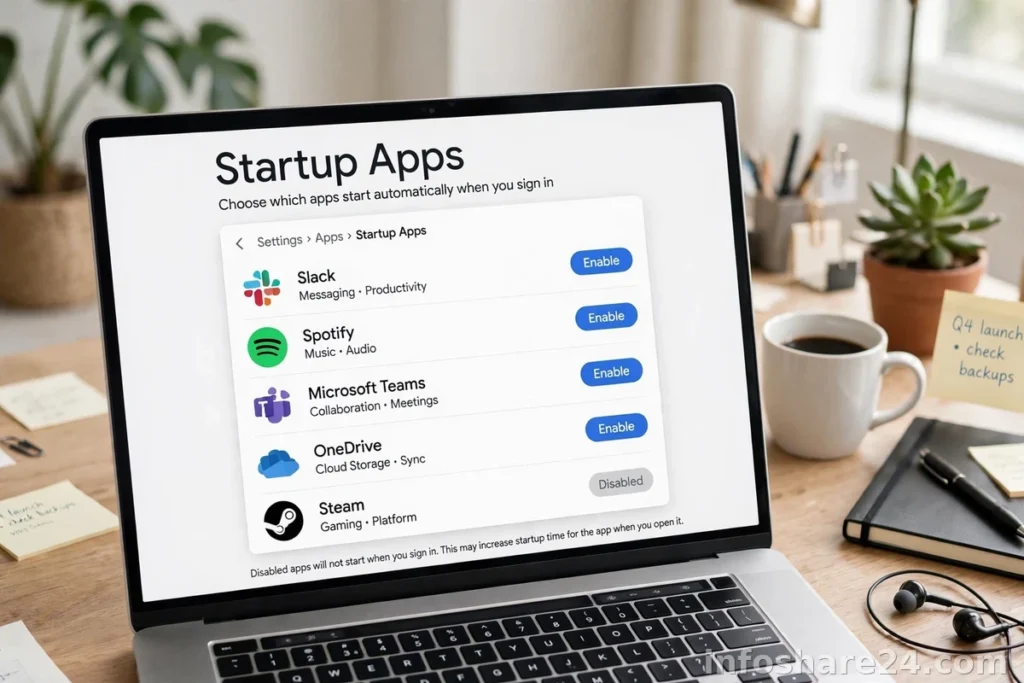
If your PC is slow mainly just after you switch it on, the cause is usually startup apps — programs that launch themselves every time Windows starts.
- Click the Startup apps tab. On older Windows it is called simply Startup.
- Look at the Startup impact column. Windows rates each app High, Medium or Low. High-impact apps are the ones making your boot slow.
- Right-click an app you do not need at startup and choose Disable. This does not uninstall the app — it only stops it starting automatically.
- Leave security software alone. Your antivirus should keep starting with Windows. Only disable apps you recognise and do not need straight away.
Disable one or two high-impact apps, restart, and feel the difference.
Check Performance to See the Bigger Picture
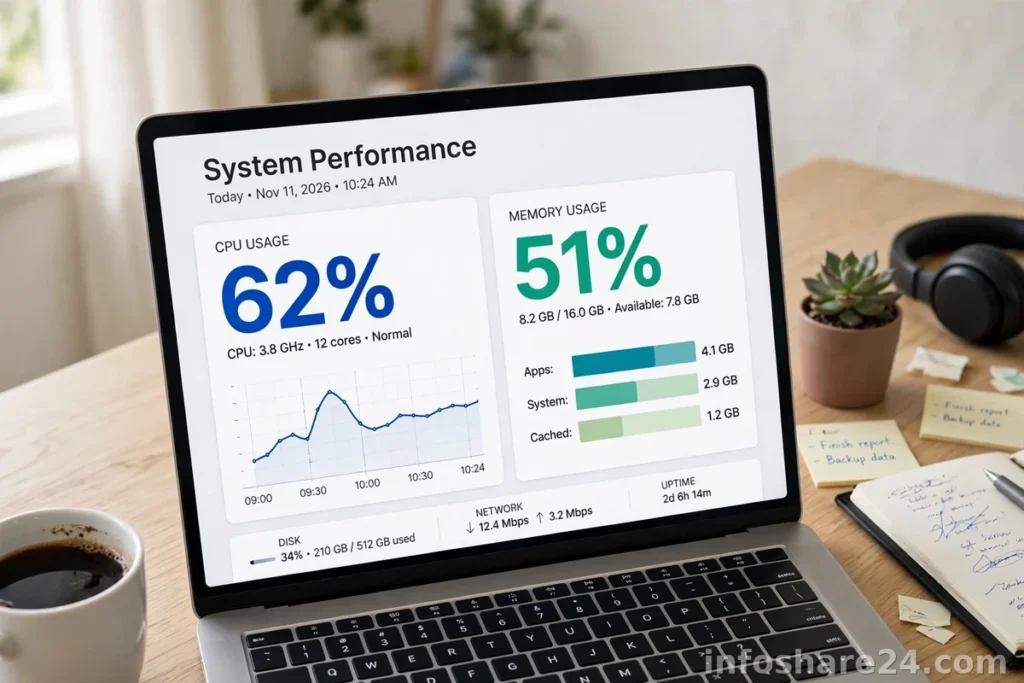
Processes shows which app is the problem. Performance shows whether your computer itself is struggling.
- Click the Performance tab. You will see live graphs for CPU, Memory, Disk and Network.
- Check the CPU graph. A healthy PC at rest sits at 5–15%. If it stays above 80% while you do almost nothing, go back to Processes and find the app.
- Check Memory. Above 85% all the time means your PC is running out of memory. Closing browser tabs helps today; more memory is the real fix.
- Check the Disk graph. A normal disk idles near 0–10%. If it sits at 90–100% for minutes, read the next section.
A short spike when you open a big app is normal. A line that never comes down is not.
When Your Disk Is at 100%
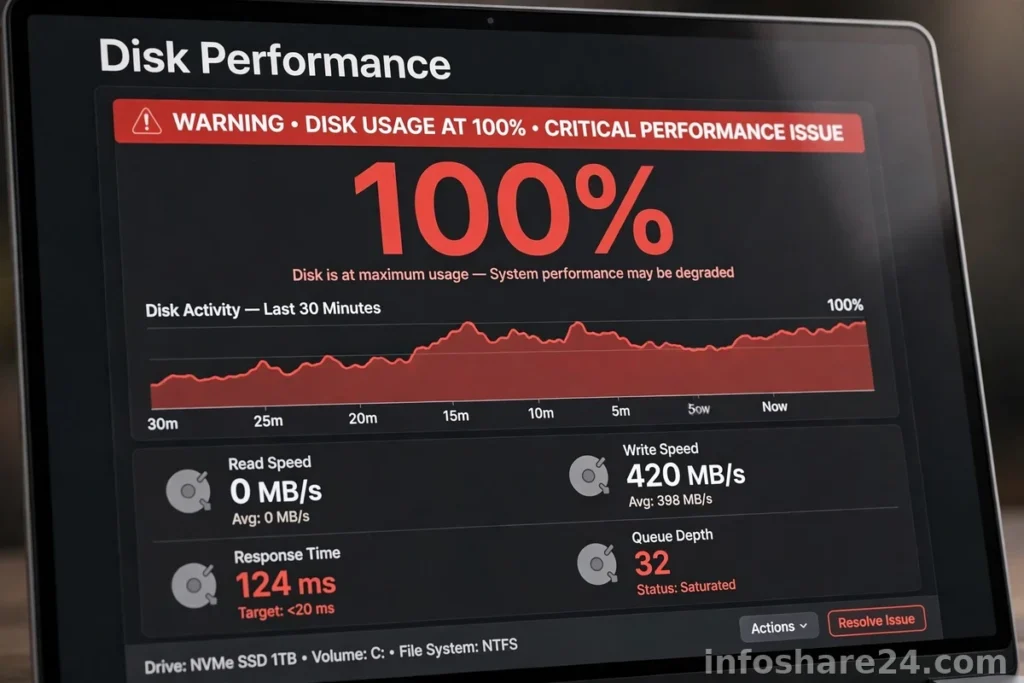
A disk stuck at 100% is a common reason a PC feels slow: your drive is working as hard as it can, and every app is queuing behind it.
- Sort Processes by the Disk column. Click the Disk header, and the biggest disk user moves to the top — often Windows Update, an antivirus scan, or OneDrive syncing files.
- Wait a few minutes before you act. Updates and scans finish on their own. If the disk drops back after five or ten minutes, there was nothing to fix.
- End the task only if it is stuck, not just busy. If one app holds the disk at 100% for half an hour and you are not using it, right-click it and choose End task.
- Check how full your disk is. A drive more than 90% full slows down badly. In File Explorer, if the bar under your C: drive is red, delete large files you no longer need.
If it hits 100% every day on an old hard drive (HDD) rather than a solid-state drive (SSD), the drive is the bottleneck. For the full clean-up, see: How to Speed Up a Slow Windows PC.
Frequently Asked Questions
Is it safe to end a task in Task Manager?
Yes — if you only end apps you installed yourself. Never end a Windows system process you do not recognise.
Why is my disk at 100% in Task Manager?
Usually Windows Update, an antivirus scan, or a cloud app syncing files. Wait ten minutes; if it stays at 100%, sort Processes by Disk.
What is a normal CPU percentage?
At rest, 5–15%. Short spikes to 80–100% when opening an app are normal. Above 80% while idle means one app is misbehaving.
Can Task Manager fix a slow PC by itself?
No — it finds the cause, not the fix. It tells you which app to close, update, or stop from starting automatically.
Conclusion
A slow PC is rarely a mystery. Open Task Manager with Ctrl + Shift + Esc, sort Processes by CPU, and the app slowing you down is usually at the top. End it if it is stuck, and disable it from Startup if it slows your boot.
Next time your PC feels slow, spend one minute in Task Manager before you restart.