You write an email, a CV, or a school assignment. You read it twice, and it looks fine — then someone spots a small mistake: a missing “s”, a wrong tense, a wrong capital letter. It happens to everyone.
The good news is that you can use AI to check your grammar for free, in less than a minute, with tools you already have. This guide shows you how, with ChatGPT and three free tools — and what AI checkers miss, so you do not trust them blindly.
What Does an AI Grammar Checker Do?
An AI grammar checker reads your text and looks for mistakes in spelling, verb forms, capital letters, commas, and sentence structure. When it finds a problem, it underlines the word or suggests a fix, and you choose whether to accept it.
For example, “She don’t like to go” becomes “She doesn’t like to go” — “she” goes with “doesn’t”.
A checker can also make writing clearer and suggest a simpler word. It is not magic, though: it does not know what you meant. That is why reading the result yourself matters so much.
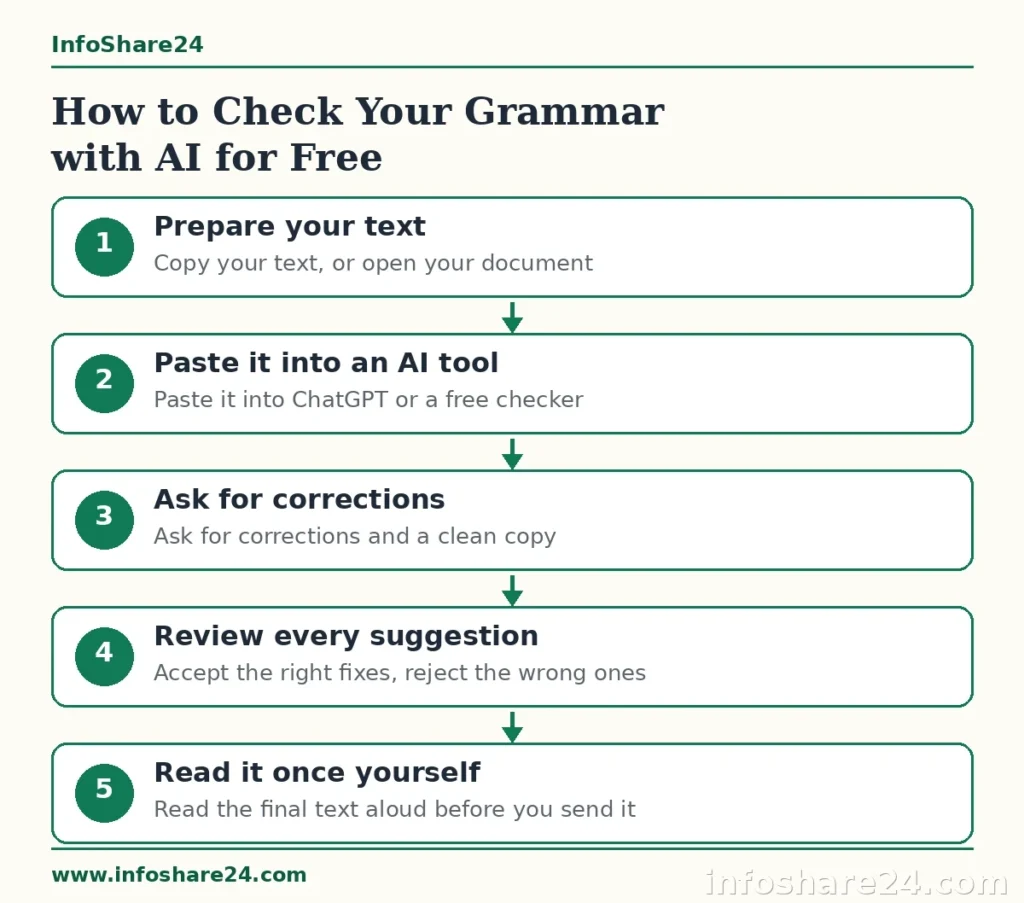
How to Use AI to Check Your Grammar for Free in 5 Steps
These five steps work with almost any free tool.
- Prepare your text. Write your draft first, in your own words.
- Copy the text you want to check. Select a paragraph, or the whole document, and copy it.
- Paste it into your chosen AI tool. Open ChatGPT, Grammarly, QuillBot, or Microsoft Editor, and paste your text into the box.
- Ask for corrections, or read the suggestions. With ChatGPT, type a clear request. With the other tools, the suggestions appear on their own.
- Review every suggestion before you accept it. Accept the right fixes, ignore the ones that change your meaning, then read it once.
Check Your Grammar with ChatGPT
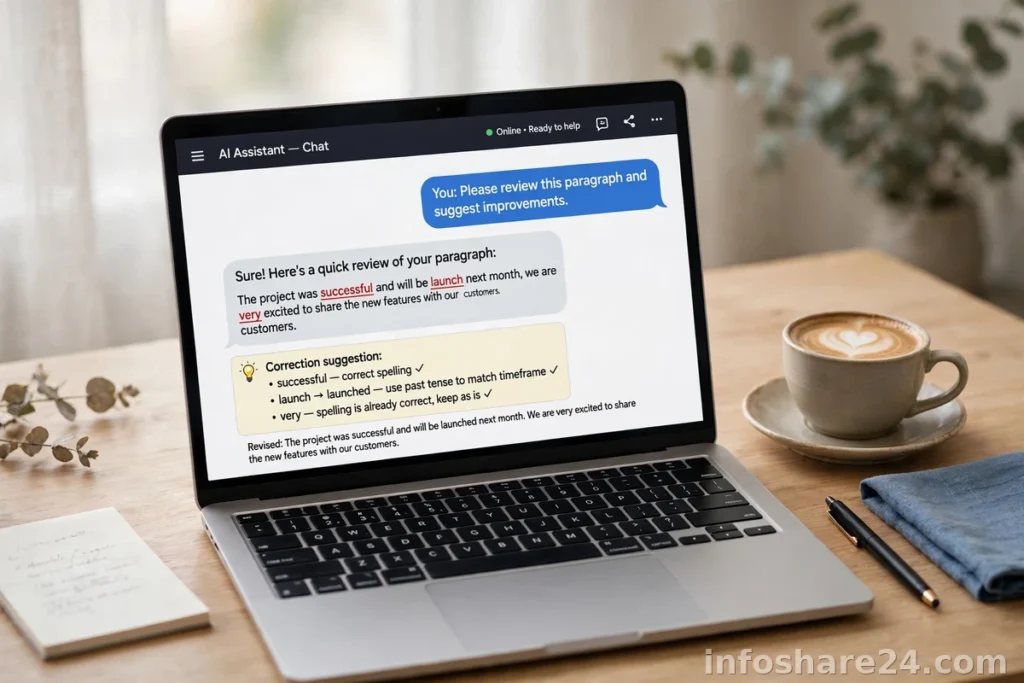
ChatGPT is the most flexible way to check grammar: paste your text, ask for corrections, and it explains each change. It is free. New to it? See How to Use ChatGPT for Beginners.
- Open ChatGPT and start a new chat. Go to chatgpt.com, or open the ChatGPT app on your phone.
- Paste your text, then add a clear instruction. Try: “Check the grammar in this text and correct any mistakes.”
- Ask for the corrections to be explained. Add: “Explain each correction in simple words.”
- Ask for a different tone if you need one. Try: “Make this email more polite.”
- Copy the corrected text back into your document. Read it once first, and make sure it still says what you meant to say.
Good prompts make a big difference — see How to Write Better Prompts for AI Chatbots: A Beginner’s Guide. Warning: ChatGPT sometimes “fixes” a correct sentence, or changes a name or date. Never copy its answer unread.
Free Grammar Tools: Grammarly, QuillBot and Microsoft Editor
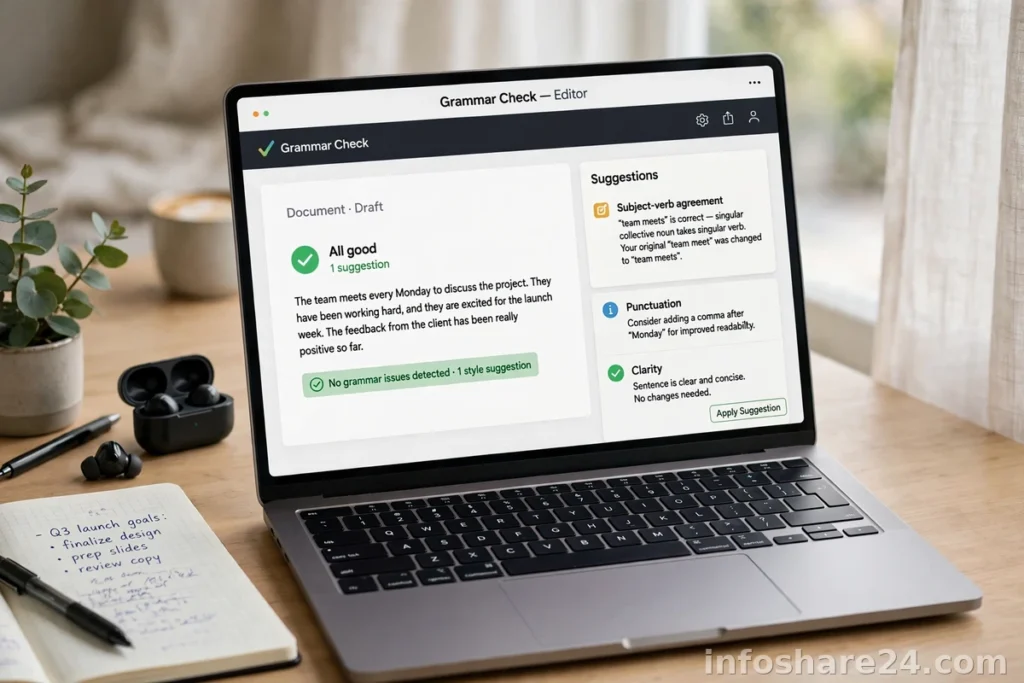
If you prefer a tool that checks as you type, these three free options are the best place to start.
Grammarly Free
Grammarly is the best-known grammar checker. Its free plan checks spelling, grammar, and punctuation in your browser, in Word, and on your phone.
- Create a free Grammarly account. Go to grammarly.com and sign up with your email address, or continue with Google.
- Paste your text into the Grammarly editor. Or install the free browser extension, which checks your writing as you type in Gmail and Google Docs.
- Click each underlined word to see the suggestion. Click it to accept, or “Dismiss” to ignore it.
- Read the final text once more before you send it.
QuillBot Grammar Checker
QuillBot is simpler and lighter. Its grammar checker is free, works in your browser, and needs no account for a basic check.
- Go to quillbot.com and open the Grammar Checker. You will see a clean box where you can paste your text.
- Paste your text into the box. Mistakes are underlined at once.
- Click each underline to see the fix. Click it to apply it, or leave it if you disagree.
- Copy the corrected text. Use the copy button, then paste it back into your email or document.
QuillBot also has a free paraphraser that rewrites a sentence. It can change your meaning, so always read the result.
Microsoft Editor in Word and Edge
If you already use Microsoft Word, you already have a free grammar checker: Microsoft Editor, built into Word and the Edge browser, free with a Microsoft account.
- Open your document in Word. You can use Word on a computer, on the web, or on your phone.
- Look for the blue and red underlines. Red means a spelling mistake. Blue means a grammar or style suggestion.
- Right-click an underlined word, or tap it, to see the suggestion. Click the fix you want, or choose “Ignore” if the suggestion is wrong.
- Open the full Editor panel. In Word, go to the Home tab and click Editor.
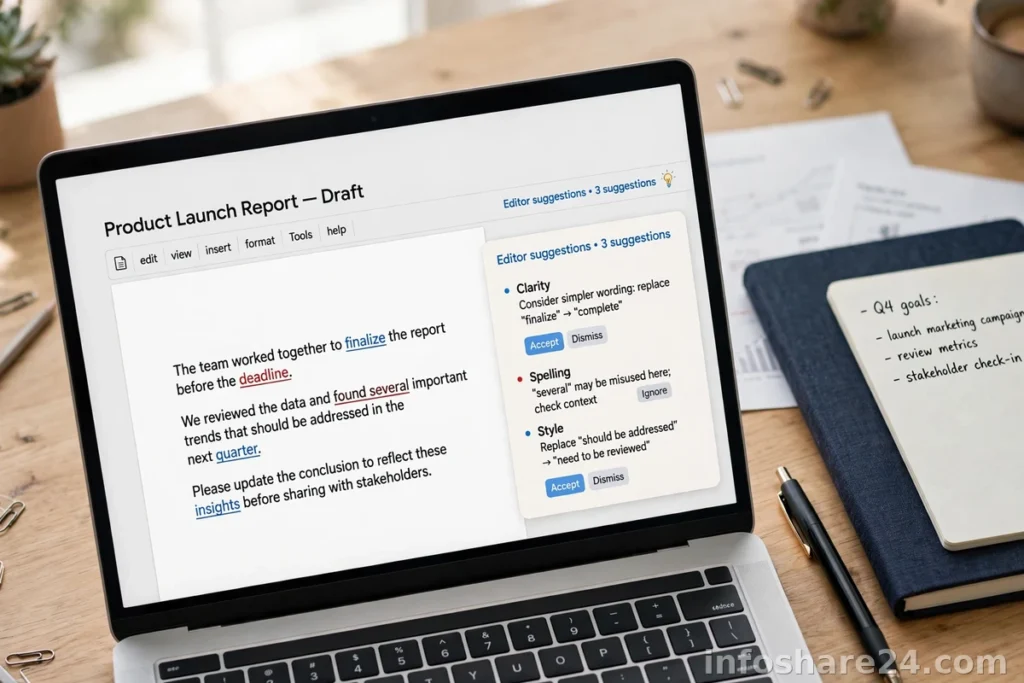
For CVs and reports in Word, this is the easiest option — you never leave your document. See also How to Make a Professional CV in Microsoft Word.
How to Check a Full Document Step by Step

A short email takes a minute. A long document needs a slower method. Use this routine for assignments, CVs, reports, and long emails.
- Finish your draft first, then take a short break. Fresh eyes spot more mistakes.
- Run the whole document through one tool, in sections if it is very long.
- Check it with a second tool if the document matters. A CV deserves a second pass.
- Read the document out loud. Your ear catches awkward sentences your eyes skip.
- Check names, dates, and numbers by hand. No checker can tell you that you typed the wrong date.
- Send it to a friend for a final look. A fresh pair of eyes often spots a mistake you missed.
What AI Grammar Checkers Miss

AI checkers have clear limits. Knowing them keeps you safe.
- Context. A checker does not know your situation, so it may suggest a formal word when you want a friendly one.
- Facts. A checker cannot tell you that a date, a price, or a name is wrong — it checks language, not truth. See How to Check If an AI Answer Is Accurate Before You Trust It.
- Your meaning. Sometimes a checker “corrects” a sentence and quietly changes what you meant. If so, reject it.
The rule is simple: the AI suggests, you decide.
Privacy: What Not to Paste into a Grammar Checker
A checker usually sends your text to the company’s servers to check it. That is normal, but be careful about what you paste.
Do not paste passwords, bank details, national ID numbers, medical reports, or private company documents into any checker. Do not paste other people’s private information either.
For everyday writing, a well-known checker is fine. For sensitive work, use the checker built into Word on your own computer. When in doubt, replace private details with “[name]” before you paste.
Frequently Asked Questions
Is there a truly free AI grammar checker?
Yes — Grammarly free, QuillBot, Microsoft Editor, and ChatGPT.
Should I trust every suggestion a grammar checker makes?
No. Checkers make mistakes and sometimes change your meaning. Review every suggestion and read the final text yourself.
Conclusion
You can use AI to check your grammar for free today. Write your draft, paste it into ChatGPT, Grammarly, QuillBot, or Microsoft Editor, review every suggestion, and read the final text once yourself.
Start with one short email. Paste it in, accept the clear fixes, and notice what you learn.