You reach for your phone and it is not there — not in your pocket, not on the table, not in the bag where you are sure you left it. The good news: your Android phone already has a free tool to help you get it back. Google Find Hub can show your phone on a map, make it ring even on silent, lock it, or erase it.
In May 2025, Google renamed Find My Device to Find Hub. Many old guides still use the old name and menus — this guide uses the current name and settings.
What Is Google Find Hub?

Google Find Hub is Google’s free service for finding a lost Android phone, tablet, watch, headphones, or tracker-tagged item, and it is already on your phone when you sign in with a Google Account.
From any computer or another phone, you can see it on a map, play a sound, lock it with a message, or erase it. If the phone is offline, Find Hub can still show its last known location, and nearby Android phones can help spot it. On supported phones, such as the Pixel 8 series, the network can find the phone for several hours after the battery runs out.
Set Up Google Find Hub Before You Lose Your Phone
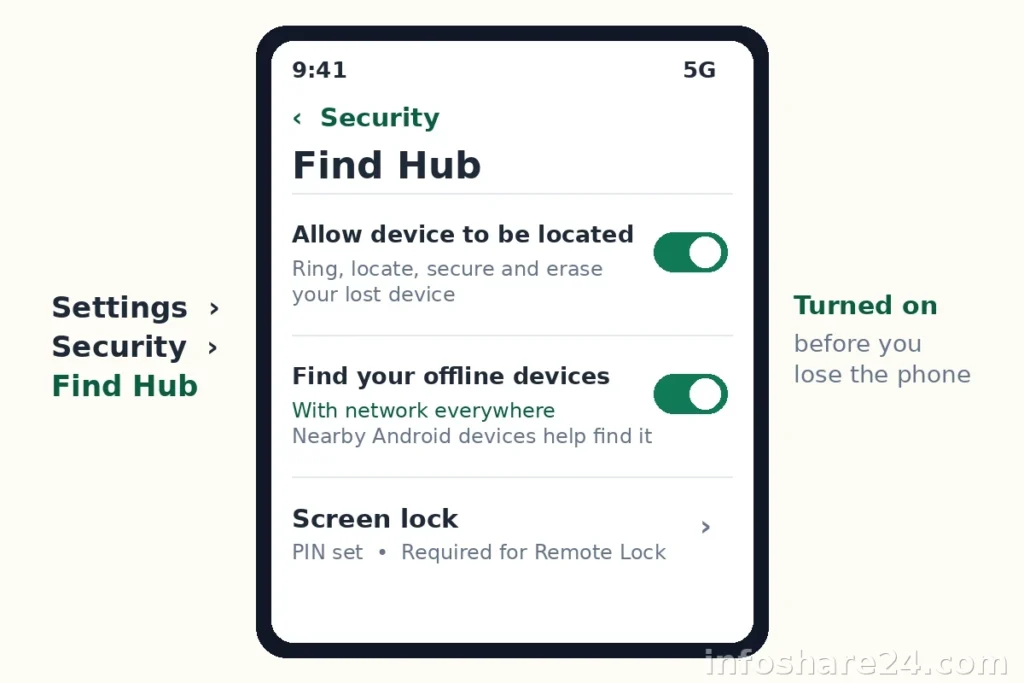
Do this five-minute check today, while your phone is safe in your hand.
- Check that you are signed in to a Google Account. Open Settings, then tap Passwords, passkeys and accounts.
- Turn Location on. Open Settings, tap Location, and turn on Use location.
- Turn Find Hub on. Open Settings, tap Security, then Find Hub. Check that Allow device to be located is turned on.
- Turn on offline finding. Open Settings, tap Google, then All services, then Find Hub. Tap Find your offline devices and choose With network everywhere.
- Set a screen lock. Go to Settings, then Security, and set a PIN, pattern, or password.
Save a Way Back Into Your Google Account
Your lost phone is often the device that receives your Google verification codes — so if two-step verification is on, you can be locked out of your own account.
Fix that now. On a computer, open your Google Account, go to Security, then 2-Step Verification, and create backup codes. Save them somewhere safe — not on the phone itself. Each code works once. If you have not set up two-step verification yet, see: What Is Two-Factor Authentication and How to Turn It On.
How to Find a Lost Android Phone With Google Find Hub
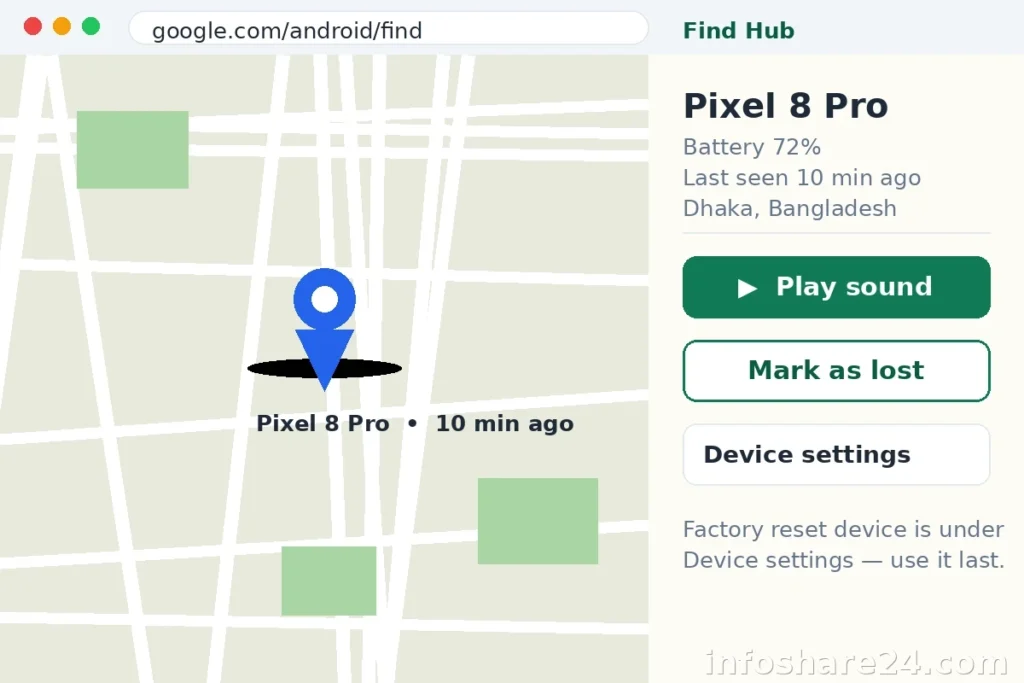
Use any computer, tablet, or a friend’s phone — and act quickly, while it still has battery and signal.
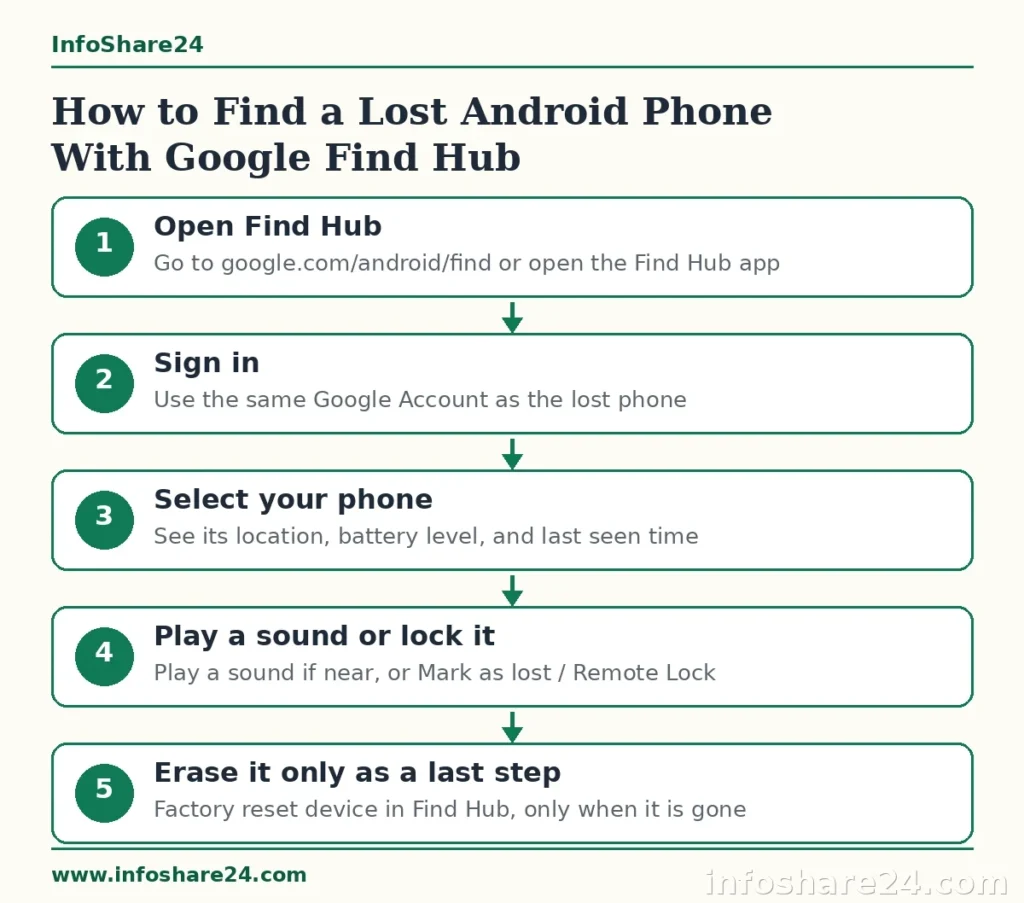
- Open Find Hub on the web. Go to google.com/android/find, or open the Find Hub app on another Android phone and tap Sign in as guest.
- Sign in with the same Google Account that is on the lost phone. If your code goes to the lost phone, use a backup code.
- Select your lost phone. Find Hub shows its location, battery level, and when it was last seen.
- Read the map before you act. If it is at home, it is probably down the side of the sofa. If it is moving, or somewhere you have never been, do not go after it alone.
The phone needs power, data or Wi-Fi, Find Hub on, and to be signed in — otherwise you only see its last known location.
If It Is Nearby, Play a Sound
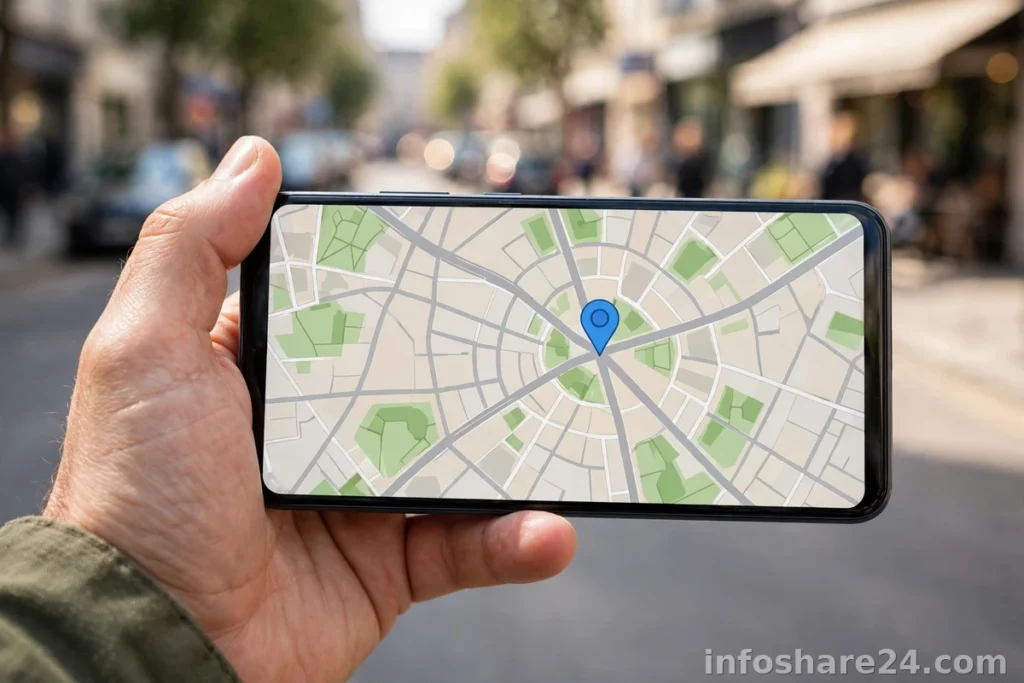
If the map shows the phone at home or at work, do not lock or erase it yet — just make some noise.
- Tap Play sound in Find Hub. Your phone rings at full volume for 5 minutes, even on silent or vibrate.
- Follow the sound. Check between sofa cushions, under a car seat, or in a jacket pocket.
- Tap Stop sound once you have it. The button appears in Find Hub while the phone is ringing.
If you hear nothing, the phone is probably not nearby or its battery has died. Move on to locking it.
Lock It Fast: Mark as Lost and Remote Lock
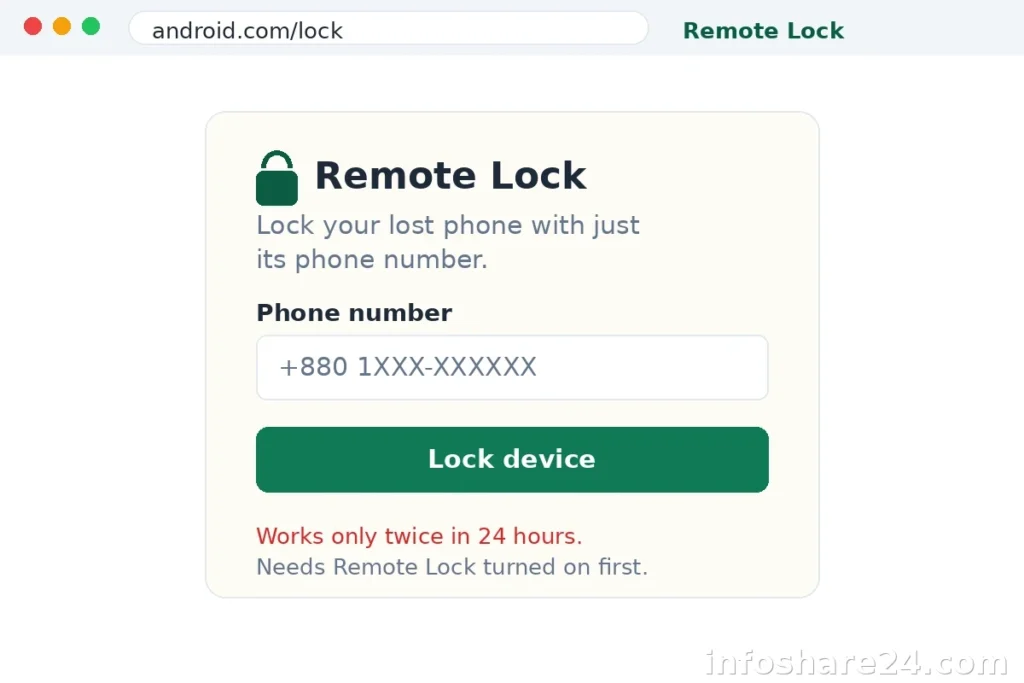
Locking matters most when the phone is really lost or stolen.
- Tap Mark as lost in Find Hub, then tap Next. On older screens this is called Secure device.
- Add contact info and a message for the lock screen. Type a phone number where you can be reached and a short message, such as “This phone is lost. Please call me.”
- Tap Mark as lost. Your phone locks with your PIN, pattern, or password.
If you cannot sign in to Find Hub, use Remote Lock: it locks your phone with only its phone number. Switch it on beforehand at Settings > Google > All services > Theft protection > Remote Lock, and verify your number. Then go to android.com/lock, enter the number, and complete the security check. It needs a screen lock, an active SIM, a verified number, and Find Hub on, and works only twice in 24 hours.
Erase Your Phone Only as a Last Step
Erasing is permanent and ends your chance of finding the phone — only do it when you are sure it is gone for good.
- Open Find Hub and select the lost phone. Try to locate and lock it first.
- Open the device Settings in Find Hub and choose Factory reset device. The phone wipes itself as soon as it connects to the internet.
- Know what erasing does. It permanently deletes all data on the phone, though it may not delete an SD card, and the phone no longer appears in Find Hub.
If the map shows nothing at all, protect your accounts anyway: suspend the SIM, change your Google password from another device, and report a stolen phone to the police with the IMEI number (dial *#06#). Also check if your email or password has been exposed: How to Check If Your Email or Password Has Been Leaked.
What Google Find Hub Cannot Do
Find Hub is powerful, but it is not magic. A phone with a dead battery cannot ring, lock, or erase until it is charged and back online — except on supported Pixel phones, which the network can locate for several hours after they switch off. With no data or Wi-Fi, it can only show its last known location, and a factory reset removes it from Find Hub completely.
Find Hub cannot find a phone never signed in to your Google Account, or track someone else’s phone. Any site promising to find any phone by number alone is a scam.
Frequently Asked Questions
Is Google Find Hub the same as Find My Device?
Yes. Google renamed Find My Device to Find Hub in May 2025. The website is still google.com/android/find.
Can I find my phone if it is switched off?
Usually only its last known location — except supported phones such as the Pixel 8 series, which the network can locate for several hours after the battery runs out.
Can I find my phone if it has no internet?
You can see its last known location, and nearby phones may help spot it if offline finding is on. But ringing, locking, and erasing need the phone back online.
Conclusion
Set up Google Find Hub today — Location on, Find Hub on, offline finding on, a screen lock set, and backup codes saved somewhere safe. Then, if the worst happens, open google.com/android/find, play a sound if the phone is near, and lock it fast if it is not.
Five minutes of setup now is the difference between a phone you get back and one you only wish you had protected.