Your phone suddenly shows ads on the home screen, the battery drains by lunchtime, and an app you never installed keeps opening by itself. You can remove virus from Android phone completely free — no paid app and no technical skill needed.
Most Android “viruses” are harmful apps that got in through a bad link, a fake update, or an app from outside the Play Store — and an app can be removed. Norton reported that researchers estimated over 37 million instances of malware on Android devices as of January 2026.
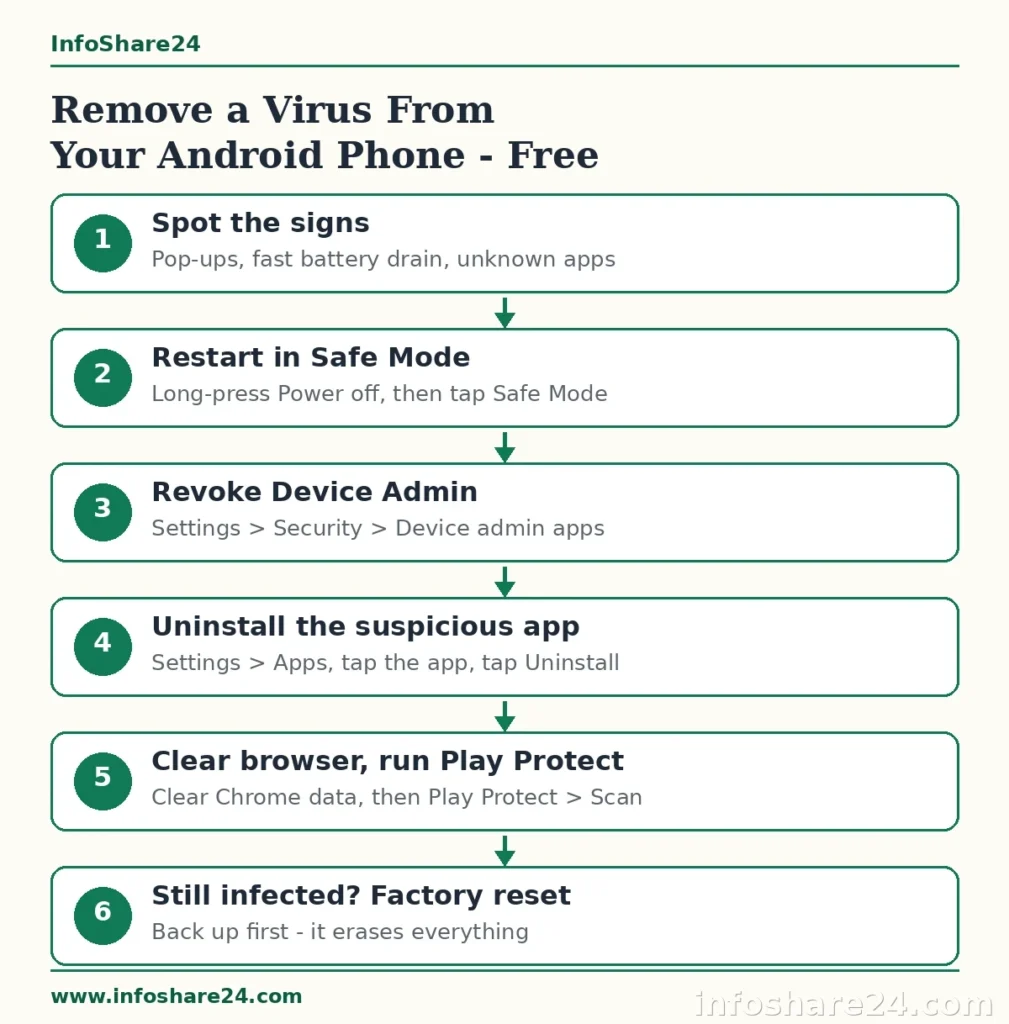
How to remove virus from Android phone: the free fix at a glance
Work through it in order, and stop when the problem is gone — most phones are clean after Step 3.
- Spot the signs and note which app you installed just before the trouble started.
- Restart in Safe Mode so the bad app cannot run while you remove it.
- Revoke Device Admin rights if the Uninstall button is greyed out.
- Uninstall the suspicious app from Settings.
- Clear your browser and run a Play Protect scan to catch anything left behind.
- Factory reset only as a last resort, after a backup.
First, Spot the Signs of a Virus on Your Android Phone
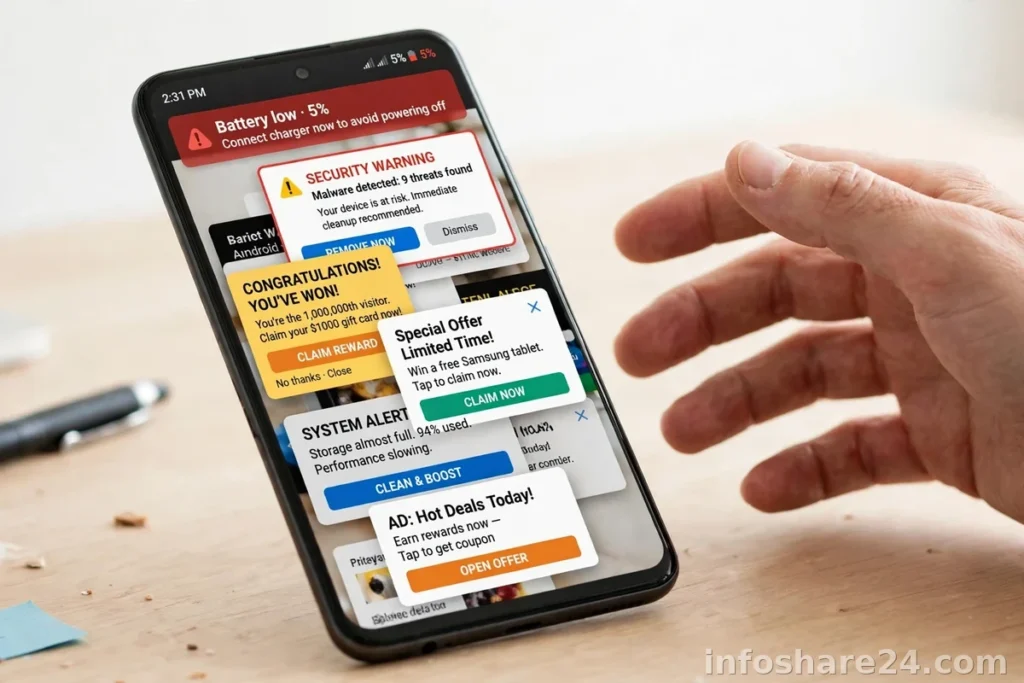
Look for two or more of these signs together.
- Pop-up ads appear on the home screen or lock screen, even with no app open — the clearest sign of adware.
- The battery drains fast and the phone feels hot while you are barely using it. See Android Battery Draining Fast: 10 Practical Fixes.
- New apps appear that you never installed, or your browser home page has changed.
- You get “virus detected” warnings with a phone number to call or a button to tap. These warnings are fake — never tap them or call the number. See How to Spot a Phishing Message in 30 Seconds.
Did the trouble start after you installed a free game, a “cleaner” app, or an APK from outside the Play Store? That app is the prime suspect.
Step 1: Restart Your Phone in Safe Mode
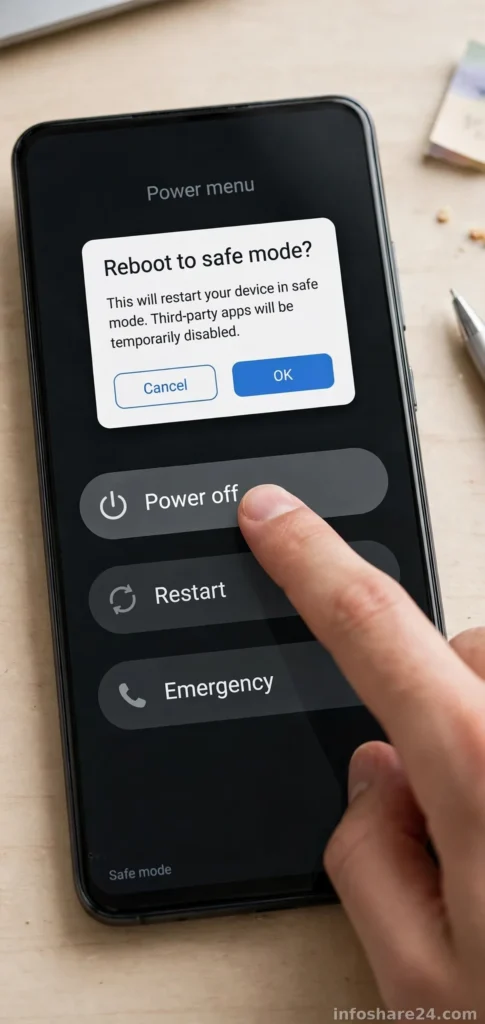
Safe Mode starts Android with only the apps that came with your phone, so the bad app cannot run or block its own removal. If the symptoms stop, a downloaded app is the cause.
- Press and hold the power button until the power menu appears.
- Long-press the “Power off” option until a “Reboot to safe mode?” message appears.
- Tap OK. You will see “Safe mode” at the bottom of the screen.
To leave Safe Mode later, simply restart your phone normally.
Step 2: Revoke Device Admin Rights Before You Uninstall
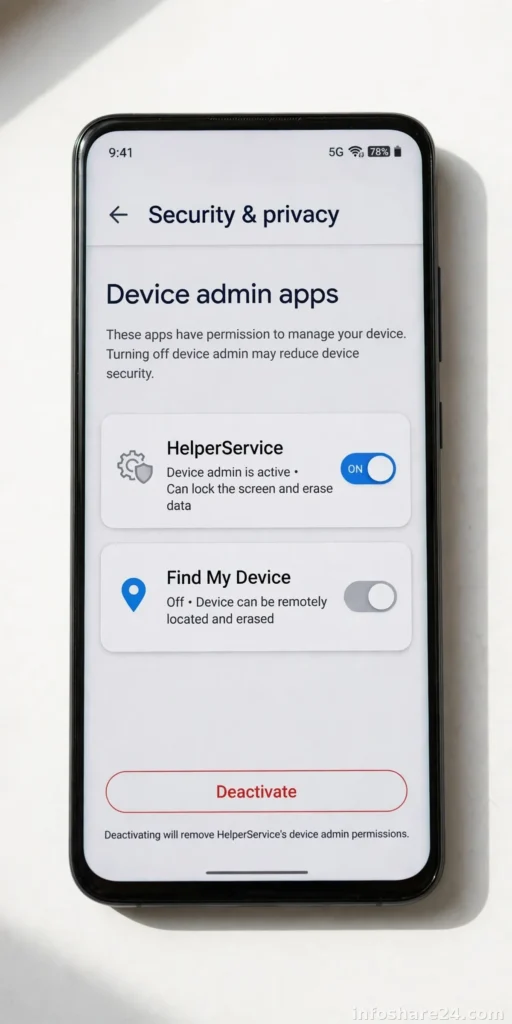
Some harmful apps give themselves Device Admin rights, and Android then greys out the Uninstall button to protect the app. This is the step most guides leave out.
- Open Settings and search for “device admin” in the search box at the top.
- Tap “Device admin apps.” On a Pixel, look under Security and privacy, then More security and privacy; on a Samsung, under Security and privacy, then More security settings.
- Leave Find My Device and anything from your work or school alone.
- Switch off any app you do not recognise or trust, then tap Deactivate to confirm.
Also check Settings, then Accessibility, then Installed services, and switch off anything unfamiliar.
Step 3: Uninstall the Suspicious App
Still in Safe Mode, remove the app you suspect.
- Open Settings, then Apps, then See all apps.
- Look for apps with strange names, no icon, or a generic Android icon.
- Tap the suspicious app, then tap Force Stop so it cannot interfere.
- Tap Uninstall, then tap OK to confirm.
- Repeat for any other app you do not recognise — but not system apps with Android or Google in the name.
Restart your phone normally. If the pop-ups are gone, run the next two steps to be sure.
Step 4: Clear Your Browser and Stop the Pop-Ups
Many “viruses” live in the browser, not in an app. A bad website can save itself as a notification sender, so pop-ups keep appearing after you remove the app.
- Open Chrome, tap the three dots, then Settings.
- Tap Privacy and security, then Clear browsing data. Tick “Browsing history” and “Cookies and site data”, choose “All time”, and tap Clear data.
- In Settings, then Site settings, then Notifications, remove any website you do not recognise.
- Check the search engine too. In Chrome Settings, tap Search engine and make sure it is Google.
For a fuller clean-up, read How to Clear Your Browser Cache and Cookies Safely.
Step 5: Run a Free Google Play Protect Scan
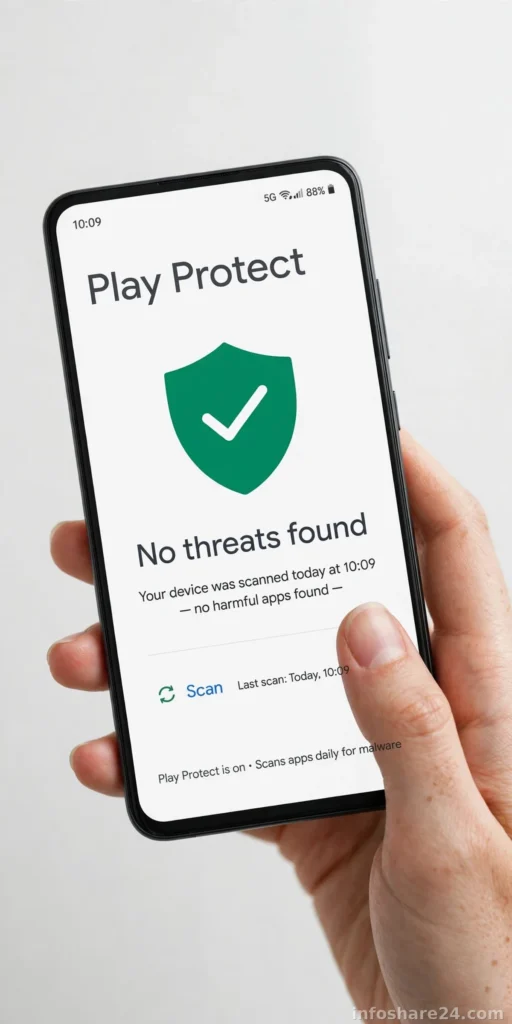
Google Play Protect is the free scanner built into every Android phone with the Play Store. It checks your apps for harmful behaviour and can remove apps it finds dangerous.
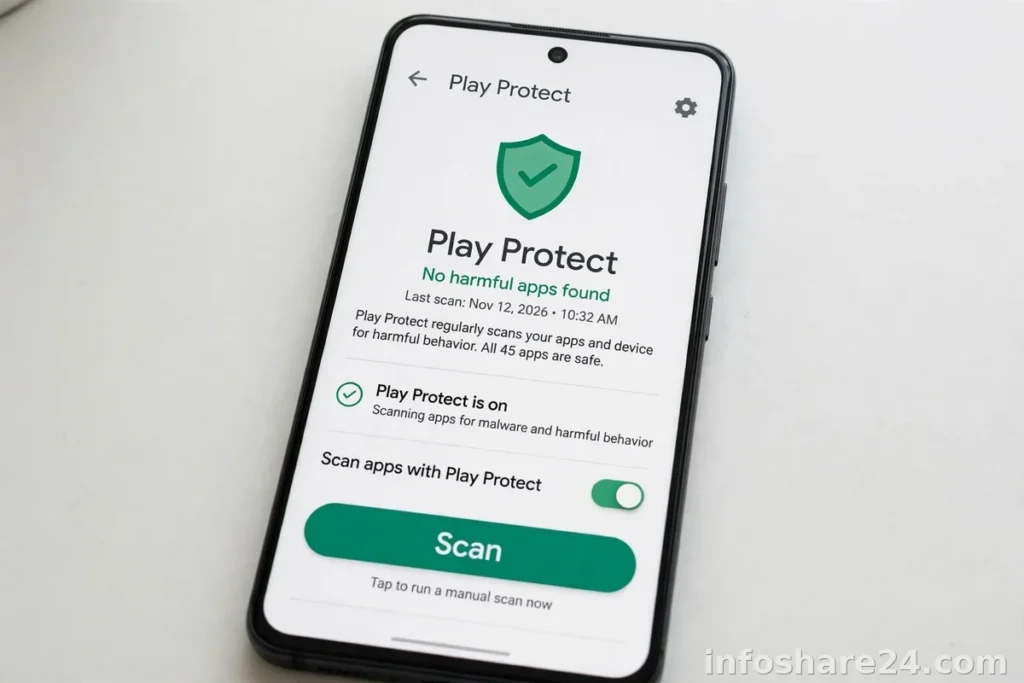
- Open the Play Store app on your phone.
- Tap your profile picture in the top-right corner.
- Tap Play Protect, then tap Scan and wait for it to finish.
- Follow what it tells you. If it flags an app, tap Uninstall to remove it right away.
- Check that “Scan apps with Play Protect” stays switched on.
Do Not Pay for a “Virus Remover” App
Paid scanner apps are not needed — Safe Mode, Device Admin controls, and Play Protect do the job for free. Free “cleaner” apps are often adware, and APK files from outside the Play Store are the most common way malware gets in. Real Android warnings never ask you to call a number or pay money.
Factory Reset: Only as a Last Resort
If every step above fails, a factory reset is the final option. It erases everything, so back up first.
- Back up your photos, contacts, and files first. A reset cannot be undone — see Back Up Your Phone in 5 Minutes: Photos, Contacts and Files.
- Open Settings, then System, then Reset options. On a Samsung, it is under Settings, then General management, then Reset.
- Tap “Erase all data (factory reset)”, then “Erase all data” and confirm with your PIN or password.
- Set the phone up as new. Install apps only from the Play Store — do not restore apps from an unknown backup.
How to Keep Your Phone Virus-Free After the Cleanup
Install apps only from the Play Store, keep your phone updated, and do not tap links in strange messages promising prizes or account warnings.
Change any password you entered while infected from a clean device, then check How to Check If Your Email or Password Has Been Leaked and turn on What Is Two-Factor Authentication and How to Turn It On.
Frequently Asked Questions
Can I remove a virus from my Android phone for free?
Yes. Restart in Safe Mode, revoke Device Admin rights, uninstall the app, clear your browser, and run a free Play Protect scan.
How do I know which app is the virus?
It is usually the app you installed just before the trouble started. If the symptoms stop in Safe Mode, a downloaded app is the cause.
Does a factory reset remove a virus from Android?
Yes, in almost all cases. Back up first, then erase all data from Settings, then System, then Reset options.
Why is the Uninstall button greyed out?
The app has Device Admin rights. In Settings, search for “device admin”, switch the app off, tap Deactivate, and uninstall it normally.
Conclusion
To remove virus from Android phone free, remember the order: Safe Mode, then Device Admin, then uninstall, then clear the browser and run Play Protect. A factory reset is only the last resort, after a backup.