Point your camera at a plant you cannot name, a menu you cannot read, or shoes you want to buy — and Google searches with the picture instead of words. That is Google Lens.
Google says Lens now handles more than 25 billion visual searches a month, and about one in five has commercial intent. It is free, already on most phones, and takes about ten seconds. Here is where to find it and how to use it.
What Is Google Lens?
Google Lens is a visual search tool in Google’s apps and Chrome. Instead of typing, you show Google a picture — from your camera or a saved photo — and it returns matching images, pages, translations, prices or text.
It is not a separate app you must buy: on Android it lives in the Google app, Google Photos and Chrome; on iPhone in the Google app and Google Photos; on a computer in Chrome and on google.com. You need an internet connection. Lens gives its best guess, not a guaranteed fact — check anything important against a second source.
Where to Find Google Lens
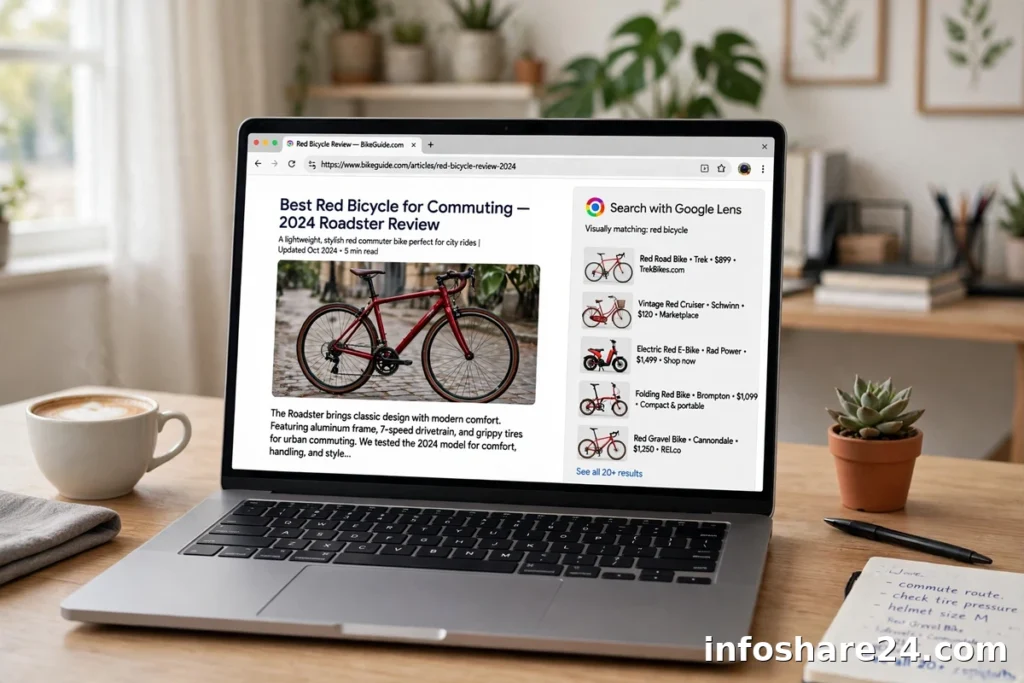
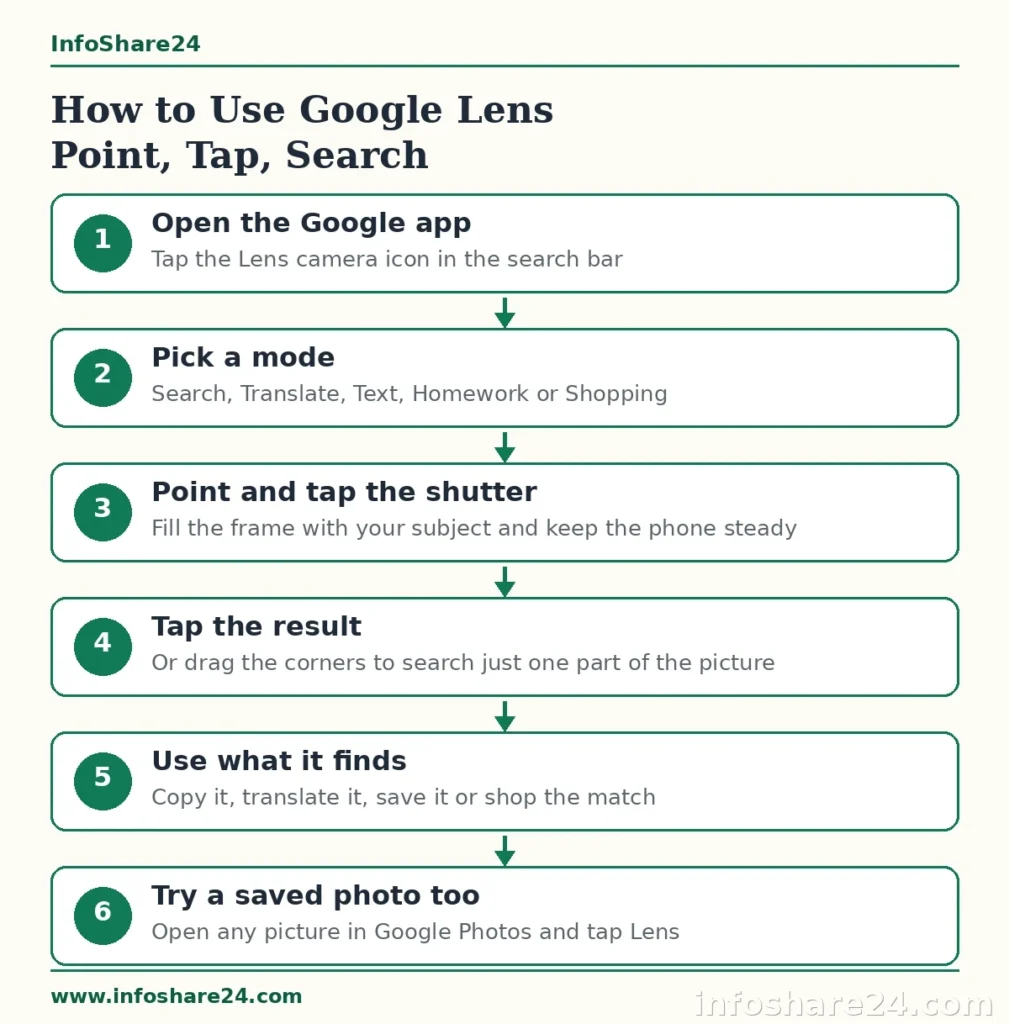
On Android, use the Google app. Open the Google app and tap the camera-shaped Lens icon in the search bar. It is also in the search widget and, on many phones, the camera app.
On iPhone, use the Google app. There is no separate Lens app for iPhone: install the free Google app and tap the Lens icon in the search bar.
On a saved photo, use Google Photos. Open any photo in Google Photos and tap Lens, or in the Google app tap the Lens icon and then the gallery thumbnail — best for screenshots.
On a computer, use Chrome. Right-click any image and choose Search with Google Lens — results open in a side panel. Or go to google.com, click the Search by image camera icon, and upload a file. Chrome needs Google as the default search engine for the right-click option.
How to Use Google Lens: The Basic Steps
- Open Lens. Tap the Lens icon in the Google app search bar and allow camera access if asked.
- Pick a mode. Choose Search, Translate, Text, Homework or Shopping — or stay on Search.
- Point and tap the shutter. Fill the frame with your subject, hold the phone steady, and tap the round shutter button.
- Tap the result you want. Swipe up for more. If the picture holds several things, drag the selection box around the one you care about.
- Use what it finds. Copy the text, open the translation, tap a shopping result, or ask a follow-up question.
1. Identify Plants, Animals and Objects
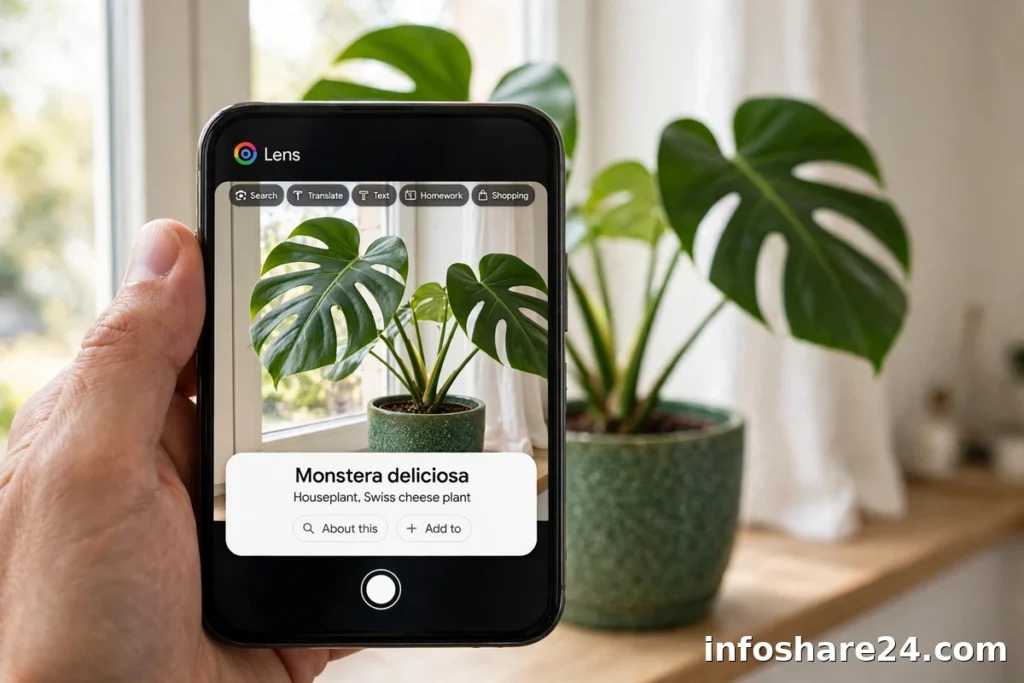
A plant in a garden, a bird at the window, a landmark on holiday — point, tap, and you usually get a name in seconds.
- Point at the plant or object. Get close so it fills the frame, in good light. For a plant, include a leaf and a flower — flowers identify far more reliably.
- Tap the shutter and read the top result. Lens usually names it, with a short description and links to care guides or Wikipedia.
- Check the look-alikes. Swipe through the similar images. If several species look like yours, the match is uncertain — compare the details first.
More apps to pair with it: Best Android Apps for Everyday Life in 2026.
2. Translate Text in a Photo, Instantly
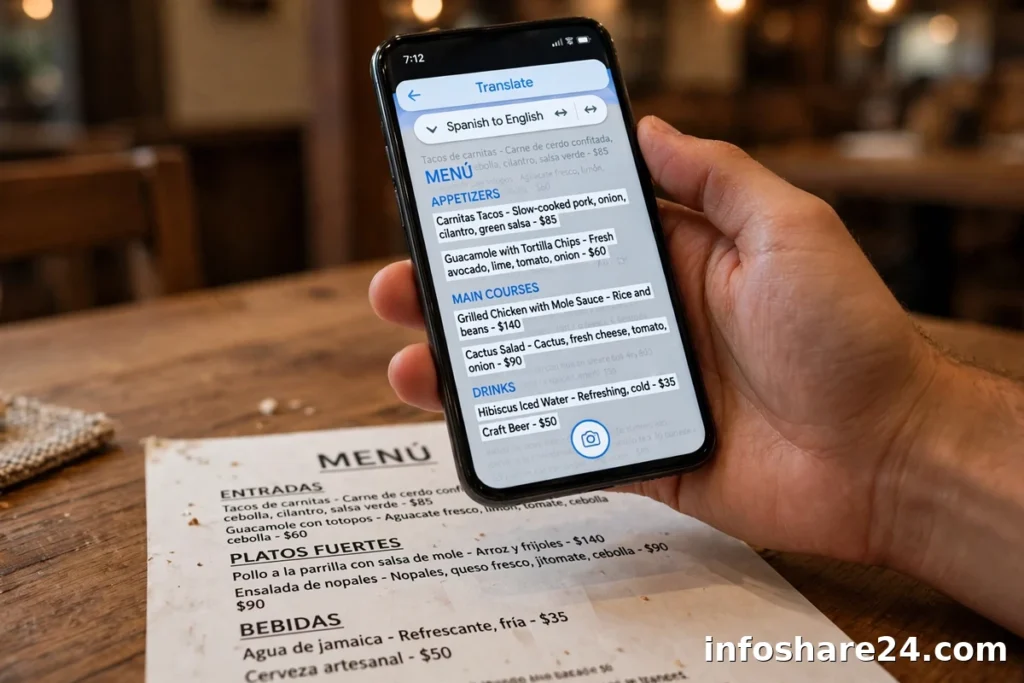
A menu abroad, a street sign, a product label — Lens translates it in place, overlaying the translation on the original words so you can still see both.
- Open Lens and choose Translate. Tap the Lens icon, then the Translate mode at the bottom.
- Check the languages. Lens usually detects the source language; tap the language bar if it guessed wrong.
- Point at the text and tap the shutter. Hold the phone steady 20 to 30 centimetres away so the words fill the frame. The translation appears over the text in real time.
Short printed text translates best; handwriting is harder. Confirm important translations, like a medicine label, with a human translator. To learn the language, read How to Use AI to Learn English Faster.
3. Shop by Photo: Find It and Compare Prices
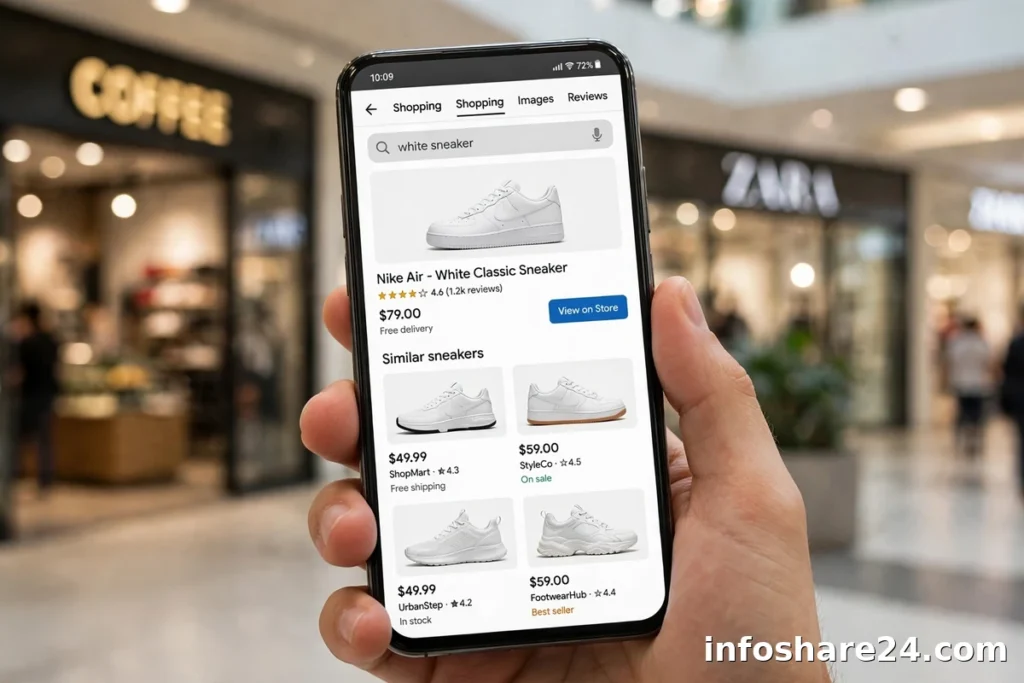
You see a jacket or shoes and want the same one. Lens is the fastest way there.
- Open Lens and choose Shopping. Tap the Lens icon, then the Shopping mode.
- Photograph the product. Take a clear photo with the product centred and well lit. For a screenshot, use Google Photos and tap Lens instead.
- Tap a shopping result, then compare. Lens shows the same or similar products, with prices and shops. Compare two or three shops and read the reviews before you buy.
Watch out for fakes: if the price is far below every other shop, or the shop has no reviews, walk away — see How to Spot a Phishing Message in 30 Seconds.
4. Copy Text From Any Image
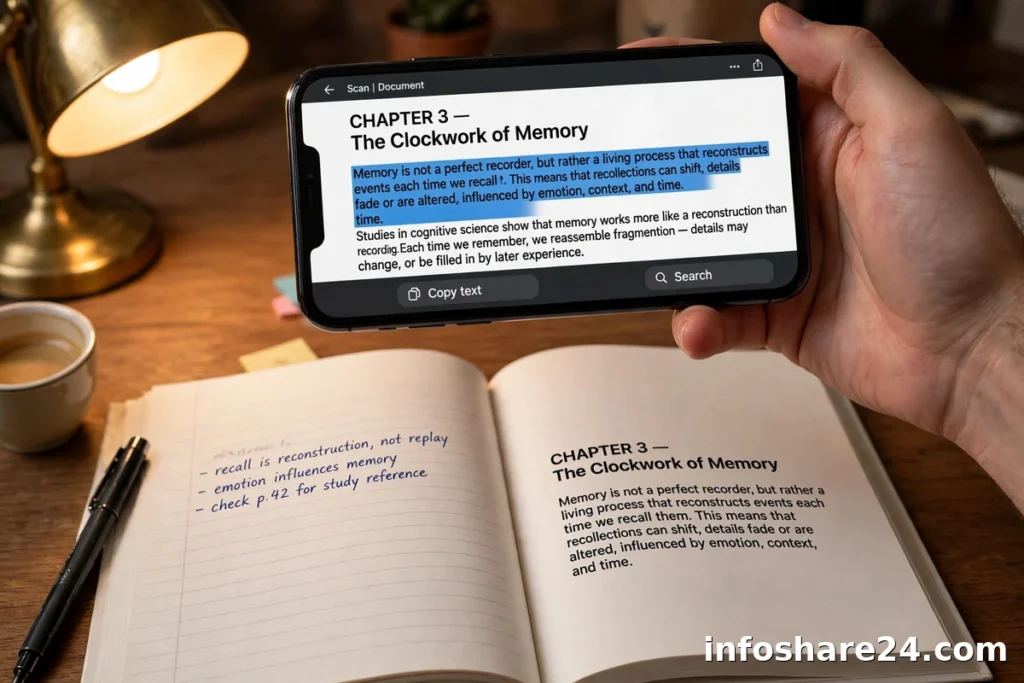
A quote from a book, a phone number, a Wi-Fi password — typing it out is slow. Lens reads it as editable text.
- Open Lens and choose Text. Tap the Lens icon, then the Text mode at the bottom.
- Point at the printed text and tap the shutter. Straight, well-lit pages work best; photograph a long page one section at a time.
- Select and copy. Drag over the text, tap Copy text, and paste it into a note. Read it once first — Lens sometimes misreads a letter or a number.
For whole documents, a dedicated scanner is better — see How to Scan Documents With Your Phone Camera.
5. Homework Help: Point at the Problem
Point the camera at a maths problem or a diagram, and Lens finds worked explanations and similar solved problems.
- Open Lens and choose Homework. Tap the Lens icon, then Homework at the bottom.
- Frame the whole question. Include the full problem and any diagram, then tap the shutter.
- Tap the matching result and work through it. Pick the matching explanation, then try the next similar problem yourself — a copied answer will not help in the exam.
For a wider study setup, see AI for Students: Study Notes and Research the Smart Way.
Tips for Better Google Lens Results
- Get closer and add light. Fill the frame with one subject, add light, and wipe the lens. Most bad results come from dark or blurry photos.
- Use the right mode. Translate for languages, Text for copying, Shopping for buying, Homework for schoolwork.
- Add words when the picture is not enough. After the first result, type a question — “what is this called?” — and Lens searches the image plus your words.
- Check your privacy. When signed in, Lens searches are saved to your Google account history. Photos you search are sent to Google — avoid private documents, IDs or bank cards.
Frequently Asked Questions
Is Google Lens free?
Yes — in the Google app, Google Photos and Chrome, with no subscription.
Do I need the internet to use Google Lens?
Mostly yes — search, translation and shopping need an internet connection.
Does Google Lens work on iPhone?
Yes, inside the free Google app, Google Photos and Chrome. There is no separate Lens app.
Conclusion
Open the Google app, tap the camera icon, pick a mode, and point your camera. In ten seconds you can name a plant, read a foreign menu, find a product’s price, copy text, or get a homework explanation.
Start today: next time you see something you cannot name, point Lens at it instead of guessing the words to type. The camera is the search box.