A new phone should feel exciting — until you wonder where your photos, WhatsApp chats and contacts went.
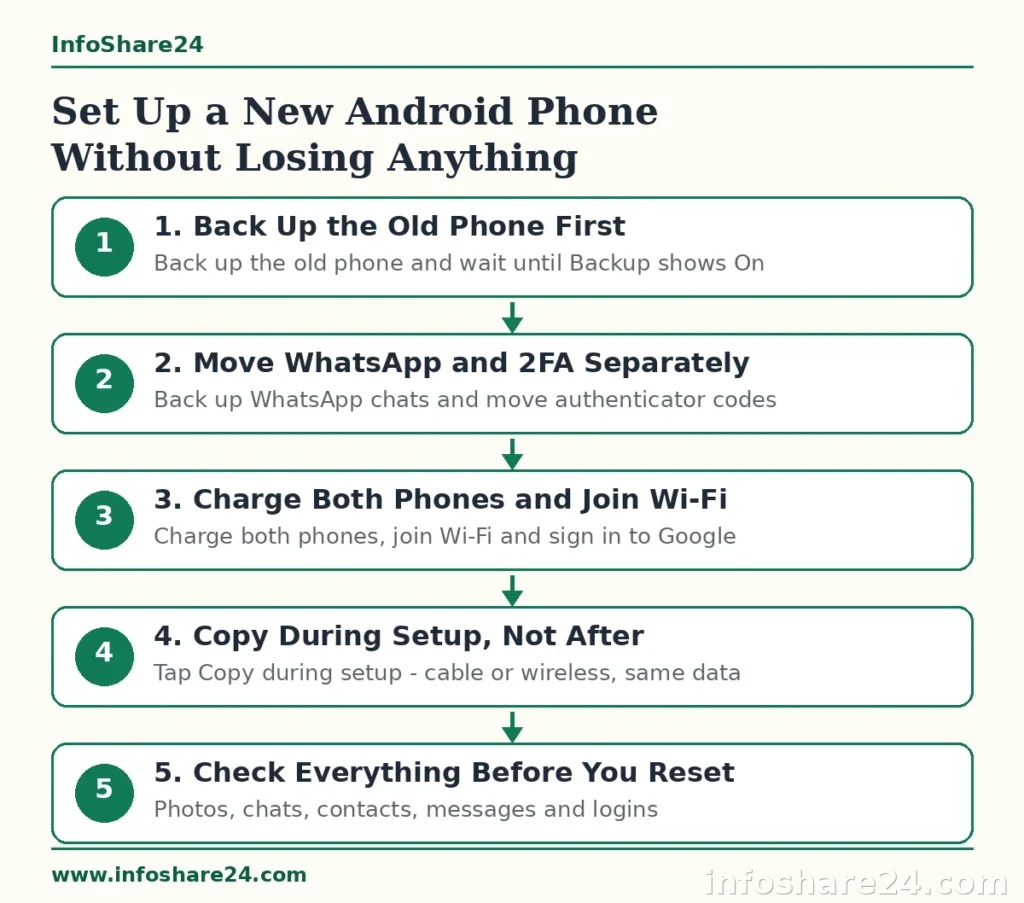
If you set up a new Android phone the right way, almost everything moves across by itself. The bad news is that Google gives you only one chance at the main copy — and a few important things never move with it at all. This guide covers the move in the right order: before setup, during setup, and the checks before you reset the old phone.
How to Set Up a New Android Phone: The Before-Setup Checklist
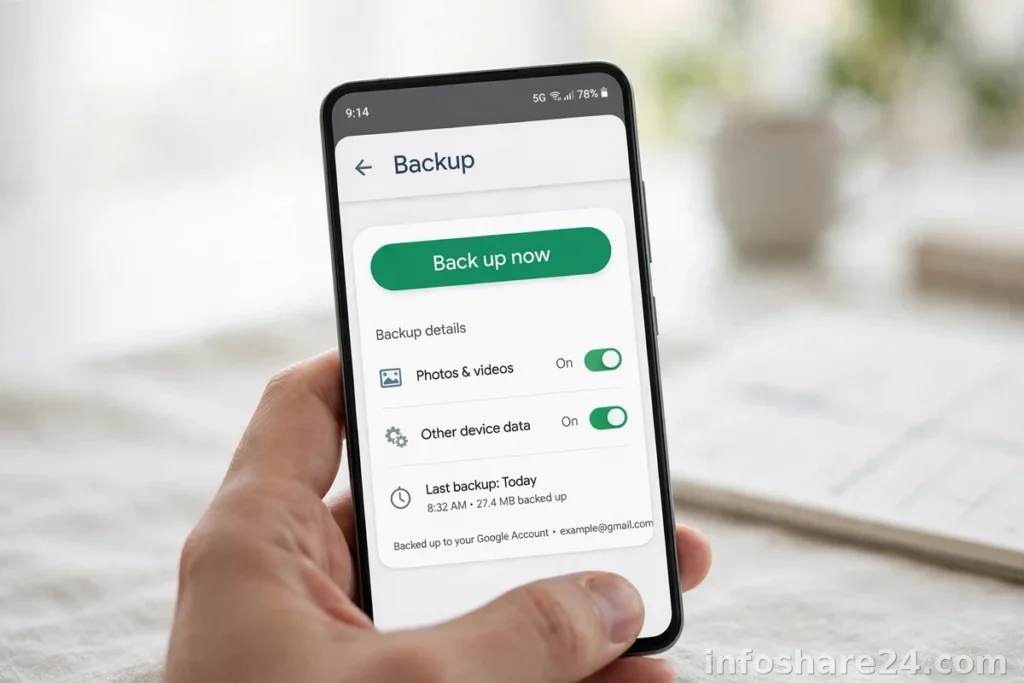
Do this on your old phone the day before. Most of it takes ten minutes — but a fresh Google One backup can take up to 24 hours, so start it early.
- Back up the old phone. Go to Settings > Google > Backup, check that Backup by Google One is on, and tap Back up now. Wait until “On” appears under each data type.
- Check your Google storage. A free Google account includes 15 GB of storage. A backup bigger than your free space will stop part-way — free up space first: freeing up storage on Android without losing photos.
- Back up WhatsApp and move your authenticator codes. Neither moves with the main copy — the steps are in the sections below.
- Charge both phones and join Wi-Fi. Charge both phones to at least 50% and connect both to Wi-Fi. The copy can take from a few minutes to a few hours, and a phone that dies halfway can leave the move half-finished.
- Keep the old phone. Do not reset, sell, or give it away until every check at the end of this guide has passed.
Note: some steps need Android 10 or newer, and you cannot restore a backup from a higher Android version onto a lower one.
What the Copy Moves — and What It Does Not
What usually copies: your apps and some app data, photos and videos, music, contacts stored on the phone or SIM card, text messages and the photos in them, most settings, your wallpaper, and your call history.
What will NOT copy: downloads such as PDF files, photos, videos and music in hidden folders, apps that did not come from the Google Play Store, data from apps that do not use Android backup, and non-Google accounts with their data. Banking apps, payment cards and eSIM need separate setup.
Before you reset anything, copy your Downloads folder and hidden-folder files yourself, for example with a cable to your computer — see how to transfer files between your phone and computer. On a Samsung Galaxy, Smart Switch offers extra transfer options during setup.
During Setup: Tap Copy — Cable or Wireless
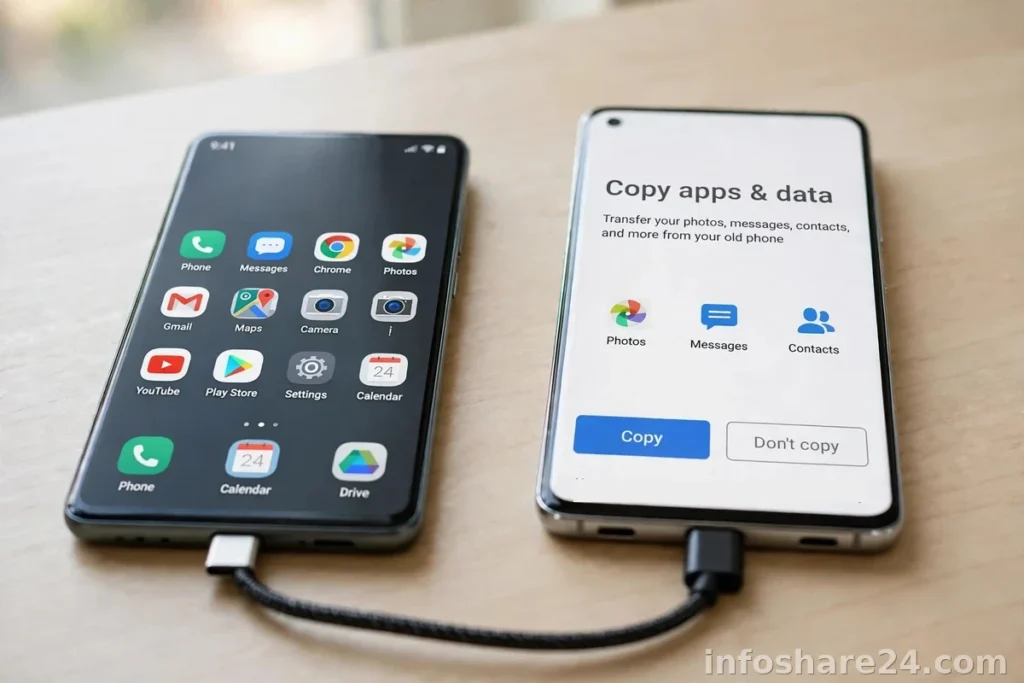
Google says it plainly: “You can only perform data transfer once. We recommend you do this during setup as the option may not be available afterwards.” Tap “Don’t copy” thinking you will do it later, and you may never see the option again — the only way back is a factory reset and starting over.
- Turn on the new phone, join Wi-Fi, and sign in. Use the same Google account your old phone was backed up to.
- Tap Copy when the new phone asks. The screen is called “Copy apps & data” — tap Copy, not “Don’t copy”.
- Choose cable or wireless. Google says both carry the same data. A cable is usually faster and more stable; wireless works fine on good Wi-Fi.
- Keep both phones close, unlocked and on Wi-Fi until it finishes. Leave everything switched on. Apps download from the Play Store — wait for “Copying’s done”.
Move WhatsApp Chats the Right Way
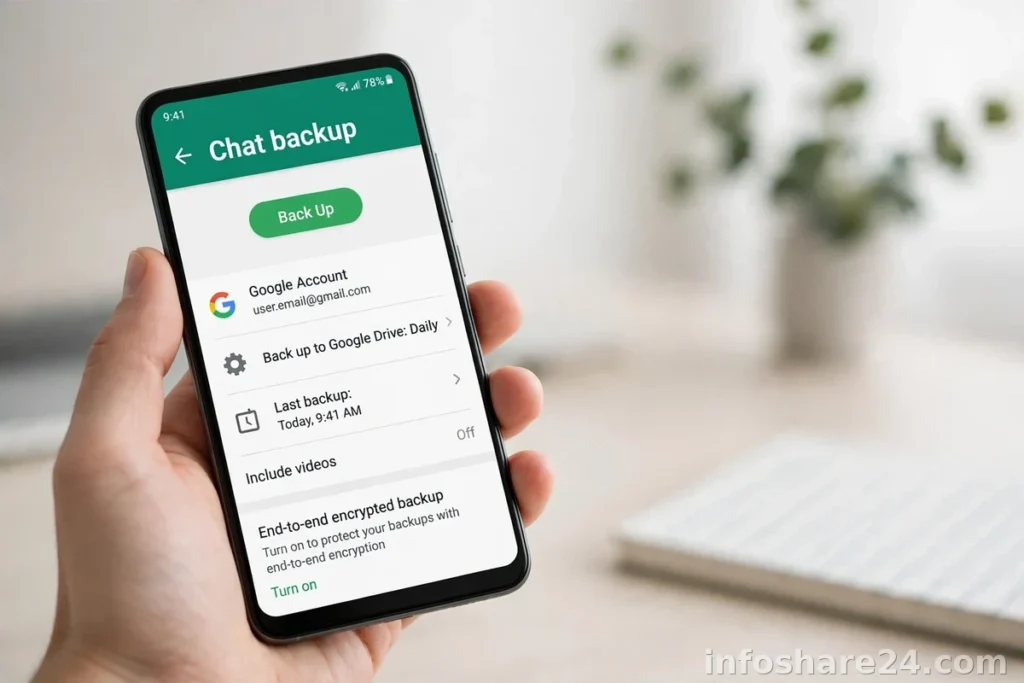
WhatsApp chats need their own backup and restore. Do this before you open WhatsApp on the new phone — once it is activated there, the old chats cannot be imported.
- Back up WhatsApp on the old phone. Go to Settings > Chats > Chat backup and tap Back Up, using the same Google account and phone number.
- Check the backup time shows today. Full steps: How to Back Up WhatsApp Chats on Android.
- Install WhatsApp on the new phone and tap Restore. Enter the same number and tap Restore when your Google Drive backup is found. Chats appear first, media follows.
- Check your recent chats. Open two or three conversations and confirm the latest messages and photos are there.
If the restore never appears, the Google account or phone number probably differs from the backup. Check both, back up again, and try once more.
Move Your Authenticator Codes Before You Reset
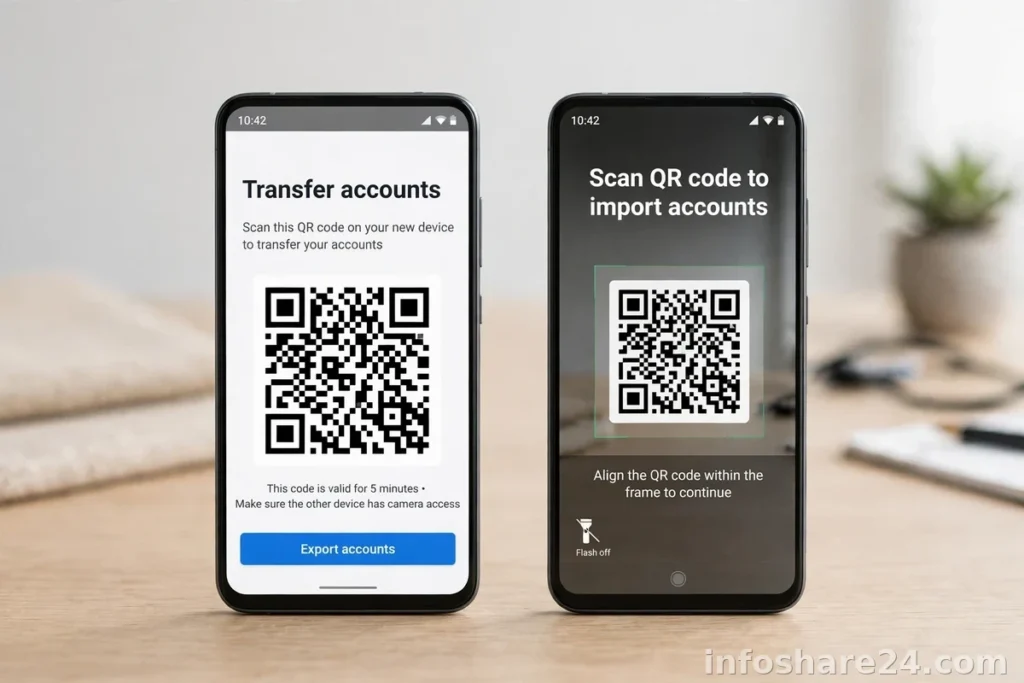
This is the step that locks people out. Authenticator codes deliberately do not move with the system backup — move them while the old phone still works.
- Export from Google Authenticator on the old phone. Tap the menu, choose Transfer accounts, then Export accounts.
- Scan the QR code with the new phone. In Google Authenticator there, choose Transfer accounts, then Import accounts.
- Check every account on the new phone. Confirm each account is listed with a working code. Microsoft Authenticator: turn on cloud backup in Settings > Backup on the old phone, then sign in and restore on the new phone.
- Save your backup codes. For email and banking, save each service’s backup codes somewhere safe before you reset the old phone — they are your way back in.
See also: What Is Two-Factor Authentication and How to Turn It On.
After Setup: Check These 6 Things Before You Reset the Old Phone
Do not reset the old phone on day one. Check this list on the new phone first, and only reset the old one when everything below is true.
- Open Photos. Check your recent photos and videos are all there, including the last few days.
- Open Contacts. Check three numbers you call often.
- Open WhatsApp and your messages. Check recent chats and texts.
- Open your authenticator app. Confirm every account shows a code.
- Sign in to your banking and payment apps. Most will ask you to verify again — do it now, while the old phone can still approve it.
- Check email and passwords. Sign in to Google and your main email, and confirm your password manager is unlocked.
If anything is missing, do not reset the old phone yet. Photos usually return once Google Photos finishes syncing. The only real emergency is a missing authenticator code or WhatsApp backup — both fixable while the old phone still works.
Frequently Asked Questions
Can I transfer data after setup is finished?
The full copy is a one-time job for setup time — Google says the option may not be offered afterwards. After setup you can restore from a Google backup or copy files by hand — but for the full copy, factory-reset and start again.
Do WhatsApp chats and authenticator codes move automatically?
No. WhatsApp needs its own Google Drive backup and restore, and authenticator codes must be exported or backed up in the cloud first.
How long does the backup take?
The copy itself usually takes a few minutes to a few hours. A fresh Google One backup can take up to 24 hours, so start it the day before and check Backup shows “On”.
Conclusion
To set up a new Android phone without losing anything, the order matters most: back up the old phone first, move WhatsApp and your authenticator codes separately, then tap Copy during setup — because Google only offers that copy once. After setup, check your photos, chats, contacts, messages and logins, and only then reset the old one.