Introduction
Most Windows computers are already fairly secure out of the box, but a few settings decide how well that protection actually works for you. If updates are paused, sign-in is weak, or an app has more permission than it needs, a small gap can become a real problem.
The good news is that you do not need to be a security expert to fix the important ones. This guide walks through five settings every Windows user should check first. Each one takes only a few minutes, and you can do them in any order. You will not need to buy anything or install extra software for any of them.
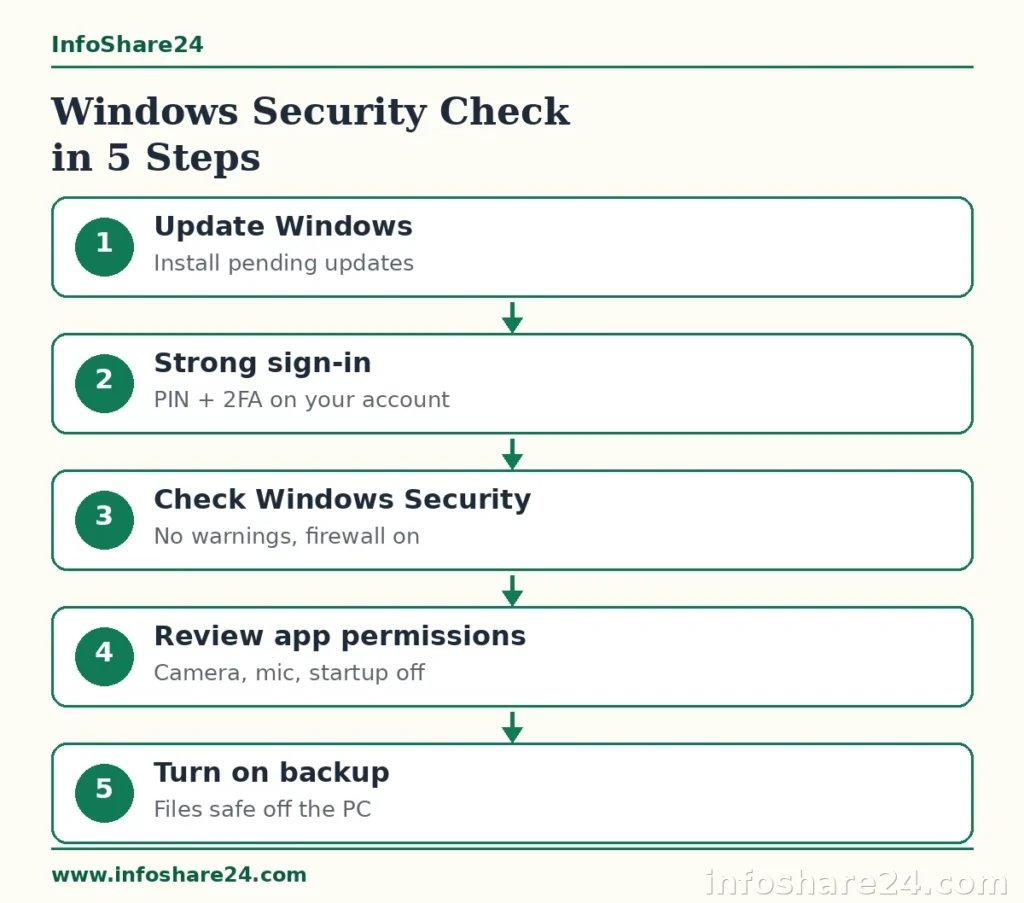
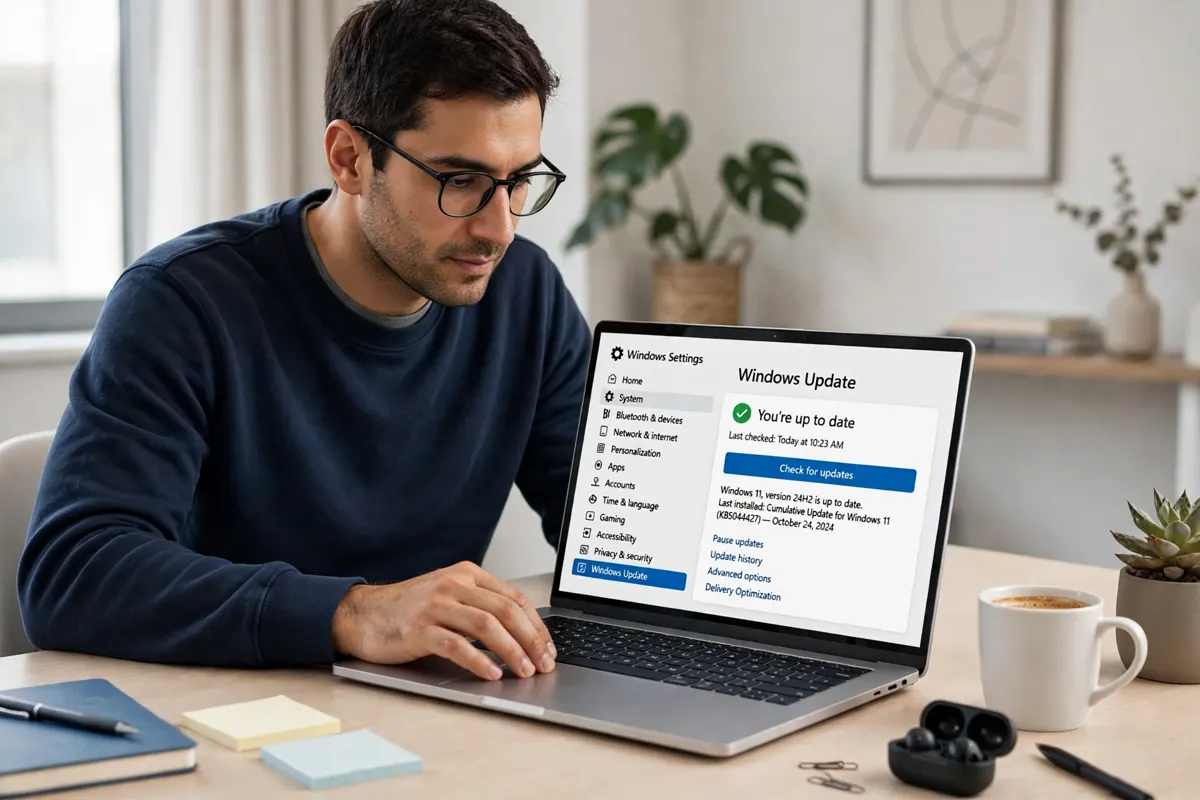
1. Make Sure Windows Update Is On and Up to Date
- Go to Settings, then Windows Update, and check for updates. If an update is waiting, install it and restart when it asks.
- Check that updates are not paused for a long time. A short pause is fine when you are in the middle of important work, but leaving updates paused for months is one of the easiest security mistakes to make.
- If your computer keeps failing to update, try the basics first: plug in the charger, connect to stable Wi-Fi, free up a little storage, and try again. If it still fails, note the error code before searching for help, so you can find the right fix instead of guessing.
2. Use a Strong Sign-In: Password, PIN or Fingerprint
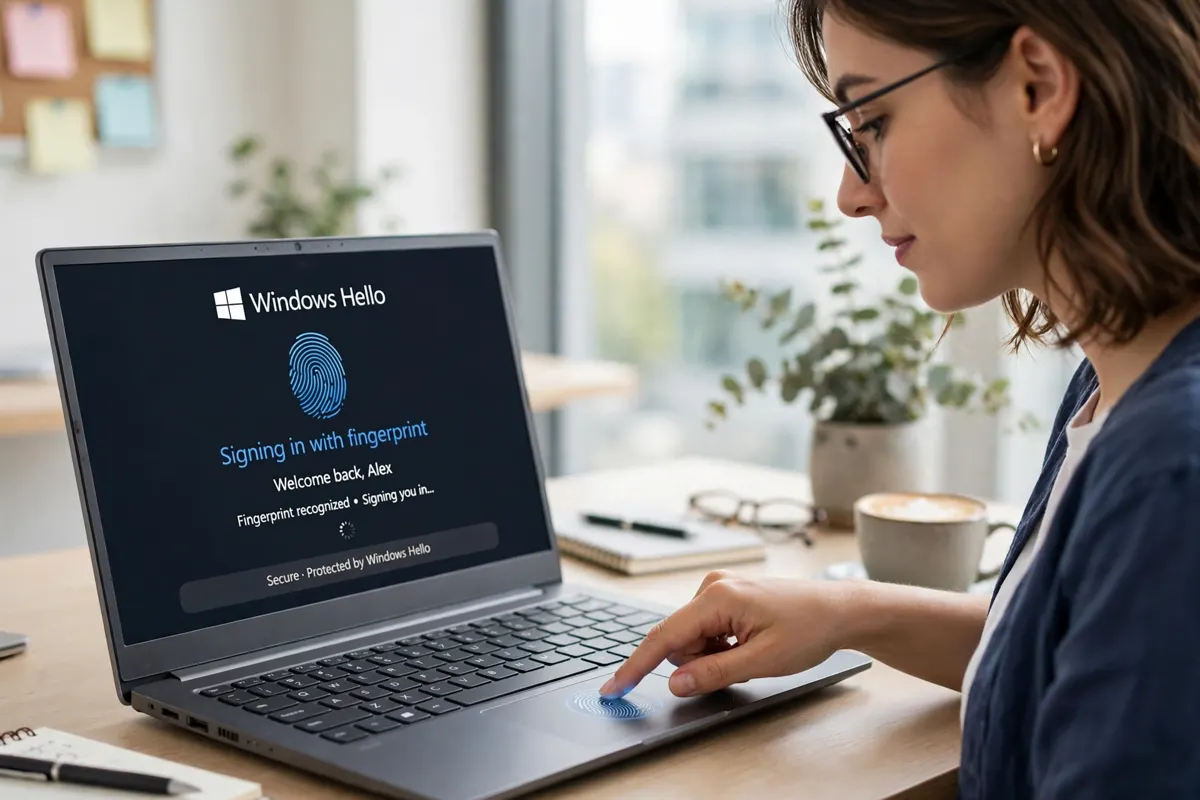
Your sign-in method is the lock on the front door. A short, easy password, or no password at all, makes everything else on the computer easier to reach.
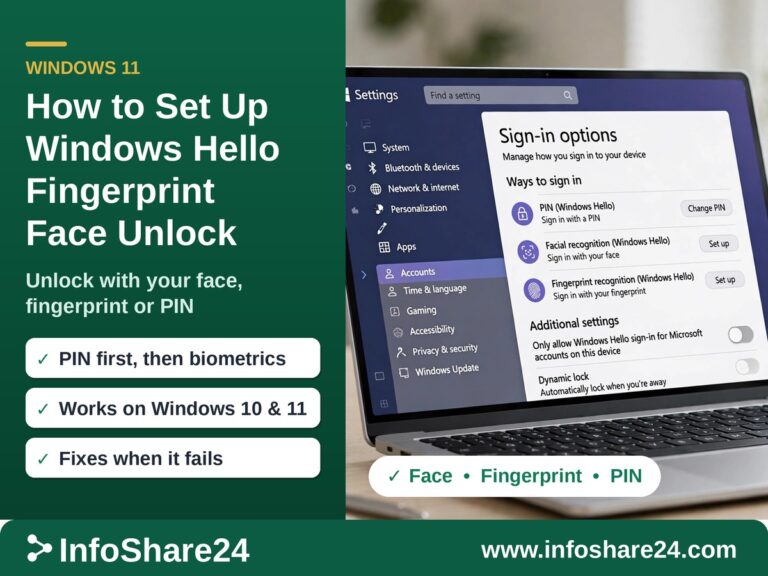
- In Settings, under Accounts and then Sign-in options, check what you are using. A PIN is often a good everyday choice on a personal computer, because it is tied to that one device, but it should still be something others cannot guess — not your birth year or 1234.
- If your computer supports fingerprint or face sign-in, use it as a convenient extra layer, but it does not replace a good password for your Microsoft account.
- Use a different, strong password for your Microsoft account than you use anywhere else, and turn on two-factor authentication for it. That way, even if someone learns your password, they still need a second check to get in.
3. Check Windows Security and the Firewall
Windows Security is the built-in antivirus and protection tool. You do not need a separate antivirus for normal everyday use, but you do need to make sure the built-in one is actually running.
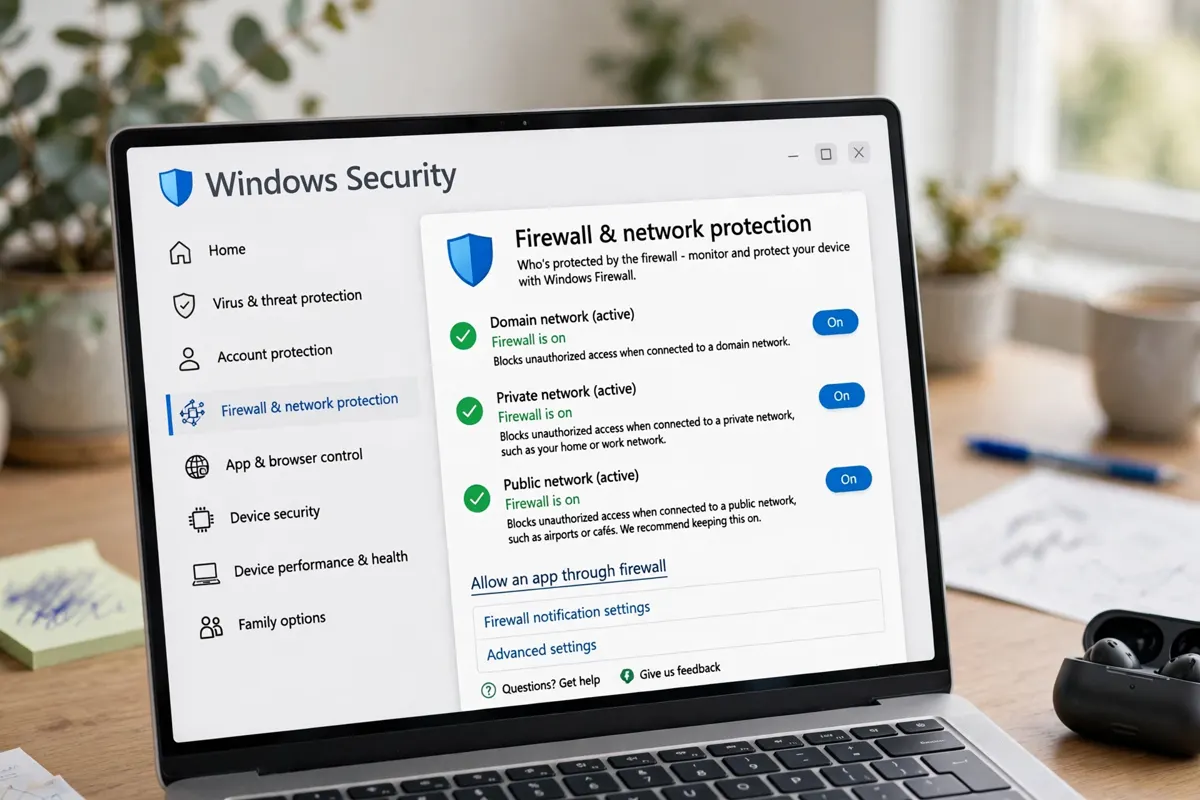
- Open Windows Security from the Start menu and look at the main screen. Virus and threat protection, firewall and network protection, and account protection should show as protected, with no warning that needs action.
- If something shows a warning, follow the suggested action instead of ignoring it.
- Leave the firewall on for private and public networks. If a program asks for firewall permission and you do not recognise it, say no and check what the program is first. A genuine program will usually explain why it needs network access.
4. Review App Permissions and Startup Apps
Many apps ask for more access than they need. Over time, this adds up: an app that once needed your microphone or location may still have it long after you stopped using it.
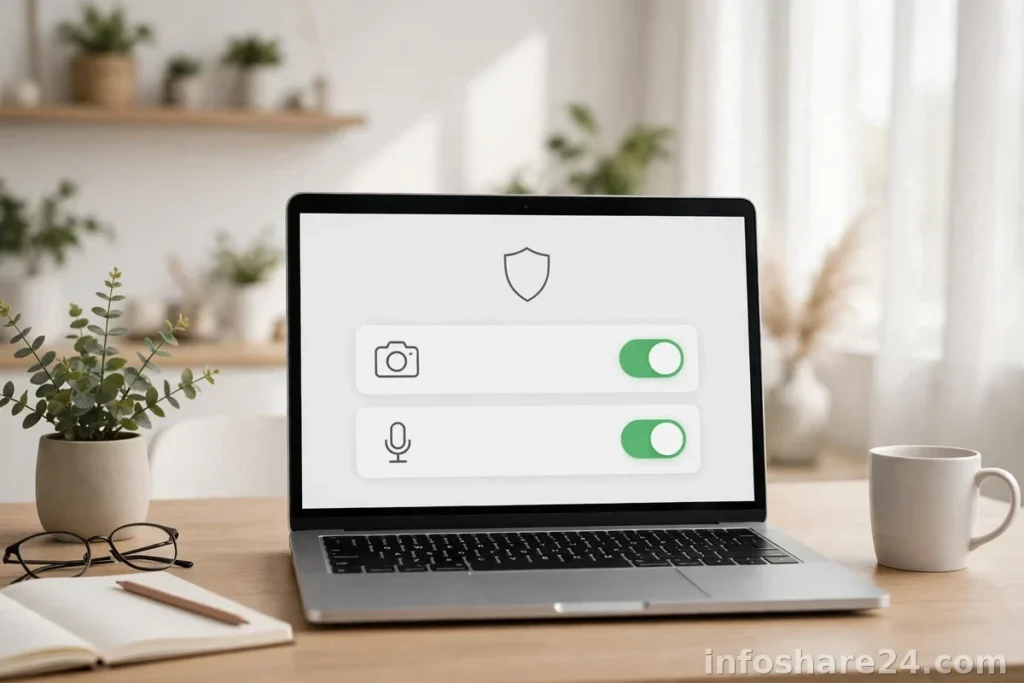
- In Settings, under Privacy and security, look through the app permissions for location, camera, and microphone. Turn off access for apps that do not need it for their main job. A photo editor does not need your microphone, and a simple game does not need your location.
- Check the startup apps under Apps. Apps that start with Windows slow down your computer and run in the background whether you use them or not. Turn off startup for apps you rarely use.
- If you turn something off by mistake, the app will usually ask again when it needs it.
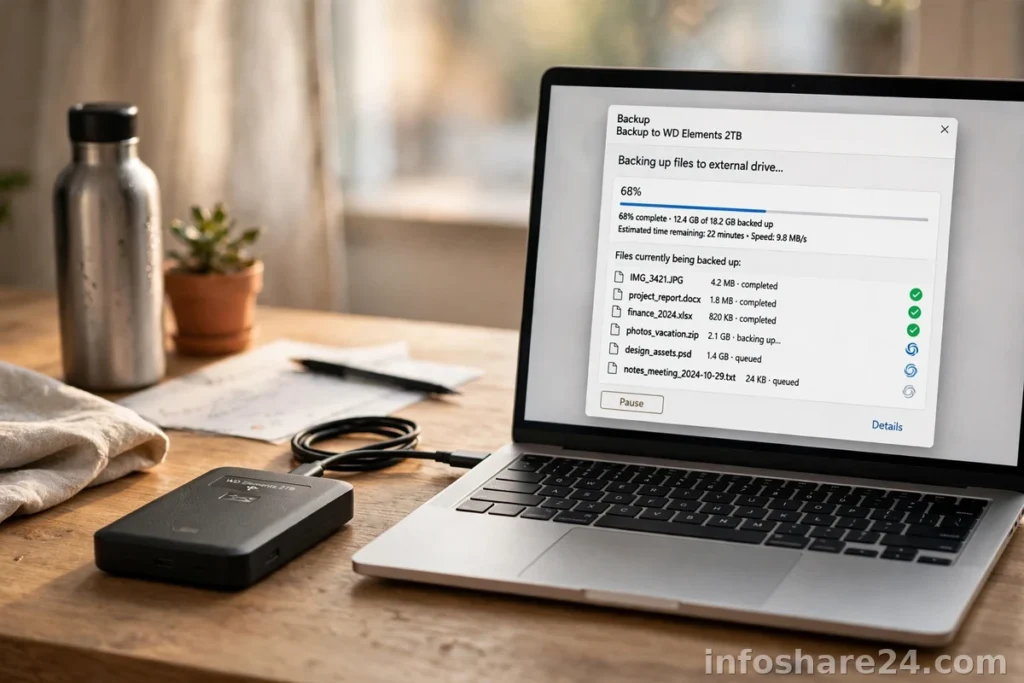
5. Turn On Backup Before You Need It
Security is not only about keeping intruders out. It is also about not losing your files if something goes wrong — a failed update, a stolen laptop, or a ransomware attack that locks your files.
- Check that your important files are backed up somewhere other than the computer itself. OneDrive backup for Desktop, Documents, and Pictures is a simple starting point if you already use a Microsoft account, but any reliable cloud backup or an external drive that you disconnect after backing up will do the job.
- Ask the key test: could you get your photos and documents back if this computer stopped working tomorrow? If the answer is no, set up a backup today, not after a problem.
- Make sure you know your Microsoft account recovery options, and keep a second way to sign in, such as a recovery email or phone number you still control. Losing access to your own account is a common problem, and it is much easier to prevent than to fix.
Common Mistakes to Avoid
- Do not turn off Windows Security or the firewall just because a website or a game told you to, unless you fully understand why and turn it back on straight away.
- Do not download software from random links in messages or pop-up ads, even if they claim your computer is infected — that warning is often the attack itself.
- Do not share your sign-in password or verification codes with anyone, including someone who claims to be from support. Real support will never ask for those.
A Five-Minute Security Check
- Install pending updates.
- Confirm Windows Security shows no warnings, and check your sign-in method and two-factor authentication.
- Turn off camera and microphone access for apps that do not need it, and confirm your files are backed up. Repeat this short check once a month.
Frequently Asked Questions
Do I need to buy antivirus software for Windows?
For most everyday users, the built-in Windows Security is enough, as long as it is on and up to date. Paid antivirus can add extra features, but it does not replace updates, strong sign-in, and safe habits.
Is a PIN safer than a password?
A PIN is tied to one device, so someone who learns it still needs your computer to use it. A password can be used from anywhere if it is stolen. For everyday sign-in on your own computer, a good PIN plus a strong Microsoft account password is a sensible combination.
What should I do if Windows Security shows a threat?
Follow the action it suggests, usually quarantine or remove, and do not ignore it. If you are unsure whether a file is safe, do not open it again until you have checked it.
Can I check these settings on a shared or family computer?
Yes, but be careful: some settings need an administrator account. Ask the person who manages the computer before changing firewall or update settings on a shared device.
Conclusion
Good Windows security is mostly about basics done well: updates on, sign-in strong, built-in protection running, app permissions tidy, and files backed up. Check these five settings once, repeat the five-minute check monthly, and you will have closed the gaps that cause most everyday problems — without buying anything or becoming a security expert.