Introduction
Your phone holds your photos, your contacts, your messages, and often your work files too. Yet most people only think about backup after a phone is lost, stolen, or stops working — when it is already too late.
Backing up a phone does not have to be a long project. In about five minutes you can turn on the automatic backup for the things that matter most, and then check that it actually worked. This guide covers photos, contacts, and files, on both Android and iPhone, in simple steps you can follow today.
Step 1: Back Up Your Photos First
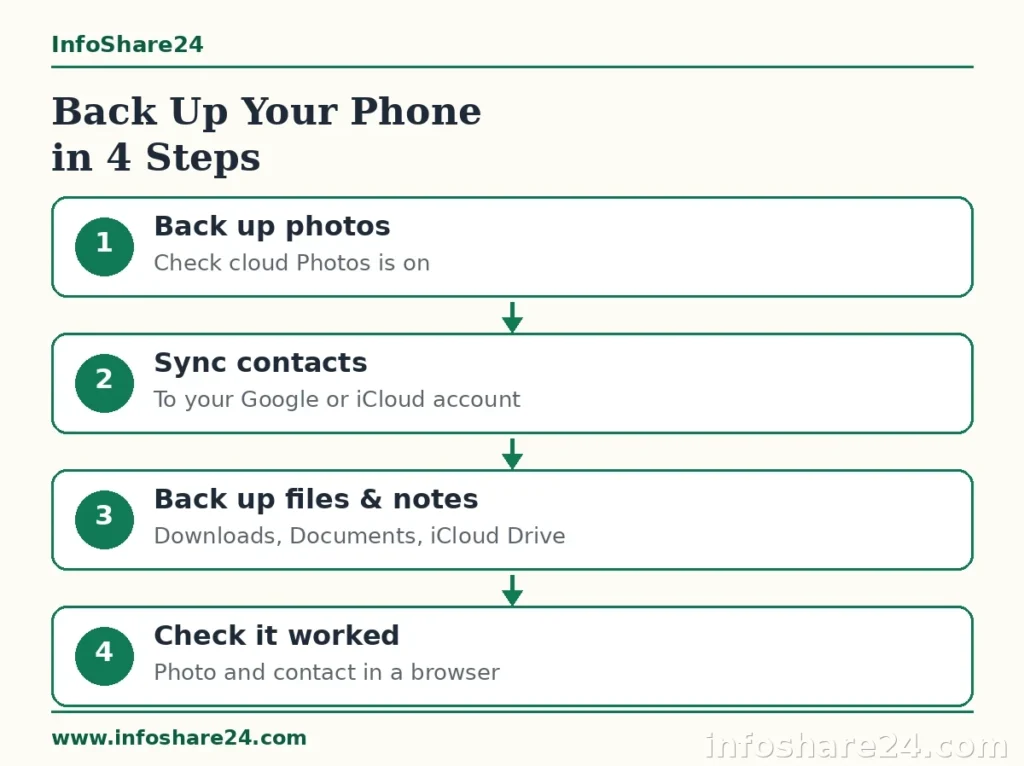
- On Android, open the Photos app, go to settings, and check that backup is on for your Google account. On iPhone, open Settings, tap your name, then iCloud, then Photos, and check that iCloud Photos is on.
- Connect to Wi-Fi and plug in the charger if the first backup is large, so it finishes without draining your battery or using mobile data.
- Check from another device or a computer: sign in to the same account in a browser and look for a recent photo. Seeing your photos there is the proof that the backup worked. Do not just trust that a switch is on — check that a photo actually arrived. Warning: only use the “free up space” option after you have confirmed the backup, as described above. Deleting the only copy before checking is how photos get lost.

Step 2: Make Sure Contacts Are Saved to Your Account
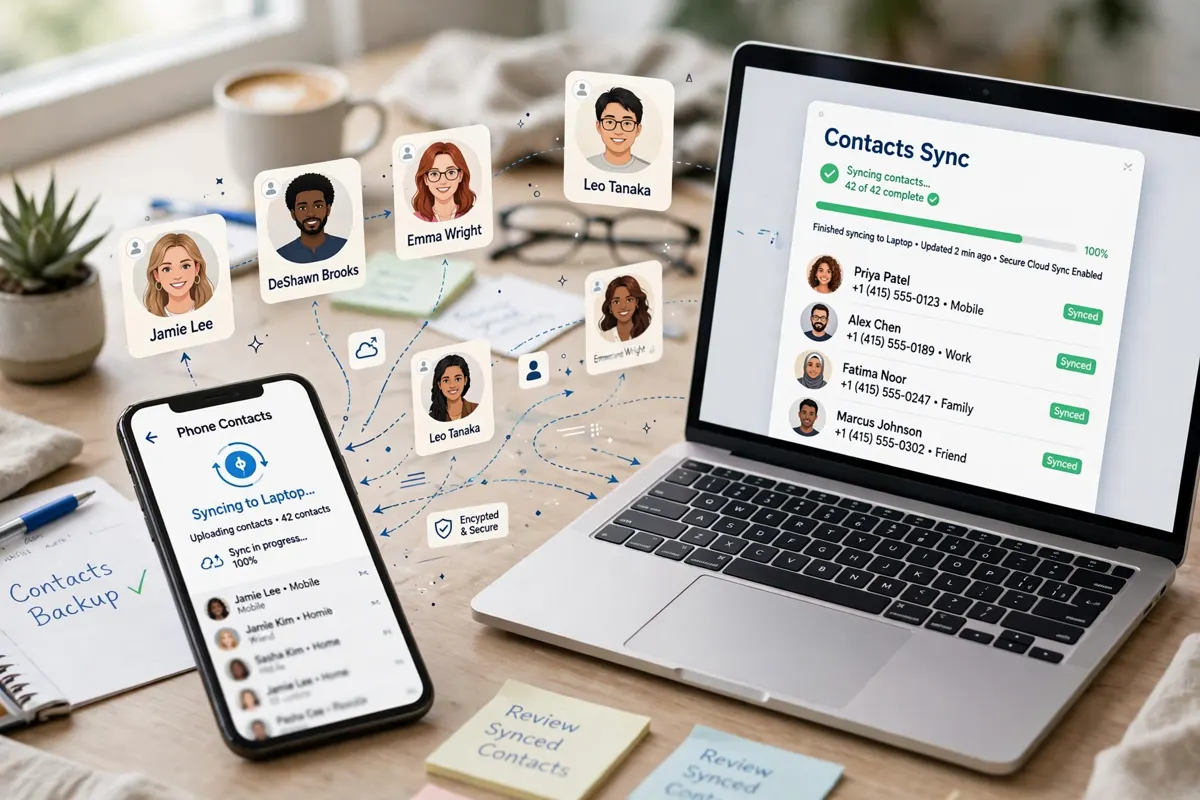
- On Android, check that your Google account is selected for new contacts in the Contacts app settings, not just “device” or “SIM” storage. On iPhone, check that Contacts is on in Settings, tap your name, then iCloud.
- Test it: open your contacts in a browser — Google Contacts for Android, iCloud Contacts for iPhone — and see if a recent contact is there. If contacts only exist on the phone, export them now, or move them to your account, before you change phones or reset the device.
- Keep a simple extra copy for the few numbers that matter most. A short list of family and emergency numbers, written down somewhere safe at home, costs nothing and helps if every device is unavailable at once.
Step 3: Back Up Files, Notes and Messages
- On Android, check that your files app or Drive backup includes the folders you care about, especially Downloads and Documents. On iPhone, check iCloud Drive in Settings, and confirm that the apps whose documents matter to you are switched on there.
- For anything truly important in a chat — an address, a booking, a receipt — save a copy outside the chat, such as a screenshot stored in your backed-up photos, or a note in a synced notes app. Messages often do not move across when you switch from Android to iPhone, or the other way.
- Remember that a full device backup only helps if you restore to a new phone of the same type. Both Android and iPhone can include messages in a full device backup.
Step 4: Check the Backup Actually Worked
- Photos: is a photo from today or this week visible in your cloud account from a browser?
- Contacts: is a recently added contact visible in the same way? Storage: does your cloud account show that backup storage is being used, and do you have enough free space for the next backup? If storage is full, new photos and files will stop backing up quietly, so free up space or upgrade only if you need to, and check again afterwards.
- Note which account the backup belongs to. Write down the email address of the Google or Apple account used for backup, and make sure you can sign in to it. A backup tied to an account you can no longer access is not a backup you can use.

How Often Should You Back Up?
- Once automatic backup is on, it should happen on its own whenever you are on Wi-Fi and charging. You do not need to repeat the setup every day.
- Repeat the quick check about once a month: open your cloud account from a browser, confirm recent photos and a recent contact are there, and confirm storage is not full.
- Repeat the setup check after big changes: a new phone, a new account, a factory reset, or a change of phone number. Those are the moments when backup settings most often get switched off without anyone noticing.

Common Backup Mistakes
- Do not assume backup is on because the phone is new. On a new phone, backup is often offered during setup, but it is easy to skip it in a hurry. Check it now, even if your phone is new.
- Do not back up everything to one place and nowhere else. A cloud backup is convenient, but if that account is locked, the backup is out of reach. For your most precious photos, a second copy — on a computer, an external drive, or a second cloud account — is cheap insurance.
- Do not back up private material to a shared account. If a family member shares your cloud account or your phone’s photo app, your backup may be visible to them, and theirs to you. Use separate accounts for personal backups, and share only specific albums or files when you mean to share.
Frequently Asked Questions
Does backup use my mobile data?
Usually not, if you leave the default setting of backing up over Wi-Fi only. Check the backup settings in your Photos app and change it to Wi-Fi only if it is set to use mobile data.
What happens if my cloud storage is full?
New backups pause, and you may get a warning. Delete unneeded files, clear old device backups, or remove large videos you have already saved elsewhere, then check that backup resumes.
Can I back up an Android phone to an iPhone, or the other way?
Photos and contacts can usually move across, using the new phone’s transfer tool during setup, or by syncing both to the same cloud account. Messages and some app data often do not move across completely, so save the important items separately before switching.
Is a cloud backup private?
Your cloud account is protected by your password and two-factor authentication, so keep those strong and private. Do not share your account password, and turn on two-factor authentication for the account that holds your backup.
Conclusion
Backing up your phone takes about five minutes to set up and two minutes a month to check: photos on, contacts syncing to your account, files included, and a quick browser check that it all arrived. Do that today, and the next time a phone is lost, broken, or replaced, you will be restoring your memories instead of losing them.