A business card still opens doors. You hand it to a new client, a shop owner, or someone you meet at an event, and they remember you long after the conversation ends. The good news is that you do not need a designer or a printing budget to get one. You can make a free business card with your phone in ten minutes, using free apps that are easy enough for a complete beginner. We will use Canva and Adobe Express: both free, both work fully on a phone.
Why a Business Card Still Matters
A phone number saved in a contact list is easy to forget. A small card in someone’s wallet is not. At a market or a fair, a card says you take your work seriously — even if your business is brand new. It suits shop owners, freelancers, students, home bakers, tutors, and anyone starting a side business — and costs only ten minutes.
What to Put on Your Business Card
A good card answers three questions: who are you, what do you do, and how can I reach you? Keep it to the basics below.
- Your name, in the largest text on the card.
- Your job or service — “Home Baker”, “Mobile Repair”, “English Tutor”.
- Your phone number, the one you actually answer.
- Your email address, if you use one for work.
- Your website or Facebook page, if you have one.
- Your logo, if you have one.
Do not crowd the card: white space makes details easy to read, and one phone number beats two. Keep the same name and job title as your CV — see How to Make a Professional CV in Microsoft Word.
How to Make a Free Business Card on Your Phone
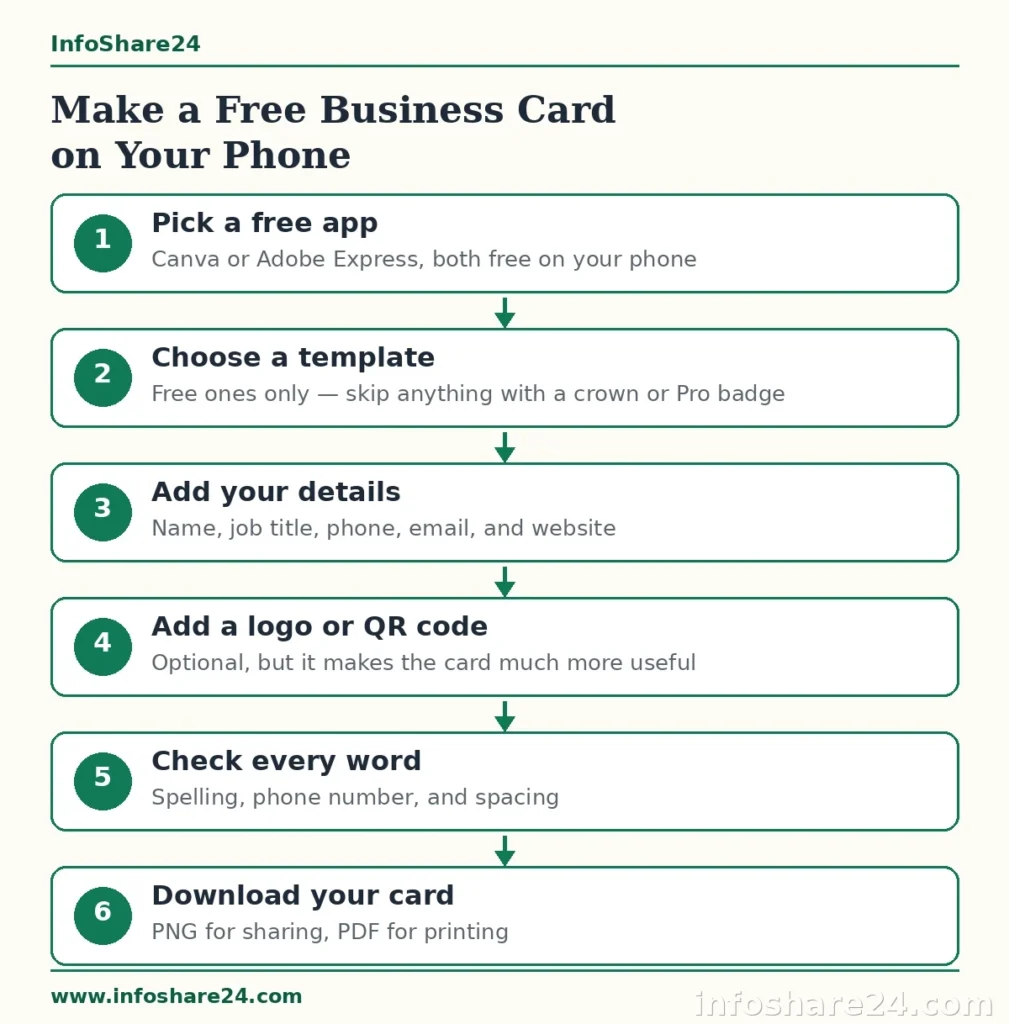
Both apps work the same way: pick a template, change the words, download the file. We use Canva below, but they work in Adobe Express too.
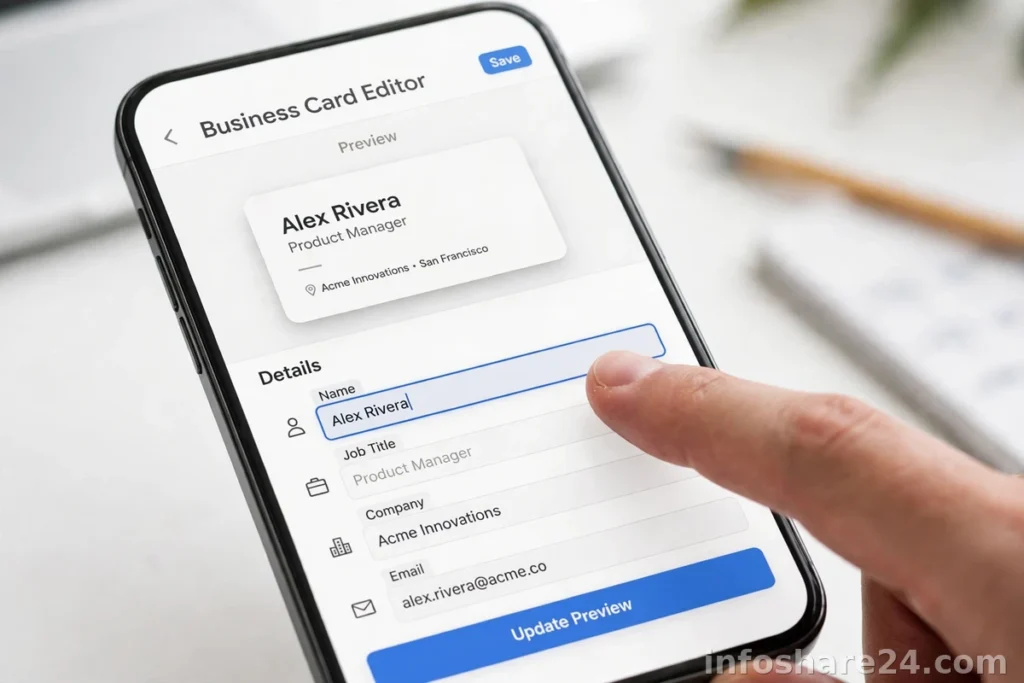
- Install a free card maker app. Download Canva or Adobe Express from the Play Store or App Store and create a free account. Both are free, with thousands of free templates.
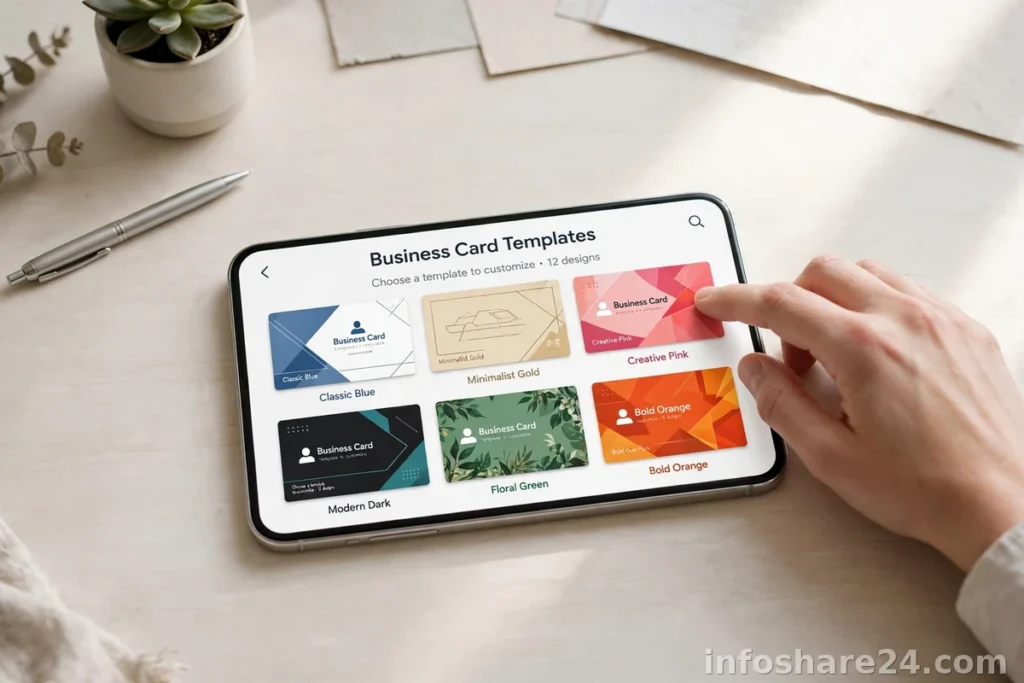
- Search for “business card”. Open the app and type “business card” in the search bar. You will see ready-made designs in many styles — pick a horizontal card for a classic look, or a vertical one for something different.
- Choose a free template. Tap a design you like, but check it first: free templates have no crown, star, or “Pro” badge. Anything marked Pro needs a paid plan, so skip it. Simple usually looks more professional than busy.
- Tap the text and type your details. Tap your name and type your real name, then the job title line and what you do. Change the phone, email, and website lines the same way, and keep the text large enough to read at arm’s length.
- Match the colours to your work. If you have a brand colour, apply it to the background or a shape. If not, keep the template’s colours — two are enough: one dark colour for text, one accent for shapes.
- Add a logo if you have one. Tap Uploads, pick your logo, and place it at the top or in a corner. No logo? Skip this step — a clean card beats a blurry logo.
- Check, then download your card. Zoom in, read every word slowly, and check the phone number digit by digit — one wrong digit means lost customers. Then tap Share, then Download: PNG for sharing, PDF for printing, which keeps the text sharp.
Add a QR Code to Your Card
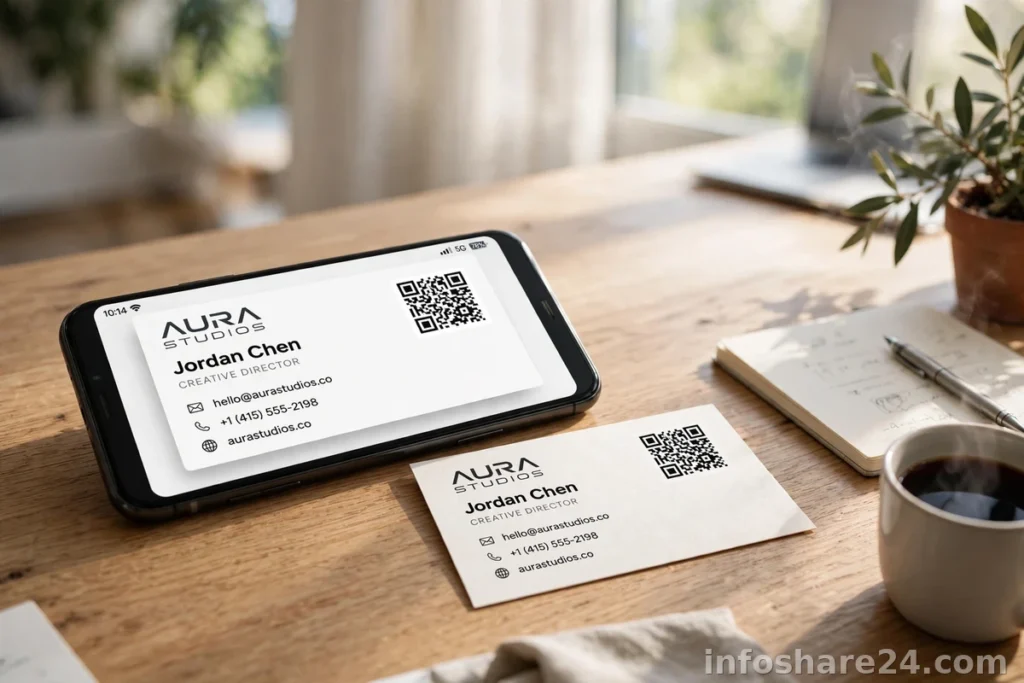
A QR code turns your printed card into a link: someone scans it and lands on your website, Facebook page, or WhatsApp chat — no typing needed. Canva has a free QR code generator built in: search “QR Code” in the Apps panel, paste your link, and place the code on the card. On the free plan, the code carries a small Canva logo and is static — it always opens the same link. To make one that opens your WhatsApp chat, first read How to Create a QR Code for Free and add it as an image.
Canva vs Adobe Express: Which Free Option Fits You?
Both tools are genuinely free for business cards, but they feel different. Canva has the bigger template library — thousands of card designs — and full control over every element, which suits hands-on designers. The catch: free and Pro content appear side by side, so check for the Pro badge first. Adobe Express is simpler and more guided: you fill in your details, pick a template, and the app handles more of the layout. Its free plan includes thousands of free templates, photo editing, and 2 GB of storage, and it downloads your card as PDF, JPG, or PNG. Premium features such as SVG export need a paid plan in both tools. For maximum choice, start with Canva; for the fastest result, Adobe Express.
How to Print Your Card for Free — or Almost Free
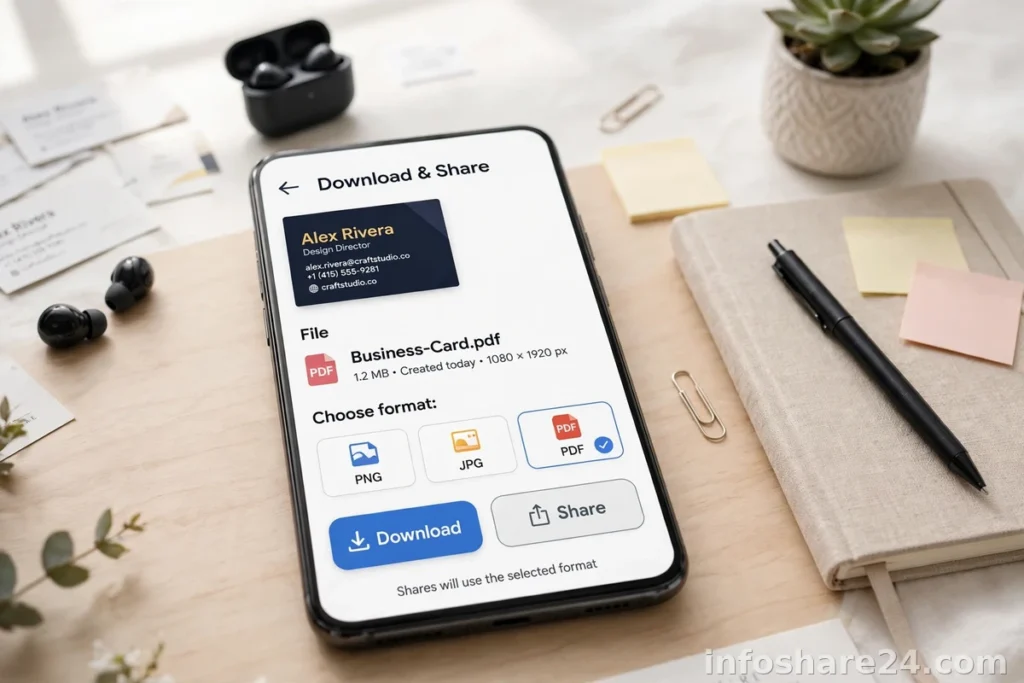
Designing is free; printing costs money — but you have cheap options. First, print a test copy: download the PDF, print one page on plain paper, and check the text is not cut off (a standard card is 3.5 by 2 inches). Second, use a local print shop: take the PDF on your phone and ask for thick card paper — 100 cards is usually cheap. Third, share it digitally: send the PNG on WhatsApp or Messenger — for large files, see How to Share Large Files Safely with Google Drive. If you print at home, read How to Print from Your Phone Without a Computer first, so the card comes out the right size.
5 Mistakes to Avoid
- Tiny text. If the phone number is hard to read, the card is useless — keep details large enough to read without glasses.
- Too much information. Two phone numbers, three emails, and a long address turn a card into a mess — pick one best way to reach you.
- A wrong phone number. The most common and most costly mistake — call the number on your own card before printing a hundred copies.
- Using a Pro template by accident. A crown or Pro badge means payment at download — if it asks, go back and pick a free template.
- Low-quality downloads. A small, blurry image looks bad in print — always download the highest quality: PDF for print, PNG for sharing.
Frequently Asked Questions
Is it really free to make a business card on my phone?
Yes. Design and download are free in both apps, as long as you use free templates and elements. You only pay if you order printed cards, or use something marked Pro.
Can I make a business card without any app?
Yes. Both tools also work in your phone’s browser — just open their websites and sign in. The app is smoother, but the browser works fine.
What size should a business card be?
The standard size is 3.5 by 2 inches (about 89 by 51 mm). Both apps use this size by default. Just do not stretch or crop the design after downloading.
Conclusion
You do not need a designer, a computer, or a budget for a professional business card. With your phone and a free app, you can make a free business card in ten minutes: pick a free template, add your real details, check every word, and download it as a PNG or PDF. Share it today, print a small batch when you are ready — your next customer might be the next person you meet.