

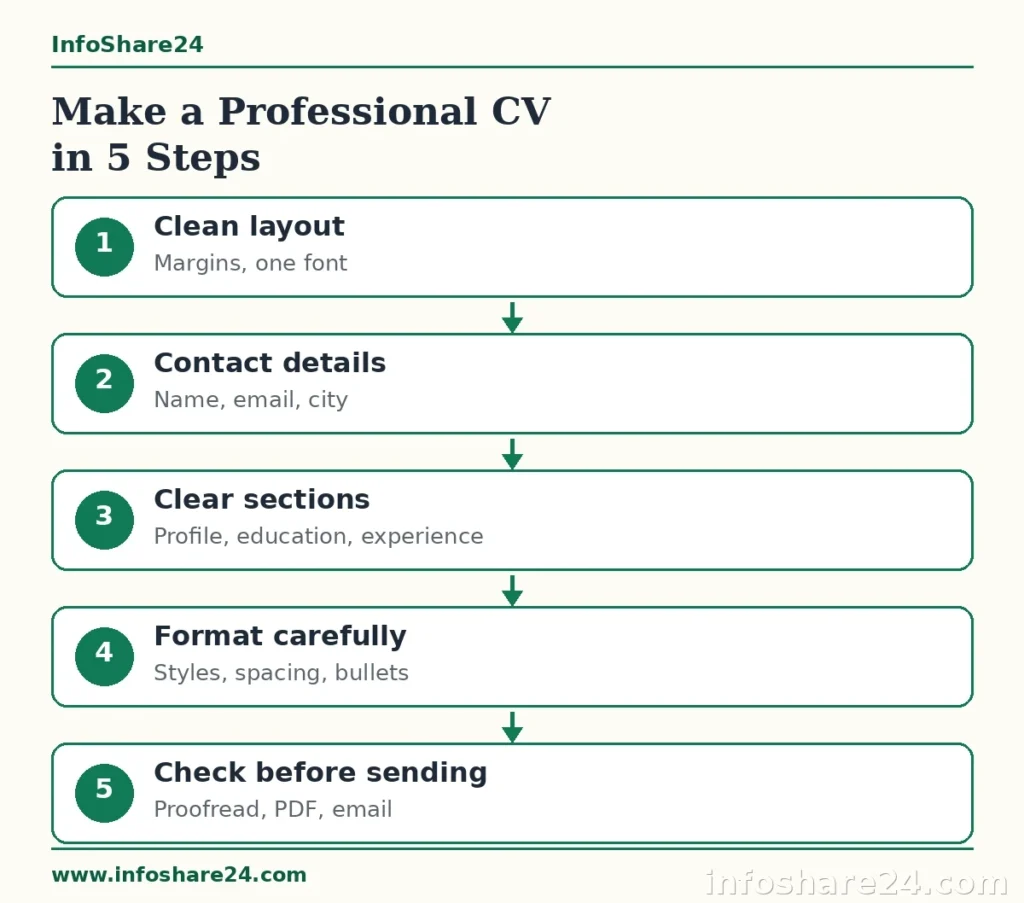
A CV is often the first thing an employer sees of you, and Microsoft Word is still the most common tool for making one. You do not need fancy design skills or expensive software. A clean layout, honest wording and careful formatting will beat a colourful, cluttered CV almost every time. This guide walks you through a professional CV in Word, from a blank page to a file you can send with confidence.
It is written for beginners, including students and first-time job seekers. The steps work in modern versions of Word on Windows, and most of them work in free word processors too.
Start with a Clean Layout
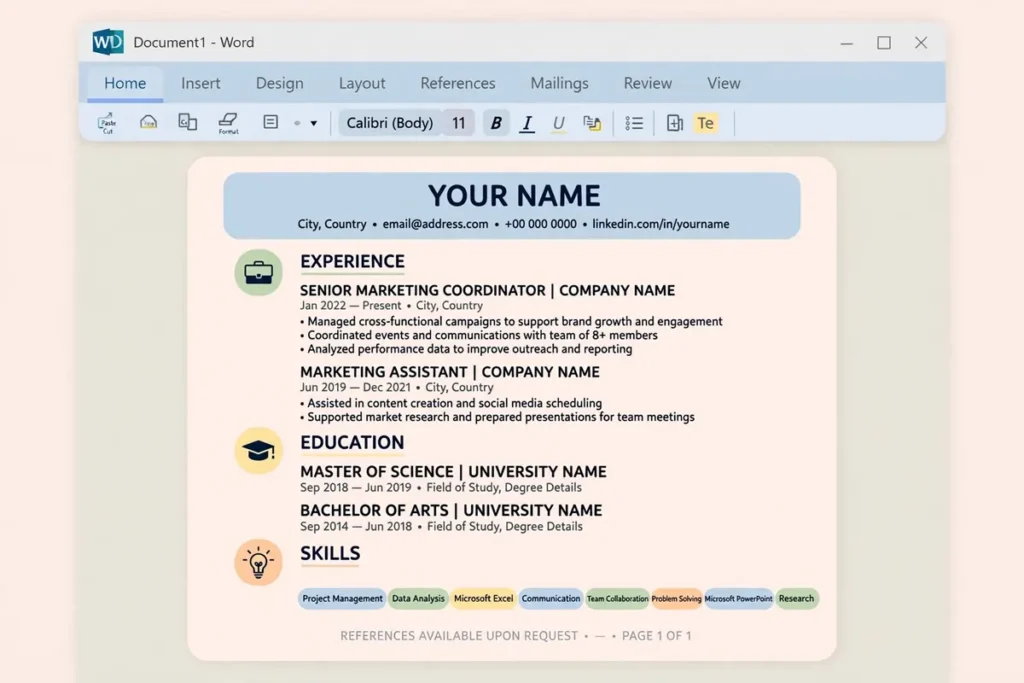
- Open a blank Word document and set sensible margins first. Go to Layout, then Margins, and choose Normal or Narrow. Narrow margins give you a little more space, but do not go smaller than that, or the page will look cramped when printed.
- Choose one simple font for the whole CV, such as Calibri, Arial or Times New Roman, in size 11 or 12 for body text. Your name at the top can be larger, around 18 to 20, and bold. Use only one font family throughout. Mixing three or four fonts is the fastest way to make a CV look unprofessional.
- Keep the CV to one page if you are a student or recent graduate, and two pages at most if you have several years of experience. Employers scan CVs quickly. A short, focused CV that is easy to read will always do better than a long one that buries your best points on page three.
Put Contact Details at the Top
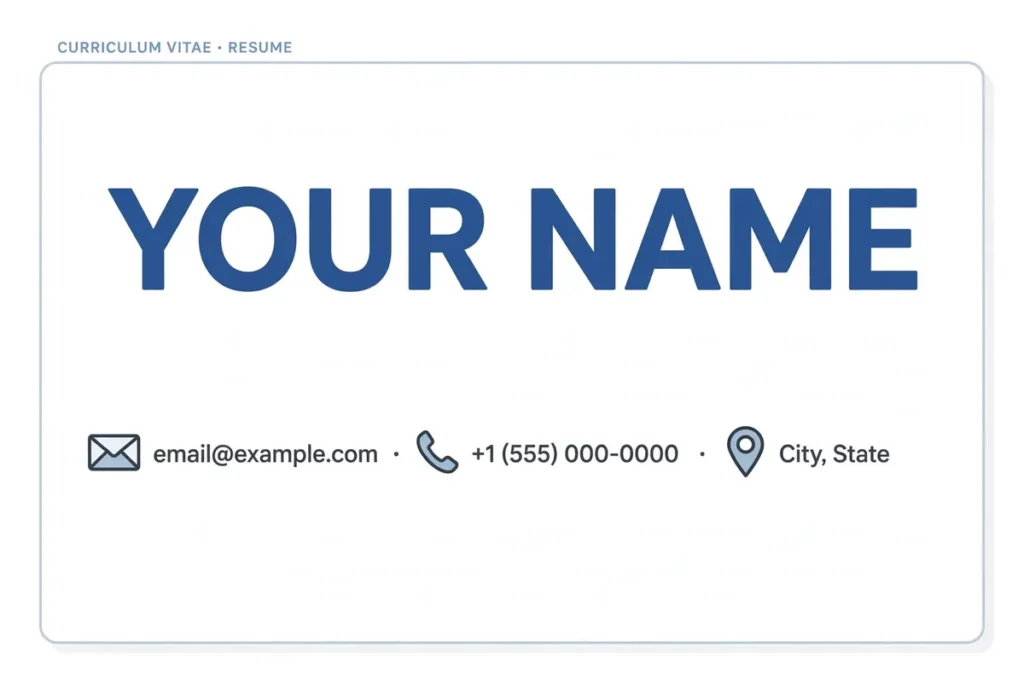
- Your name goes first, centred or left-aligned, in bold. Under it, put your phone number, email address, city and, if you have one, a LinkedIn profile link. Check your email address carefully: it should look professional, ideally your name, not a nickname from school days. If your current address looks unprofessional, create a simple new one for job applications.
- Do not include your full home address, date of birth, religion or a photo unless the job advertisement specifically asks for them. These details are not needed for most jobs, and leaving them out keeps your CV focused and safer.
- If you are applying abroad, check local norms first, because expectations differ by country.
Write Sections That Employers Scan
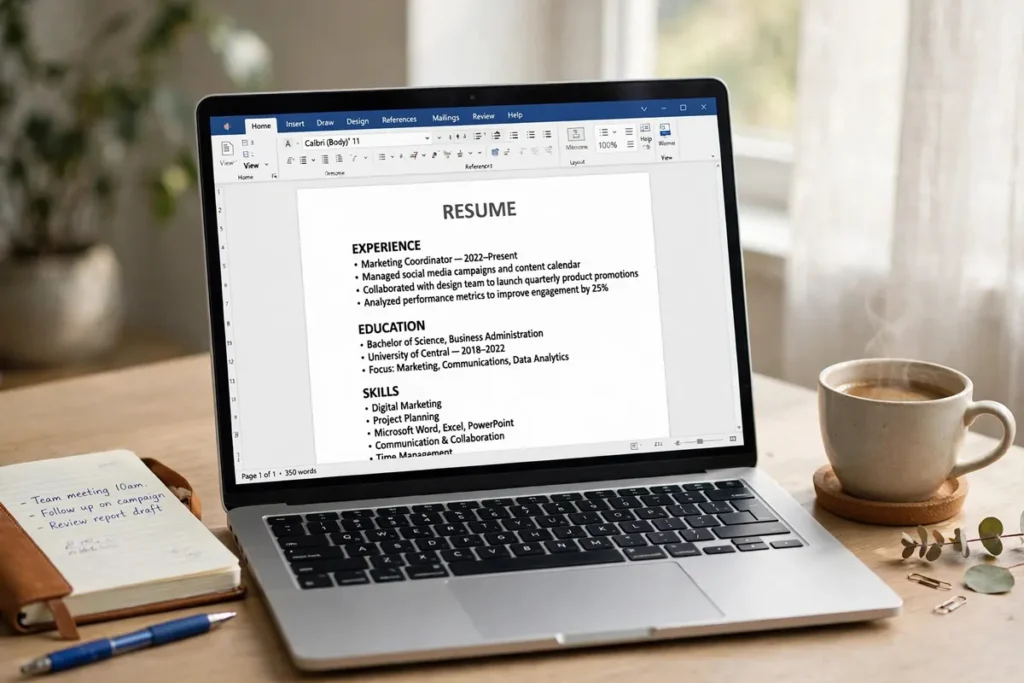
- Employers scan a CV in sections, so clear headings matter. Use bold headings for each section, with a little space above them, so the eye can jump from one part to the next. A good order for most beginners is: Profile, Education, Experience, Skills, and then Extras such as languages, courses or volunteering.
- Your profile should be two or three lines only. Say what you do or study, what you are good at, and what kind of role you want. Avoid empty phrases like “hardworking team player” on their own. Instead, give a small proof: “Recent business graduate with experience in customer service and strong Excel skills, seeking an entry-level office role.”
- For experience, list your most recent job or activity first, then work backwards. For each one, give the role, the organisation, the dates, and two or three bullet points about what you actually did and achieved. Start bullets with action words: helped, organised, created, supported, improved. Numbers help too: “Served 30 customers a day” says more than “Worked in customer service.”
- Education follows the same pattern: qualification, institution, year, and any result worth showing. For skills, list only skills you can honestly use, such as Microsoft Word, Excel, or a language you speak. Never claim a skill you cannot demonstrate, because an interviewer may test it.
Format Carefully in Word
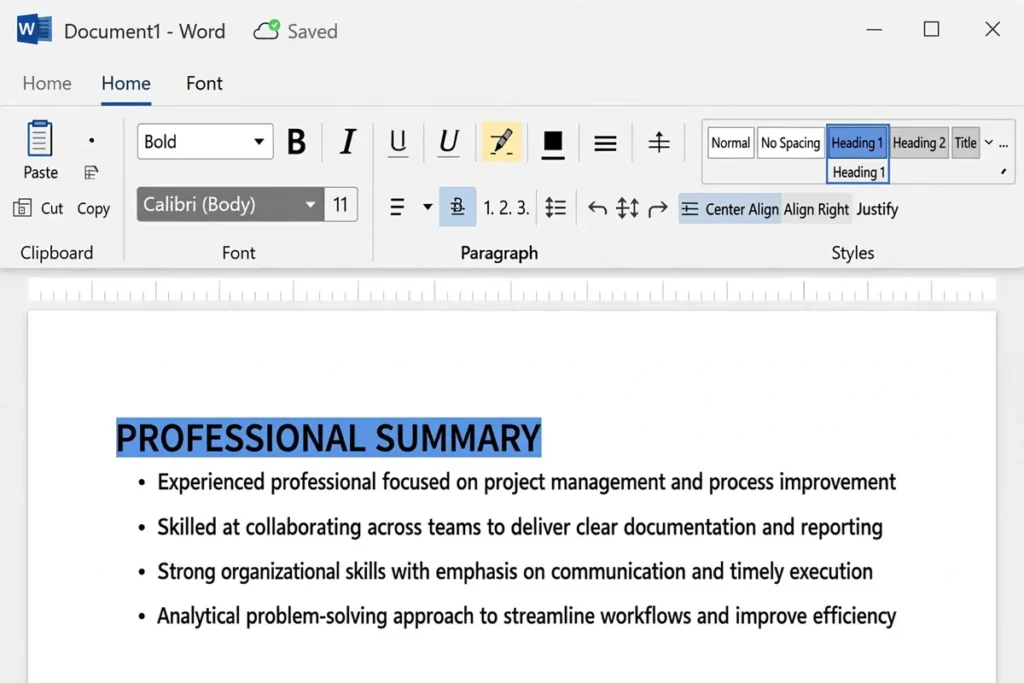
- Word has a few tools that make a CV look professional with little effort. Use Styles for headings instead of just making text bold and bigger by hand. When headings use a real Heading style, they stay consistent, and you can change them all at once later. Use bullet points from the Home tab rather than typing dashes by hand, so the spacing stays even.
- Keep your spacing consistent. Leave the same gap after each section, align dates in one column, and do not use five different colours. Black text on a white page is the safest choice. If you want one accent colour for headings, choose a dark blue or dark grey and use it sparingly.
- Tables can help align dates neatly, but hide the table borders before you send the CV, or the gridlines will print. Also, turn on Show/Hide formatting marks while you edit, so you can see extra spaces and empty paragraphs that make a CV look uneven. Delete double spaces and blank paragraphs before you finish.
Check Everything Before You Send It
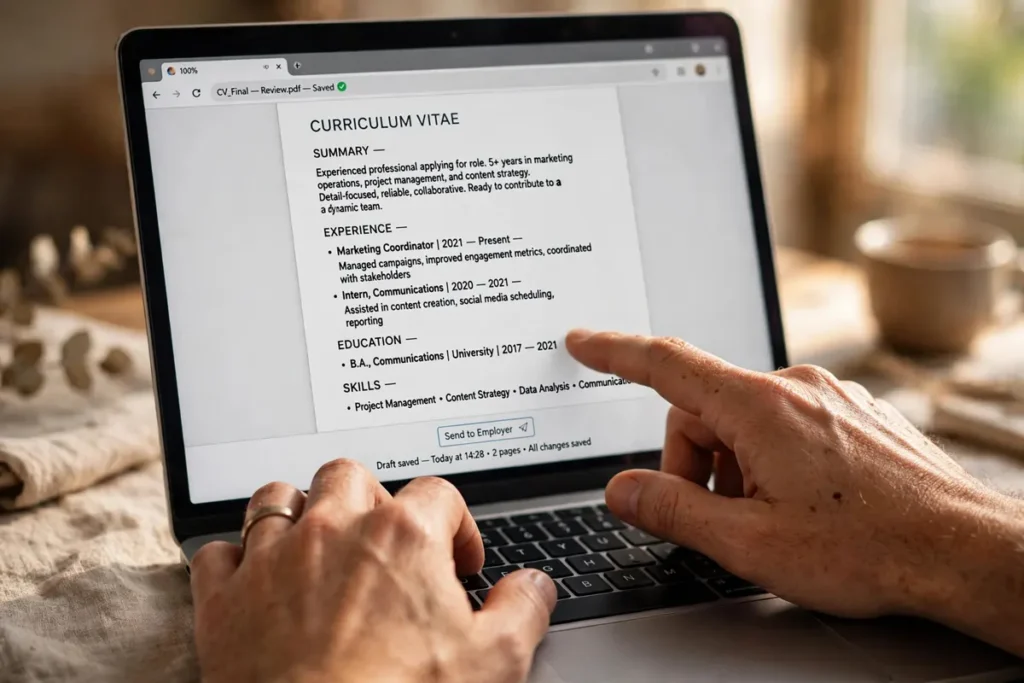
- Proofread slowly, out loud if possible. Check every name, date and phone number. Ask a friend to read it too, because your own eyes skip your own mistakes. Pay special attention to the email address and phone number: one wrong digit means the employer cannot reach you.
- Save your CV with a clear file name, such as YourName-CV.pdf, not Document1 or CV-final-final. Keep the Word version for editing, and send the PDF version in most cases, because PDF keeps your formatting the same on every computer. In Word, you can do this with File, then Save As, choosing PDF as the file type.
- When you email your CV, write a short, polite message in the email itself, mention the role you are applying for, and attach the file. A CV sent with no message looks careless. If you need a clean, professional email address for applications, this guide explains how to set one up securely: How to create a strong Gmail account and keep it secure. Also, keep your different CV versions organised in one folder, so you never send an old version by mistake. This guide explains a simple folder system: How to organise your files and folders on Windows.
A professional CV does not need to be fancy. It needs to be clear, honest and easy to scan. Start with clean margins and one font, put your contact details at the top, use clear section headings, format carefully in Word, and check everything before you send it.
If you follow these steps, you will have a CV that looks professional and reads well — and that gives your experience the best chance to be noticed.
Frequently Asked Questions
What is the best font for a CV in Microsoft Word?
Calibri, Arial or Times New Roman in size 11 or 12 work well. They are easy to read on screen and in print, and they look professional without drawing attention to themselves.
How long should my CV be?
One page is best for students and recent graduates. If you have several years of experience, two pages are fine. Keep every line relevant to the job you want.
Should I send my CV as a Word file or a PDF?
Send a PDF in most cases, because it keeps your formatting the same on every computer. Keep the Word file for editing, and check the job advert in case the employer asks for Word.
If this guide helped you, share it with a friend who is applying for jobs. A clear, professional CV is one of the simplest ways to make a good first impression.

How to Track Changes in Word When Someone Edits Your Document