

If you have ever spent ten minutes hunting for one document, photo, or downloaded form, you are not alone. Most Windows computers become messy slowly, one download at a time, until the Desktop is full and nobody remembers where anything was saved. The good news is that you do not need special software to fix this. A simple folder system, clear file names, and a short weekly habit can make your computer calm and easy to use again.
This guide is for beginners. It uses only the built-in tools in Windows, and it keeps the system small enough to maintain.
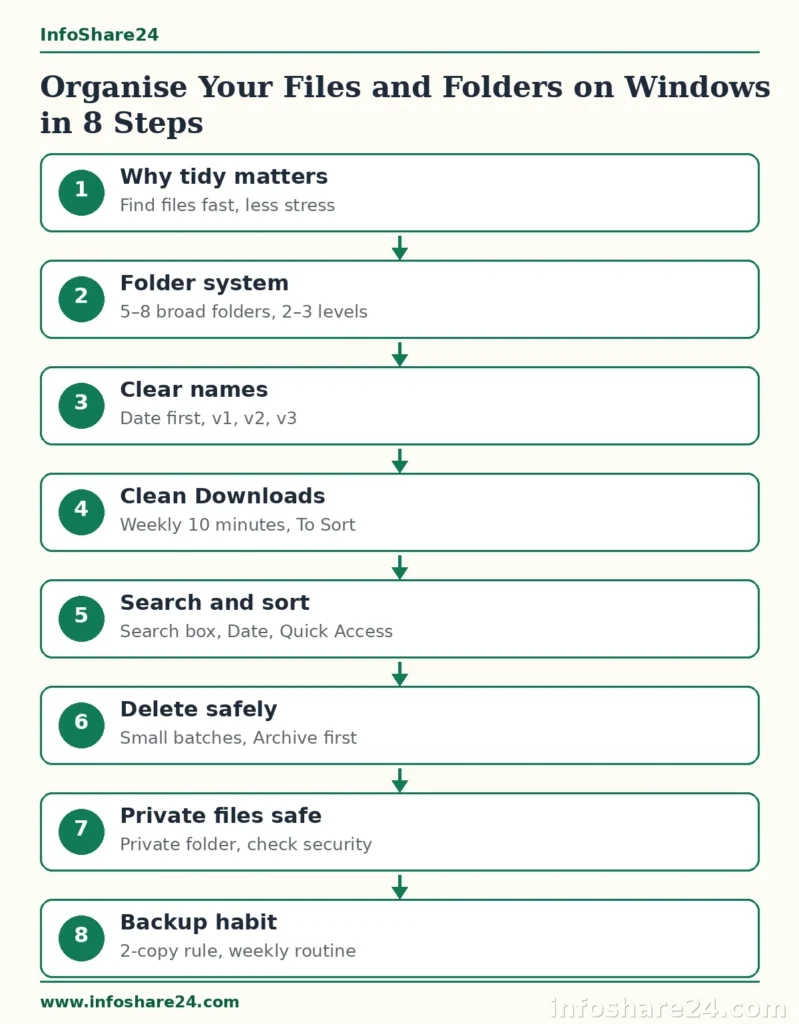
Why a Messy Computer Slows You Down
- When files are scattered, you may download the same file twice, attach the wrong version to an email, or delete something important because you cannot tell which copy is latest.
- Searching becomes frustrating, and simple work takes longer than it should.
- A tidy system helps quietly too: you feel less stressed opening File Explorer, find notes, bills, and photos quickly, and are less likely to lose something when your computer needs repair.
Build a Simple Folder System
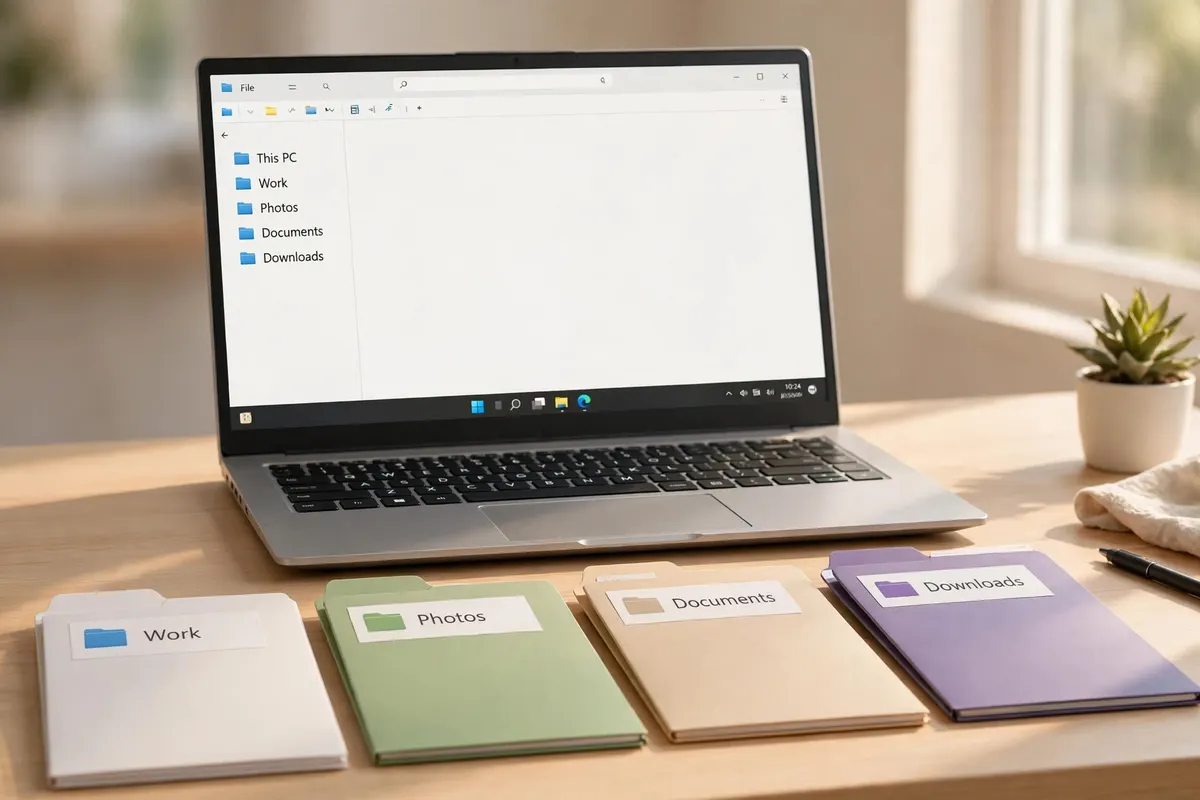
- The biggest mistake beginners make is creating too many folders. A system with forty folders is almost as hard to use as no system at all. Start with a few broad folders, and add a subfolder only when a folder feels crowded.
- Use the folders Windows already gives you, such as Documents, Pictures, Downloads, and Desktop, and add personal folders inside Documents, for example Work, Study, Home, Finance, and Photos. Inside Work, use one folder per project or year, but try not to go deeper than two or three levels. Each file should have one natural home: a school assignment in Study, a bill in Finance, a family photo in Pictures. If you are unsure, ask where you would look for it first next month.
- Keep your Desktop clear, using it only as temporary working space.
Give Every File a Clear Name
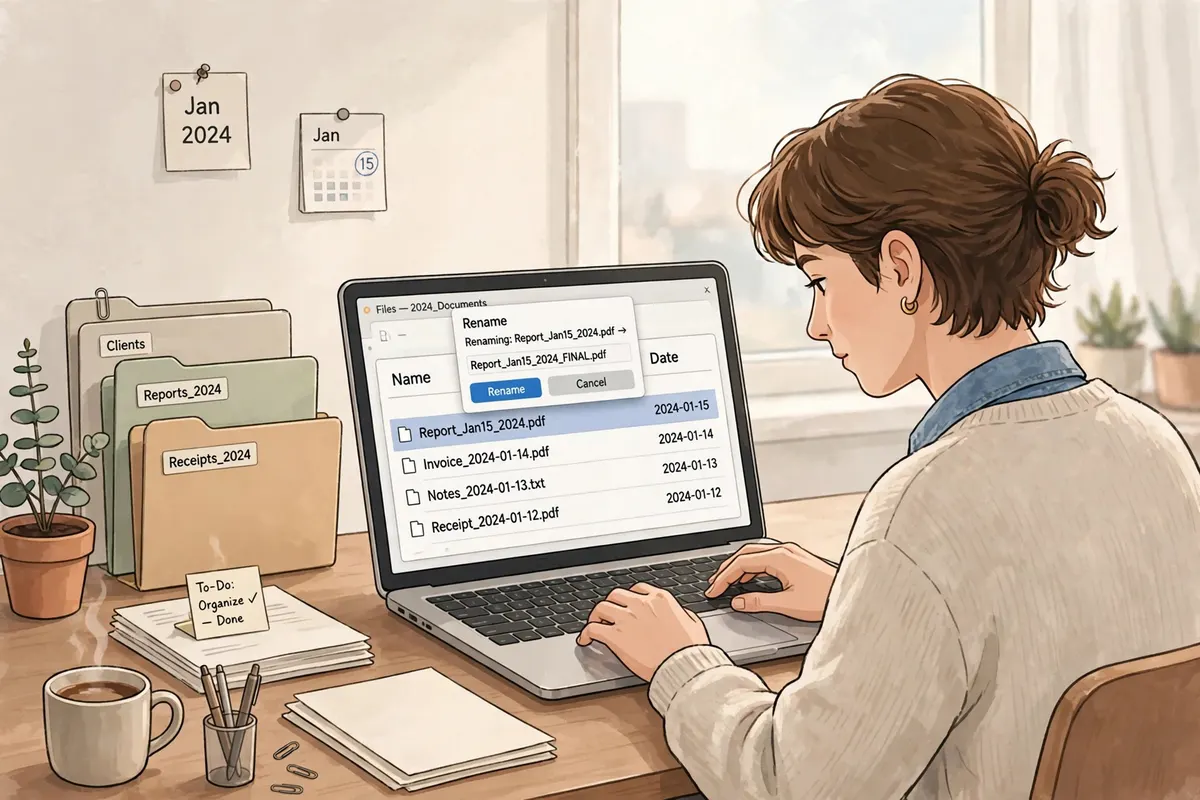
- Folders alone are not enough. If every file is called Document1, Scan, or IMG_2041, you will still struggle to find things. A clear name tells you what a file is, without opening it.
- Try this pattern: date in year-month-day order, then a short description. For example, 2026-10-15-Electricity-Bill.pdf is much clearer than Bill.pdf. Using the year first also helps Windows sort files in date order by name. Keep names short, avoid characters such as slashes and question marks, and avoid “final”, which loses meaning after the third revision. Use v1, v2, and v3 instead, or move old versions into an Old Versions folder.
- To rename a file, right-click it in File Explorer, choose Rename, type the new name, and press Enter. You can also select a file and press F2.
Clean Up Downloads and the Desktop
- Downloads is where most mess begins, because browsers save everything there by default.
- Once a week, spend ten minutes moving useful files into their proper folders and deleting installers and duplicates. If you are unsure about a file, move it into a folder called To Sort and review that folder once a month. This keeps main folders clean without forcing a rushed decision.
- Do the same for screenshots, which pile up fast: delete unneeded ones and rename keepers with a clear name and date.
Use Search and Sorting in File Explorer
- Even with good folders, search is your best friend. Use the search box at the top right of File Explorer and type part of a file name, such as “electricity” or “project report”.
- Sorting helps too: sort by Date modified to find the newest version, or by Name when you have used a consistent naming pattern. Details view shows date, type, and size, which makes duplicates easier to spot.
- You can also pin your four or five most-used folders to Quick Access by right-clicking a folder and choosing Pin to Quick Access.

Delete Duplicates and Old Files Safely
- Work slowly, in small batches. Start with files you are certain about: duplicate downloads, old installers, and blurry photos.
- Deleted files go to the Recycle Bin, where you can still recover them. For files you are unsure about, move them into an Archive folder and leave them for a month. If you never needed them, delete them with more confidence.
- Never delete Windows system files or program folders. If a file sits inside a system folder and you do not know what it is, leave it alone.
Keep Private Files Safe
- Private files, such as ID copies, bank statements, and personal photos, should not sit loose on the Desktop or in Downloads, where anyone using your computer might see them.
- Keep them in a private folder inside Documents.
- It is also worth checking your basic security settings, so your organised files are protected by a password, updates, and sensible privacy choices. This related guide explains the settings to review first: Windows security settings every user should check first.
Keep a Simple Backup Habit
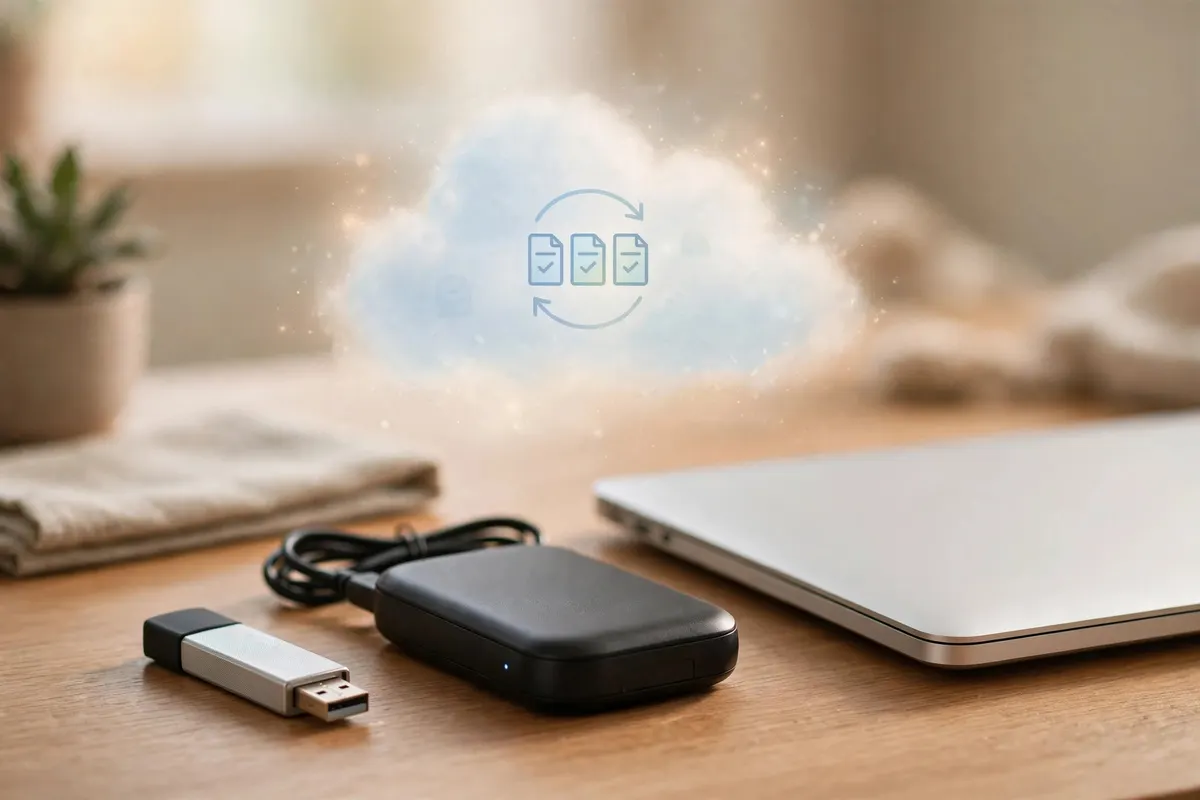
- A backup is simply a second copy of your important files, kept somewhere separate from your computer. If your computer is damaged or stops working, the backup saves your photos, documents, and work.
- Follow the 2-copy rule: one copy on your computer, and a second on an external hard drive, USB drive, or trusted cloud service. Start with Documents and Pictures, copy them once a week or once a month, and name the backup with a date, for example Backup-2026-10-31. Test it sometimes by opening a file from it.
- If you often move files between phone and computer, keeping those transfers organised matters too. This guide explains simple ways to move files without creating duplicates: How to transfer files between phone and computer easily.
A Weekly Routine That Takes Ten Minutes
- Clear your Desktop and move finished files into their folders.
- Sort Downloads and delete what you no longer need.
- Rename new files that still have vague names. If it is backup week, copy important folders to your backup drive.
Frequently Asked Questions
How many folders should I create?
Start with five to eight main folders. Add a subfolder only when finding things becomes slow. A small system you maintain beats a detailed system you abandon.
Should I organise by date or by topic?
Topic usually works better, because you remember what a file is about, not exactly when you saved it. Including dates in file names gives you both benefits.
What should I do with files I am not sure about?
Put them in a To Sort folder and review it once a month. This keeps main folders clean while giving you time to decide.
Is it safe to delete files from Downloads?
Usually, yes, because Downloads holds copies and installers. Check first whether a file is the only copy of something important, such as a form or receipt.
Do I need special software?
No. File Explorer, clear names, and a simple folder system are enough for most beginners. Build the habit first, before adding extra tools.
Conclusion
Organising files on Windows does not need a perfect system or a whole weekend. It needs a few broad folders, clear file names, a weekly ten-minute tidy-up, and a simple backup for the files that matter most. Open File Explorer today, create your main folders, and move just ten files into their right places. That small start is often all it takes to turn a messy computer into one you enjoy using.

[…] Now change one amount and watch all three answers update. That moment, when the numbers move by themselves, is when Excel starts to make sense. Save the file with a clear name so you can find it again. Keeping your files organised matters just as much as the formulas inside them, as explained in this guide: How to organise your files and folders on Windows. […]