

Sorting and filtering are the two skills that turn a messy Excel list into something useful. Sorting puts your data in order, from A to Z or smallest to largest. Filtering hides the rows you do not need right now, so you can focus on one group. Both are easy, but both can damage your data if you use them carelessly. This guide shows you the safe way, step by step, so your rows stay together and your numbers stay true.
It assumes you know the basics of Excel, such as typing in cells and saving a file. If formulas are still new to you, start with SUM, AVERAGE and COUNT first, then come back here.
Before You Sort: Make a Safety Copy

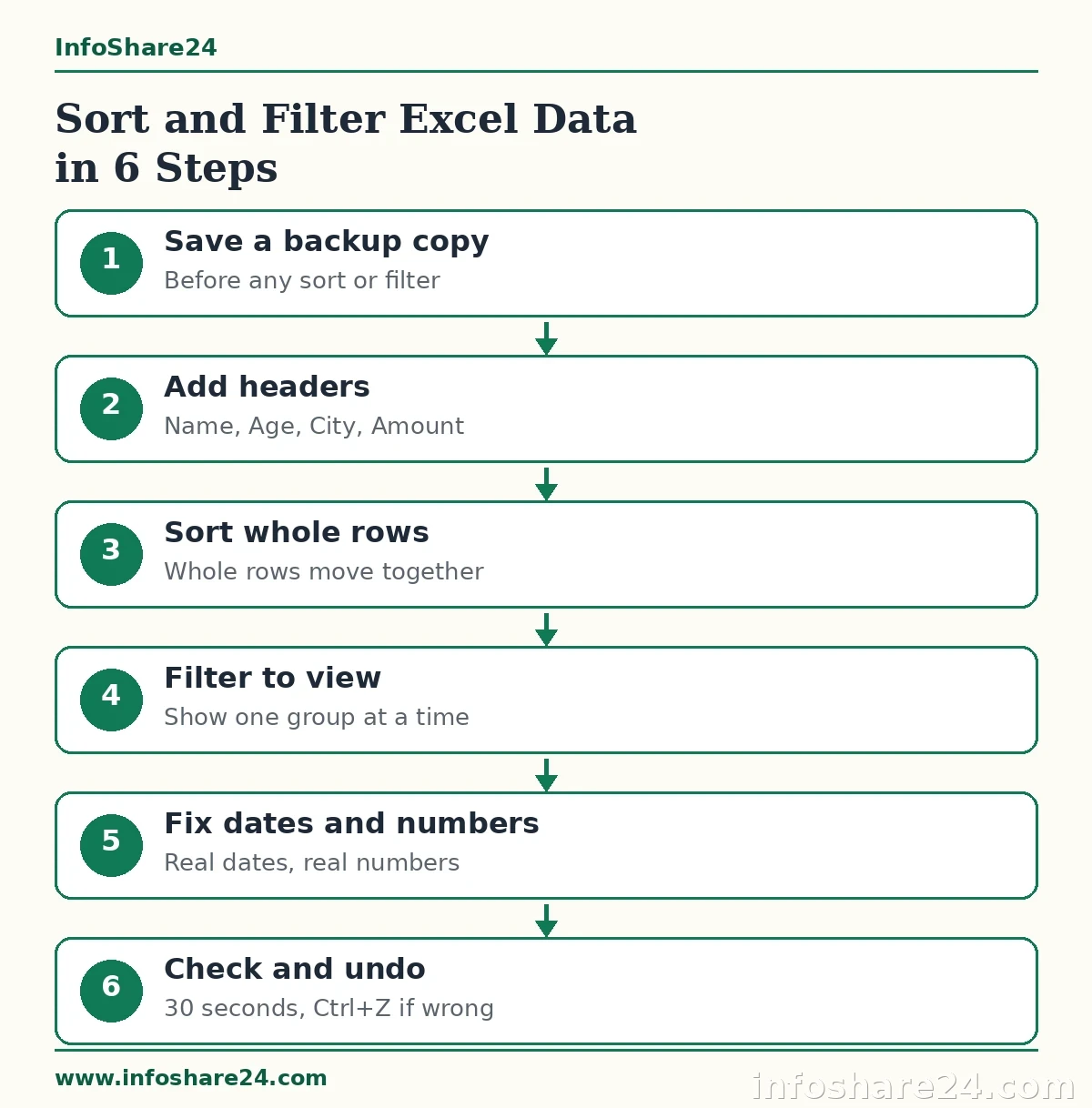
- This is the most important habit in this whole guide. Before you sort or filter anything important, save a copy of the file with a new name, such as List-Backup. Or copy the whole sheet to a new sheet inside the same file. Sorting changes the order of your data, and while Excel has an undo button, it is far easier to be safe than sorry.
- Also, make sure your data has a header row: one row at the top with labels like Name, Age, City and Amount. Headers tell Excel which row is a label and which rows are data. Without headers, Excel may sort your labels into the data, and “Name” could end up in the middle of your list.
- If your data has no headers, add them first. It takes one minute and prevents most sorting disasters.
Sort Safely: Keep Rows Together
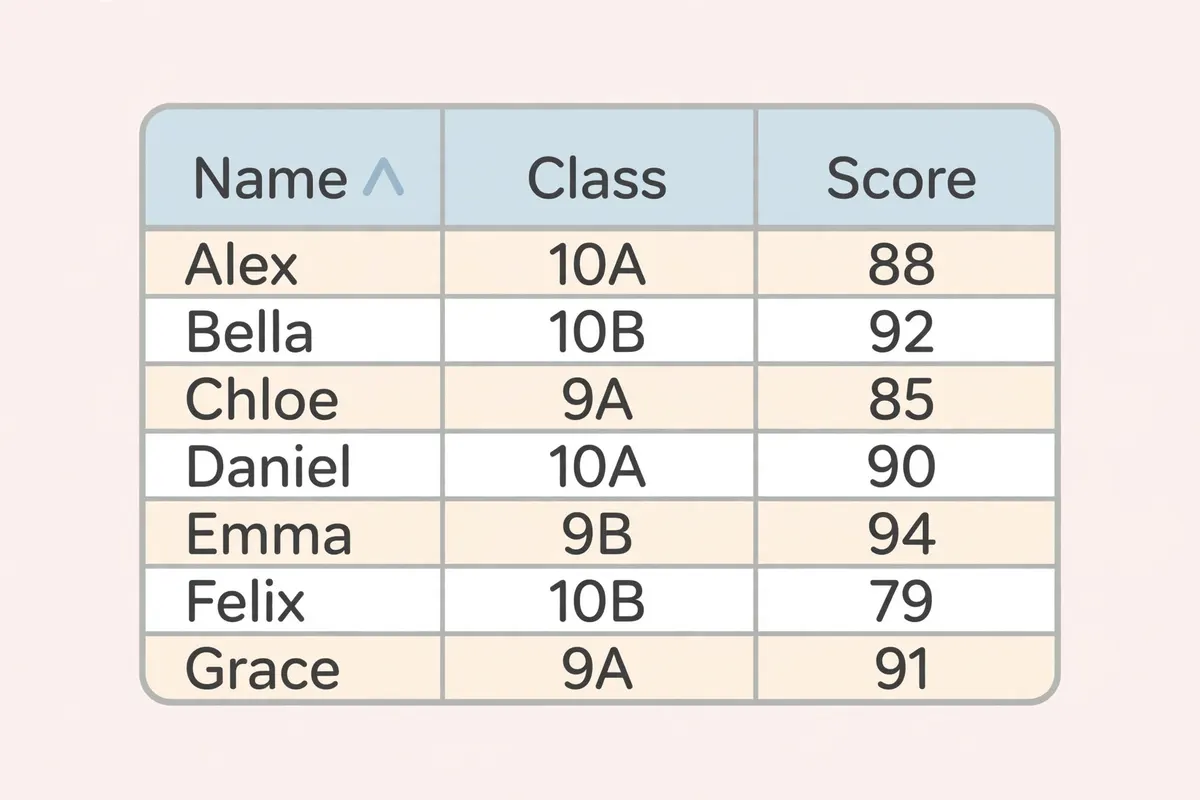
- The golden rule of sorting is: select the whole table, not just one column. If you select only the Name column and sort it, the names move but the ages, cities and amounts stay where they were. Suddenly the wrong age sits next to the wrong name, and the data is silently wrong. This is the classic Excel mistake, and it is hard to spot afterwards.
- The safe method is simple. Click any single cell inside your table, then go to Data, then Sort. Excel will usually detect the whole table on its own and ask if your data has headers. Tick “My data has headers” if it does, then choose which column to sort by, for example Name, and whether you want A to Z or Z to A. For numbers, choose Smallest to Largest or Largest to Smallest. Click OK, and whole rows move together, keeping each person’s details intact.
- If Excel shows a warning that it will sort only part of your data, stop. That warning means your selection is incomplete. Cancel, select the full table, and try again. Never click past that warning without understanding it.
Filter: Show Only What You Need
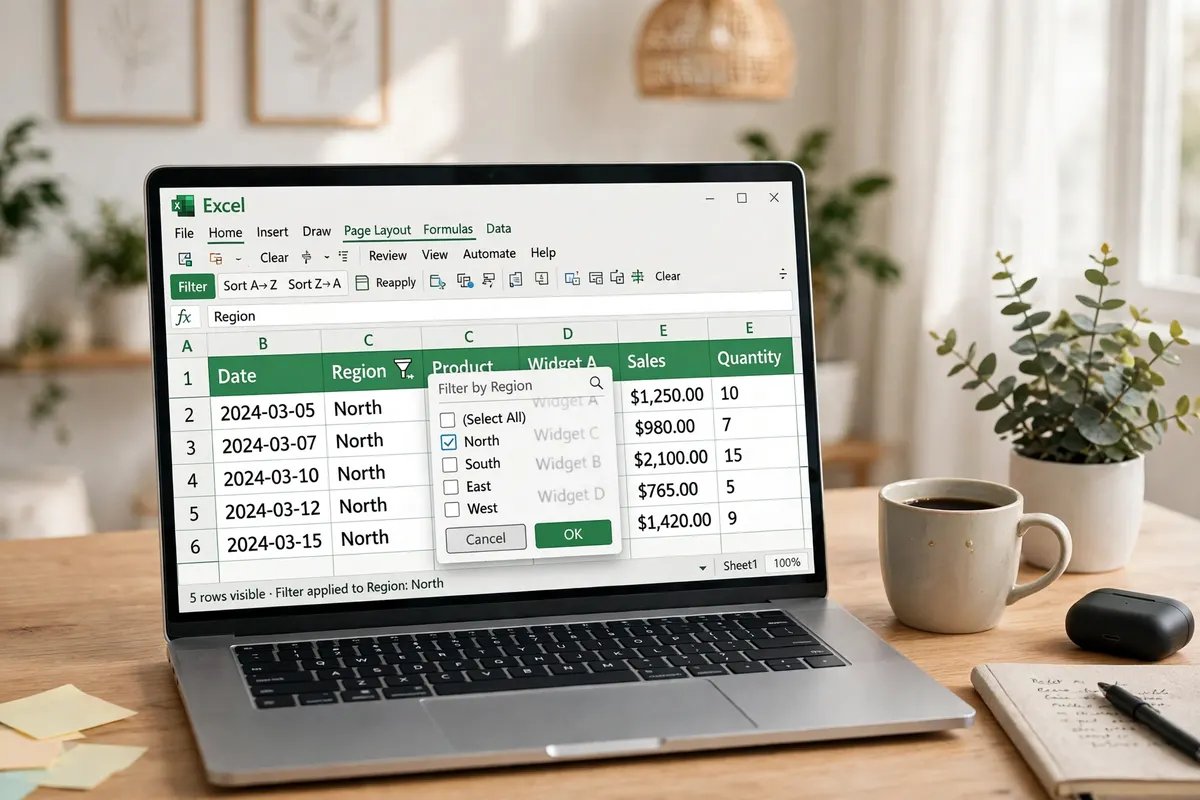
- Filtering does not delete or move data. It hides rows that do not match what you chose, so you see only the group you care about. This is perfect for questions like, “Show me only sales from Dhaka,” or “Show me only students who scored above 80.”
- To filter, click any cell in your table, go to Data, then Filter. Small drop-down arrows appear on every header. Click the arrow on the column you want to filter, for example City, untick Select All, tick only the city you want, and click OK. Only those rows stay visible. The other rows are still in the file, just hidden.
- Remember to clear the filter when you finish. Go to Data, then Clear, or click the filter arrow again and choose Clear Filter. If you forget, you may later wonder where half your data went, or print a sheet that looks incomplete. A filtered table often shows row numbers in blue, which is Excel’s quiet way of saying some rows are hidden.
Sorting Dates and Numbers the Right Way
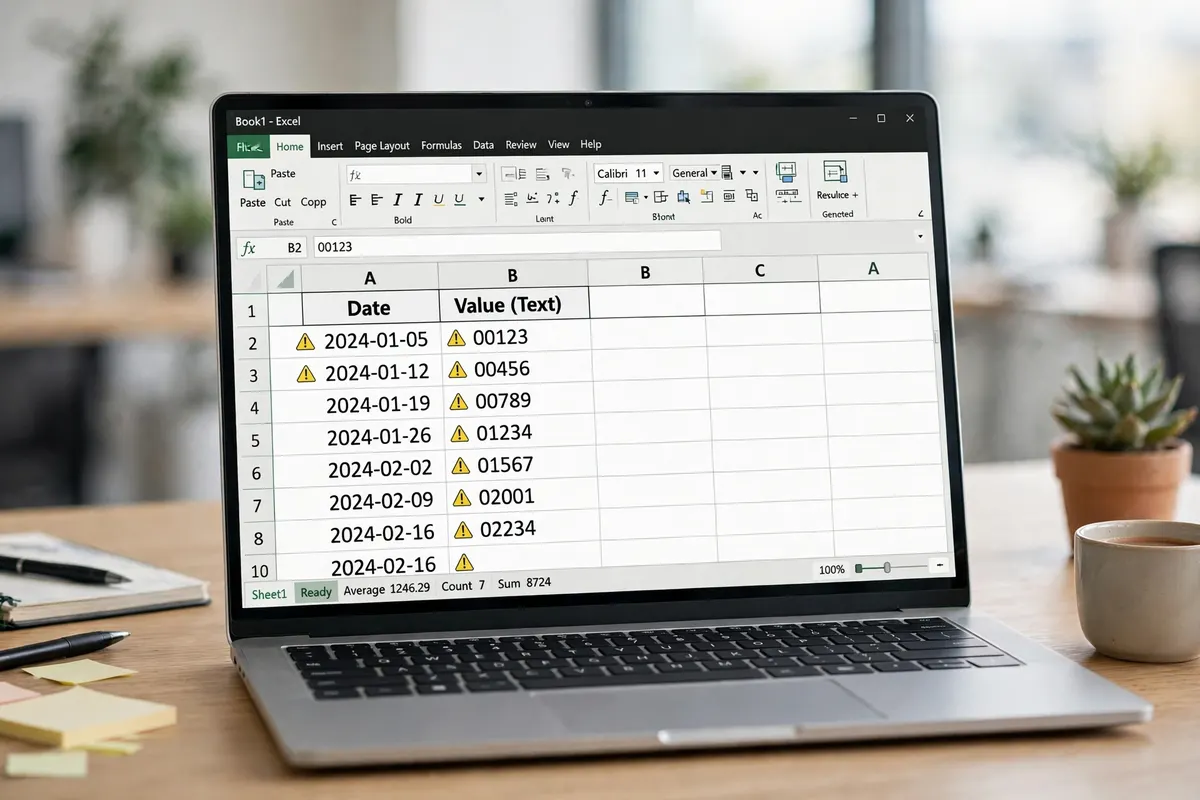
- Dates and numbers need a little extra care. Dates must be real Excel dates, not text that looks like a date. If you type 15-10-2026 and Excel treats it as text, sorting will put it in the wrong place, because text sorts alphabetically, not by calendar order. If your dates sort strangely, check whether they are left-aligned like text or right-aligned like numbers. Converting the column to a date format usually fixes it.
- Numbers have a similar trap. A number stored as text, often after copying from a website, sorts like a word: 100 may come before 20, because “1” comes before “2” alphabetically. If your numbers sort in a strange order, look for a small green triangle in the corner of the cells, which warns that numbers are stored as text. Converting them to numbers fixes the sort.
- Totals rows need care too. If your table ends with a Total row, exclude it from the sort range, or it may get sorted into the middle of your data. Either sort only the data rows, or better, turn your range into an official Excel Table, which keeps totals separate automatically.
Check Your Work and Undo Mistakes
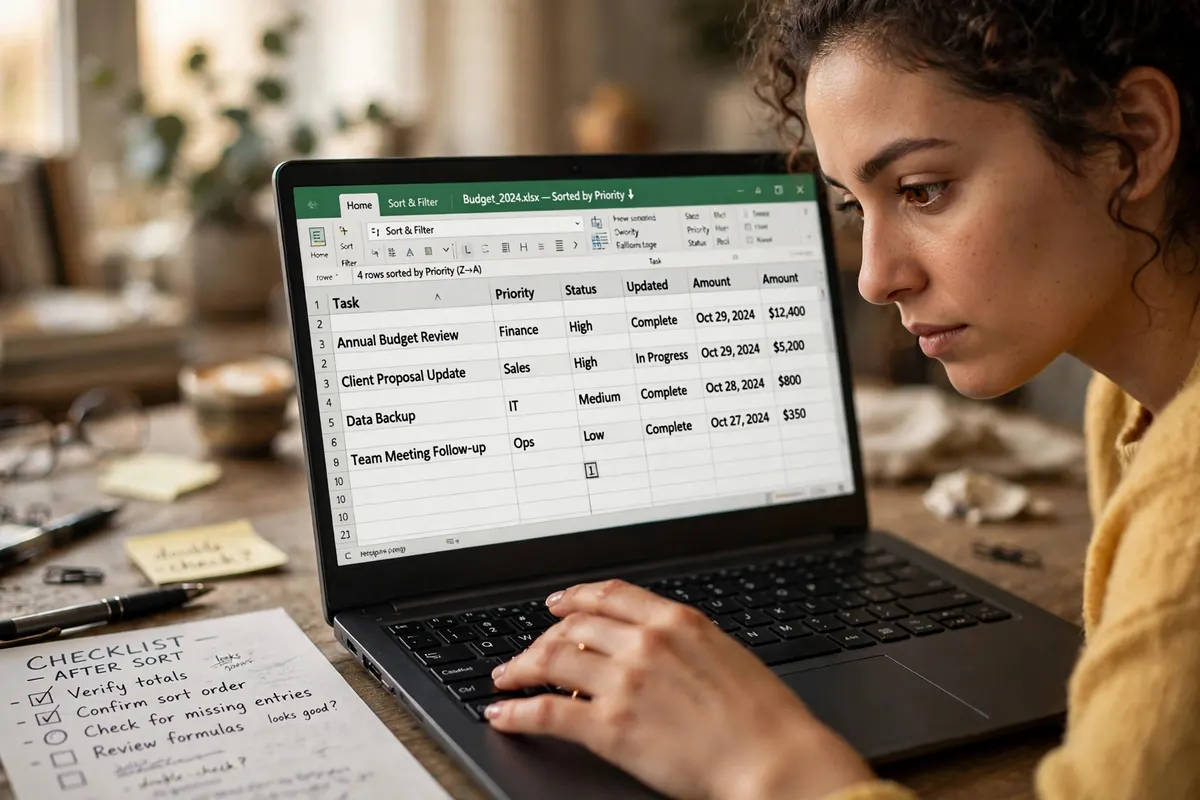
- After every sort or filter, spend thirty seconds checking. Scroll through the first few rows and the last few rows. Do names still match their amounts? Are totals still at the bottom? Does the row count look right? A quick glance catches most errors while they are still easy to undo.
- If something looks wrong, press Ctrl+Z straight away to undo. Undo works step by step, so press it once and check again. Do not save the file first if you suspect a mistake, because saving makes the mistake permanent in that version. This is why the safety copy matters: if undo does not fix it, close the file without saving and reopen your backup copy.
- One more check: after filtering, never copy only the visible rows and paste them somewhere expecting the hidden rows to follow. Excel copies only what you can see when a filter is on, unless you choose otherwise. Clear the filter first if you want the full list.
A Simple Routine for Messy Lists
- First, save a backup copy.
- Second, add or fix the header row.
- Third, remove blank rows inside the data, because blanks can break sorting.
- Fourth, sort by your main column, checking that rows stayed together.
- Fifth, filter when you need a smaller view, and clear the filter when you are done.
- Sixth, save with a clear file name.
Keeping a backup copy of your spreadsheet is part of keeping your files organised in general, which this guide explains step by step: How to organise your files and folders on Windows. And if you want a quick picture of your screen before you make a big change, this guide shows how: How to take a screenshot on Windows, Android and iPhone: a simple guide.
Frequently Asked Questions
Why did sorting mix up my names and amounts?
You probably sorted only one column instead of the whole table. Undo with Ctrl+Z, select the full table or click one cell inside it, then sort again from the Data menu.
Where did my rows go after filtering?
They are hidden, not deleted. Go to Data, then Clear, to show all rows again. Blue row numbers are a clue that a filter is active.
Why do my dates sort in the wrong order?
Your dates may be stored as text. Convert the column to a date format, check that the dates are real dates, and sort again.
Can I sort by two columns at once?
Yes. In the Sort window, click Add Level and choose a second column. For example, sort by City first, then by Name inside each city.
Should I use an Excel Table for my data?
For lists you sort and filter often, yes. Select your data, press Ctrl+T, and Excel turns it into a Table with filter arrows and a header row that stays tidy.
Conclusion
Sorting and filtering are safe when you follow a few habits: save a backup, use headers, sort whole rows together, filter to view and clear to restore, and check your work before saving. The mistakes that damage data almost always come from rushing one of those steps. Slow down for the first minute, and Excel will reward you with lists that are ordered, focused and trustworthy every time.


How to Track Changes in Word When Someone Edits Your Document