

Most people know roughly what they earn and roughly what they spend, but “roughly” is where money quietly disappears. A simple budget sheet in Excel turns that guesswork into clear numbers: what came in, what went out, and what is left. You do not need accounting knowledge, and you do not need a complicated template. One sheet, a few columns, and one formula are enough to start.
This guide builds a complete budget sheet from scratch, step by step. By the end you will have a sheet you can reuse every month, with totals that update themselves whenever you add a new row. It is deliberately different from a formula lesson: here the goal is a finished, useful sheet, not a tour of every Excel function.
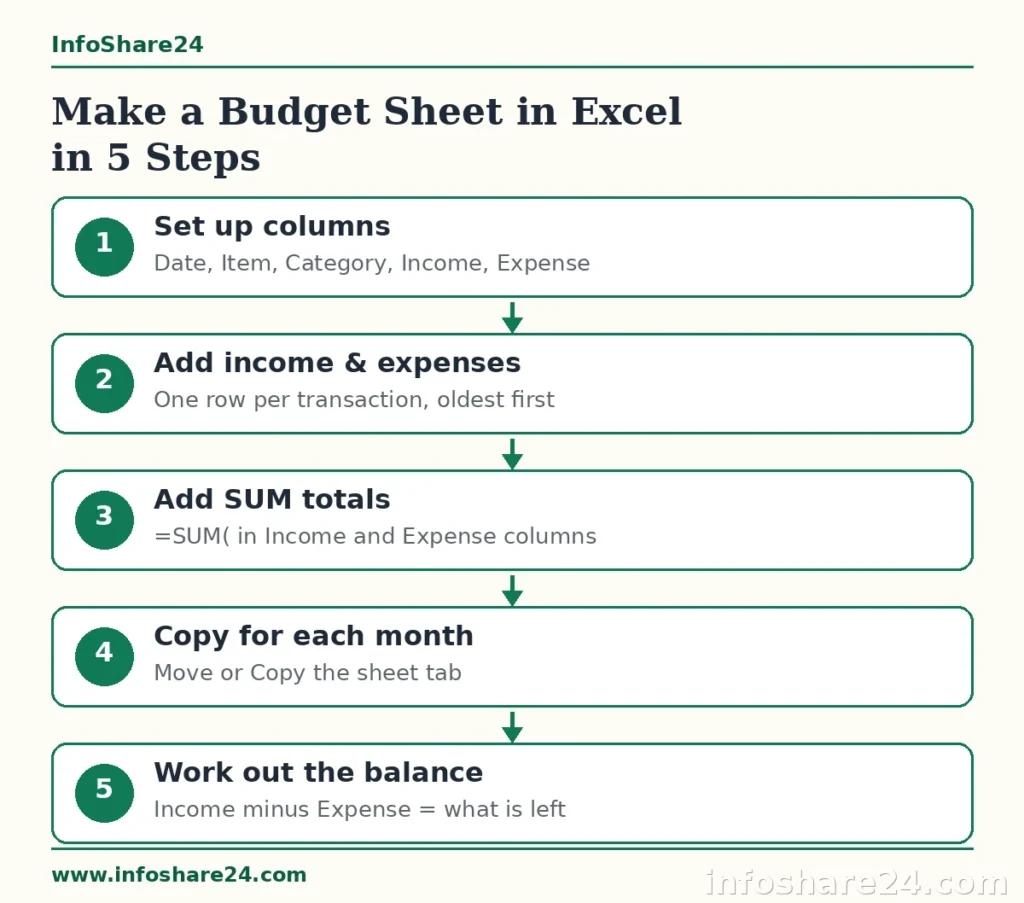
What Your Budget Sheet Needs
A budget sheet answers three questions. How much money came in? How much went out, and on what? And how much is left? Everything on the sheet exists to answer one of those three questions, and anything that does not can be left out.
Step 1: Set Up Your Columns
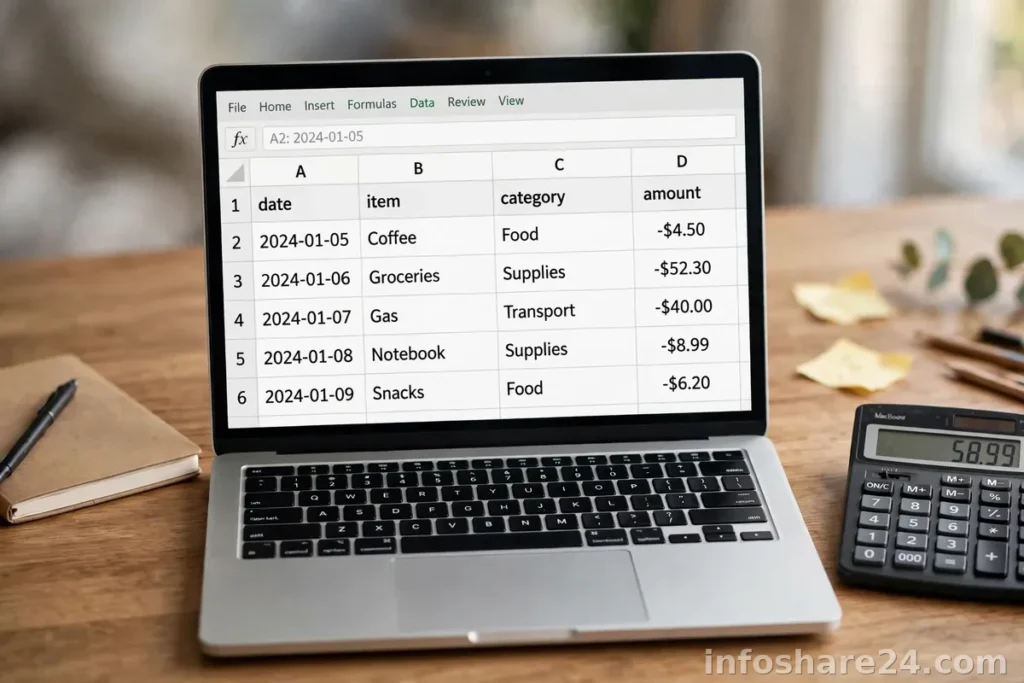
- Open a blank Excel workbook and save it straight away with a clear name, such as “My Budget 2026”. Saving first means you will never lose work to a forgotten save later.
- In the first row, type these headings across the top: Date, Item, Category, Income, Expense.
- Format the header row: select row 1, make the text bold, give it a light fill colour so it stands out from the numbers below, and widen each column by double-clicking the border between column letters until everything is readable.
Step 2: Add Your Income and Expenses
- Work from your bank statement or payment history, row by row, oldest first. Each row is one transaction: the date it happened, a short description, its category, and the amount in either the Income or the Expense column. Leave the other money column blank on that row.
- Start with income, because it is usually short: salary, freelance payments, interest, or money from family.
- Then add expenses, grouped by category if that helps: rent, electricity, groceries, transport, phone bill, subscriptions. Be honest and complete. The small daily amounts, coffee, snacks, mobile top-ups, are exactly the ones that surprise people at month end, so include them even when they feel too small to matter.
Step 3: Add SUM Totals
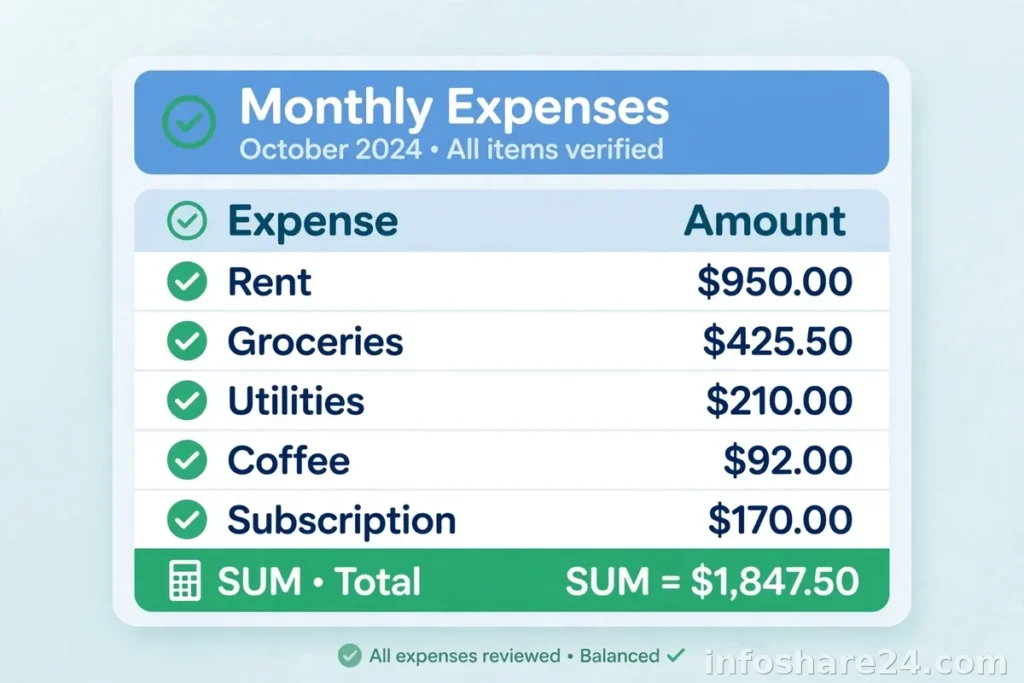
- Below your last entry, in the Income column, type =SUM( and then select all the income amounts above, close the bracket, and press Enter. Excel adds them all instantly.
- Do the same in the Expense column for your spending.
- Check the range: click on a total cell and check the range in the formula bar — it should start at your first amount and end at your last amount, nothing more. Do not include the header row or the total row itself. If you add a new row later, extend the range or insert the row inside the range, and the total updates on its own.
If you want to see how SUM works in isolation, with small practice examples, keeping a copy of your finished sheet is still worthwhile: a quick screenshot preserves a version you can compare against later. For that, see How to Take a Screenshot on Windows, Android and iPhone: A Simple Guide.
Step 4: Make a Monthly View
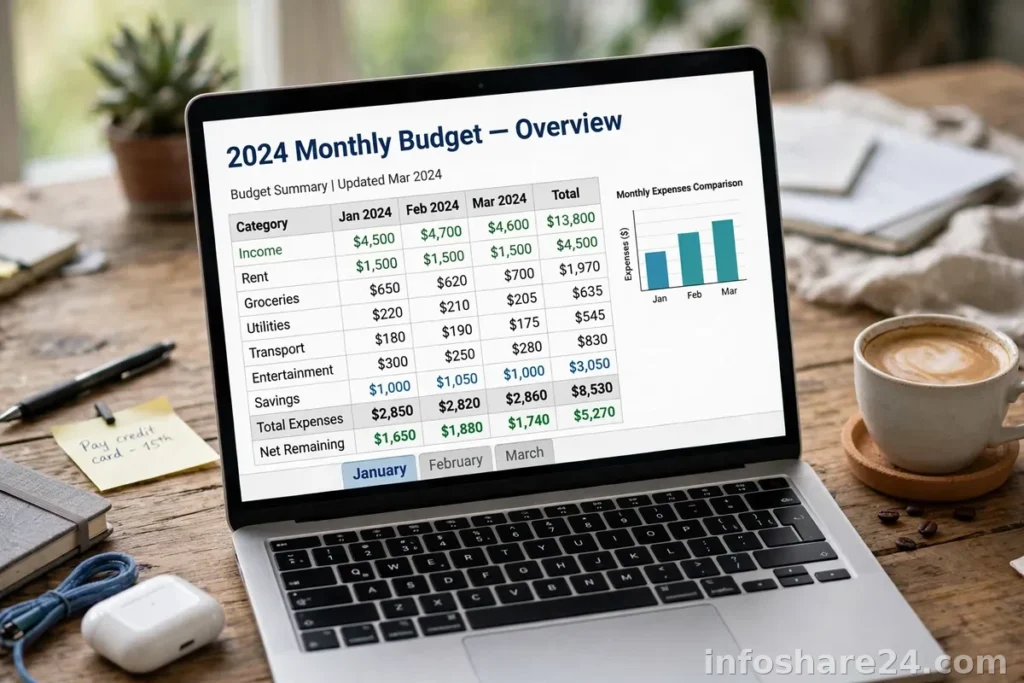
- Right-click the sheet tab at the bottom and choose Move or Copy.
- Tick “Create a copy” and rename it for the next month, such as “November”.
- Clear the old entries, keep the headings and totals, and start fresh. Your structure, colours and formulas carry over untouched.
Step 5: Work Out What Is Left

- Below your totals, add a row labelled “Balance”.
- In the Income column of that row, type a formula that subtracts the expense total from the income total, for example =D30-E30 if your totals sit in row 30.
- Read the result: if it is positive, you spent less than you earned, and that money is your savings. If it is negative, you spent more than you earned, and the sheet has just told you something valuable.
A practical target for beginners: aim for the balance to be positive, even by a small amount, for three months in a row. That habit matters more than the size of the surplus, because it proves the sheet works.
Review Your Budget Every Month
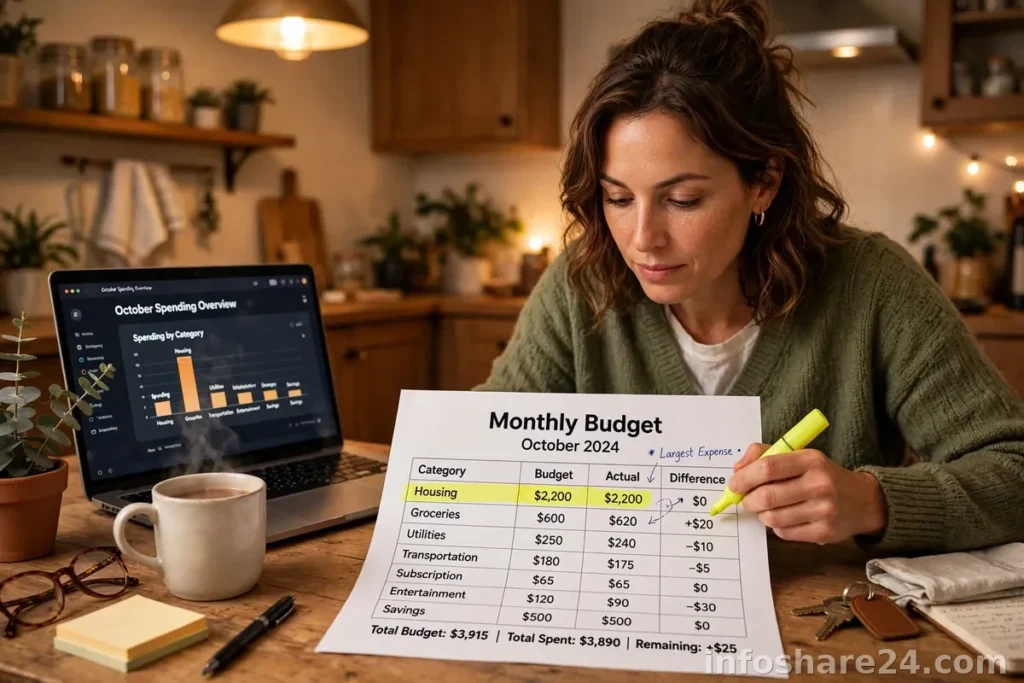
- Set a ten-minute appointment with yourself at the end of each month.
- Open the sheet, finish entering the last few days, check the totals and the balance, and look at your biggest category.
- Ask one question: is there one expense I can reduce next month without missing it? One change per month is enough. Subscriptions you no longer use, takeaway meals, and impulse shopping are the usual candidates.
Keep your file safe. Save a copy to cloud storage or a USB drive once a month, so a broken laptop or a lost phone does not erase a year of records. A backup also makes it easy to check your spending from another device when you need to. If you back up your whole phone too, see Back Up Your Phone Before a Factory Reset or Software Update: A Simple Guide.
Finally, do not let the sheet become a source of guilt. Its job is to show you the truth, calmly, so you can make one small change at a time. A budget that you actually use beats a perfect budget that you abandon after a week.
Frequently Asked Questions
Do I need to track every single small expense?
For your first month, yes, as much as you can. Small amounts are the surprise in most budgets. After that, you can group tiny items, such as snacks, into one category without losing the picture.
Can I use this sheet in Google Sheets instead of Excel?
Yes. The columns and the SUM formula work the same way, and you can open the same file in either program. Start in Excel if you can, because the later steps assume Excel menus.
How many categories should I start with?
Five to eight. Fewer feels vague, more feels like admin work. Add a new category only when several transactions keep falling outside the ones you already have.
Conclusion
A simple budget sheet needs only five columns, honest entries, SUM totals, a monthly copy, and a balance check. Build it once, then let the numbers do the talking.
Open Excel today and set up the headings. Enter this week’s transactions, add your first SUM total, and you will already know more about your money than most people do.


How to Track Changes in Word When Someone Edits Your Document