You have a document, a photo or a ticket on your phone, and you need it on paper. Ten years ago, that meant emailing it to yourself, opening it on a computer, and printing from there. Today you can skip the computer entirely. If your phone and your printer share the same Wi-Fi network, printing is usually just a few taps away.
This guide shows every practical way to print from your phone: Wi-Fi printers, the built-in print tools on Android and iPhone, printer apps for older models, and what to check when nothing comes out. You do not need any technical knowledge, and you do not need to buy anything new unless your printer is very old.
What You Need Before You Start
- Check what kind of printer you have. A Wi-Fi printer connects to your home router wirelessly, and it is the easiest kind to print to from a phone. Look for a Wi-Fi symbol on the printer, or check its settings menu for a network option. Most printers sold in the last ten years have Wi-Fi built in.
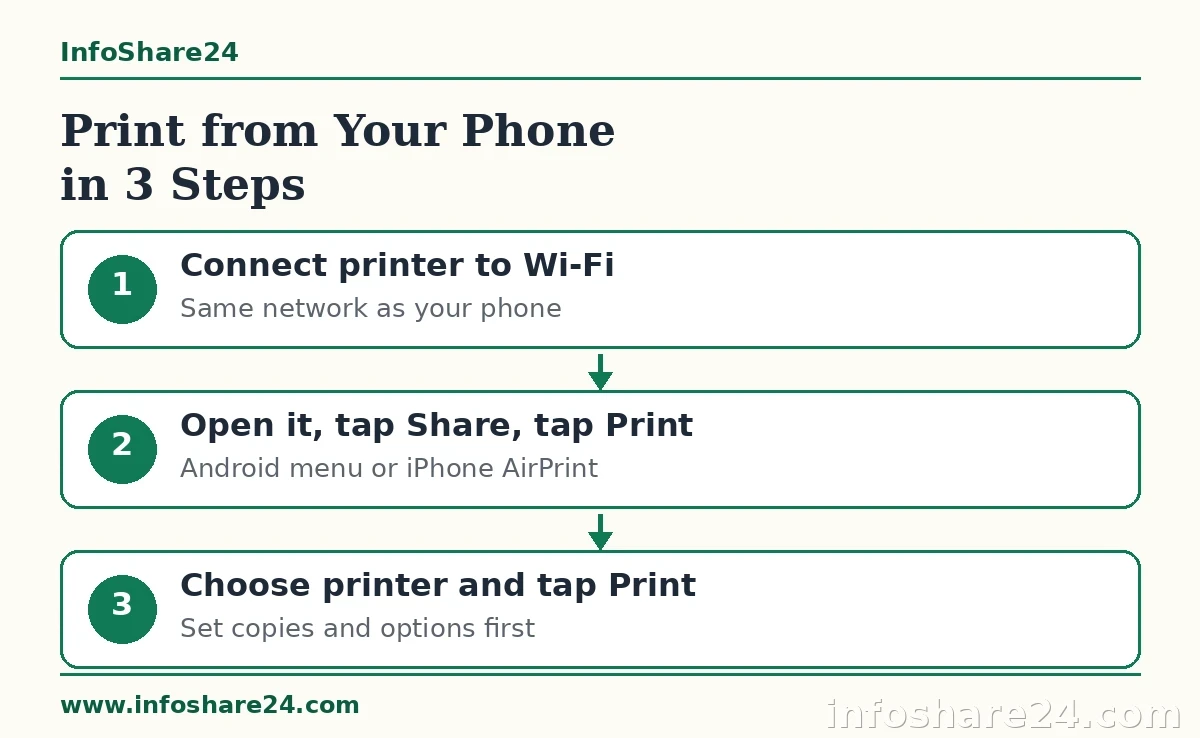
- Make sure your phone and printer are on the same Wi-Fi network. This is the detail that trips up most people. If your phone is on mobile data, or on a guest network, or on the 5 GHz band while the printer sits on the 2.4 GHz band of a router that keeps them separate, the phone simply cannot see the printer. Connect your phone to your main home Wi-Fi network before you start.
Option 1: Print with a Wi-Fi Printer
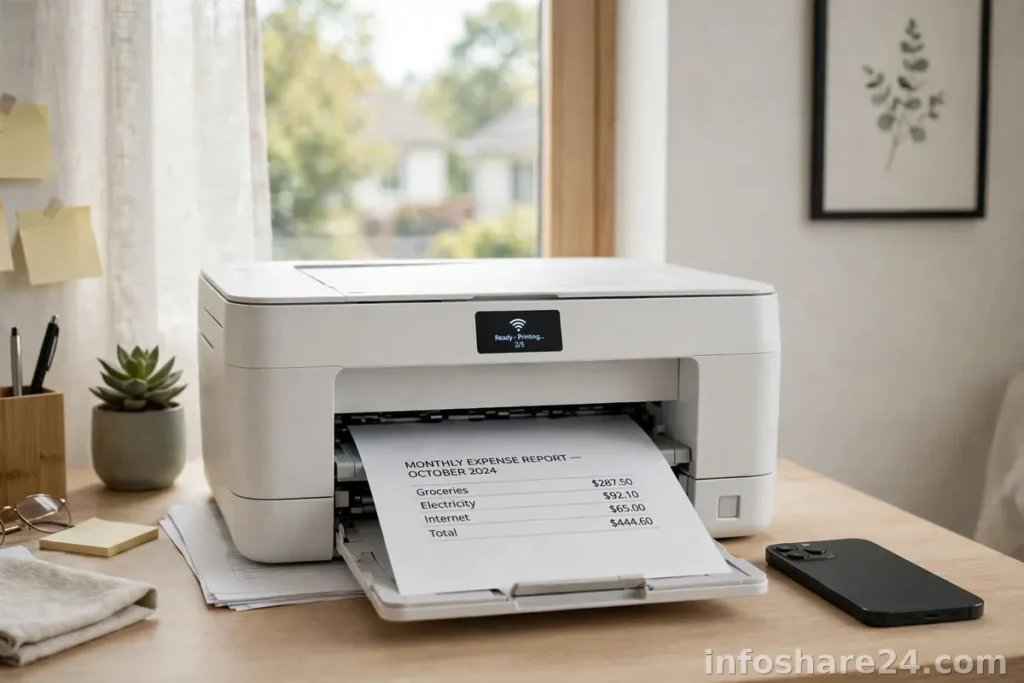
A Wi-Fi printer is the foundation of phone printing. When it is connected to your home network, your phone can find it without any cable, and every device in the house can use it.
If your printer is new and not yet on your network, connect it first:
- Open Settings or Network on the printer’s small screen, choose Wi-Fi Setup, pick your home network name, and type the Wi-Fi password. Some printers support WPS, a button-press method: press the WPS button on your router, then the WPS button on the printer within two minutes, and they pair themselves.
- If your printer has no screen, use its maker’s setup app — it walks you through the same steps over Bluetooth.
Option 2: Print from an Android Phone
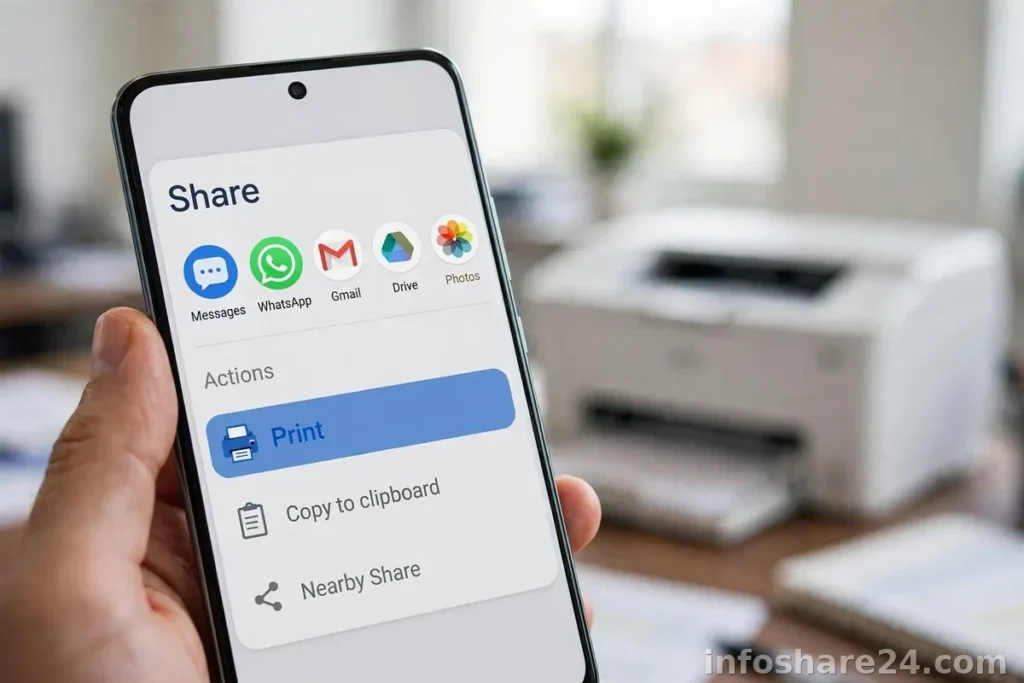
- Open the photo, document or web page you want to print, tap the three-dot menu or the Share button, and look for Print. In some apps, Print sits under Share, so tap Share first and then look for the printer icon.
- On the print preview screen, tap the printer name at the top to choose your printer. If your printer does not appear, tap “All printers” and then “Add printer”. Android will search your Wi-Fi network. If it still cannot find the printer, check that both devices are on the same network, as described earlier, and that the printer is switched on and awake.
- Before you tap the print button, check the options on the preview screen. You can choose the number of copies, colour or black and white, paper size, orientation, and which pages to print. For a long document, printing only the pages you need saves both paper and ink. Tap the print icon, wait a few seconds, and your pages should appear.
If you often move documents between devices before printing, this guide explains how to transfer files from your phone to a computer, and the same steps work in reverse when you need a file on your phone.
Option 3: Print from an iPhone with AirPrint
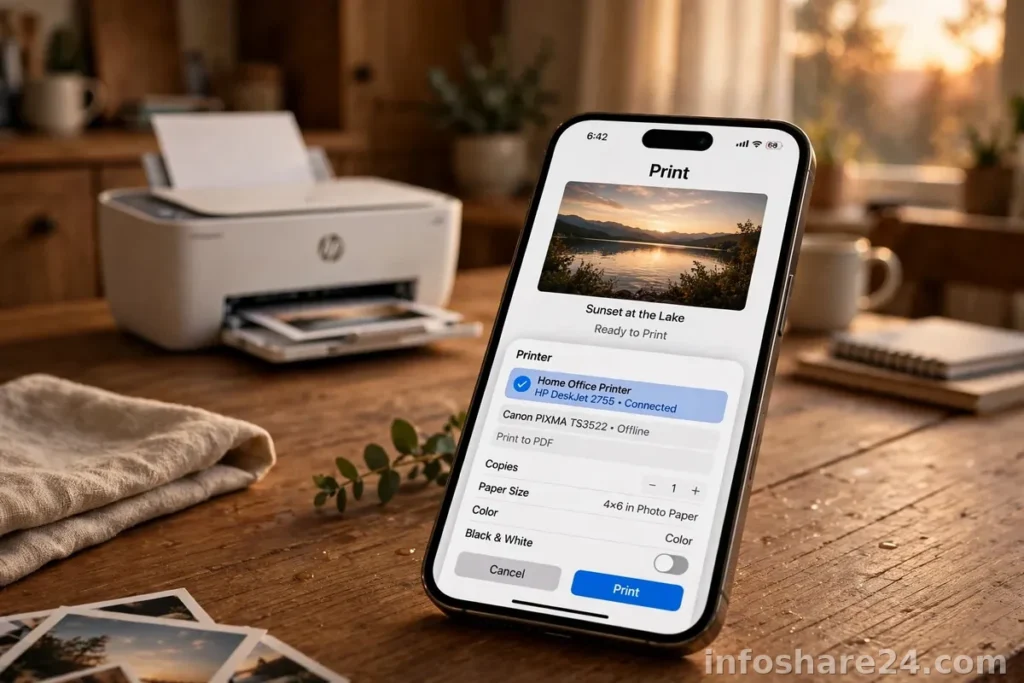
iPhones use a feature called AirPrint, built by Apple, which works with most modern Wi-Fi printers. There is no app to install and no setup on the phone: if the printer supports AirPrint and sits on the same Wi-Fi network, the iPhone finds it.
- Open the photo in Photos, tap the Share button, scroll down, and tap Print. To print a web page, open it in Safari, tap Share, and tap Print. To print an email or document, look for the Share or reply button and then Print.
- On the print screen, tap Printer and choose your printer from the list.
- Set the number of copies and tap Print in the top corner.
AirPrint keeps things simple, but it has one limit: it only works over Wi-Fi. If the printer is not AirPrint-compatible, you will need the maker’s app instead, described in the next section.
And if your document starts life as paper rather than a file, you can digitise it first: see how to scan documents with your phone, then print the scan.
Option 4: Use the Printer Maker’s App
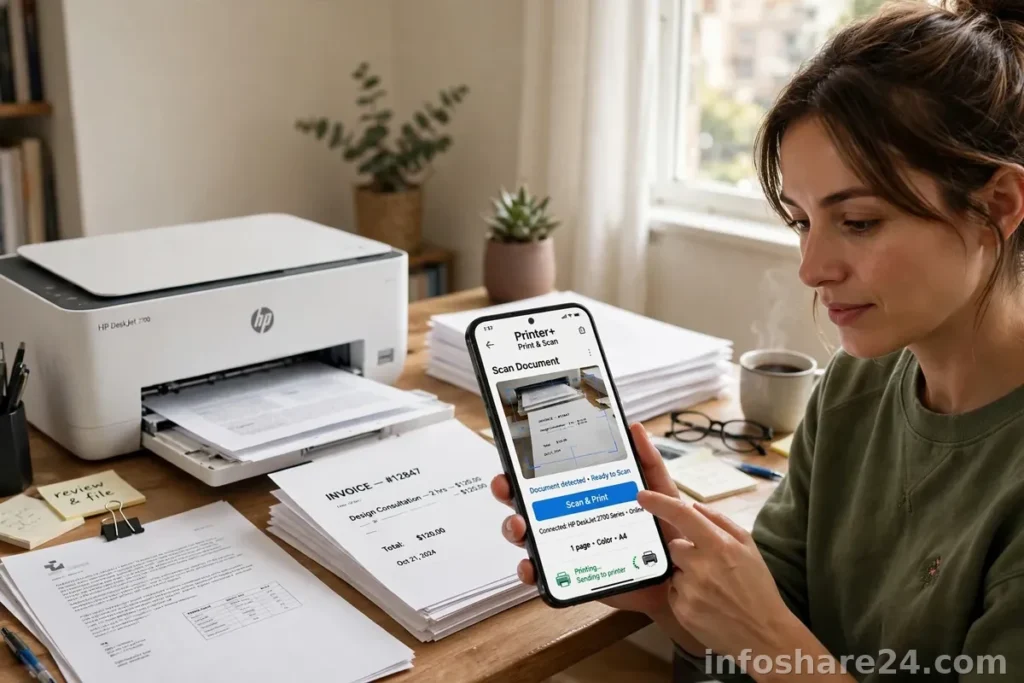
- Install the maker’s app (HP Smart, Canon PRINT, Epson iPrint and Brother iPrint&Scan are the main ones) from your phone’s app store. Search for your printer’s brand name.
- Grant it permission to find devices on your local network — without that permission it cannot see the printer, so accept the prompt. The app will search your network for the printer.
- Choose your printer in the app and print. Once connected, the app usually offers more than basic printing: you can scan documents with the printer, check ink levels, order cartridges, and print photos directly from your gallery or cloud storage.
When Printing Does Not Work
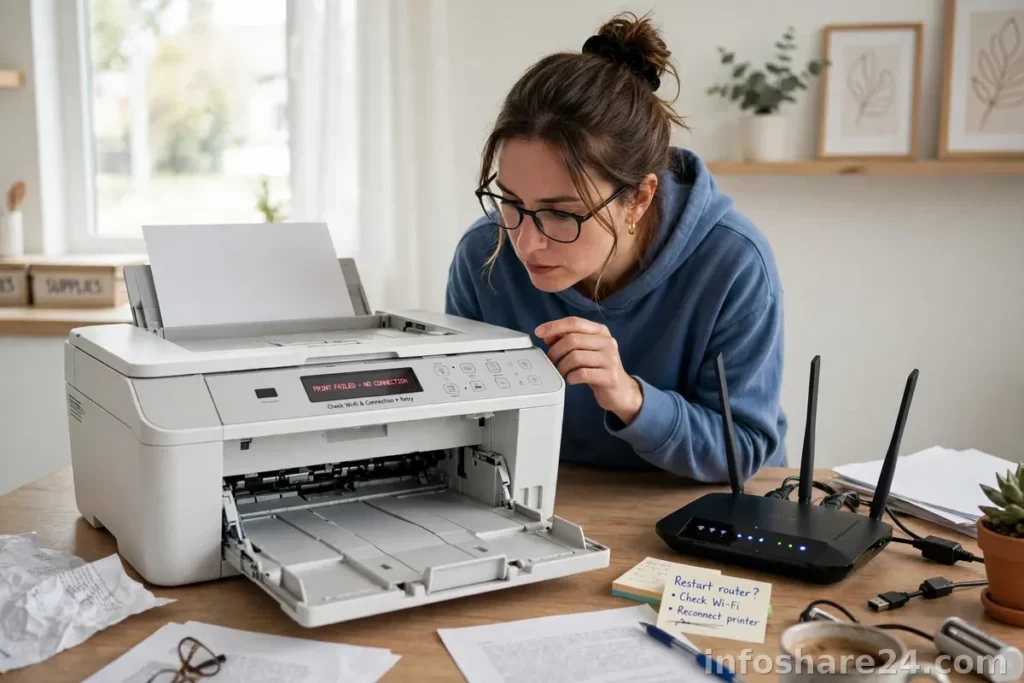
Start with the simplest checks, in this order:
- Check the basics: is the printer switched on, with paper loaded and ink available? Is your phone on the same Wi-Fi network as the printer? Is the printer awake, not in deep sleep?
- Restart the printer and the phone — both refresh their network connections, and that fixes a surprising number of problems.
- Restart your router, wait two minutes, then restart the printer. Routers occasionally forget devices on the network, and a restart forces a fresh introduction. If problems persist after that, check the printer maker’s website for a firmware update, or try the maker’s app instead of the built-in print menu. As a last resort, a USB cable to a borrowed computer still works, but for most homes, one of the steps above solves it.
Frequently Asked Questions
Do I need a special printer to print from my phone?
Not usually. Any Wi-Fi printer from the last decade works with Android printing or AirPrint. If your printer is older and has no Wi-Fi, the maker’s app or a cable to a computer is the way.
Does printing from a phone use mobile data?
No, when phone and printer share your home Wi-Fi, the job travels over your local network, not the internet, so it does not use your mobile data allowance.
Can I print a photo in good quality from my phone?
Yes. Choose the original photo, not a compressed copy from a chat app, and print it at photo size on photo paper if your printer supports it.
Conclusion
Printing from your phone is simpler than most people expect. A Wi-Fi printer and a shared network are all you need for the built-in tools on Android and iPhone, and a maker’s app covers older models.
Try it once with a single photo today, while this guide is fresh. Once you have printed that first page, the next one takes seconds.