Most of us pick up our phones “for a minute” and look up half an hour later. That is not a lack of willpower; phones are designed to keep you scrolling. Android’s built-in tool, Digital Wellbeing, is designed to push back. It shows you where your time goes, lets you set gentle limits, and helps you switch off at night — all without installing another app or paying anything.
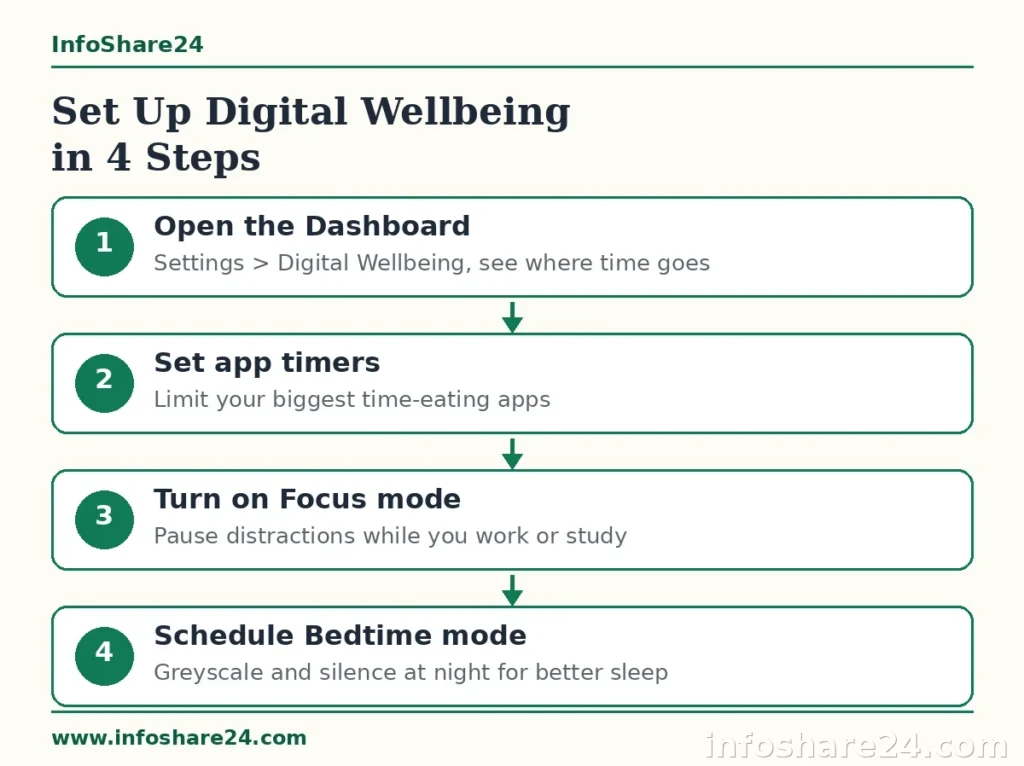
This guide walks you through Digital Wellbeing step by step: the Dashboard, app timers, Focus mode, and Bedtime mode. By the end, you will have a setup that fits your life, not a strict ban you abandon after two days.
First, See Where Your Time Really Goes
- Open Settings and tap “Digital Wellbeing and parental controls.” The exact wording can vary slightly by phone brand, but on most Android phones it is in the main Settings list.
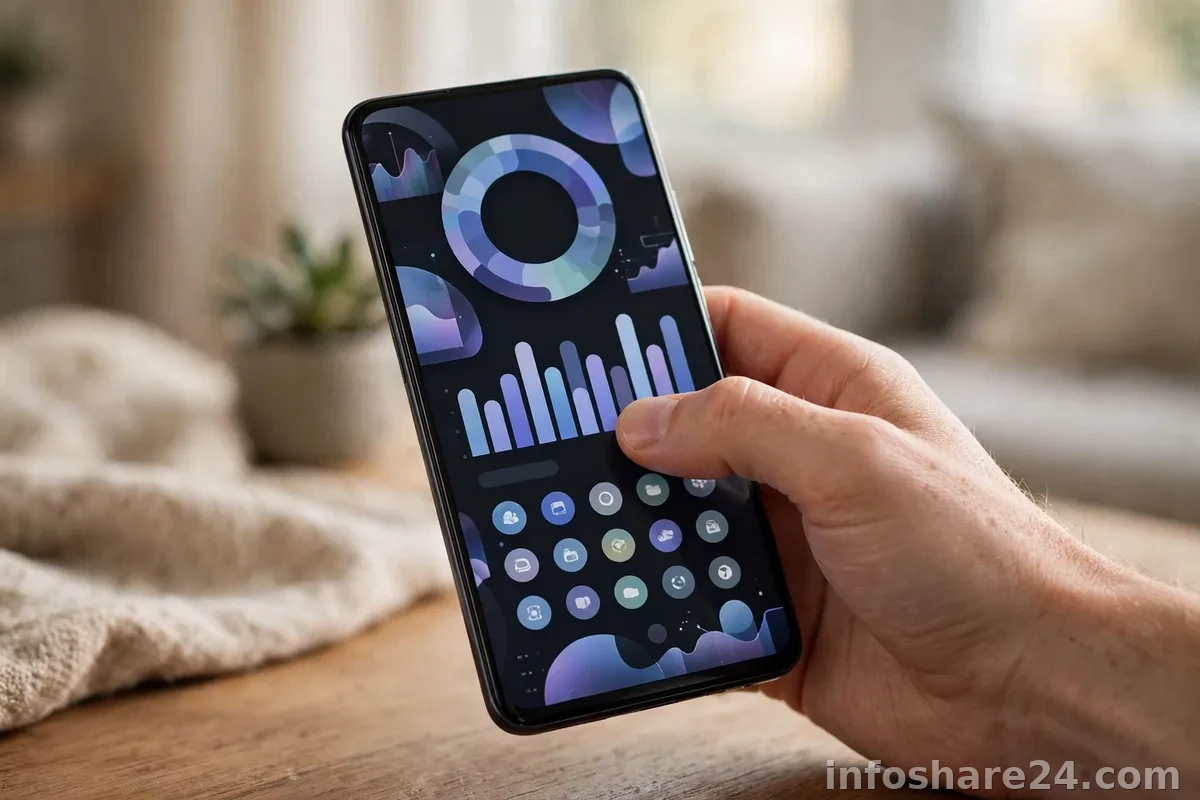
- Look at the Dashboard — a circle or bar chart showing your screen time today, how many times you unlocked your phone, and how many notifications you received.
- Tap the chart to see more detail — a list of your apps ranked by time used, with unlock counts and notification counts beside each one.
This is often a surprise. Many people expect one app to be the main culprit and discover it is actually a different one, or that short, frequent checks add up to more time than one long session.
Set App Timers for Your Biggest Time Eaters
An app timer is a daily limit for one app. When you reach it, the app icon turns grey and the app pauses until the next day. You can still open it in an emergency if you really need to, but the grey icon and the extra step make mindless opening much less likely.
To set one:
- Go to Digital Wellbeing, tap Dashboard, and find the app in the list.
- Tap the small hourglass or timer icon beside it.
- Choose a realistic daily limit. If you currently spend two hours a day on a social app, setting a 30-minute limit will feel impossible and you will switch it off. Try cutting the time by a third first — for example, from two hours to about 80 minutes — and lower it again after a week or two.
Use Focus Mode When You Need to Concentrate

App timers limit a whole day. Focus mode limits a period of time. It is ideal for study sessions, work hours, or any time you need to concentrate. You choose a list of distracting apps, and when Focus mode is on, those apps are paused and their notifications are held back.
To set it up:
- Go to Digital Wellbeing and tap “Focus mode.”
- Select the apps that distract you most, usually social media, video apps, and games.
- Turn Focus mode on when you need it, either from Digital Wellbeing or from the quick settings panel by swiping down from the top of your screen. You can also schedule it, for example every weekday morning during work or study hours.
Focus mode is flexible on purpose. If an urgent message comes through, you can pause Focus mode for a short break, then turn it back on. That flexibility is a feature, not a failure. The goal is not to lock your phone away; it is to make distraction a deliberate choice instead of an automatic habit. For students, pairing Focus mode with good study methods works especially well, because a quiet phone makes any study session more effective, as explained in AI for Students: Study Notes and Research the Smart Way.
Let Bedtime Mode Protect Your Sleep
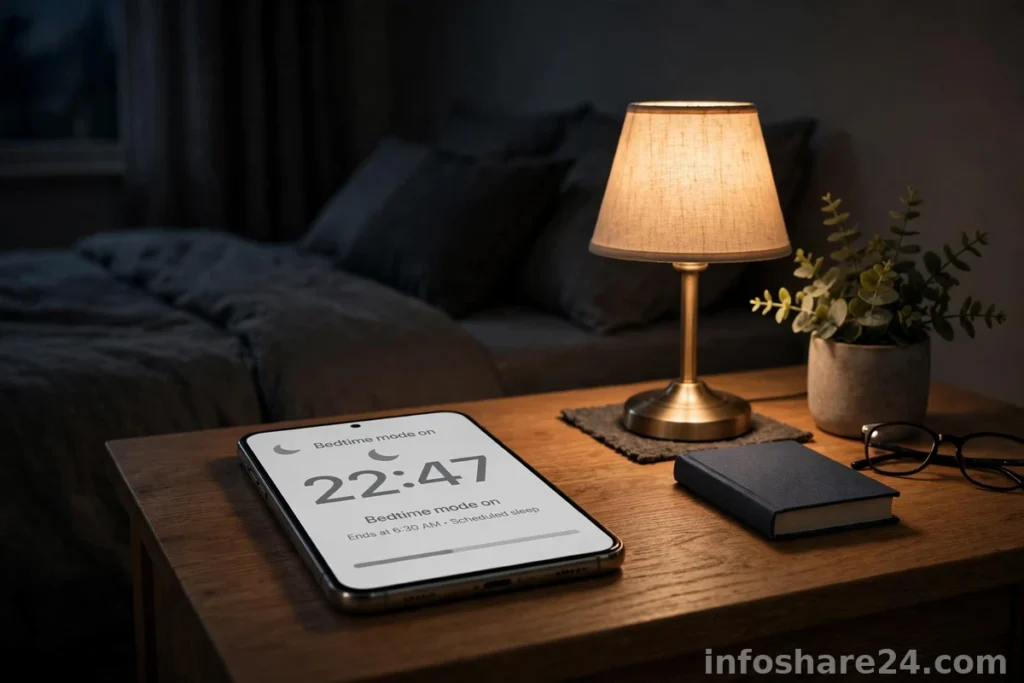
Night-time scrolling is one of the most common screen time problems, and it directly harms sleep. Bright screens and endless feeds keep your brain alert when it should be winding down. Bedtime mode tackles this at the exact moment it matters.
- In Digital Wellbeing, tap “Bedtime mode.”
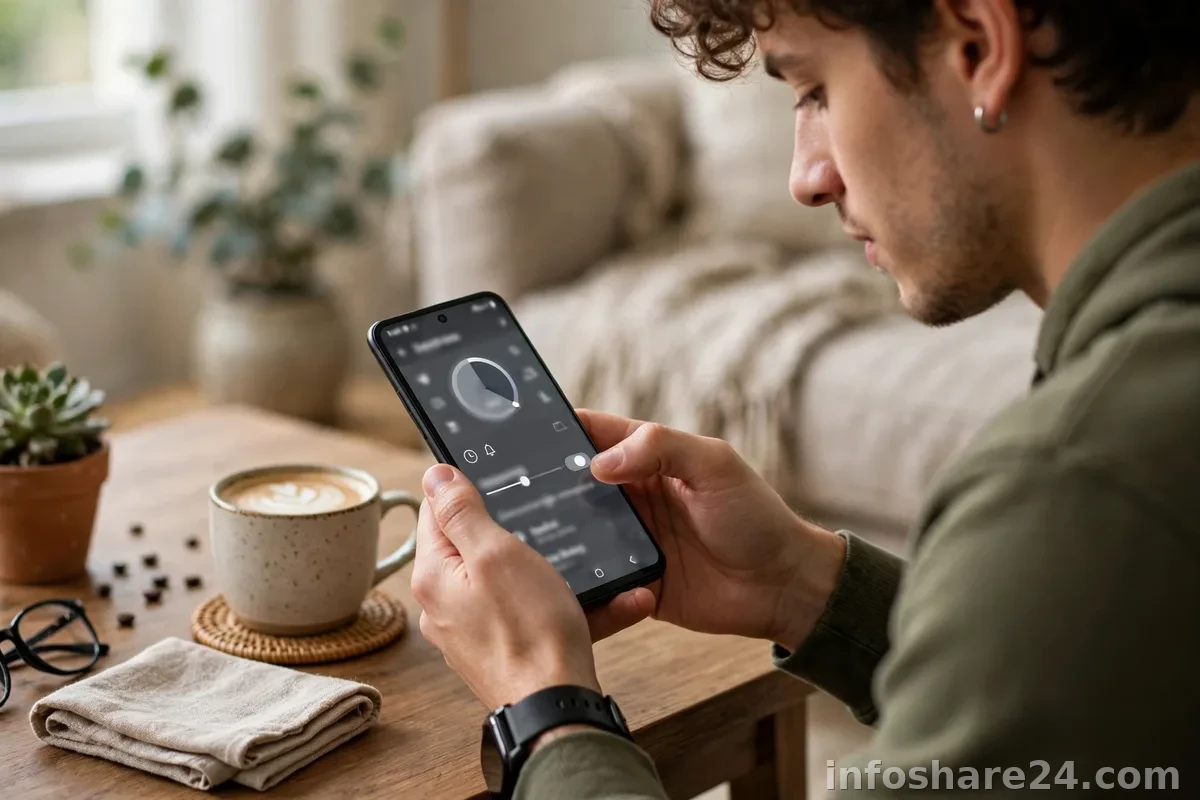
- Set a schedule, for example 10:30 PM to 6:30 AM. During those hours, your phone can switch to greyscale, so colourful apps look dull and less tempting, and it can silence notifications with Do Not Disturb. Some phones also offer a “wind down” period that starts greyscale a little before bedtime, giving you a visual reminder to finish up.
- Choose a bedtime that matches your real life, not an ideal one. If you normally sleep at midnight, setting Bedtime mode for 9 PM will only annoy you. Start with your usual bedtime, let the greyscale screen break the scrolling habit, and then move bedtime earlier gradually if you want more sleep. Charging your phone outside the bedroom, or at least away from your pillow, makes Bedtime mode far more effective, because the phone is no longer within easy reach.
Tame Notifications, Not Just Apps
Screen time is not only about the apps you open on purpose. Notifications pull you back again and again. Every buzz is a small invitation to check “just one thing,” and those checks add up. Digital Wellbeing shows you which apps send the most notifications, and that list is worth acting on.
Go to the Dashboard, look at notification counts, and ask a blunt question for each high-count app: does this notification need my attention right now? News alerts, shopping offers, and game reminders almost never do. Turn those off in the app’s notification settings or in Settings, then Notifications. Keep notifications only for messages from real people, calendar reminders, and genuinely urgent alerts.
Make the Limits Stick in Real Life

Tools help, but habits decide whether they last. Here are a few habits that make Digital Wellbeing limits stick. First, replace the habit, do not just remove it. If you scroll in bed, put a book or a podcast there instead. If you check your phone at every red light of boredom, keep a small alternative ready, like a notebook or a short walk.
Frequently Asked Questions
Where is Digital Wellbeing on my Android phone?
Open Settings and look for “Digital Wellbeing and parental controls.” On some brands it may sit under a slightly different name or menu, but it is built into most modern Android phones and needs no extra download.
What happens when an app timer runs out?
The app icon turns grey and the app pauses until the next day. You can still open it if you choose to extend or remove the limit, but the extra step discourages mindless use.
Does Focus mode block phone calls?
No. Focus mode pauses the apps you select and holds back their notifications, but phone calls and essential functions still work. You choose exactly which apps are paused.
Will Bedtime mode silence my alarm?
No. Your alarm still sounds in the morning. Bedtime mode silences notifications and can turn the screen greyscale, but it does not block alarms.
Can I use Digital Wellbeing for my child’s phone?
Yes. Digital Wellbeing includes parental controls, and you can link a child’s device through Google Family Link for stronger limits, content controls, and screen time reports.
Conclusion
Reducing screen time does not require giving up your phone. Start with the Dashboard to see your real habits, set one or two realistic app timers, use Focus mode for study and work, and let Bedtime mode guard your sleep. Tame your noisiest notifications, review your progress weekly, and replace scrolling with something you actually enjoy. Small, steady limits beat a strict ban every time — and your attention is worth protecting. For younger family members, follow How to Protect Your Children Online: Simple Rules for Parents.