Have you ever lost photos because your phone broke, or run out of space just when you wanted to take a picture? That is the problem cloud storage solves. In simple words, it means keeping a copy of your files on the internet, instead of only on one phone or computer. Your photos, videos and documents are stored on powerful computers run by a storage service, and you can open them again from another phone, tablet or computer whenever you need them. This guide will help you choose the right service without paying for space you will never use.
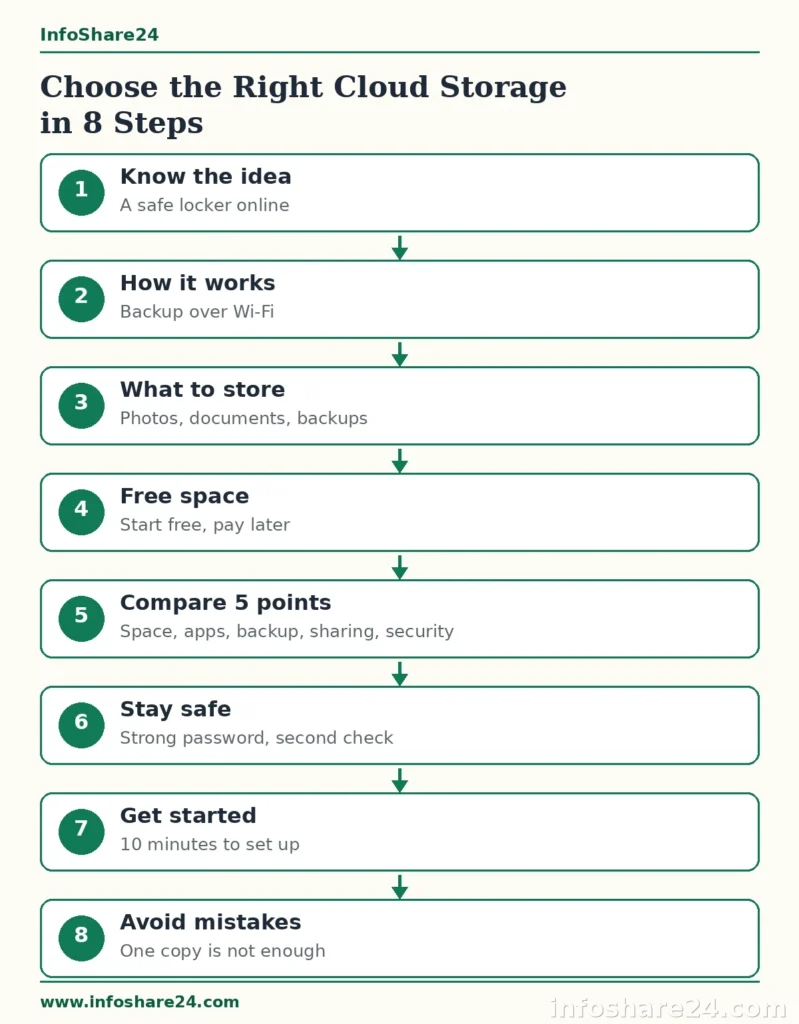
What Cloud Storage Really Means
- Think of cloud storage like a safe locker that you can open from anywhere. Normally, your files live on your own device. If that device is lost, stolen or damaged, the files may be gone too. With cloud storage, a copy also lives online, so even if your phone stops working, your photos are still there, waiting for you on your next device.
- The word “cloud” can sound mysterious, but it is not magic. It simply means computers somewhere else, connected to the internet, that store your files for you.
- When you upload a photo, it travels over the internet to those computers, and when you want it back, it travels back to your screen.
How It Works in Everyday Life
- Here is a simple example. You take photos at a family gathering on your phone. If photo backup is switched on, those photos are copied to your cloud storage over Wi-Fi, usually in the background. Later, you open your laptop, sign in to the same account, and the same photos are there. You did not send them to yourself, and you did not use a cable.
- The same idea works for documents and videos, too. You can start a document on your computer, then read it on your phone, or share a folder of photos without sending each one by one.
- See also our guide on how to transfer files between phone and computer easily.

What Can You Store in the Cloud?
- Almost any kind of file can be stored in the cloud, as long as you have enough space. The most common examples are photos and videos, documents and school or work files, music and scanned papers, phone backups that help restore contacts and settings, and files you want to share with family, friends or classmates.
- Some services are built mainly for photos, while others handle all kinds of files. If photos are your main worry, a photo backup service may be enough. If you also keep documents and work files, a general storage service is a better fit.
- Be careful with very private documents, such as identity papers: only store those with a strong password.
Free or Paid: How Much Space Do You Need?
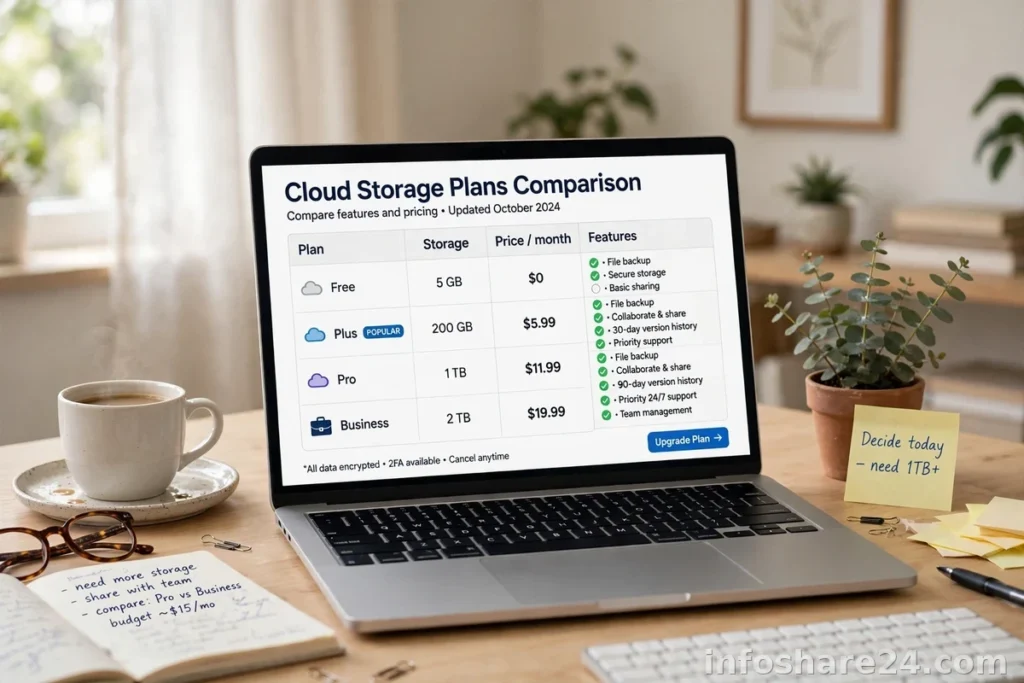
- Most services give you a small amount of free space when you create an account. That is often enough for documents and a modest number of photos, but it fills up quickly if you take a lot of videos, because videos use far more space than photos. A few thousand ordinary photos may need only a few gigabytes, while documents and notes usually take very little space on their own.
- Start with free space, see how fast it fills up, and only pay for more when you actually need it. Many services let you upgrade for a small monthly fee, and you can usually change your plan later.
- Cleaning up large or duplicate files is often cheaper than buying more space straight away.
5 Things to Compare Before You Choose
You do not need the most famous service or the biggest plan. You need the one that fits your devices, your habits and your budget. Compare these five points:
- Space and price. How much free space do you get, and what does the next plan cost each month? Only pay yearly if you are sure you will stay with the service.
- Devices and apps. Does it work well on your phone and your computer, with an easy app and files that open smoothly?
- Automatic backup. Can photos back up on their own, over Wi-Fi, without you remembering each time? This is the feature that protects you when you forget.
- Sharing and offline access. Can you share a file with a simple link, and mark important files to keep on your phone without internet?
- Security and support. Does it offer a strong password plus a second sign-in check, and clear help pages if something goes wrong?
Try the free plan for a week before you pay anything.
Keeping Your Files Safe in the Cloud
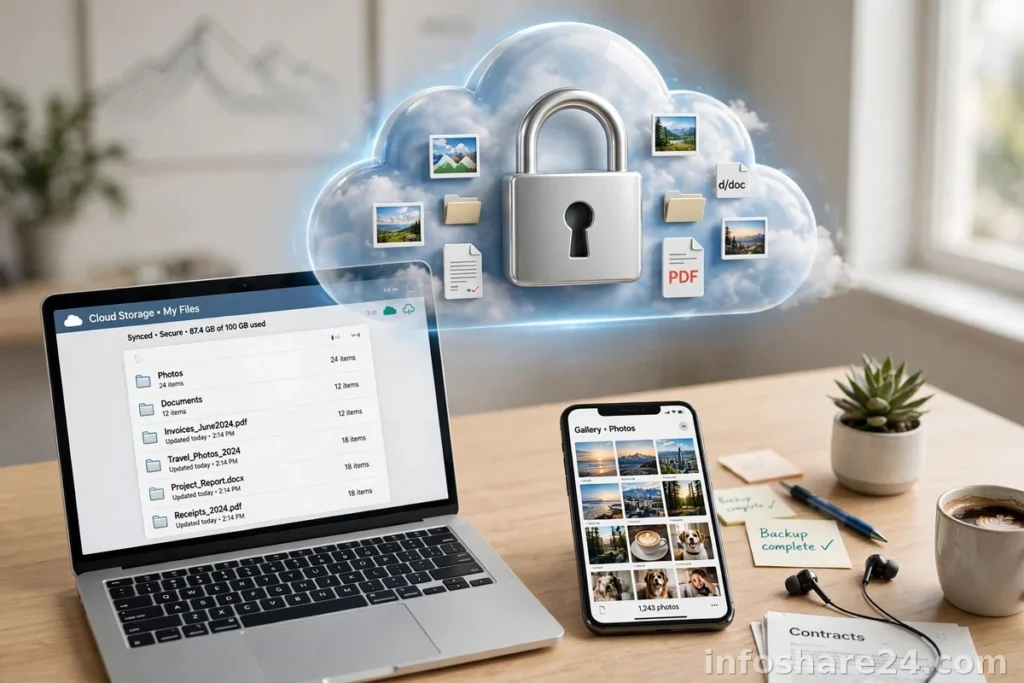
- Cloud storage keeps a copy of your files, but your account still needs protection. Use a strong, unique password, and never reuse the password from your email or social media. If the service offers a second sign-in check, such as a code from your phone, switch it on. That one step makes it much harder for anyone else to open your files, even if they learn your password.
- Be careful with sharing links, too. A link that lets “anyone with the link” view a file can spread further than you expect, so use it only for files you are happy to share widely. Also check which folders are included in your backup.
- Our guide to back up your phone in 5 minutes walks through that check.
How to Get Started in 10 Minutes
- Choose one service and create an account with a strong password.
- Install its app on your phone, and sign in with the same account on your computer if you use one.
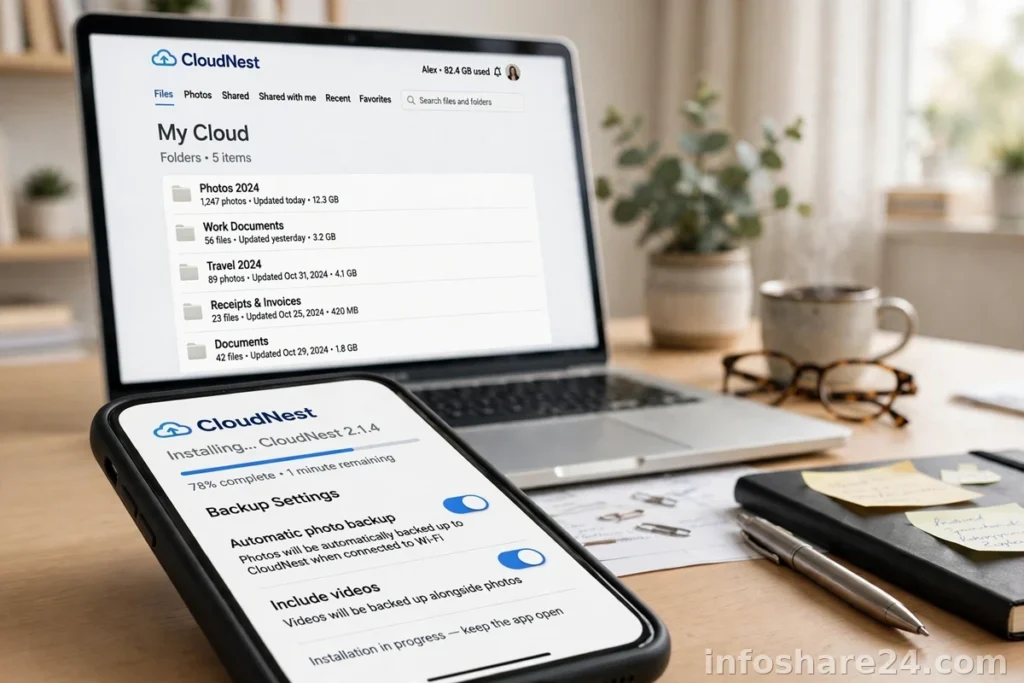
- Switch on automatic photo backup, preferably over Wi-Fi only, so it does not use up your mobile data. Then upload one test file and open it on your other device to confirm it worked, and check how much free space is left.
Common Mistakes to Avoid
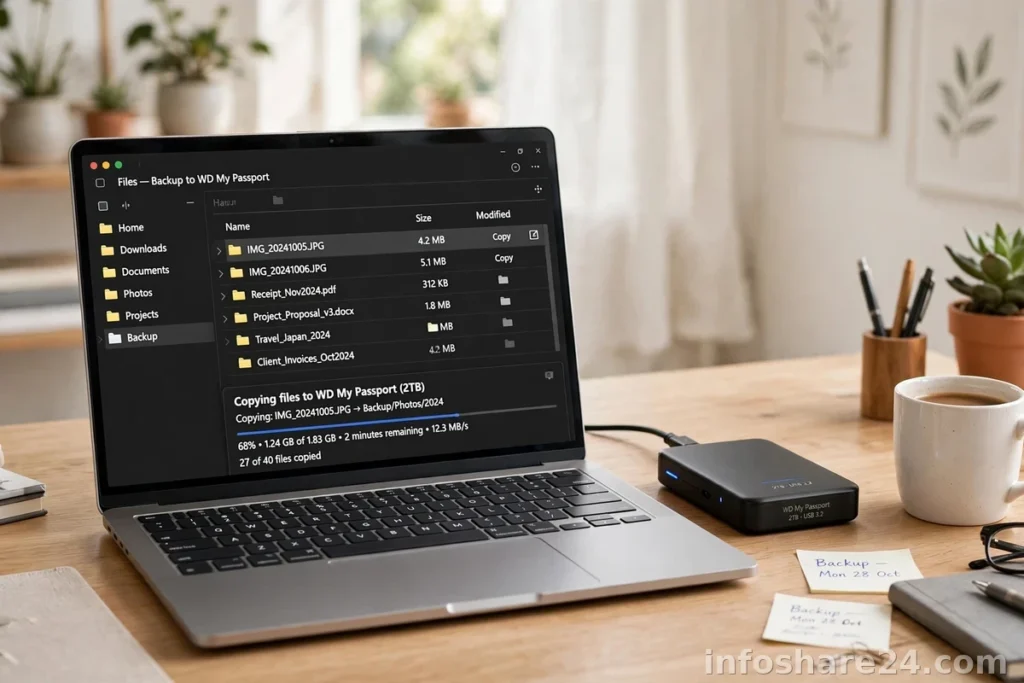
- Do not rely on a single copy: keep important files in the cloud and, where possible, in one other place as well, such as a computer or an external drive.
- Do not ignore “storage full” warnings, because backup stops when space runs out, often without you noticing. Do not share your account password with others, and do not delete files from your phone the moment they upload; wait until you have checked that they open correctly from another device first.
- Use one main service, rather than several half-used ones.
Frequently Asked Questions
Is cloud storage free?
A small amount usually is. Most services give free space, and charge only if you need more. Start with the free amount and upgrade only when you need it.
Do I need the internet to use cloud storage?
You need the internet to upload new files and to download files you have not saved on your device. Files you have already saved on your device can usually be opened without the internet.
What happens if I stop paying for extra space?
Your files are usually not deleted straight away, but you may not be able to upload new files until you pay again or free up space.
Conclusion
Cloud storage is simply a safe online copy of your files, available wherever you sign in. Start with free space, back up your photos, and keep your account protected with a strong password and a second sign-in check.