Your favourite website worked yesterday, but today it will not load. A page shows old prices, a video keeps buffering, or a site keeps signing you out. Before you blame your Wi-Fi, try the simplest fix: clear your browser’s cache and cookies.
It takes less than a minute. This guide explains both in plain words, then shows the exact steps for Chrome, Edge, Firefox, and Safari — on a computer and on a phone.
What Are Cache and Cookies?
Think of the cache as your browser’s short-term memory. When you visit a website, it saves copies of the site’s images and files on your device. Next time, it loads those copies instead of downloading everything again.
Cookies are small notes a website asks your browser to keep. They remember that you are signed in, what is in your basket, and your preferences, such as language or dark mode.
Both are useful, and both can cause trouble. Cached files go out of date, so a page can show old content or fail to load. Cookies can pile up, track you, or keep a broken login alive. Clearing them gives your browser a clean start.
Why Clearing Helps
It fixes more problems than most people expect:
- Pages that will not load or look broken. An old cached file can clash with a site’s new version, and clearing forces a fresh download.
- Login problems. A damaged cookie can trap you in a sign-in loop; clearing it ends the loop.
- Free space. Cache can grow to hundreds of megabytes — clearing it is a quick win on a phone with little space. More tips: How to Free Up Storage on Android Without Losing Photos.
- Privacy. Cookies let advertisers follow you from site to site; clearing removes those trackers until they are set again.
If pages still load slowly, the problem may be your connection — see Make Your Wi-Fi Faster: 7 Practical Fixes That Actually Work.
Before You Clear: Two Quick Checks
Clearing is safe, but check two things first. Know your important passwords — clearing cookies signs you out of most sites. If your passwords need work, read How to Create a Strong Password You Can Actually Remember. Tick only what you mean to clear — tick only “Cookies” and “Cached images and files,” and your saved passwords, bookmarks, and history stay put.
How to Clear Cache and Cookies in Chrome
Chrome works almost the same on a computer and on a phone.

On a computer (Windows or Mac):
- Click the three dots in the top-right corner, then choose Settings.
- Go to Privacy and security, then click Delete browsing data.
- Tick “Cookies and other site data” and “Cached images and files.” Leave “Browsing history” unticked.
- Choose a time range — “All time” clears everything.
- Click Delete data. If a site still looks wrong, reopen its tab.
On Android:
- Tap the three dots, then tap Settings.
- Tap Privacy and security, then Delete browsing data.
- Tick “Cookies and site data” and “Cached images and files,” choose a time range, then tap Delete data.
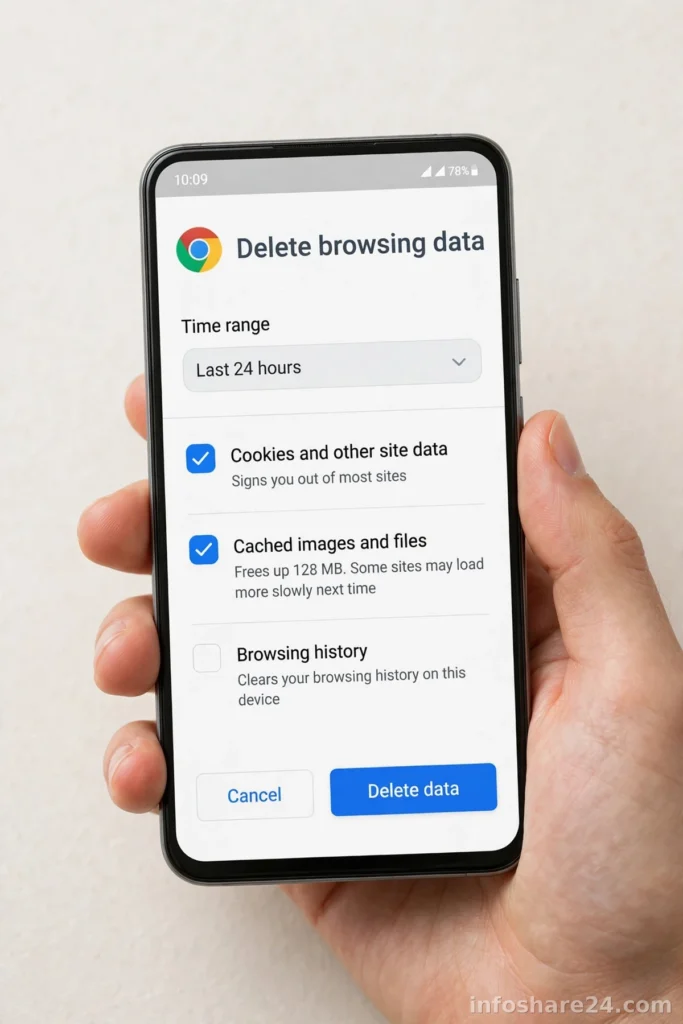
On iPhone:
- Tap the three dots, then tap Settings.
- Tap Privacy and Security, then Clear Browsing Data.
- Tick “Cookies, Site Data” and “Cached Images and Files,” then tap Clear Browsing Data.
How to Clear Cache and Cookies in Edge
On a computer (Windows or Mac):
- Click the three dots in the top-right corner, then choose Settings.
- Go to Privacy, search, and services, then click Choose what to clear.
- Tick “Cookies and other site data” and “Cached images and files.”
- Choose a time range, then click Clear now.
On Android or iPhone:
- Tap the three dots, then tap Settings.
- Tap Privacy and security, then Clear browsing data.
- Tick “Cookies and site data” and “Cached images and files,” then tap Clear.
How to Clear Cache and Cookies in Firefox

On a computer (Windows or Mac):
- Click the menu button (three lines) in the top-right corner, then choose Settings.
- Go to Privacy & Security, then click Clear Data under “Cookies and Site Data.”
- Tick both “Cookies and Site Data” and “Cached Web Content,” then click Clear.
- Close the Settings tab. Firefox signs you out right away, so sign back in where you need to.
On Android:
- Tap the menu button, then tap Settings.
- Tap Delete browsing data.
- Tick “Cookies” and “Cached images and files,” then tap Delete browsing data.
How to Clear Cache and Cookies in Safari
Safari works a little differently: on a Mac you manage website data; on an iPhone you clear it from the Settings app.
On a Mac:
- Open Safari, click Safari in the menu bar, then choose Settings.
- Click the Privacy tab, then click Manage Website Data.
- Click Remove All, then click Remove Now to confirm.
- To clear the cache too, go to History, choose Clear History, and pick a time range.
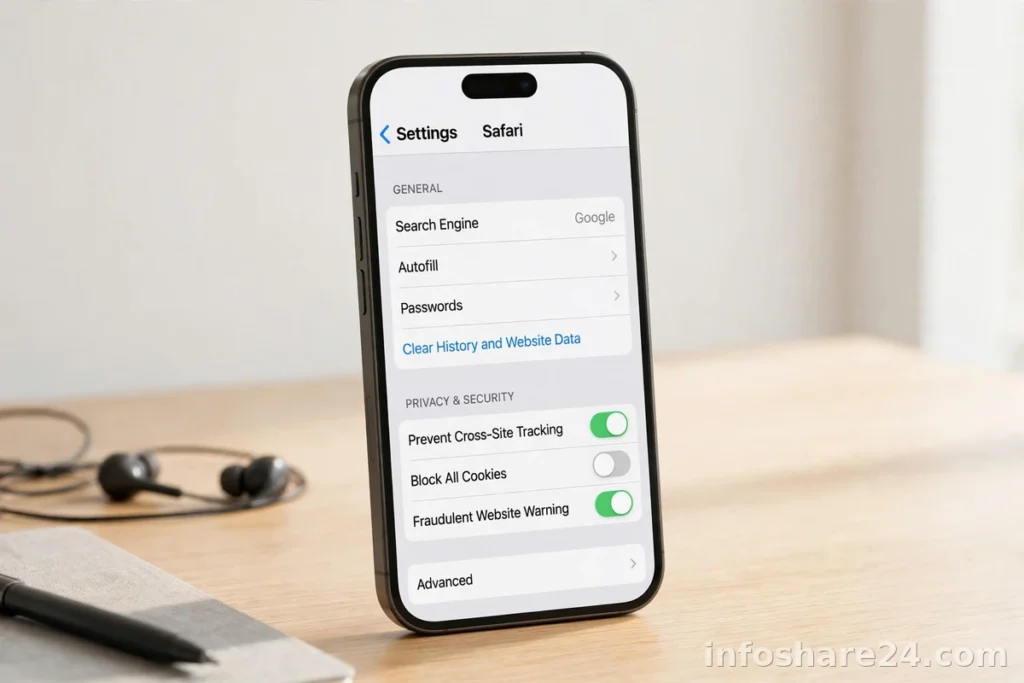
On iPhone:
- Open the Settings app and tap Safari.
- Tap Clear History and Website Data.
- Tap Clear History to confirm. This clears cookies, cache, and history together.
What Happens After You Clear?
A few things change right after clearing — all normal:

- You will be signed out of most websites. Your email and social media will ask you to sign in again, but your saved passwords still work.
- The first visit to each site may feel slower. Your browser must download images and files again, but speed returns to normal after that.
- Shopping baskets and site settings reset. A guest basket may empty, and a site may forget your language or layout choice.
- Some ads may look less personal. Clearing removes tracking cookies, so you may see more general ads until new ones are set.
How Often Should You Clear?
These habits work well:
- Every month or two is enough for most people.
- Right away when something breaks — a page that will not load, old content, or a login loop.
- After using a shared or public computer, always clear before you leave and sign out of everything. On public Wi-Fi, also read How to Stay Safe on Public Wi-Fi: A Simple Guide for Cafes, Airports and Hotels.
- Do not clear every day. You would re-download everything constantly and sign in again and again for no benefit.
If you read articles on the go, keep pages available without the cache piling up — see How to Save Web Pages to Read Offline.
Frequently Asked Questions
Will clearing cache and cookies delete my passwords?
No, not if you tick only “Cookies” and “Cached images and files.” Saved passwords are separate, and stay unless you tick “Passwords” too.
Is it safe to clear cookies on my bank’s website?
Yes. Clearing cookies only signs you out — it does not change your bank account or your money. Sign in again normally; keep your phone nearby if your bank uses two-factor authentication.
Will clearing the cache make my browser faster?
Usually yes, but only when the cache is the problem. If it is full of old or broken files, clearing helps pages load right. If your connection is slow, clearing will not fix that — check your Wi-Fi instead.
Conclusion
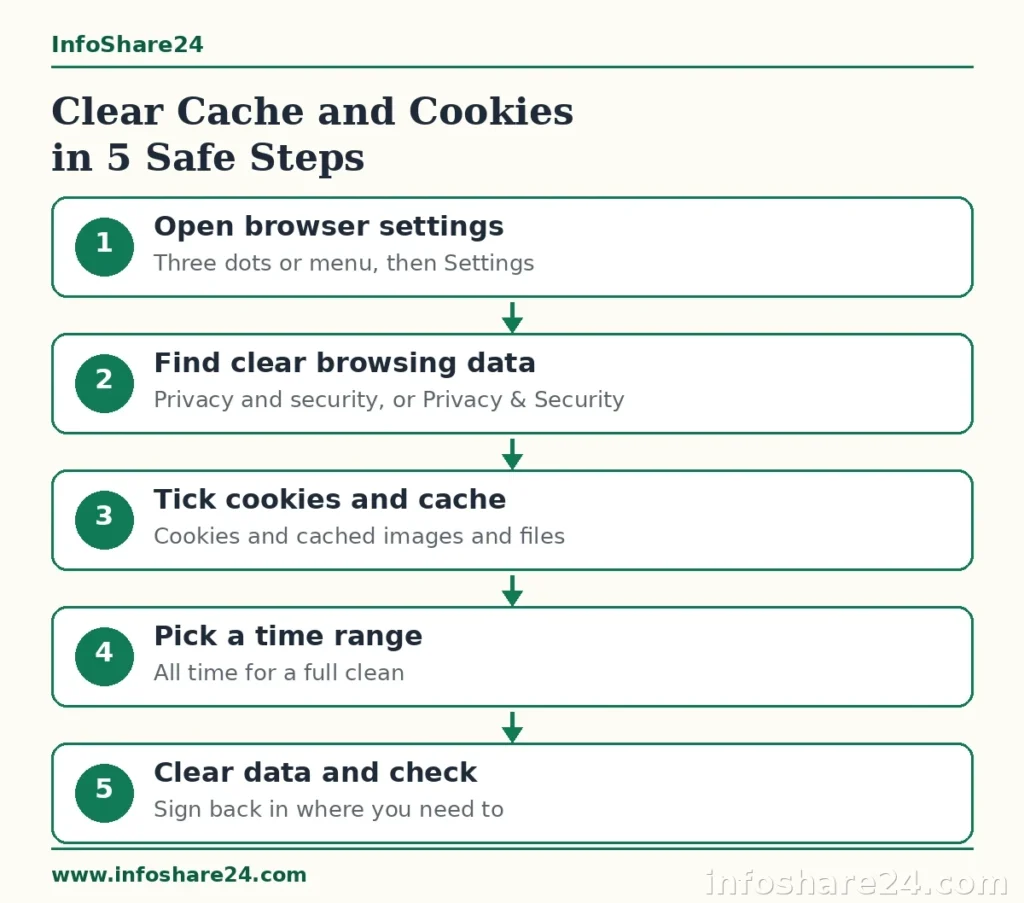
Cache and cookies make browsing faster and more convenient, but they need an occasional clean. A clear takes less than a minute: open Settings, find clear browsing data, tick cookies and cached images, choose a time range, and confirm.
Do it once today in the browser you use most. Next time a site misbehaves, clearing the cache will be the first thing you try, not the last.