Is your Windows 11 PC slow, crashing, or full of strange errors that will not go away? A reset can fix it. Resetting reinstalls a fresh copy of Windows and removes broken settings and problem apps — and with the right option, your personal files stay exactly where they are.
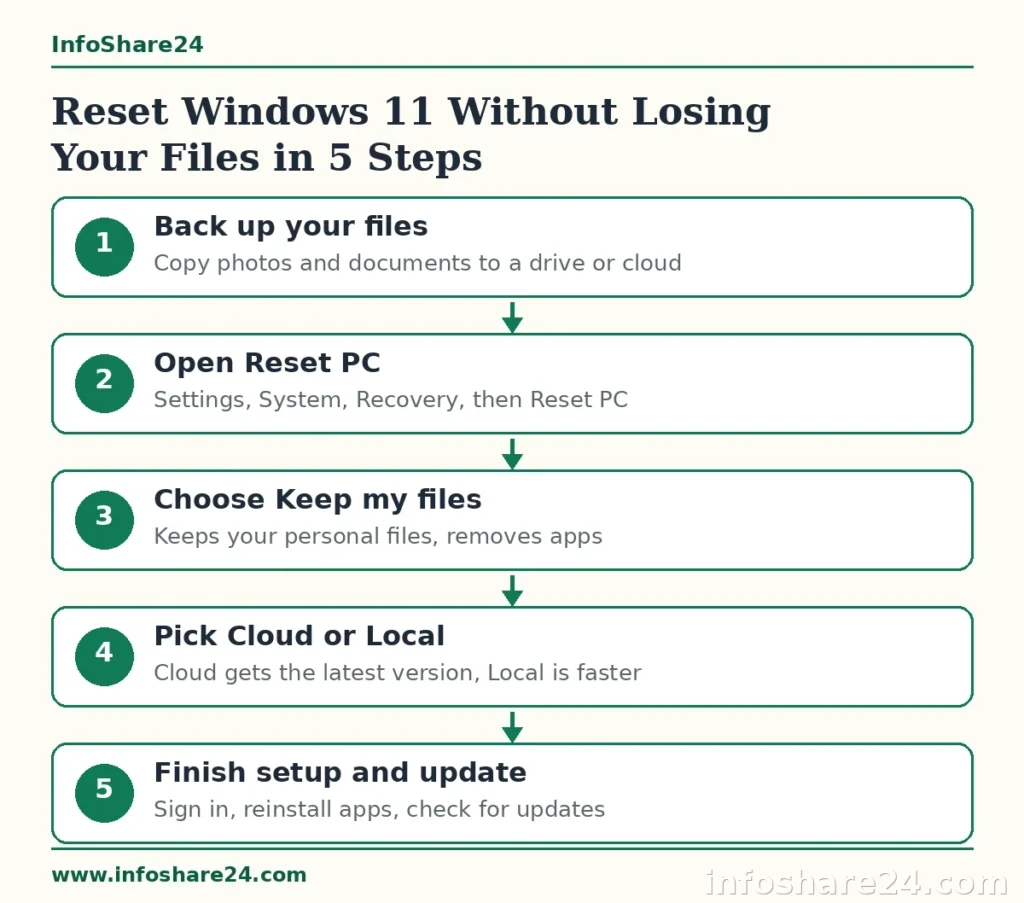
The key is choosing “Keep my files” instead of “Remove everything.” This guide covers it in four simple steps: back up first, open the reset tool, choose the right options, and finish the setup. If your PC is only slow and you have not tried the simple fixes yet, start here first: How to Speed Up a Slow Windows PC.
Before You Reset
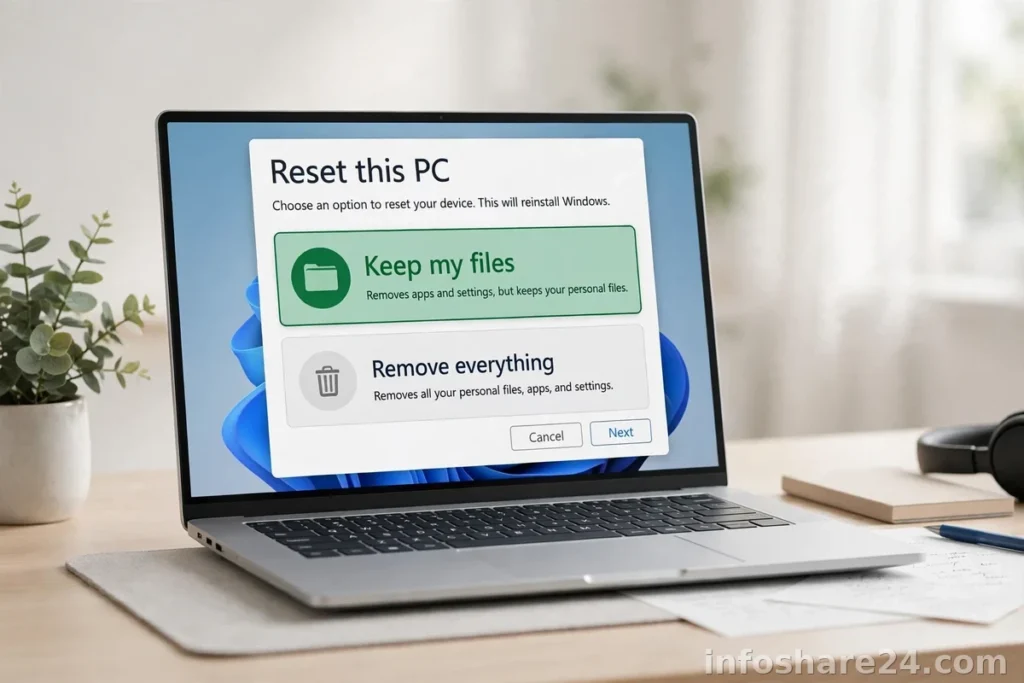
Before you click anything, take two minutes to understand what a reset keeps and what it removes.
“Keep my files” keeps your personal files — your photos, documents, music, videos, and files on the Desktop. It removes your installed apps and your settings, and it reinstalls Windows. “Remove everything” deletes everything, including your personal files. Only choose that if you are giving the PC away or selling it.
Two warnings matter most. First, your desktop apps are removed even with “Keep my files.” Programs such as Microsoft Office, Chrome, and Zoom will be gone, and you will need to install them again. Windows saves a list of the removed apps on your Desktop, so you can see what to reinstall. Second, check your BitLocker recovery key before you reset. If your drive is encrypted with BitLocker, Windows may ask for the 48-digit recovery key after the reset. Make sure it is saved in your Microsoft account at account.microsoft.com/devices/recoverykey, or printed and stored somewhere safe. Without that key, you cannot open your own drive.
Step 1: Back Up Your Files First
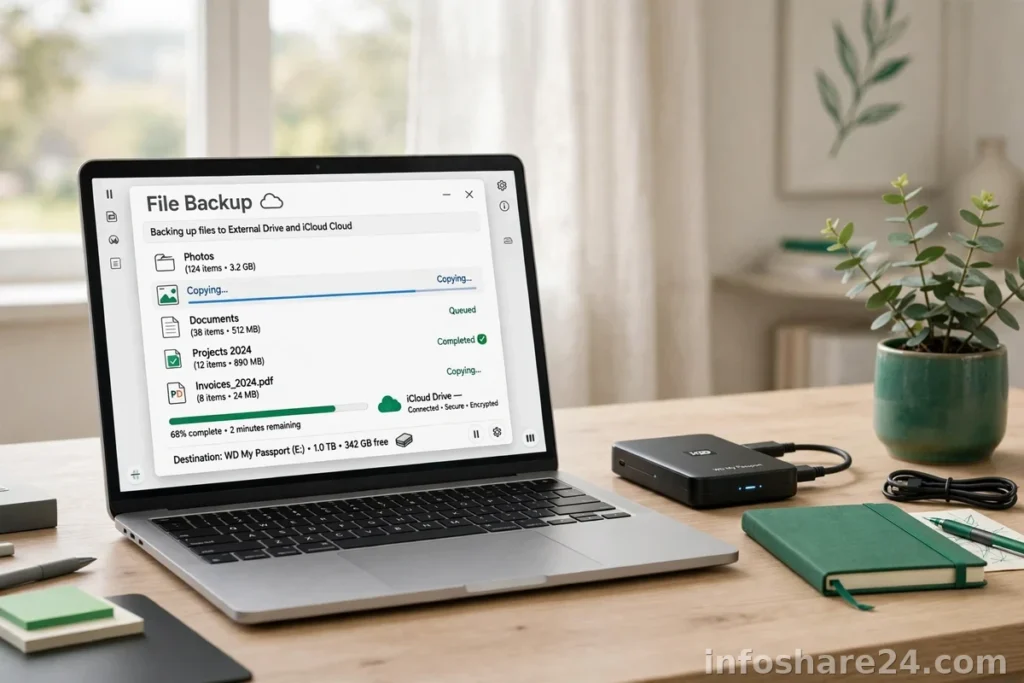
“Keep my files” is reliable, but a backup is your safety net. If anything goes wrong during the reset, a backup is the only thing standing between you and lost photos.
- Copy your important folders to an external drive or the cloud. Copy your Documents, Pictures, Desktop, and Downloads folders to a USB drive, external hard drive, or cloud service such as OneDrive or Google Drive.
- Save your browser data. Make sure your browser is signed in so your bookmarks and saved passwords sync to your account. Check your password manager is synced too, and that you know its master password.
- Write down the apps and licence keys you will need again. List the programs you use every day, plus any licence keys for paid software. You will reinstall them from this list after the reset.
- Check the backup actually worked. Open the external drive or cloud folder and confirm your files are really there. A backup you never check is not a backup.
Step 2: Open Reset and Choose Keep My Files
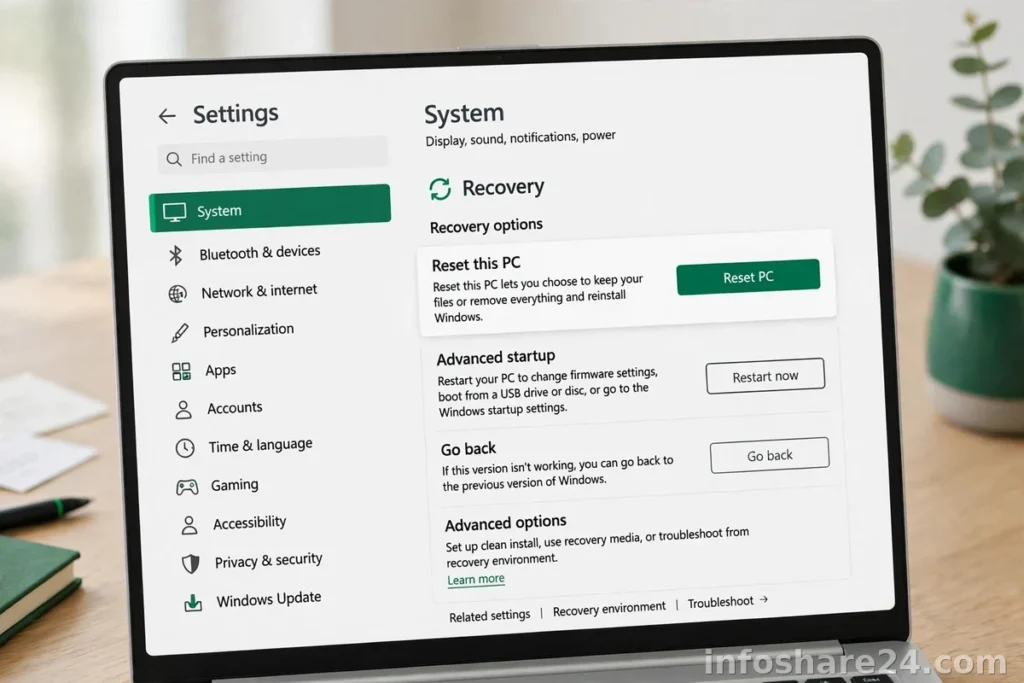
This is the main step, and it takes less than a minute to start. Everything happens inside the Settings app — no USB stick or download needed.
- Open Settings, then go to System and Recovery. Press the Windows key + I to open Settings, click System in the left menu, then scroll down and click Recovery.
- Click the “Reset PC” button. Under “Recovery options” you will see “Reset this PC.” Click the Reset PC button on the right.
- Choose “Keep my files.” A window will ask you to choose an option. Click Keep my files — not “Remove everything.” Read the choice twice before you click it.
- Confirm and let Windows prepare. Windows will show a summary of what will happen. Click Next, then Reset. Your PC will restart and the reset will begin. Do not turn the PC off while it works.
Step 3: Choose Cloud Download or Local Reinstall
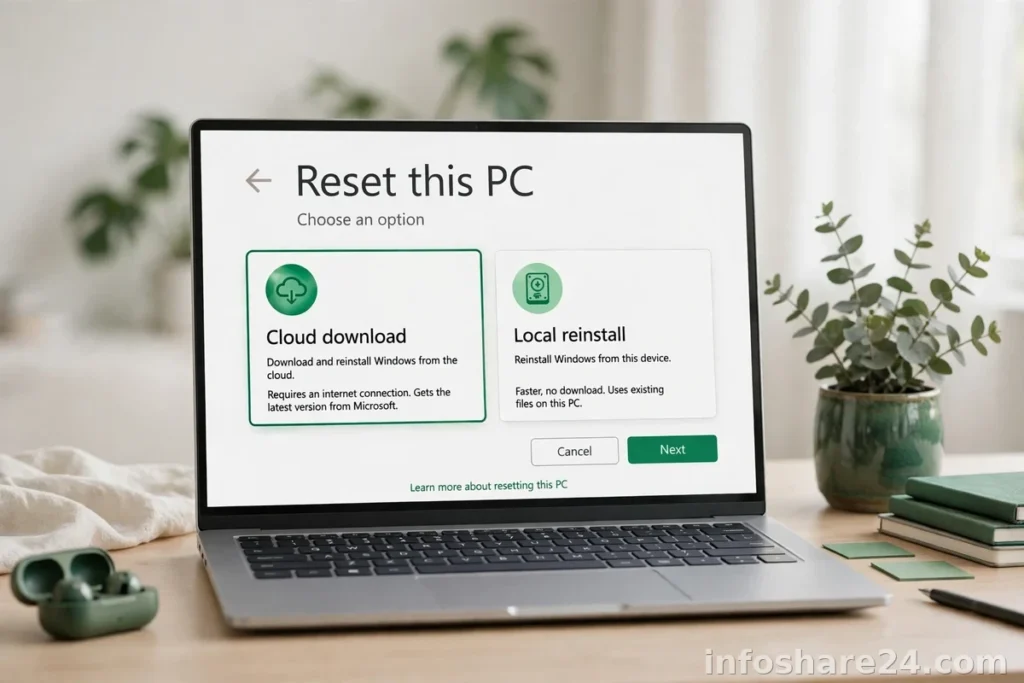
After you choose “Keep my files,” Windows asks how it should reinstall itself. Pick the one that fits your internet connection.
- Choose “Cloud download” if your internet is fast and stable. Windows downloads a fresh copy from Microsoft, about 4 GB, so you get the latest version with the newest fixes already included.
- Choose “Local reinstall” if your internet is slow or limited. Windows reinstalls from the files already on your PC. It is faster, uses no download data, and works even without the internet — but you may need more updates afterwards.
- Wait for the reset to finish. The PC will restart several times and show a progress percentage. This usually takes 30 minutes to an hour. Leave it alone, keep the charger plugged in, and do not press any keys.
Step 4: Finish Setup and Check for Updates
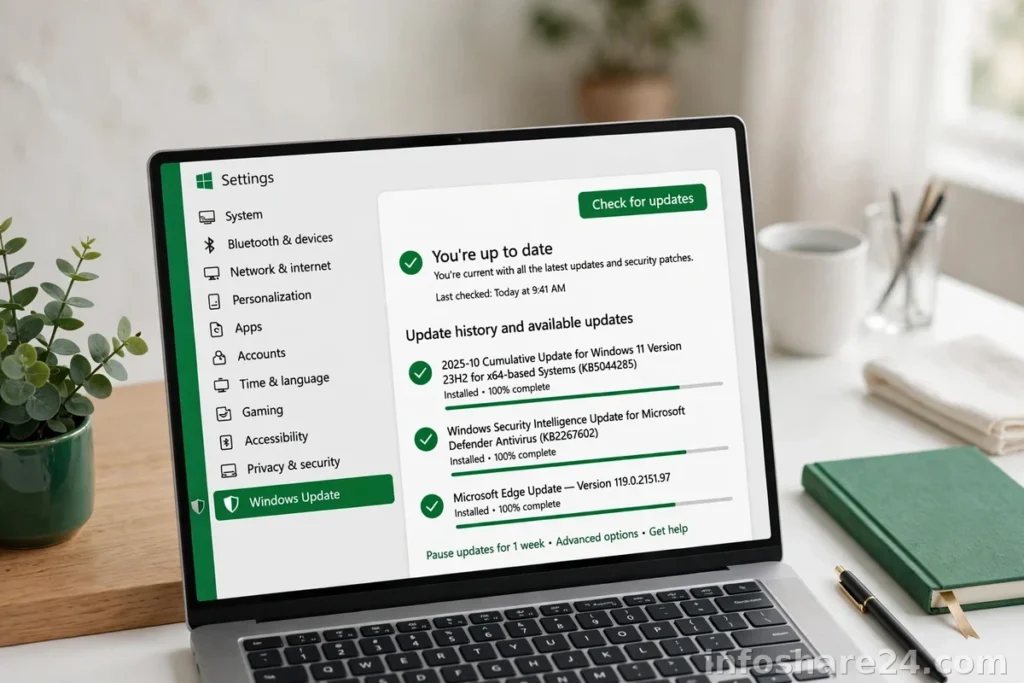
When the reset finishes, your PC will look like a new Windows 11 installation. A short setup and a few checks will bring it back to normal.
- Sign in with your Microsoft account. Go through the first-time setup: choose your region and keyboard, connect to Wi-Fi, and sign in with the same Microsoft account you used before.
- Check for Windows updates. Open Settings, go to Windows Update, and click Check for updates. Install everything it finds, restart if asked, and check again until it says you are up to date.
- Reinstall your apps. Open the list of removed apps saved on your Desktop and install the programs you need, starting with your browser and office software.
- Restore your files and check them. If you used a backup, copy your files back and open a few photos and documents to confirm they are complete. Then check that your printer, Wi-Fi, and sound all work.
Fixing Common Problems
If the reset fails with “There was a problem resetting your PC,” try again and choose the other reinstall method — if Cloud download failed, try Local reinstall, and the other way around. A failed download is the most common cause, so a stable connection helps.
If your PC will not start at all, you can still reset it from the recovery environment. Hold the Shift key while you click Restart from the Start menu power button, then choose Troubleshoot and Reset this PC. If Windows will not load that far, switch the PC off with the power button as soon as the logo appears, and repeat three times — Windows will open the recovery environment on its own.
If the PC is only short of space rather than broken, a reset may be more than you need. Try clearing space first: How to Free Up Disk Space on Windows Without Deleting Important Files.
Frequently Asked Questions
Will resetting Windows 11 delete my photos and documents?
Not if you choose “Keep my files.” Your personal files in your user folders stay in place. But always back them up first — a failed reset can still cause data loss, and “Remove everything” deletes them on purpose.
Will I lose my installed apps after a reset?
Yes. Even with “Keep my files,” all desktop apps are removed and must be installed again.
How long does a Windows 11 reset take?
Usually 30 minutes to two hours. Cloud download takes longer on a slow connection because of the 4 GB download, while Local reinstall is faster. Setup and updates afterwards add about 30 minutes more.
Conclusion
Resetting Windows 11 without losing your files comes down to four steps: back up your files first, open Settings, System, Recovery and click Reset PC, choose “Keep my files,” and pick Cloud download or Local reinstall. Then sign in, update Windows, and reinstall your apps.
Do the backup today — it takes ten minutes and protects everything that matters. Then start the reset when you have an hour free, and your PC will feel new again.