Typing long messages on a phone keyboard is slow. WhatsApp Web puts your chats in a browser tab on your computer, so you can type with a full keyboard and send photos and files straight from your computer.
Setting it up takes about two minutes, with nothing to install: open a website, scan a QR code once, and your chats appear. This guide shows every step, what you can and cannot do in the browser version, and how to log out safely — especially on a shared computer.
What Is WhatsApp Web?
WhatsApp Web is the browser version of WhatsApp. It runs at web.whatsapp.com in any modern browser, on Windows, Mac, or Linux. It shows the same chats as your phone, and messages you send from the computer appear on your phone too.
Your phone is still the main account — WhatsApp Web is a linked device, and your messages stay end-to-end encrypted.
The browser version is mainly for messaging and media: texts, photos, videos, documents, and voice messages. A few phone features are not available in the browser — for example, voice and video calls. For calls, use WhatsApp on your phone.
How to Set Up WhatsApp Web
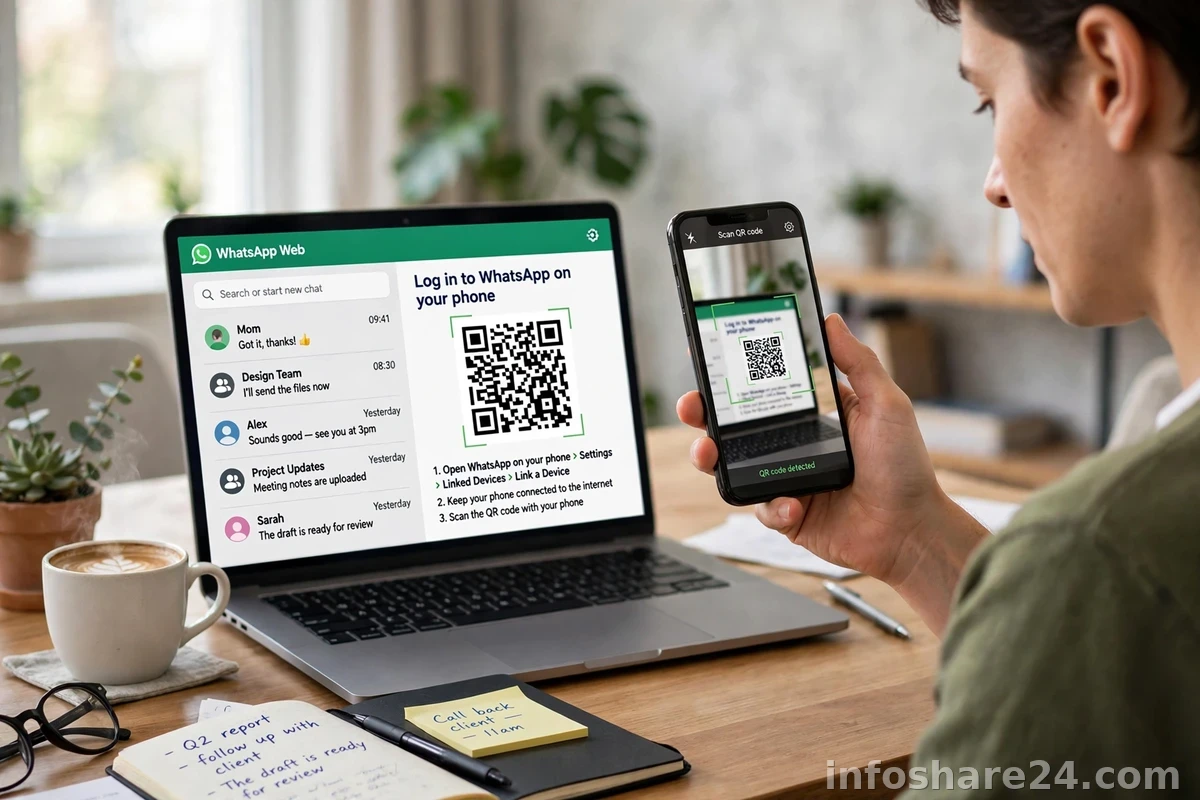
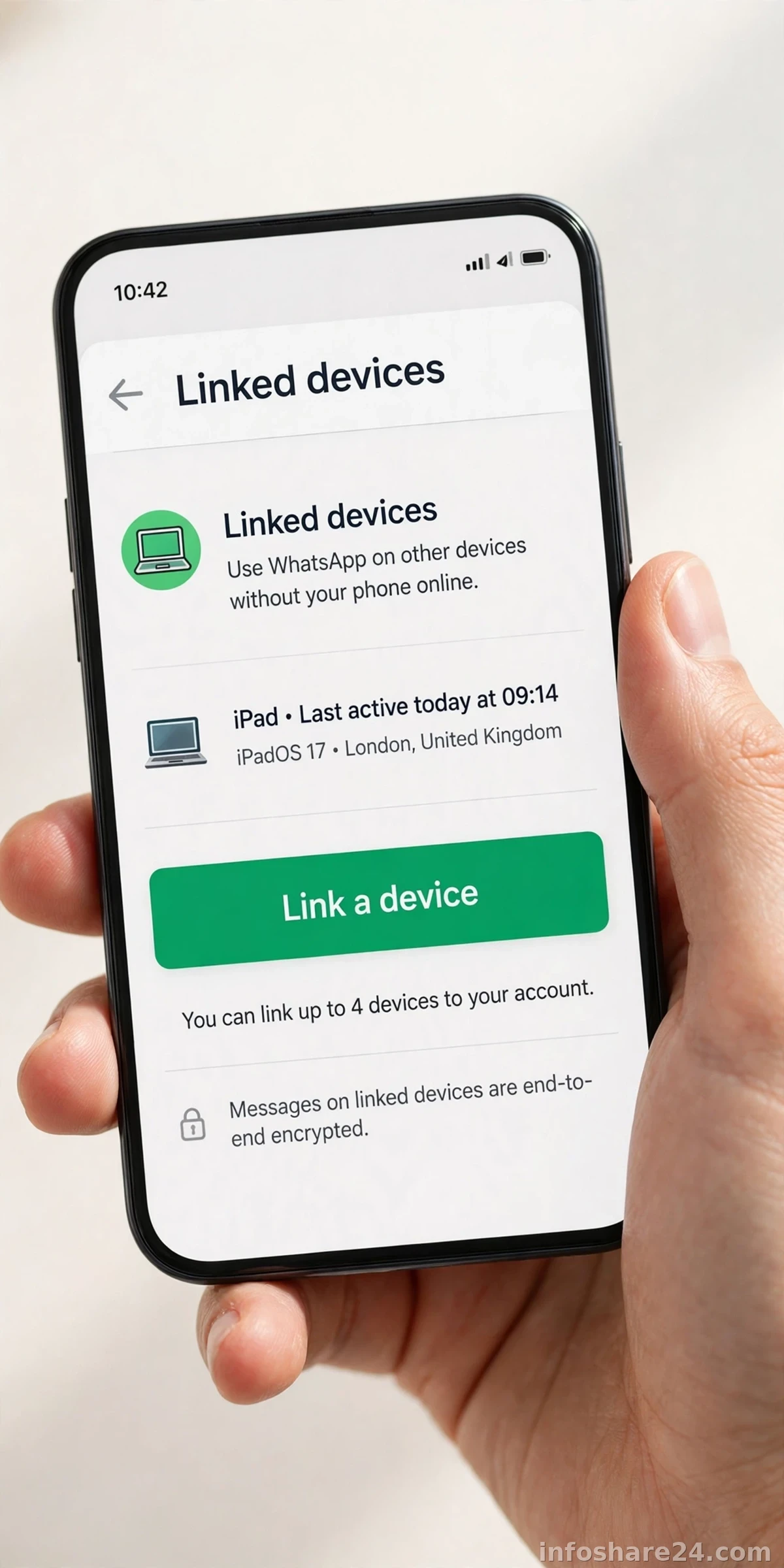
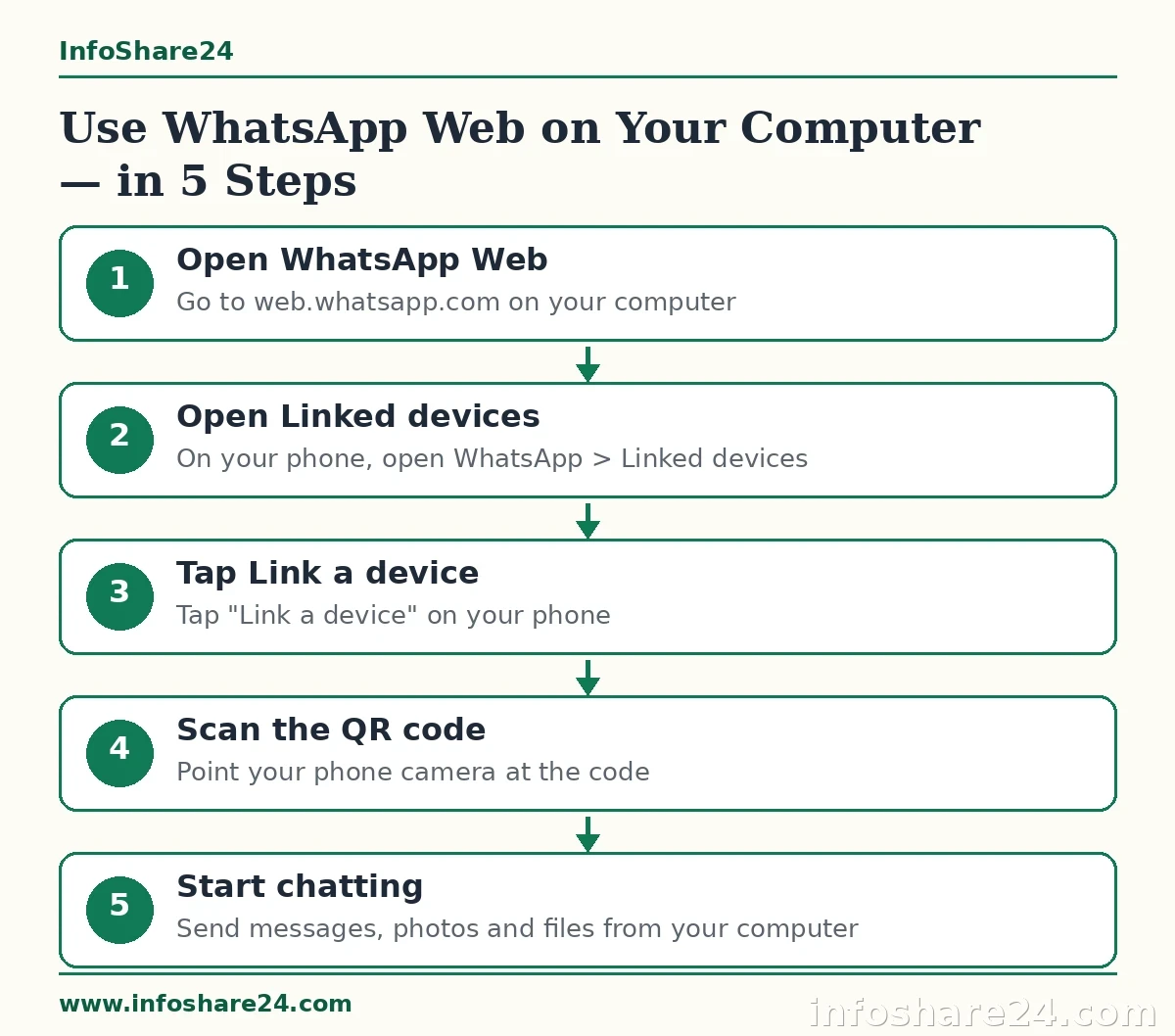
You need a phone with WhatsApp, a computer with a browser and internet, and your phone nearby for one minute. If your chats matter, back them up first: How to Back Up WhatsApp Chats on Android. Follow these five steps — the whole process usually takes less than two minutes.
- Open web.whatsapp.com on your computer. Type the address into your browser yourself — do not click a link from a random message or email, because fake login pages exist to steal accounts.
- Open WhatsApp on your phone and go to Linked devices. On Android, tap the three-dot menu, then “Linked devices”. On iPhone, tap “Settings”, then “Linked devices”.
- Tap “Link a device” on your phone. Your phone may ask for your fingerprint, face, or PIN first. Allow it, and your phone’s camera will open.
- Point your phone camera at the QR code on the computer screen. Hold the phone steady, about 20–30 cm from the screen, with the whole QR code inside the frame. The scan takes one or two seconds.
- Wait for your chats to appear, then start typing. The first load can take a few seconds while your chats sync. Click a chat to open it, type at the bottom, and press Enter to send.
You only scan the code once per computer — after that, WhatsApp Web remembers it.
What You Can Do on WhatsApp Web
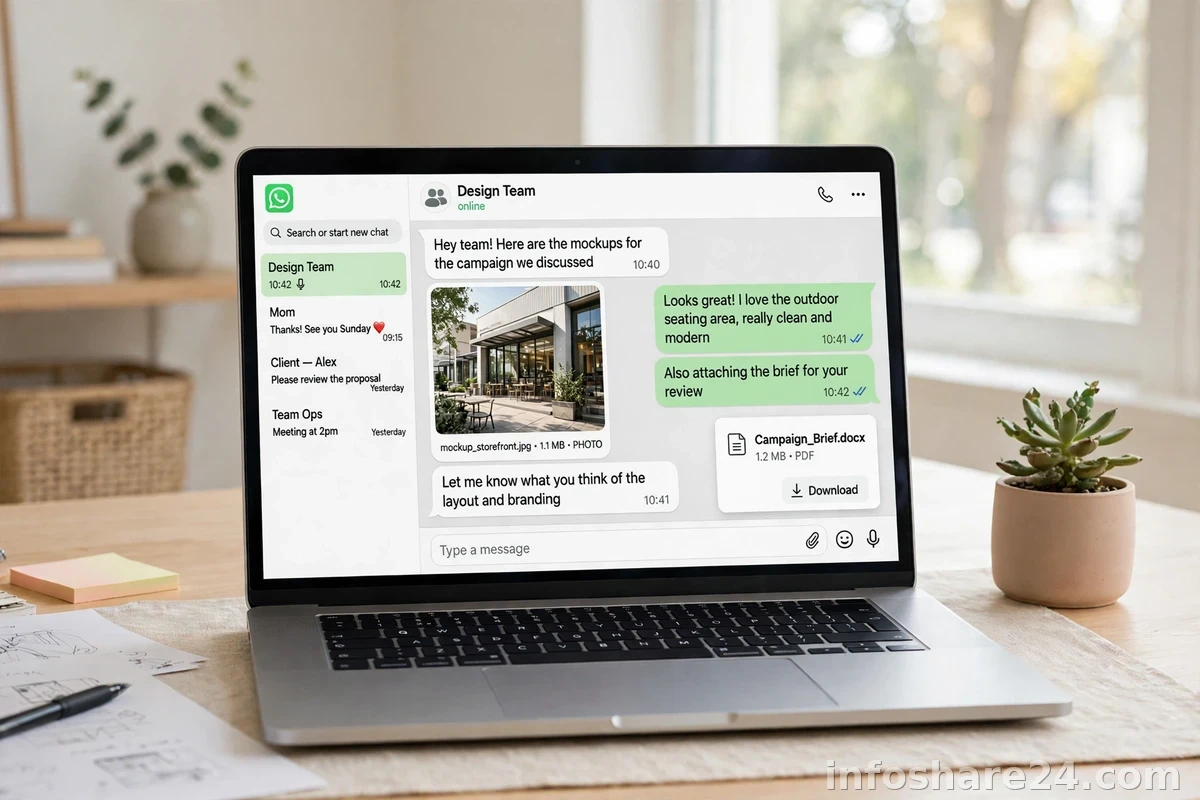
Once you are linked, most of your everyday WhatsApp works from the computer keyboard.
- Send and receive text messages. Type with a full keyboard, copy and paste text, and press Enter to send. Long replies that take a minute on a phone take seconds here.
- Send photos, videos, and files. Click the attach button (paperclip or plus icon) to send a photo, video, or document from your computer. For other ways to move files, see: How to Transfer Files Between Phone and Computer Easily.
- Send voice messages. Click the microphone icon, record your message, and send it, just like on your phone.
- View and download photos and videos. Click any photo to see it large, and download anything you want to keep on your computer.
- Search, archive, and mute chats. The search box and chat options all work in the browser version.
Calls and some phone-only settings still need the phone app: voice and video calls, changing your profile photo, and some privacy settings.
Staying Signed In
On your own computer, WhatsApp Web stays signed in. You can close the browser tab, turn the computer off, and come back tomorrow — open web.whatsapp.com and your chats are there, with no new QR code needed.
Two things can end the session: logging out yourself, and WhatsApp’s own rule — if you do not open WhatsApp on your phone for more than 14 days, your linked devices are logged out automatically.
Your phone does not need to stay online for WhatsApp Web to work — once linked, the computer uses its own internet connection.
How to Log Out of WhatsApp Web
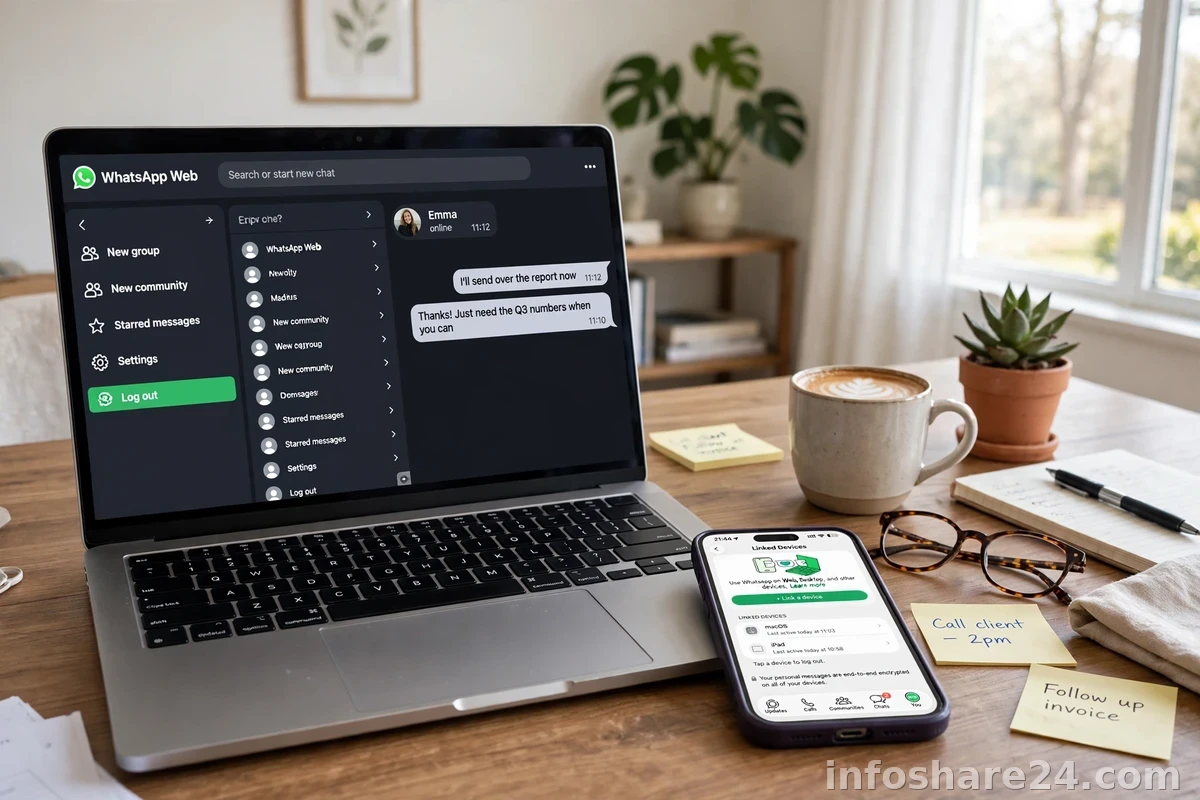
Always log out when you finish on a computer that is not yours. There are two ways to do it.
- Log out from the computer. In WhatsApp Web, click the three-dot menu above the chat list, then click “Log out”. Nobody can read your chats from that browser until the code is scanned again.
- Log out remotely from your phone. If you have already left the computer, open WhatsApp on your phone, go to “Linked devices”, tap the computer, and tap “Log out”. It signs out at once, even from far away.
Stay Safe: Never Share Your QR Code or Codes
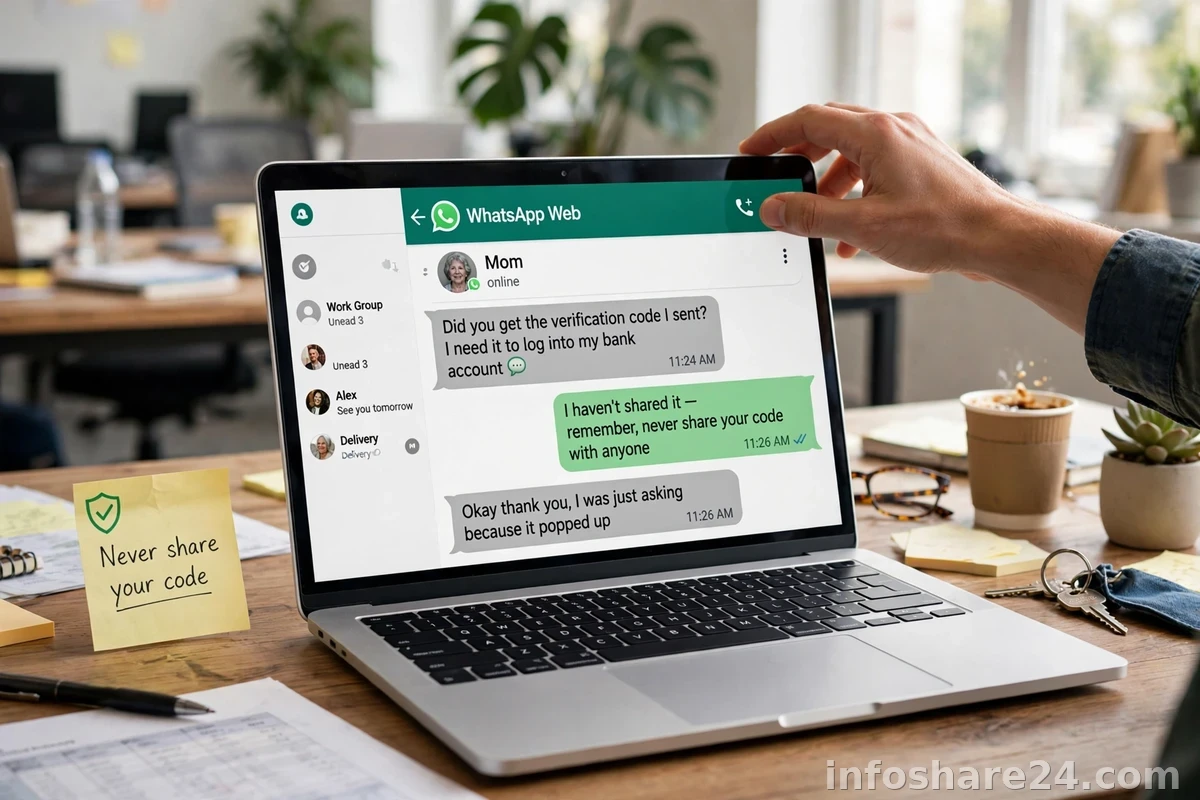
Your WhatsApp account is only as safe as your QR code and your verification codes, so treat both like passwords.
- Never share your QR code, and never scan a QR code someone sends you. The code on web.whatsapp.com is the key to your chats: anyone who scans it can read and send messages as you.
- Never share a WhatsApp verification code. If someone asks for the 6-digit code WhatsApp sent you, it is a scam — even if they claim to be a friend or WhatsApp itself. For the warning signs, see: How to Spot and Avoid OTP Scams.
- Always log out on a shared or public computer. Log out before you walk away, every single time.
- Only open web.whatsapp.com by typing the address yourself. Fake login pages that look like WhatsApp Web are used to steal accounts. For help recognising fake messages, see: How to Spot Fake News on WhatsApp and Facebook.
- Turn on two-step verification in WhatsApp. On your phone, go to Settings, then Account, then “Two-step verification”, and set a PIN. Without that PIN, a stolen code alone cannot take over your account. For the general idea, see: What Is Two-Factor Authentication and How to Turn It On.
Fixing Common Problems
- The QR code will not scan. Brighten your screen, enlarge the browser window, clean the phone camera lens, and hold the phone steady. If the code is old, refresh it.
- Chats will not load. Check the internet connection, then refresh the page. If it still fails, log out and link the computer again.
- Messages arrive late. Check the internet connection on both devices and refresh the page.
- You keep getting logged out. Open WhatsApp on your phone regularly: after 14 days without using the phone app, linked devices are signed out automatically.
Frequently Asked Questions
Is WhatsApp Web free?
Yes. It is part of your normal WhatsApp account — no fee and no separate account to create.
Do I need to install anything on my computer?
No. WhatsApp Web works entirely in the browser at web.whatsapp.com — nothing to install.
Can I use WhatsApp Web on two computers at the same time?
Yes. You can link up to four devices to one WhatsApp account. Manage them all from Linked devices on your phone.
Conclusion
WhatsApp Web is simple: open web.whatsapp.com, open Linked devices on your phone, tap Link a device, scan the QR code, and chat. It is mainly for messaging and media — texts, photos, files, and voice messages with a full keyboard — and it stays signed in on your own computer until you log out.
The one rule that matters: never share your QR code or any verification code, and always log out on a computer that is not yours.
Link your computer now — it takes two minutes.