When Windows warns you that disk space is low, the first instinct is often to delete things in a hurry. That hurry is how important photos, work documents and installers get lost. Most Windows computers, though, hold gigabytes of space that can be recovered without touching anything important: temporary files, old downloads, duplicate installers and large videos you have already backed up are usually the real problem.
This guide follows a safe order: check what is using space, clean the safe junk first, review Downloads with care, and move big files somewhere safe instead of deleting them. Work through it once, slowly, and you will free up space with confidence rather than regret.
First, See What Is Actually Using Space

Guessing wastes time. One person may be short of space because of videos, another because of games, and a third because of temporary files. Check first, then act on what you find.
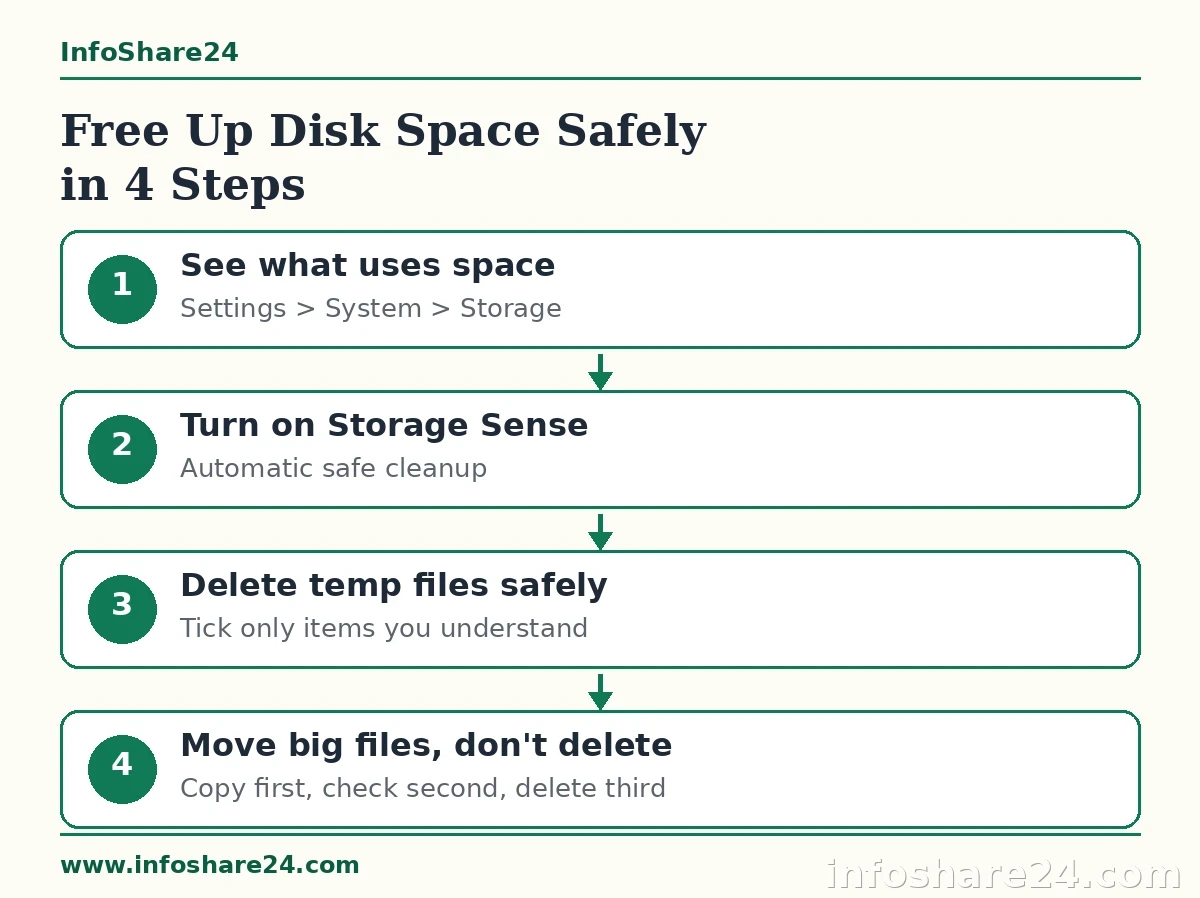
- Open Settings, then System, then Storage.
- Look at how much space is used and how much is free, with categories below such as Apps, Documents, Pictures, Videos and Temporary files.
- Click a category for more detail — Temporary files alone often hold several gigabytes. Note the two or three largest categories, and focus there. Knowing the breakdown stops you from deleting small, important documents when a single forgotten video is the real culprit.
Turn On Storage Sense for Automatic Cleanup
- Go to Settings, then System, then Storage, and switch on Storage Sense.
- Click it to open its settings, and choose to run it when disk space is low or once a month. For the Recycle Bin, 30 days is a safe choice, giving you time to recover something deleted by mistake.
- Do not let Storage Sense delete files from Downloads automatically unless you are sure that folder holds nothing important. Many people save tickets, forms and installers there without thinking. It is better to review Downloads yourself, as described below, and let Storage Sense handle only the clearly temporary files.
Delete Temporary Files Safely
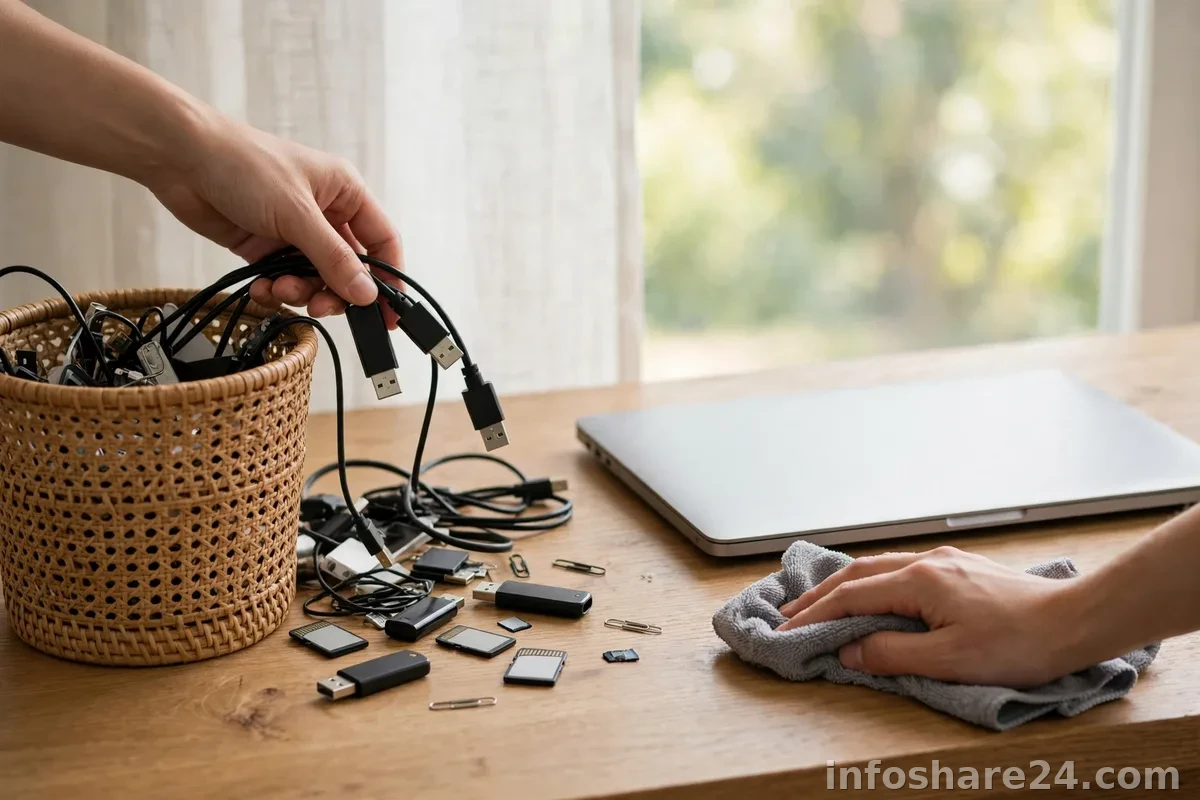
Temporary files are working files that Windows and apps create and then forget, including update leftovers and cache files. They are safe to remove once Windows has finished using them, and they often add up to several gigabytes.
- In Settings, go to System, then Storage, then Temporary files. Windows will scan for a few seconds, then show a list with sizes.
- Tick safe items such as Temporary files, Windows Update Cleanup and Thumbnails. Read each item before ticking it, and leave anything you do not understand unticked. Skip the “Downloads” item here unless you have already reviewed that folder yourself.
- Click “Remove files” and let Windows finish. On a first cleanup, you may recover several gigabytes at once.
Review Downloads Before You Delete Anything

The Downloads folder is where most accidental losses happen. It feels like junk, but it often contains installers, tickets, photos and documents you meant to keep. Treat it as a folder to review, not a folder to empty.
- Open File Explorer, go to Downloads, and sort by size, largest first.
- Sort each file into three groups: keep, move, or delete. Move means it is important but does not need to live on your main drive. Delete means you are sure you do not need it, such as an old installer or a file saved elsewhere.
- If you are unsure about a file, do not delete it. Move it to a folder called “To Check” on an external drive or in cloud storage, and review it later. A file sitting safely elsewhere costs you nothing, while a file deleted in haste may be gone for good. A quick five-minute Downloads review once a month keeps it from growing into a mystery pile again.
Keeping your files organised makes this kind of review much easier in future, as explained in this guide to How to organise your files and folders on Windows.
Move Big Files Instead of Deleting Them
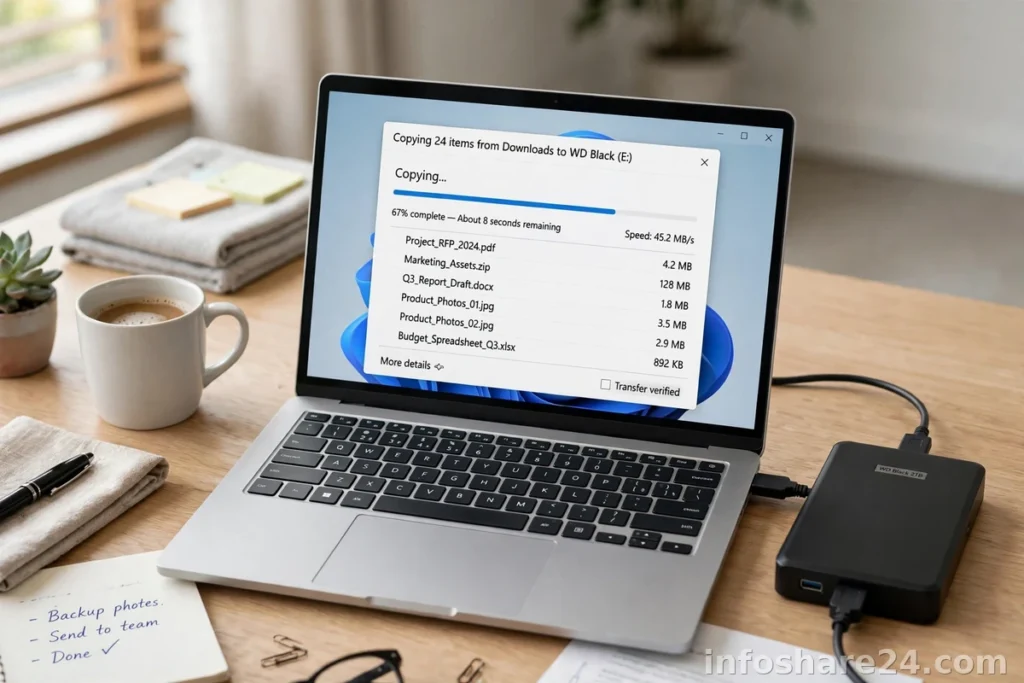
Large files are usually the fastest way to recover space. A single holiday video can be bigger than thousands of documents, so start with the largest files first.
- Plug in the drive and create a folder with a clear name and date, such as “Photos 2024 Backup”.
- Copy the files across.
- Check that they open from the new drive before you delete the originals. Copy first, check second, delete third. That order is the whole safety rule.
Use Cloud Storage for Files You Still Need

Cloud storage works the same way for files you want to reach from anywhere, though uploads take longer for very large videos. It is a good home for documents and photos you still need, and it keeps a copy safe if your computer fails.
- Go to Settings, then Apps, then Installed apps, and sort by size. You will often find a game or a program you installed for one job months ago and never opened again.
- Remove only programs you recognise and no longer need — never remove items from Microsoft, your computer maker, or your graphics and sound hardware, as those may be needed for Windows to work. Removing one large game can free more space than deleting hundreds of small documents.
A Simple Routine to Keep Space Free
Once you have recovered space, a short monthly routine stops the problem from returning:
- Check Storage for the biggest categories.
- Run the Temporary files cleanup.
- Review Downloads for five minutes.
- Move any large new videos or archives to external or cloud storage.
Also avoid random “cleaner” programs that promise huge savings with one click. Most are not needed with the tools above, and some remove files you still need. If you want a trusted list, see this Best free software for Windows in 2026: a practical list.
Frequently Asked Questions
How much free space should I keep on Windows?
Try to keep at least 10 to 15 percent of your drive free. Windows needs room for updates, and a nearly full drive also runs more slowly.
Will deleting temporary files delete my documents?
No. Temporary files are working files created by Windows and apps, not your documents, photos or projects. Stick to the items listed above and your own files will stay untouched.
Is it safe to empty the Recycle Bin?
Yes, once you have checked what is inside it. Open it, restore anything deleted by mistake, and only then empty it.
What if my C drive is still full after cleanup?
Look for the largest categories in Storage settings. Very large videos, games, or a second copy of your photos are the usual cause, and moving those to external or cloud storage usually solves it.
Can I move programs to another drive instead of uninstalling them?
Some Store apps can be moved in Settings, but most traditional programs cannot simply be dragged to another drive. Uninstall and reinstall them in the new location instead.
Conclusion
Freeing up disk space on Windows does not require deleting anything important. Check what is using space, remove only the safe temporary files, review Downloads with care, and move large files somewhere safe. A short monthly check keeps the problem from coming back.