A PDF that will not send is one of the most annoying small problems in daily life. You try to email a CV or upload a form, and the website says the file is too big. You can usually fix it fast — and if you want to compress a large PDF file without losing quality, shrink the images and leave the text alone.
This guide shows you how: why PDFs get big, and the best ways to make one smaller.
Why PDFs Get So Big
A PDF holds text, images, fonts, and sometimes whole scanned pages. The text itself is tiny — a whole book of plain text is often less than one megabyte. Images are what make a PDF heavy: one phone photo can be 3 to 5 MB, and a scan is really a photo of a page. Most of the size comes from images, and images can be shrunk a long way before your eyes notice.
First: Check the Size of Your PDF
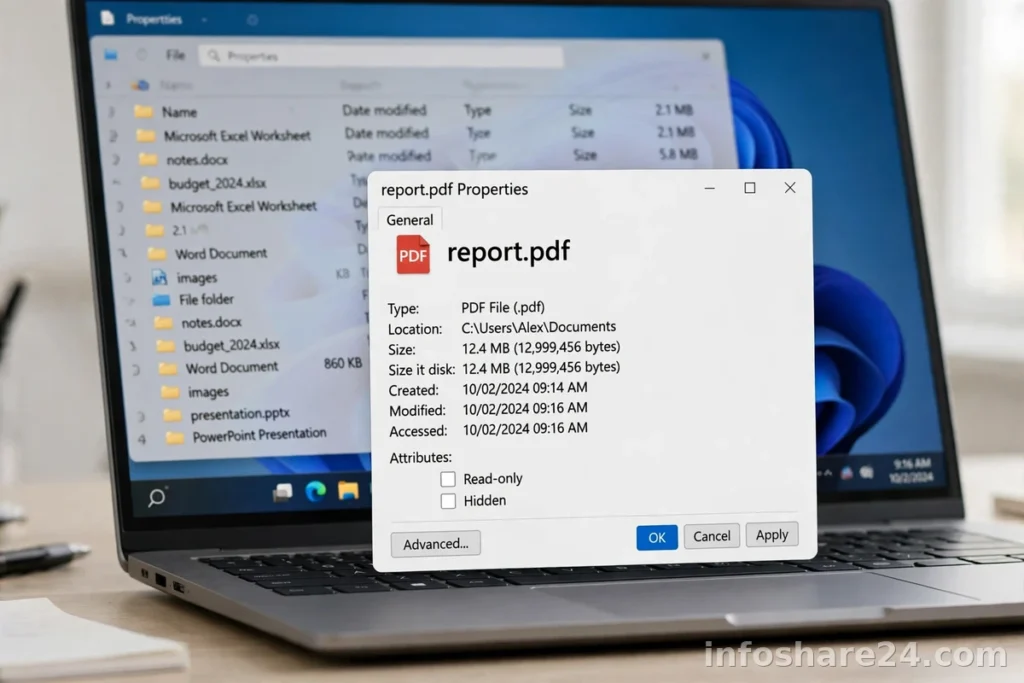
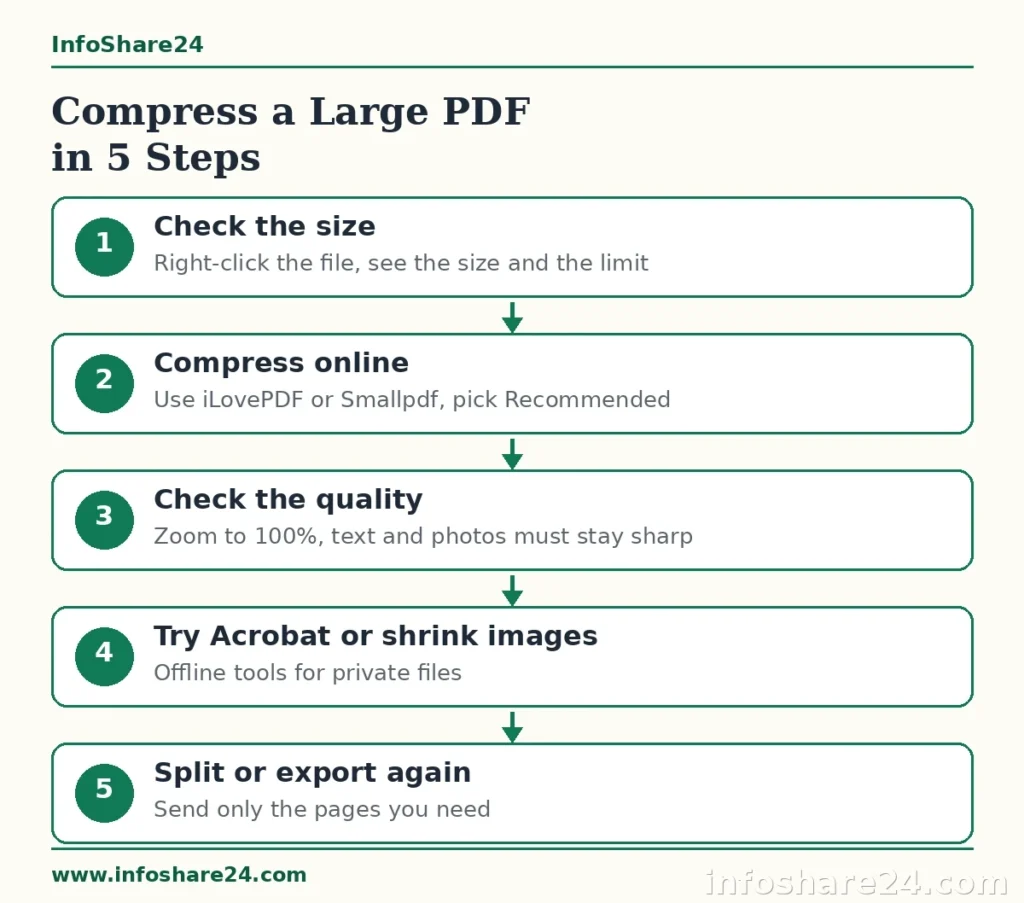
Before you compress anything, check how big the file is and how small it needs to be. Email often limits attachments to about 25 MB, and many job portals accept only 2 to 5 MB.
- Right-click the file and choose Properties on Windows or Get Info on a Mac.
- Check the limit where you need to send it. Look for a note such as “maximum file size 5 MB”.
- Open the PDF and look at what is inside it. If it is mostly photos or scans, compression will work very well.
Keep a copy of the original first.
How to Compress a Large PDF File Without Losing Quality Online
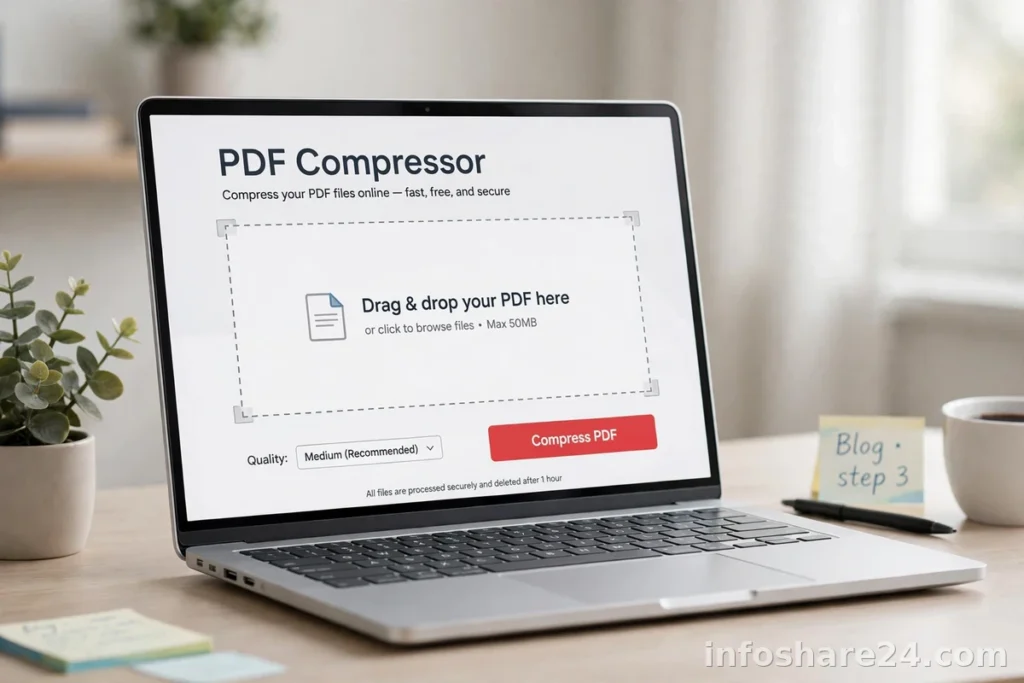
This is the fastest way, and it works on any computer or phone. Free tools such as iLovePDF and Smallpdf shrink a PDF in under a minute.
- Go to a well-known compressor, such as ilovepdf.com or smallpdf.com.
- Click “Select PDF file” and choose your PDF. You can also drag the file onto the page.
- Choose the compression level. Pick “Recommended” for the best balance of size and quality.
- Click “Compress PDF” and wait a few seconds.
- Download the compressed file and check the new size.
This usually cuts a photo-heavy PDF to a quarter of its size or less, and the text stays sharp, because text in a PDF is stored as text, not as a picture.
Warning: Never Upload Private PDFs to Unknown Tools
Online compressors are convenient, but your file leaves your device and passes through someone else’s server. That is fine for a public brochure. It is not fine for a passport scan, a bank statement, a medical report, or a signed contract.
For sensitive files, use an offline tool instead: Adobe Acrobat on your computer, or the Word export method below. Both work entirely on your own device.
Compress in Adobe Acrobat
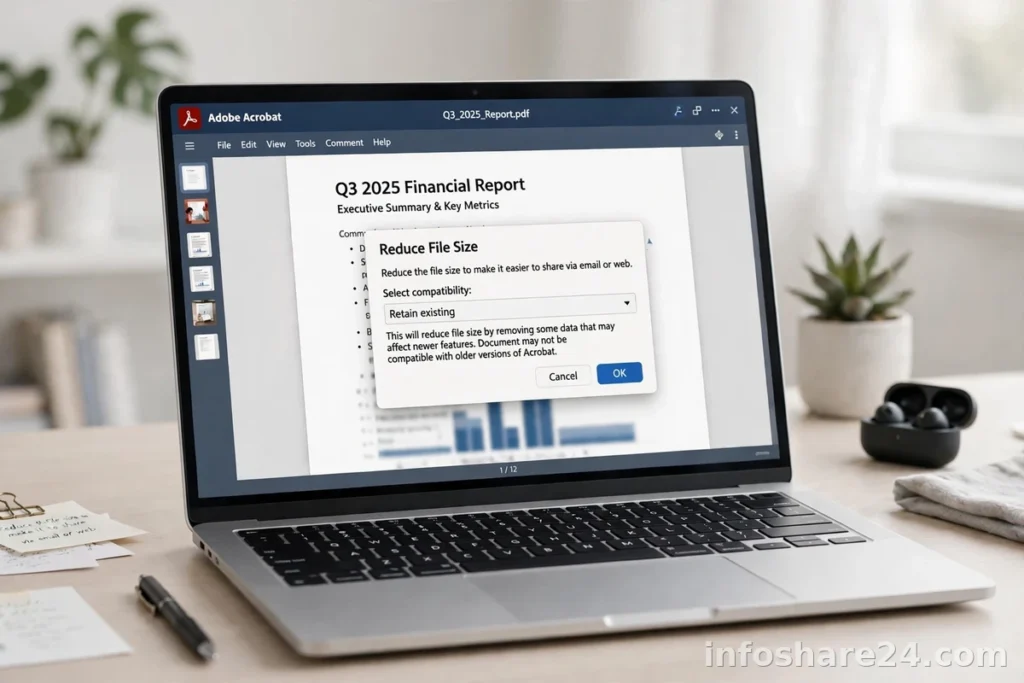
Adobe Acrobat gives you more control than a website, and it is the safest choice for private documents.
- Open your PDF in Acrobat, then go to File and choose “Compress PDF” or “Reduce File Size”.
- Choose a compatibility setting. For most people, the default is fine.
- Click OK and save the file with a new name, such as “report-small.pdf”. Keep the original untouched.
- Check the new size and open the file to check the quality. Acrobat also has a “PDF Optimizer” under File, then Save As Other, then Optimized PDF. Note that the free Acrobat Reader cannot compress files.
Reduce the Image Size Inside the PDF
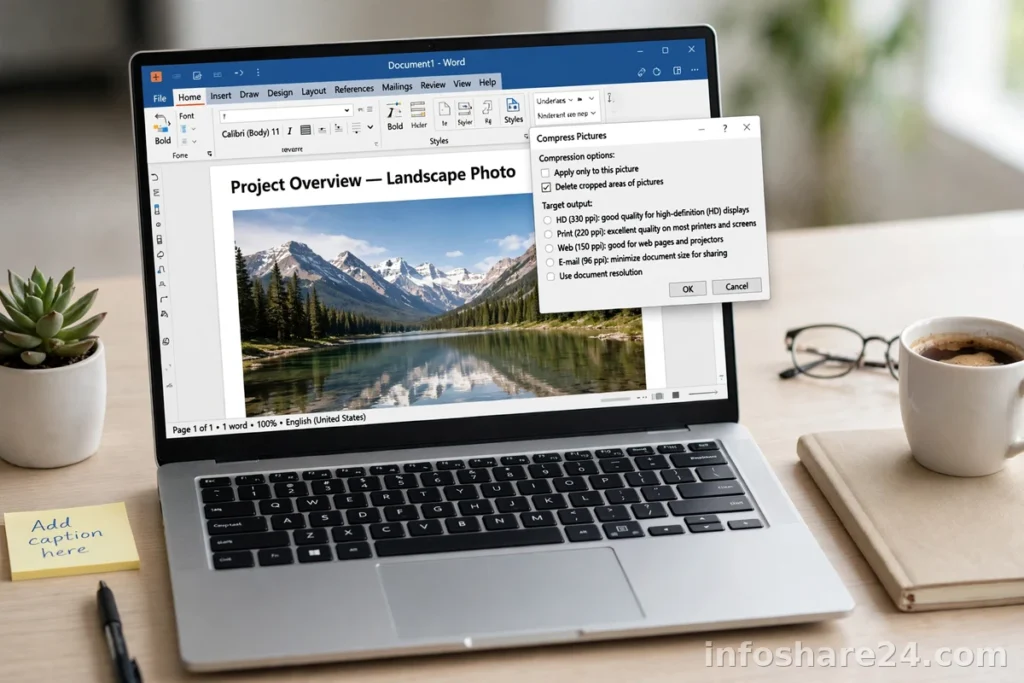
When a PDF is full of photos, the images are the problem — and the fix. A photo on an A4 page does not need to be 4000 pixels wide: about 150 dots per inch is plenty for a screen.
If you made the PDF yourself, go back to the source document and fix the images there:
- Resize each photo before you insert it. In Word, right-click a picture, choose “Compress Pictures”, and pick “Web (150 ppi)”.
- Save the document as a PDF again.
If you only have the PDF, use the online compressor above, which lowers image resolution for you.
Split a PDF into Smaller Files
Sometimes a PDF is big simply because it has many pages. If you only need pages 1 to 5 of a 40-page report, splitting is the simplest answer.
- Open the PDF in your browser, in Chrome or Edge. Drag the file into a browser window.
- Press Ctrl+P on Windows or Cmd+P on a Mac, and choose “Save as PDF” as the printer.
- Set the page range to only the pages you need, for example “1–5”, then click Save.
- Send only the small file.
Export Correctly from Word
Many large PDFs are born in Word, and a small change in how you export can prevent the problem.
- In Word, click File, then “Save As”, and choose PDF. Avoid print-to-PDF — it often makes bigger files.
- Click “Options” and tick “ISO 19005-1 compliant (PDF/A)” off, unless someone asked for it.
- Click “Optimize for: Minimum size (publishing online)”. It lowers image resolution, usually with no visible difference on screen.
- If your document still comes out large, compress the pictures first. Select a picture, go to Picture Format, click “Compress Pictures”, and choose 150 ppi. More detail: How to Convert Word to PDF Without Losing Formatting.
How to Check Quality After Compressing

Compression only counts if the file still looks good. Check before you send it:
- Open the compressed PDF and zoom in to 100% on a page with text. The letters should be sharp, with clean edges.
- Look closely at the photos. Faces, charts, and diagrams should still be clear. A little softness is normal.
Never compress an already-compressed file again and again — the quality falls each time. If the result looks bad, go back to the original and use “Recommended” instead of “Extreme”.
What to Do If It Is Still Too Big
If you have tried the methods above and the file is still over the limit, try these in order:
- Compress again from the original, not from the compressed copy.
- Remove pages you do not need. A cover page, an appendix, or blank pages can be dropped with the split method.
- Turn colour scans into black-and-white. A scanned form does not need colour.
- Send a link instead of the file. Upload the PDF to Google Drive or Dropbox and share the link.
Frequently Asked Questions
Will compressing a PDF make the text blurry?
No, not with a sensible setting. Text in a PDF is stored as text, not as a picture, so it stays sharp.
How small can a PDF get?
A photo-heavy PDF can shrink to a quarter of its size or less. A plain-text PDF is already small, so it may save only a few percent.
Is it safe to compress a PDF online?
It is safe for ordinary, non-private files on a well-known site such as iLovePDF or Smallpdf. For passports, bank statements, medical reports, or contracts, compress offline with Acrobat or Word instead.
Conclusion
A large PDF is almost always a large collection of images, not a large amount of text — and that makes it easy to fix. Check the size and the limit, then compress a large PDF file without losing quality using a free online tool or Adobe Acrobat. If it is still too big, shrink the images, split the document, or export it again from Word with the minimum-size setting.
Check the quality before you send it, keep your original safe, and never upload a private document to a tool you do not trust.