

PDF is the safest way to share a Word document, because it looks the same on almost every computer, phone and printer. The problem is that a conversion can sometimes shift your layout: a table moves, a font changes, or a picture jumps to the next page. The good news is that most of these problems are preventable. This guide shows the reliable way to convert Word to PDF, and how to fix the common issues when they appear.
It assumes you have a finished Word document ready to share, such as a CV, a report or an application form. The steps work in modern Word on Windows, and the ideas apply to free word processors too.
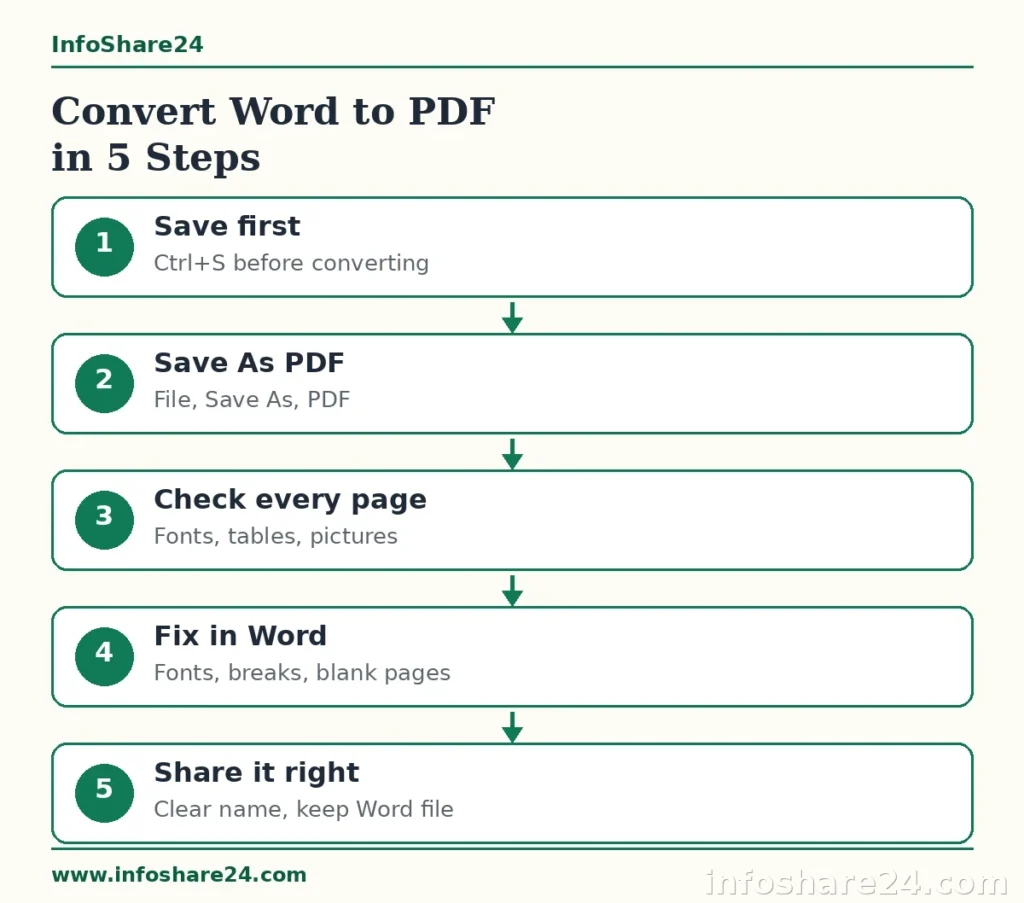
The Right Way to Save as PDF
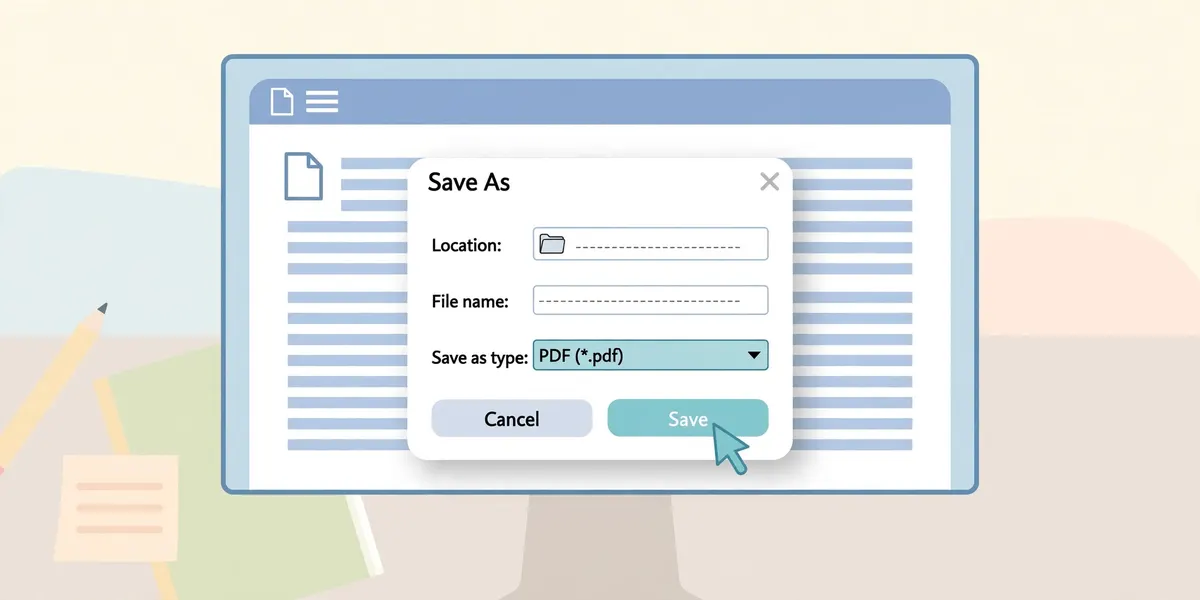
- The most reliable method is built into Word itself. Open your document, go to File, then Save As, choose the folder you want, and in the file type list choose PDF. Give the file a clear name and click Save. Word creates a PDF copy and leaves your original Word file untouched, so you can keep editing the Word version later.
- Avoid printing to PDF from a random website or pasting your document into an online converter when you can use Word’s own Save As. Online converters can change fonts, add watermarks, or keep a copy of your document, which is a risk for private files like a CV. Word’s built-in export is free, private and usually the most faithful to your layout.
- Before you convert, save your Word file first with Ctrl+S. This sounds obvious, but many formatting complaints happen because the Word file itself had unsaved changes. A saved Word file converts cleanly far more often than one with edits still waiting.
Why Formatting Sometimes Breaks
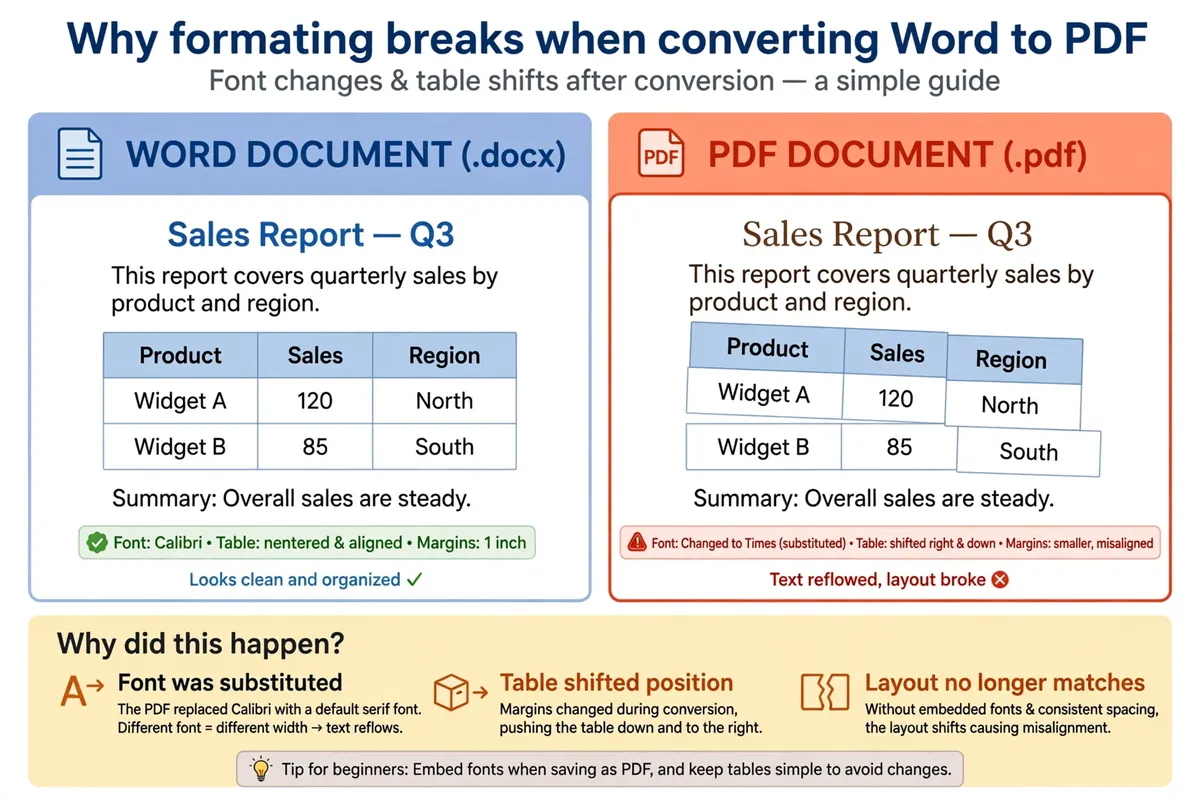
- The most common cause is fonts. If your document uses a fancy font that is not installed on the computer opening the PDF, the viewer may substitute a different font, and lines can reflow. The fix is to use common fonts in the first place, such as Calibri, Arial or Times New Roman, which are available almost everywhere. In Word’s PDF options, you can also choose to embed fonts, which packs the font information into the PDF so it displays correctly even without that font installed.
- Tables and pictures are the next cause. A table that is slightly wider than the page, or a picture anchored in an unusual way, can push content onto the next page during conversion. Keep tables inside the margins, and set pictures to a simple layout such as “In Line with Text” when you want them to stay exactly where you placed them. Floating pictures with text wrapping look flexible in Word, but they move most easily in a PDF.
- Page breaks deserve a quick look too. If Word breaks a page in an awkward place, the PDF will copy that break exactly. Fix breaks in Word before converting, by adjusting spacing or inserting a proper page break where you want one, rather than pressing Enter many times to push text down.
Check the PDF Page by Page

- Never send a PDF you have not opened. After converting, open the PDF and scroll through every page, slowly. Check the first page first, because that is what the reader sees first, then check tables, pictures and the last page. Look for cut-off text at the edges, pictures overlapping words, blank pages in the middle, and headings separated from the paragraphs that follow them.
- Check the file size as well. A PDF with many large photos can become tens of megabytes, which is hard to email. If your PDF is very large, reduce picture sizes in Word before converting, or use Word’s PDF option for minimum size, which compresses images. There is a trade-off: smaller files can make photos look slightly softer, so choose the smallest size that still looks good for your purpose.
- Also, test the PDF on your phone if the reader may open it there. A document that looks perfect on a laptop can feel cramped on a small screen. If your document is mainly for phone reading, keep paragraphs short and headings clear, so it stays readable even when zoomed.
Fix the Most Common Problems
- If text moves to a new page unexpectedly, look for a large picture or table near the break, and shrink it slightly or move it. If a font looks different in the PDF, change it to a common font in Word and convert again. If a table splits across pages in an ugly way, set the table rows to repeat the header row, or keep the table together where possible.
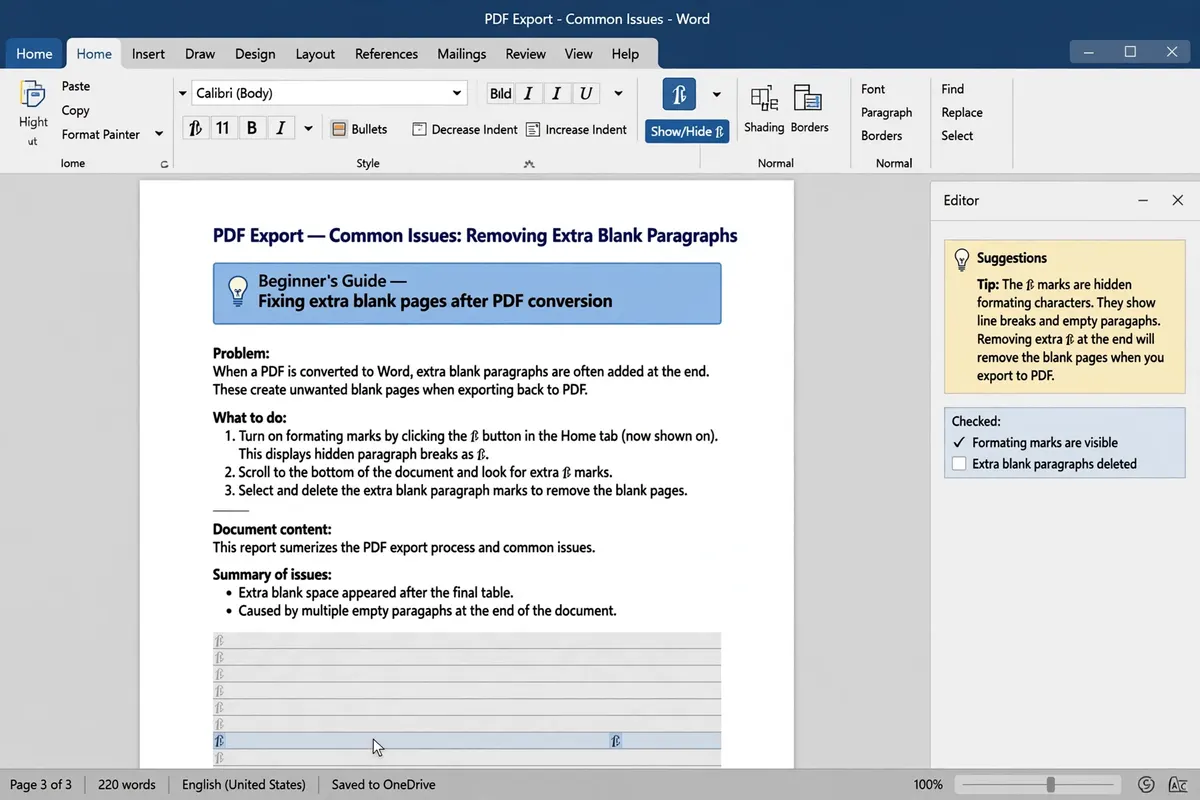
- If a blank page appears in your PDF, it is often caused by extra empty paragraphs at the end of your Word document, or a page break after the last paragraph. Turn on formatting marks in Word, delete the extra empty paragraphs, and convert again. Blank pages are easy to miss in Word’s normal view, but obvious in a PDF, which is another reason to always check the result.
- If the PDF looks fine on your computer but wrong on someone else’s, the cause is usually a missing font or an old PDF reader. Embedding fonts and using common fonts solves most of these cases. As a last resort, you can share both the PDF and the Word file, and tell the reader to use the PDF unless they need to edit.
Share It the Right Way
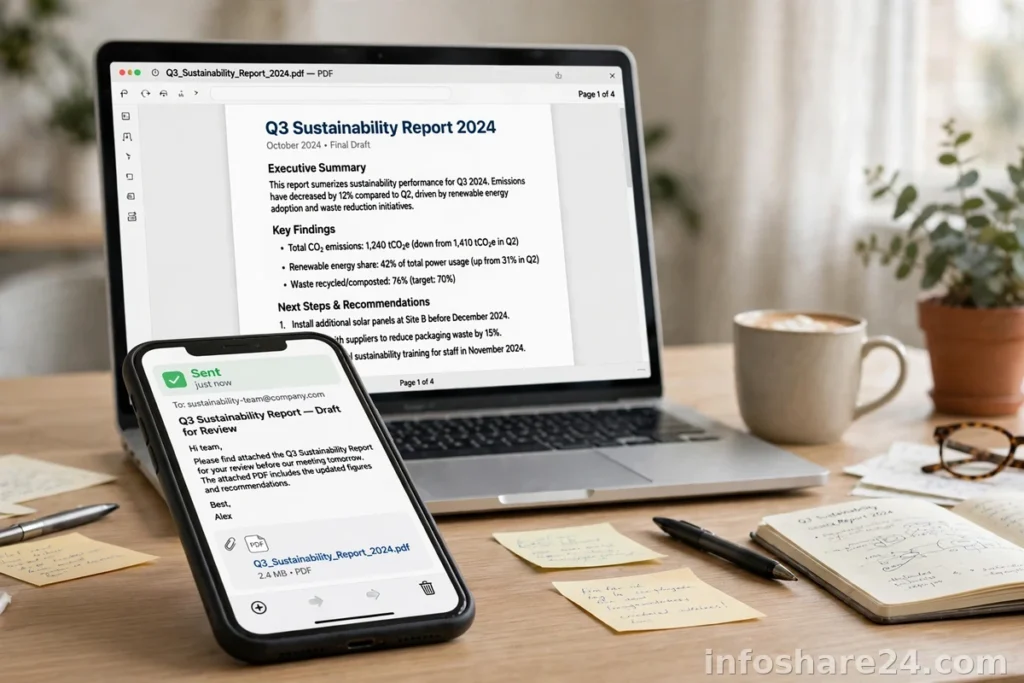
- When the PDF looks right, share it with a clear file name, such as YourName-CV.pdf or Report-October-2026.pdf. Avoid names like Document1.pdf or final-version-3.pdf, because the reader cannot tell what the file is, and you may send the wrong version by mistake. Keeping your files in a tidy folder system helps here, as explained in this guide: How to organise your files and folders on Windows.
- For email, attach the PDF rather than pasting the whole document into the email body, and write a short message explaining what the file is. If the file is large, consider a trusted cloud link instead of an attachment that may bounce. When you move files between devices, a simple transfer method keeps the PDF intact, as shown here: How to transfer files between phone and computer easily.
- Finally, keep the original Word file. PDF is for sharing and reading, not for editing. If you need to change the document later, edit the Word file and convert again, rather than trying to edit the PDF itself. That way you always have a clean source to work from.
Frequently Asked Questions
Is Save As PDF better than Print to PDF?
Usually yes. Save As PDF from Word keeps links, headings and fonts more faithfully, while Print to PDF treats the document like a printed page and can lose some features.
Why did my font change in the PDF?
The font may not be installed on the reader’s device, or it was not embedded. Use a common font and enable font embedding in Word’s PDF options, then convert again.
Why is my PDF file so large?
Large photos are the usual cause. Reduce picture sizes in Word before converting, or choose the minimum-size PDF option if slightly softer images are acceptable.
Can I convert Word to PDF on my phone?
Yes, the Word mobile app and many free apps can export to PDF, but check the result carefully, because mobile conversions sometimes handle tables and fonts differently.
Should I send the Word file or the PDF?
Send the PDF unless the reader needs to edit the document. PDF preserves your layout on every device, while Word files can shift with different fonts and settings.
Conclusion
Converting Word to PDF without losing formatting is mostly about preparation: use common fonts, keep tables and pictures inside the margins, save before converting, use Word’s own Save As PDF, and check every page of the result. When a problem appears, fix it in the Word file and convert again, rather than patching the PDF. Follow that routine, and your PDFs will arrive looking exactly as you intended, every time.

How to Track Changes in Word When Someone Edits Your Document