There is a small, colourful swirl on your Windows 11 taskbar. That is Copilot, Microsoft’s AI assistant — and most people either ignore it or open it once, get confused, and never return. This guide to Copilot on Windows 11 fixes that: what it is, how to open it, what it does well, and what you should not pay for.
Copilot on Windows 11 is free to start, and for everyday jobs — answering questions, summarising text, rewriting an email, or making a picture — the free version is enough. The confusion comes from the name: Microsoft uses “Copilot” for three different things.
What Is Copilot on Windows 11?
Copilot on Windows 11 is the free AI chat assistant built into Windows 11 as a standalone app. Type or speak a question, and it answers in plain language, often with links to sources. It can search the web, explain things, rewrite text, and generate images.
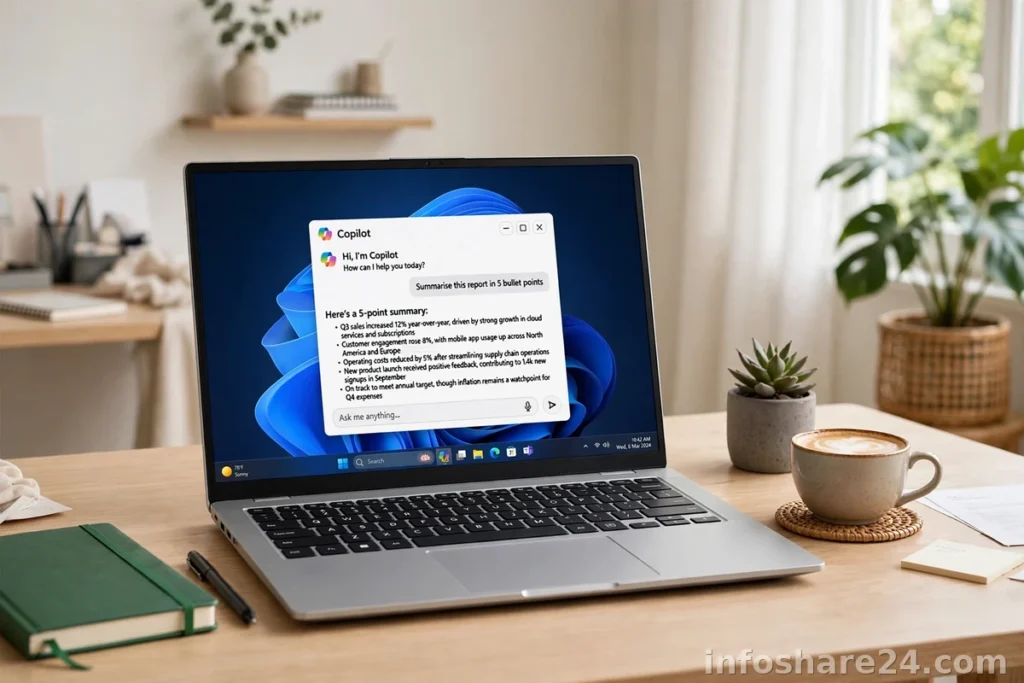
Since the Windows 11 24H2 update it is a normal app, not the old docked side panel — so guides showing a side panel are out of date.
Copilot works without signing in, but a free Microsoft account unlocks chat history, image generation, longer conversations, and voice. One honest limit: it cannot read your private files or emails. Only Microsoft 365 Copilot, on a work or school account, can do that.
The Three Copilots: Do Not Mix Them Up
Three different products share one name:
1. Copilot on Windows 11 (this guide). The free assistant in the Copilot app on your PC, at copilot.microsoft.com, and in the Edge sidebar. It chats, searches the web, talks, and makes images — with daily limits.
2. Microsoft 365 Copilot (work or school). The version inside Word, Excel, PowerPoint, Outlook, and Teams, paid for by your employer or school. It can summarise your emails and work files.
3. Copilot Pro (gone). The old $20-a-month plan for individuals. Microsoft stopped selling it on 1 October 2025 and replaced it with Microsoft 365 Premium. Any guide telling you to buy Copilot Pro is out of date — the most common mix-up on the internet in 2026.
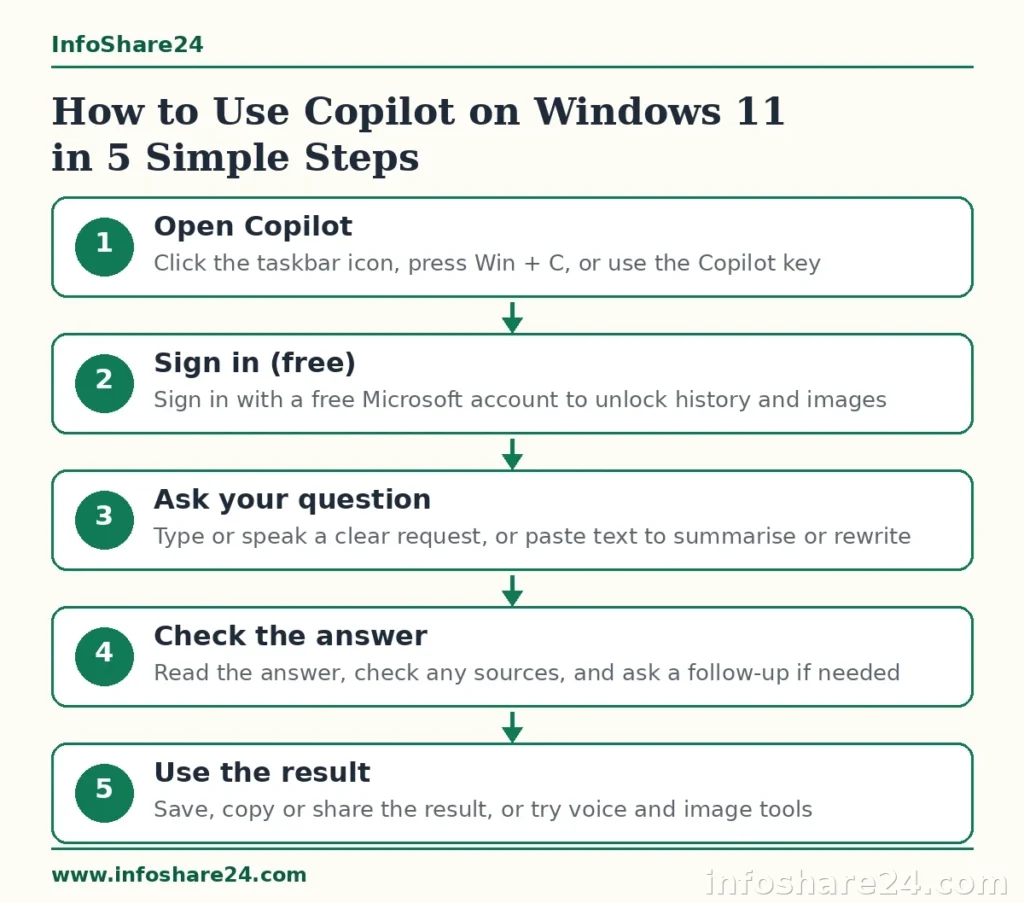
How to Use Copilot on Windows 11 in 5 Steps
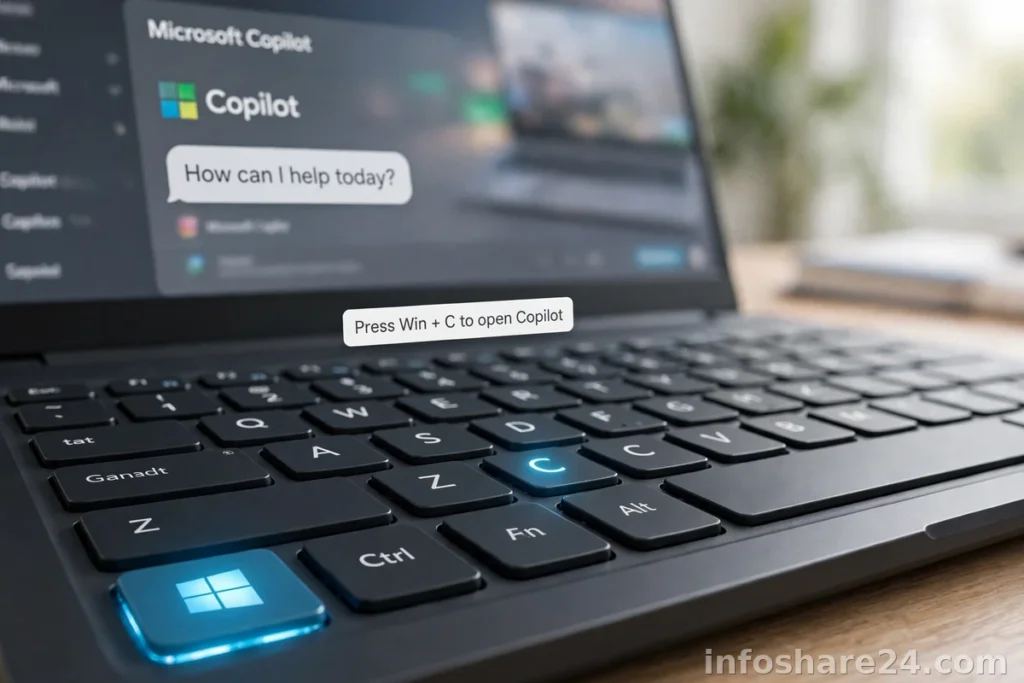
You need only a Windows 11 PC and, ideally, a free Microsoft account.
- Open Copilot. Click the Copilot swirl icon on the taskbar, press Win + C, or press the Copilot key on newer laptops. You can also search for “Copilot” in the Start menu.
- Sign in with a free Microsoft account. Click the account icon and sign in to switch on chats, history, and image tools. Without signing in you can still chat, but image generation and voice stay locked.
- Type or speak your question. Type in the box at the bottom, or click the microphone and talk. Be specific: try “Summarise this in five bullet points” and paste your text after it.
- Check the answer before you use it. Read it through, click any source links, and ask a follow-up such as “Explain that in simpler words.”
- Copy, save, or ask for more. Copy the answer into your document, ask for a different tone, or start a new chat.
If the taskbar icon is missing, turn Copilot on under Settings > Personalisation > Taskbar; if the app is missing, get it free from the Microsoft Store. If Win + C opens Search, Copilot is off — open it from the taskbar or Start menu.
Ask specific questions: “What are the three biggest changes in the budget this year, in simple words?” beats “Tell me about the economy.” More help: How to Write Better Prompts for AI Chatbots: A Beginner’s Guide.
Everyday Things You Can Do With Copilot
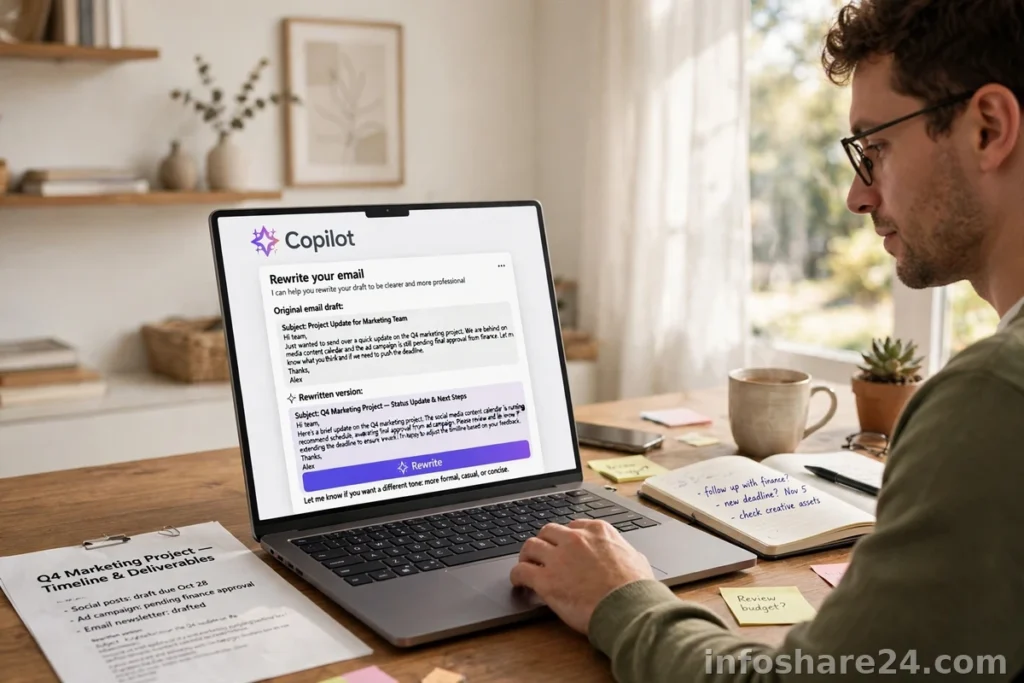
Summarise long text. Paste a long article or report and ask for the main points in five bullets. For longer documents, see: How to Use AI to Summarise Long Articles and PDFs.
Rewrite emails and messages. Paste a rough draft and ask for a clearer, shorter, or more polite version. The same skill helps with a CV: How to Use AI to Write a Better CV.
Get Windows help without searching. Ask “How do I turn on Night Light on Windows 11?” and Copilot explains the steps. More shortcuts: 10 Windows 11 Tips to Work Faster Every Day.
Ask questions with current answers. Copilot searches the web, so it can answer questions about recent news, with links you can click. Click at least one link before trusting an important fact: How to Check If an AI Answer Is Accurate Before You Trust It.
Free vs Paid: What You Actually Get
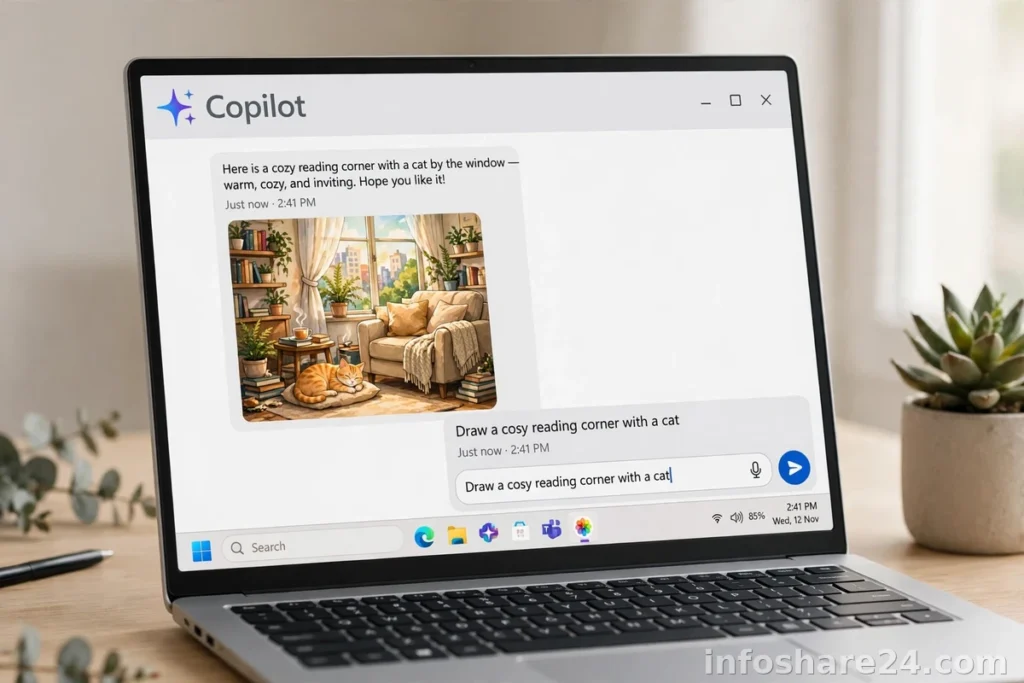
The free Copilot covers chat, web search, voice, and image generation. The catch is limits: free image generation is capped each day. Guides that checked Microsoft’s pages in October 2026 report about 15 fast image creations a day on a free account — after that, pictures still generate, but more slowly. A few uses a day will rarely hit a limit.
Paying buys Copilot inside the Office apps, not a better Copilot on your taskbar. Microsoft 365 Personal ($9.99 a month) and Family ($12.99 a month, US prices) both include a limited monthly allowance of AI credits for Copilot inside Word, Excel, PowerPoint, and Outlook.
Microsoft 365 Premium, at $19.99 a month ($199.99 a year), replaced Copilot Pro. It gives extensive Copilot use inside the apps, priority access to new features, and the advanced Researcher and Analyst agents, plus extra OneDrive storage. Worth it only if you work in Word, Excel, or Outlook every day.
Start free. Pay only if you keep hitting a limit, or if you specifically want Copilot inside the Office apps. Never pay for “Copilot Pro” — no one can sell it to you any more. Protect yourself online: What Is Two-Factor Authentication and How to Turn It On.
5 Common Mix-Ups to Avoid
- Paying for Copilot Pro. Discontinued on 1 October 2025; its replacement is Microsoft 365 Premium at $19.99 a month.
- Expecting Copilot to read your files. The free Copilot cannot see your documents or emails. That needs Microsoft 365 Copilot on a work or school account.
- Trusting every answer. Copilot can get facts wrong, especially numbers and dates. Check important answers against its source links.
- Pasting private information. Never paste passwords, bank details, or company-confidential text into any AI chatbot, including Copilot.
- Using old instructions. The side-panel Copilot and the “Copilot Pro $20” price are both out of date. If a guide mentions them, check the date.
Frequently Asked Questions
Is Copilot on Windows 11 free?
Yes, with a Microsoft account. You pay only for Copilot inside the Microsoft 365 apps.
What happened to Copilot Pro?
Microsoft stopped selling Copilot Pro on 1 October 2025. Its features moved into Microsoft 365 Premium at $19.99 a month in the US.
What is the shortcut to open Copilot on Windows 11?
Press Win + C, click the Copilot icon on the taskbar, or press the Copilot key on newer keyboards. If Win + C opens Search, Copilot is off — open it from the taskbar or Start menu.
Can Copilot on Windows 11 make images?
Yes. Type “draw” and describe the picture. Free accounts get about 15 fast generations a day, per October 2026 guides — then they slow down.
Final Thoughts
Copilot on Windows 11 is best as a quick helper, not a magic answer machine: open it with Win + C, ask one clear question, check the answer, and move on. The free version covers everyday jobs, paid plans only matter inside Office apps, and Copilot Pro has not existed since October 2025.
Try it today: open Copilot, paste a long email, and ask for a five-bullet summary.