Someone sends your document back looking different — words crossed out, new sentences in colour, notes in the margin. Nothing is lost, and nothing is final yet. That is what happens when you track changes in Word: every edit is recorded as a suggestion you can keep or undo.
Track Changes is built into Word for Microsoft 365, Word 2021, and Word 2024, and Word for the web too.
What Track Changes Actually Does
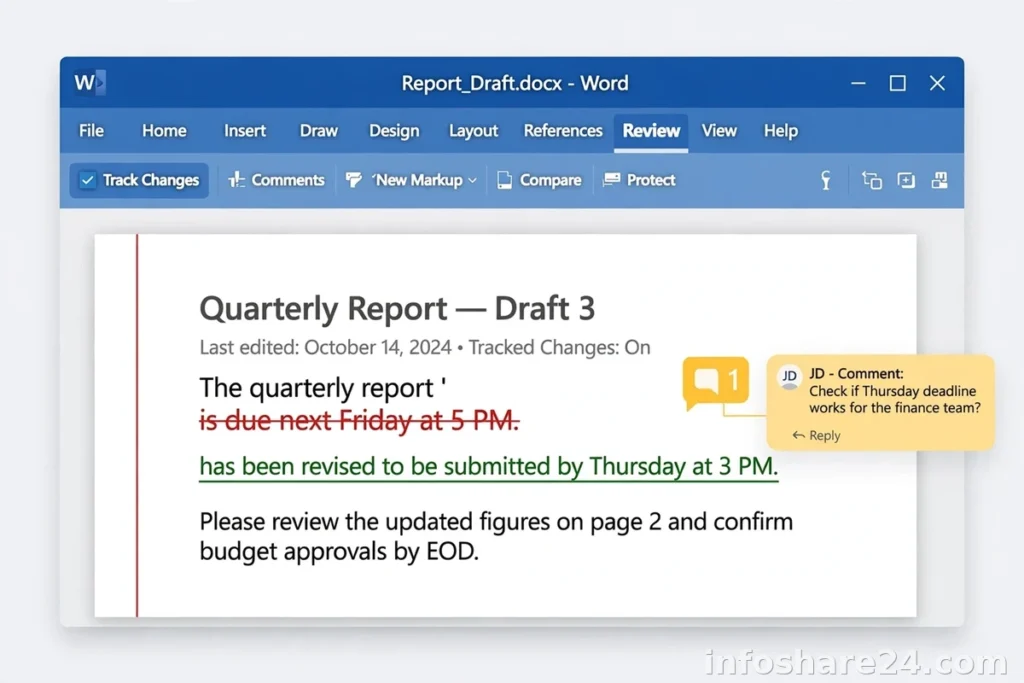
When Track Changes is on, Word records every change instead of editing your text directly. Added words appear underlined in a colour, deleted words stay visible with a line through them, and each person’s edits get their own colour.
Above, the line “The quarterly report is due next Friday at 5 PM.” is crossed out in red, and “has been revised to be submitted by Thursday at 3 PM.” appears in green below it. A margin comment asks, “Check if Thursday deadline works for the finance team?” Nothing is decided yet — that is the point.
Nothing is permanent until you decide. Accept a change and it becomes part of the document; reject it and the original text comes back. Comments are separate: notes in the margin that never change the text.
How to track changes in Word: Turn It On in 30 Seconds
Turning it on takes less than a minute — do it before you edit, or before you send the file on.
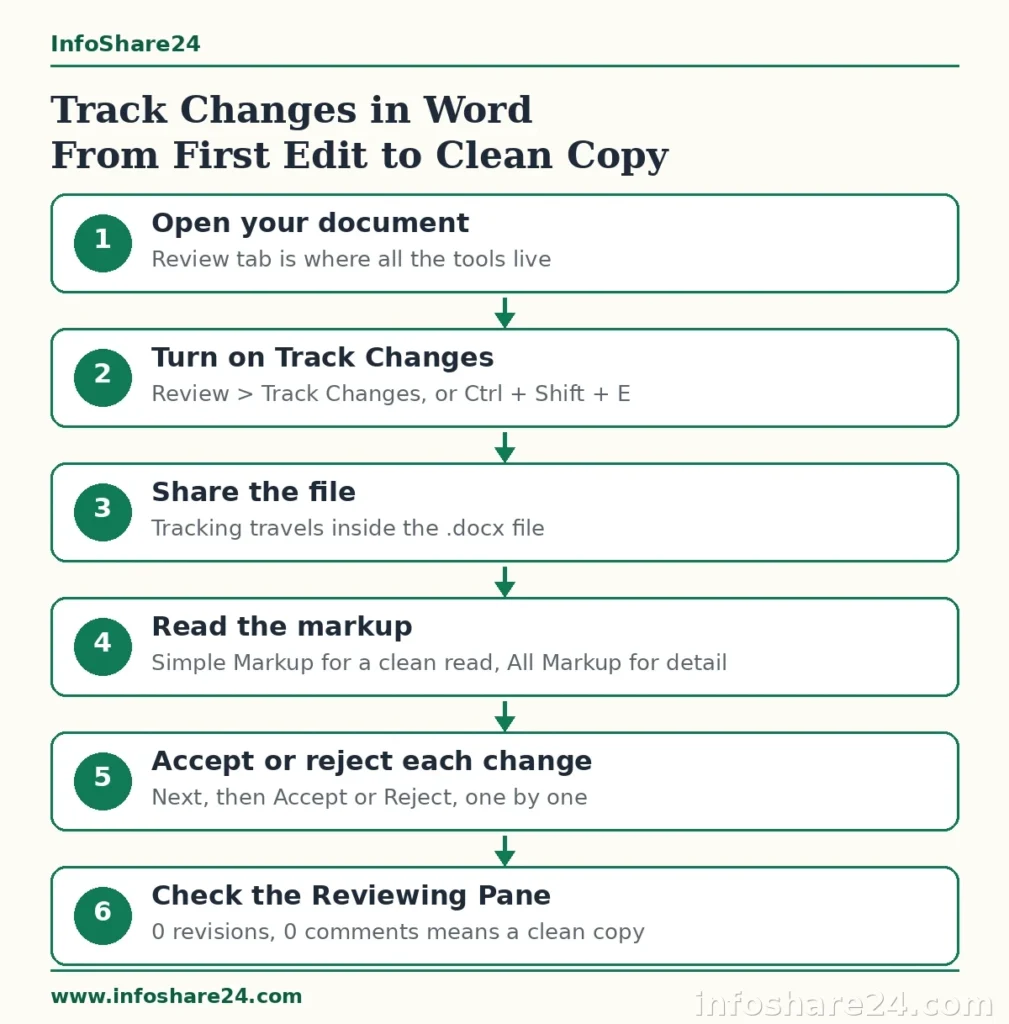
- Open your document in Word. It works in Word for Microsoft 365 and Word 2021 and 2024.
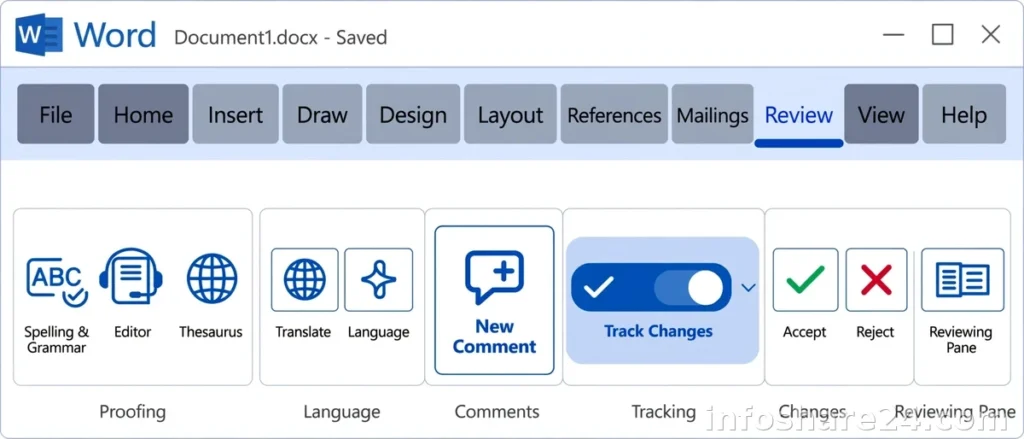
- Click the Review tab. It is on the ribbon at the top, between Mailings and View.
- Click Track Changes. The button stays highlighted while tracking is on.
- Choose who to track. Click the small arrow underneath: For Everyone records every editor, Just Mine records only you.
- Edit as normal. New words appear underlined in colour; deleted words show with a line through them.
- Pick how much markup you see. The dropdown next to Track Changes offers All Markup for full detail, or Simple Markup for a clean read.
- Save as a .docx. Tracking travels with the file. Too large to email? Share it with Google Drive — how to share large files safely with Google Drive.
Shortcut: Ctrl + Shift + E on Windows, Command + Shift + E on Mac. Turning it off only stops new edits — old marks stay until you accept or reject them.
How to Read the Markup: Simple Markup vs All Markup
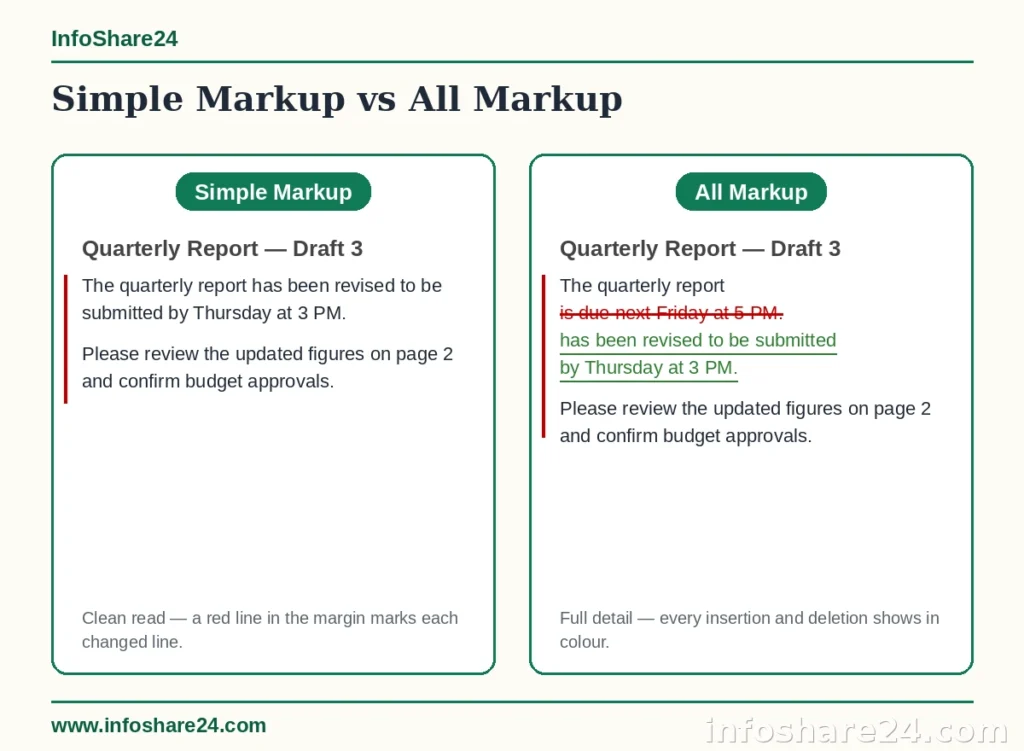
Word gives you four views of one document. They change what you see — never the edits.
- Simple Markup: the clean view. Text reads as if every change were accepted, with a thin red line in the margin marking changed lines.
- All Markup: the full view. Every insertion, deletion, and formatting change shows in colour.
- No Markup: hides all marks so you can read the final version. The changes are still there — only hidden.
- Original: the document before any tracked change, as if you had rejected them all.
Picking No Markup does not remove changes — only accepting or rejecting does.
How to Accept or Reject Changes One by One
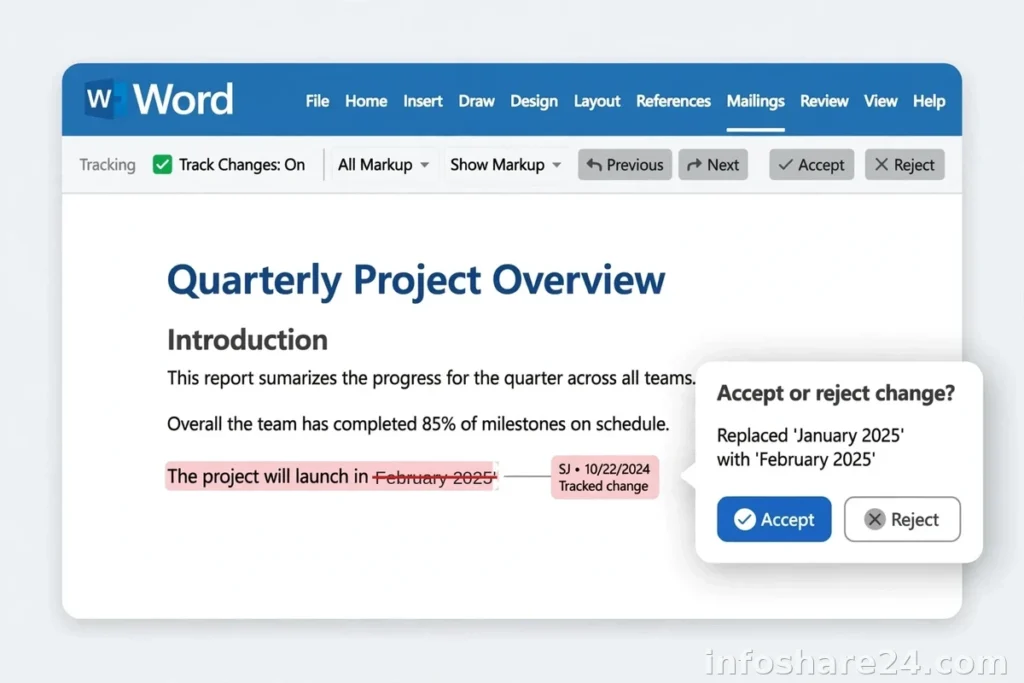
Reviewing is a loop: go to a change, decide, move on.
- Click the Review tab, then click Next. Word jumps to the first tracked change.
- Read the change in context. One word can change a whole paragraph.
- Click Accept to keep it. The markup disappears and Word moves to the next change.
- Click Reject to undo it. The original text comes back.
- Or right-click the change for Accept Insertion or Reject Deletion.
Both buttons have a dropdown with Accept All Changes and Stop Tracking. Only use those when you trust every edit — otherwise review one by one.
Add a Comment So Your Editor Knows Why
Sometimes an edit needs a reason. That is what comments are for.
- Select the text you want to comment on.
- Click Review, then New Comment. A bubble opens in the margin.
- Type your note, then click outside the bubble.
Others can reply to a comment. To remove them for good, go to Review, then Delete, then Delete All Comments in Document — accepting edits does not delete them.
See Every Change in One List: The Reviewing Pane
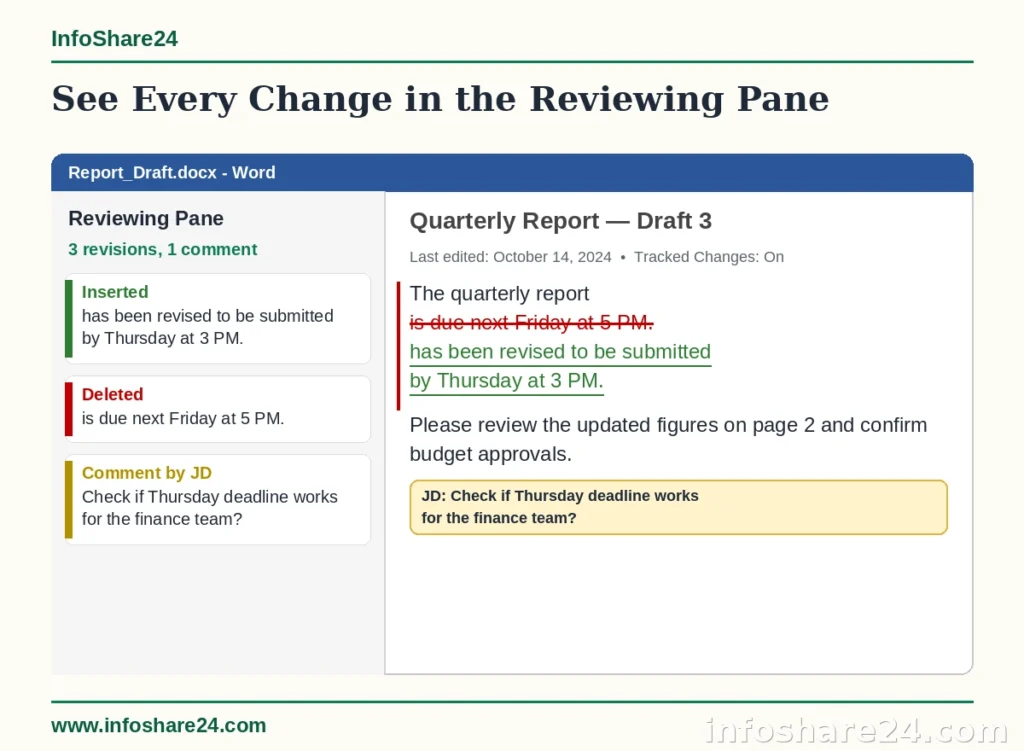
On a long document, one change can hide on page nine. Click Review, then Reviewing Pane: a panel lists every revision and comment, with a summary count at the top. When it reads “0 revisions, 0 comments”, the document is truly clean. A table of contents also helps a reviewer jump between sections — see how to create a table of contents in Word automatically.
Lock Tracking So Nobody Can Turn It Off
To make sure every edit is recorded, lock tracking: click the arrow under Track Changes, choose Lock Tracking, and set a password. While locked, nobody can turn tracking off or accept and reject changes without the password. Treat it as a light guard, not security — it stops accidents, not a determined person.
How to Turn Off Track Changes and Send a Clean Copy
Before a document leaves your hands:
- Turn tracking off. Click Track Changes again, or press Ctrl + Shift + E.
- Clear every change left. Under Accept, choose Accept All Changes and Stop Tracking — or Reject All Changes and Stop Tracking for the original back.
- Delete any comments left. Review, then Delete, then Delete All Comments in Document.
- Check the Reviewing Pane. If it shows 0 revisions and 0 comments, save and send.
Never send a CV with tracked changes still in it — if yours needs a refresh, see how to make a professional CV in Microsoft Word.
Track Changes in Word for the Web and on Mobile
In Word for the web, open the Review tab, click Track Changes, and choose For Everyone or Just Mine — or switch the Editing menu at the top right to Reviewing. On iPhone, iPad, and Android, open the Review tab, tap Track Changes, and use Accept and Reject from the same tab. Smaller buttons, same workflow.
Common Problems and Quick Fixes
“I can’t see any changes.” The view is probably Simple Markup or No Markup. Switch to All Markup on the Review tab.
“The Track Changes button is greyed out.” The document is protected. Lock Tracking needs its password; Restrict Editing can be lifted from Review, then Restrict Editing, then Stop Protection.
“I turned it off, but the marks are still there.” Turning it off only stops new edits being recorded. Accept or reject the old ones to clear them.
Frequently Asked Questions
Does turning off Track Changes remove the edits?
No — it only stops new edits being recorded. Old marks stay until you accept or reject them.
Can I track changes in a PDF or a Google Doc?
No — it only works inside a Word file. Accept all changes first, then convert to PDF — see how to convert Word to PDF without losing formatting.
Who can see my tracked changes?
Anyone who opens the .docx file. Accept or reject everything, delete the comments, and confirm 0 revisions and 0 comments in the Reviewing Pane before you send it.
Conclusion
Track Changes turns a Word document into a conversation: every edit is visible, every decision is yours, and nothing disappears by accident. Turn it on from the Review tab, review each change one by one in All Markup, and finish with the Reviewing Pane — then the document you send is exactly the one you meant to send.