You search for your bank’s app, and the first result looks exactly right. Same name, same logo, same colours. You tap Install — and you may have just given a stranger your photos, your contacts, or your bank login. Learning how to spot a fake app before you download it takes about two minutes, and it is a skill worth learning.
Fake apps are copies of real apps, made to steal money, passwords, or personal data. Most of them leave clues on the store page itself. This guide works for Android and iPhone, using only the free checks already built into Google Play and the App Store.
Why Fake Apps Are So Easy to Miss
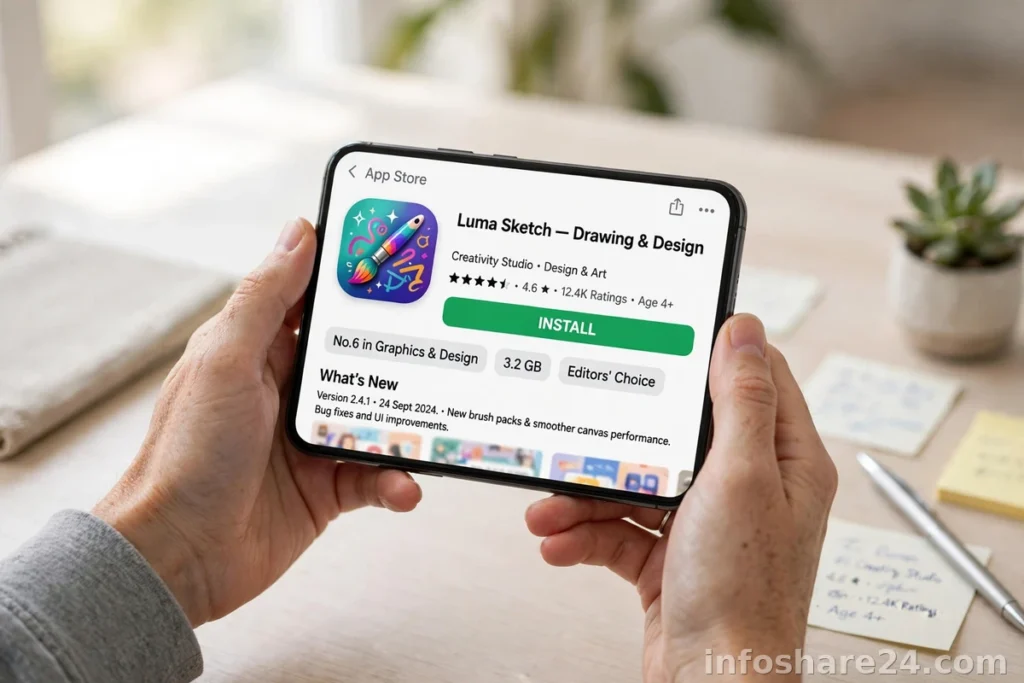
A fake app does not look fake. That is the whole trick. The icon is copied, the name is almost the same, and the screenshots are often stolen from the real app. Most people install one in a hurry, or after following a link from a message, an ad, or a search result.
The stores do fight back. Google says it blocked about 1.75 million policy-violating apps from Google Play in 2025, and Apple rejected more than 2 million problem app submissions. Even so, some bad apps slip through, and some only turn bad after an update. A high star rating does not protect you either: Google blocked 160 million fake or manipulated ratings and reviews in 2025. The same copycat trick appears in messages too — see How to Spot a Phishing Message in 30 Seconds.
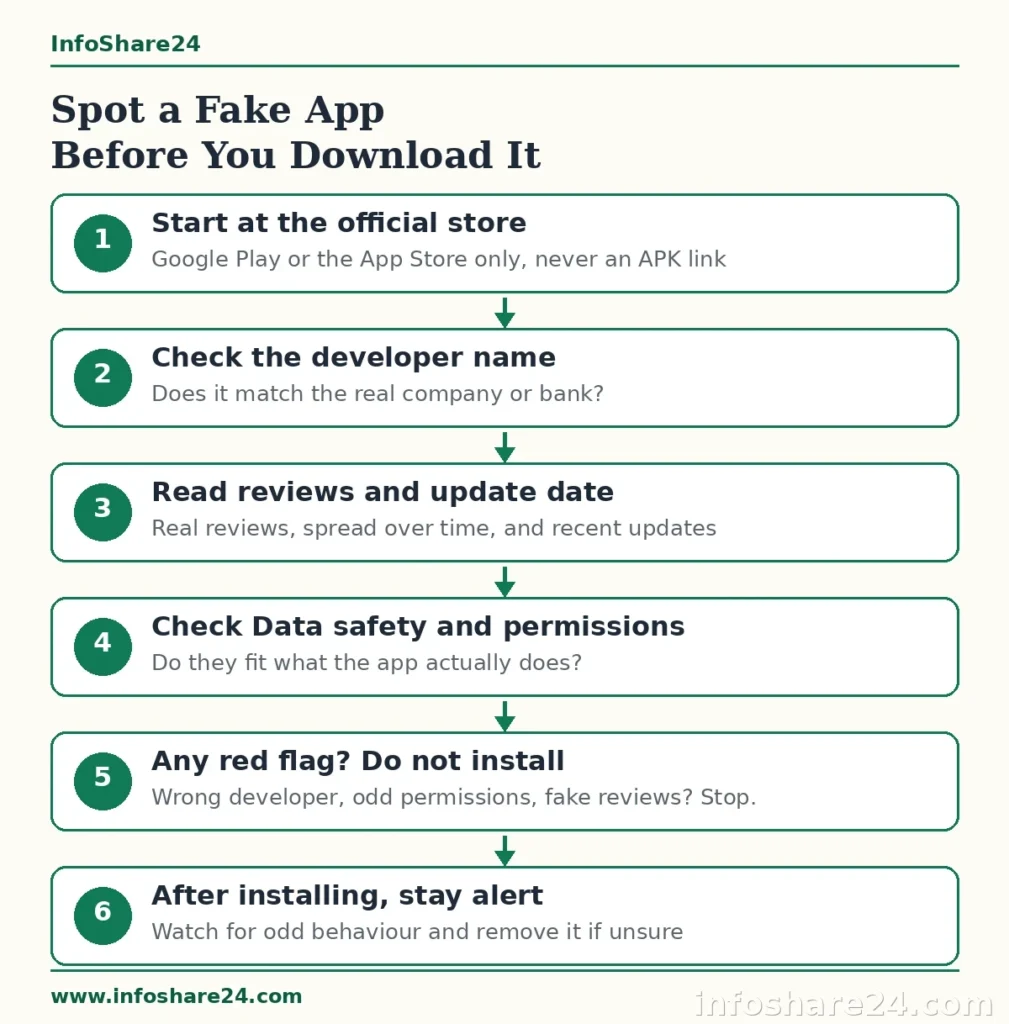
How to Spot a Fake App in 2 Minutes
Run these seven checks in order. You do not need any extra app, and you do not need to be technical. If any check fails badly, stop — there is always a safe alternative.
- Start from the official store, not a link. Open Google Play or the App Store yourself and search there. Never install from a link in a message, a chat group, an ad, or a random website — those can lead to a look-alike page or an APK file. Google says sideloaded sources carry over 50 times more malware than Google Play.
- Check the developer name — it is the single most useful clue. It sits right under the app title on both stores. Ask one question: is this who you would expect? A banking app should come from the bank itself, WhatsApp from WhatsApp LLC, and Chrome from Google LLC. A popular app published by an unknown person, or a name with one letter changed, is a warning sign.
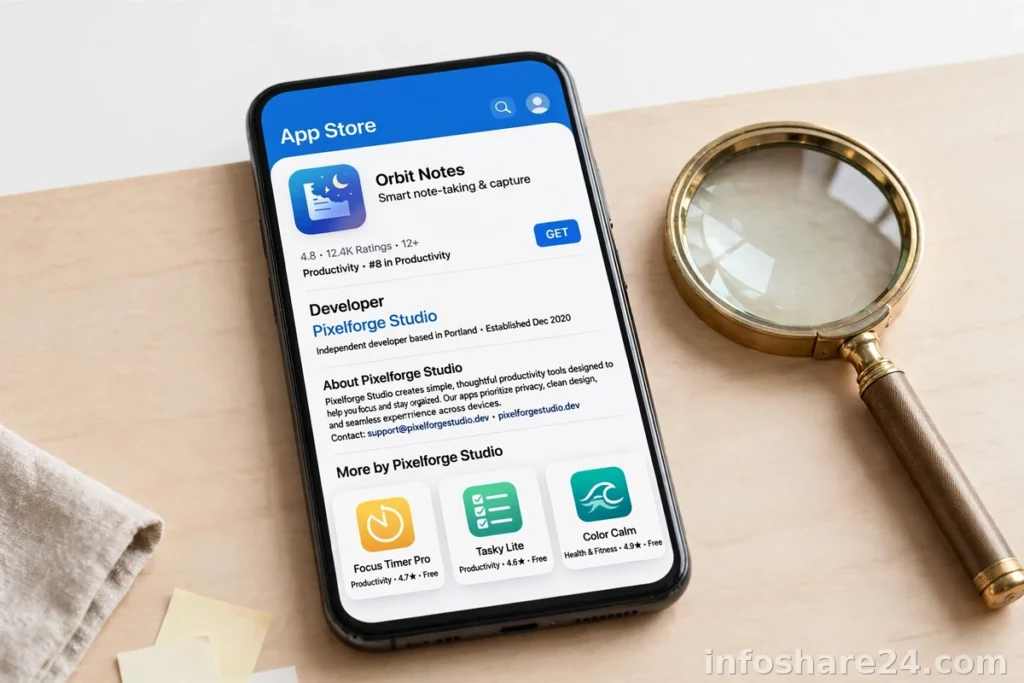
- Compare the details with the real app. Check the spelling of the app name, the icon, and the description. Fake apps often have small spelling mistakes, awkward English, or a description copied from the real app. Stretched, blurry, or stolen screenshots point to a low-effort copy. A banking app with only a few thousand downloads does not add up.
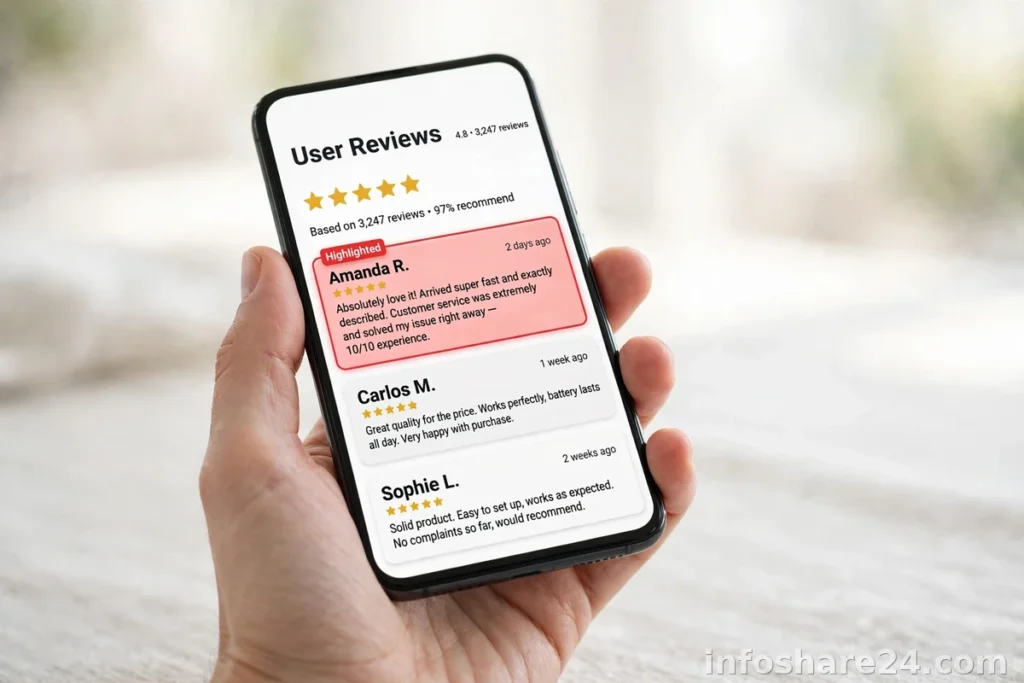
- Read the reviews — the bad ones first. Sort by most recent and read the one-star and two-star reviews before the five-star ones. Real users complain about real problems: crashes, surprise charges, ads that will not close, or strange permission requests. Be suspicious of many short, vague, five-star reviews posted on the same day. Also check the update date: a real app is updated regularly. For a safer starting point, see Best Android Apps for Everyday Life in 2026.
- Read the Data safety section, or App Privacy on iPhone. On Google Play, scroll to Data safety and tap “See details” to see what the app collects and shares. On the App Store, scroll to App Privacy. Both labels are written by the developer, not checked by the store — but an empty section, or a torch app that collects your contacts, tells you plenty.
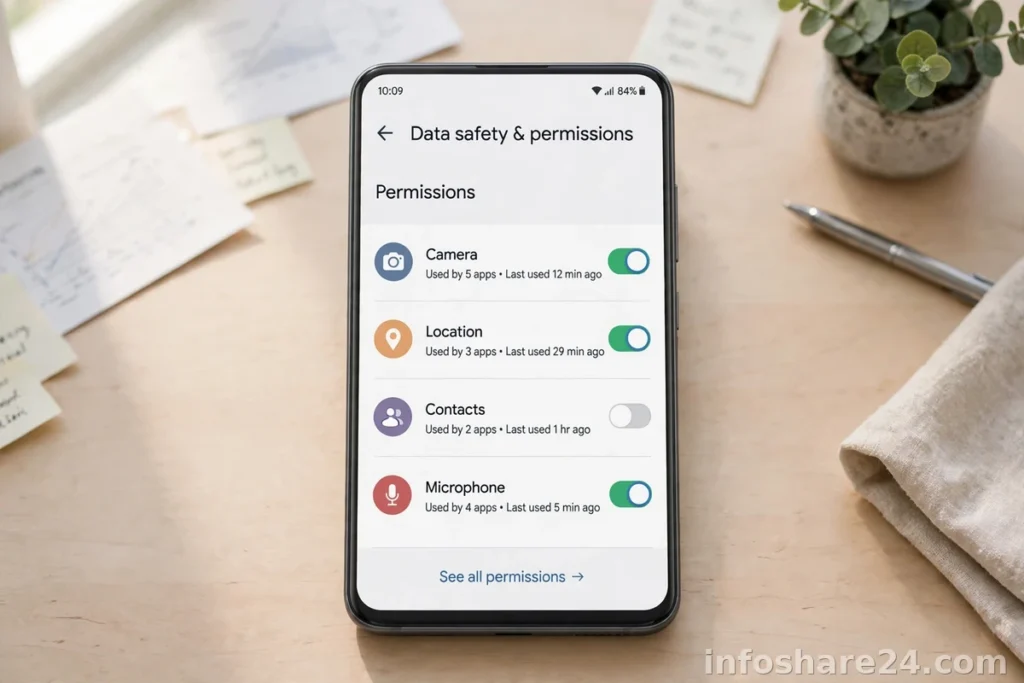
- Match the permissions to the job. Before you install, tap “App permissions” at the bottom of “About this app” on the listing. A photo editor needs storage. A barcode scanner needs the camera. A torch app does not need your contacts, SMS, call logs, or precise location. After installing, say no to any permission that does not fit. Be extra careful with Accessibility access or device administrator requests: those powers can let an app read your screen or intercept codes.
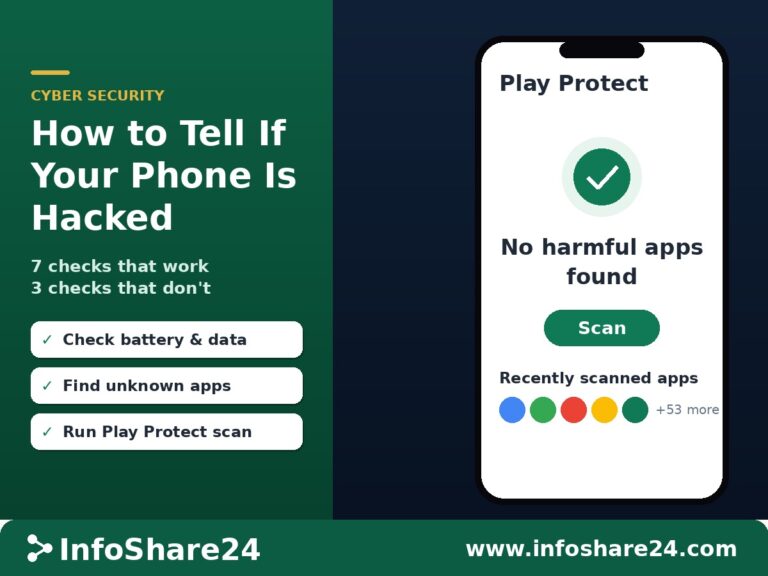
- Keep Play Protect on and respect warnings. On Android, Google Play Protect is built into phones with Google services. Open the Play Store, tap your profile picture, then Play Protect, and make sure scanning is on. On iPhone, use the App Privacy Report in Settings. If your phone or the store warns you not to install something, close the page. No app is worth switching off your phone’s protection for.
Red Flags That Should Make You Stop
No single clue proves an app is fake, but several together are a clear answer: do not install it. Stop if the developer name does not match the brand, or if the developer has no website or support email. Stop if the app asks for SMS, call logs, or Accessibility access without an obvious reason — that combination is the fingerprint of apps built to steal codes and read screens. Stop if the reviews are one-line praise posted the same day, or the description is full of spelling mistakes. Stop at an unknown “security” app: fake ones scare you with false warnings, then demand broad permissions or a subscription. And stop if anyone pressures you to install quickly or turn off Play Protect — see How to Spot and Avoid OTP Scams.
What to Do If You Already Installed a Suspicious App
Do not panic — act quickly and in order. First, uninstall the app. On Android, long-press its icon and tap Uninstall; on iPhone, long-press and tap Remove App, then Delete App. Second, change the passwords of any accounts you used inside it, starting with your email and your bank, and turn on two-factor authentication — see What Is Two-Factor Authentication and How to Turn It On. If you entered card details, ask your bank to watch or block the card. Third, run a scan: Play Protect on Android, or the App Privacy Report on iPhone. Fourth, check whether your email or password has already appeared in a leak with our guide How to Check If Your Email or Password Has Been Leaked. Finally, watch your accounts for a few days, and report the fake from its store listing.
Frequently Asked Questions
Can a fake app appear in the official Google Play Store or App Store?
Yes. Both stores remove millions of bad apps every year, but some slip through, and some turn bad after an update. A store listing lowers the risk — it is not a promise.
Is a high star rating proof that an app is real?
No. Ratings can be bought or faked, and Google blocked 160 million fake or manipulated ratings and reviews in 2025 alone. Read the recent low-star reviews instead.
What is the safest way to download an app?
Start on the company’s official website and follow its own link to the store, then run the checks in this guide. Never install an APK file sent through a message or downloaded from a random site.
Conclusion
To spot a fake app, slow down for two minutes before you tap Install. Start at the official store, check that the developer is who you would expect, read the recent bad reviews, and make sure the permissions and Data safety section fit what the app actually does. If anything does not add up, skip it — there is always a real version, or a safe alternative.
Make the two-minute check a habit, and teach it to your family too.