Your laptop has no Wi-Fi, the cafe router is down, or you are on a train with only your phone. That is when an Android phone as a Wi-Fi hotspot saves the day: your phone shares its mobile data and creates a small, private Wi-Fi network your laptop, tablet, or a friend’s phone can join.
It takes less than a minute to set up and works almost anywhere you have signal. But a hotspot with no password lets strangers use your data, and one left on all afternoon can drain your battery and eat your data pack. This guide shows the safe way: set it up, lock it down, watch your data, and switch it off when done.
What Is a Mobile Hotspot?
A mobile hotspot turns your phone into a small Wi-Fi router: it uses its mobile data connection and broadcasts a Wi-Fi network other devices can join, just like your home router. The other device needs no SIM or cable — only Wi-Fi and your password.
People use them to finish work on a laptop during a power cut, get a tablet online on a bus ride, or help a friend whose data has run out. It is also far safer than a random open network in a public place, because the connection is yours and protected by a password you control — see How to Stay Safe on Public Wi-Fi for why that matters.
First, check your plan allows tethering: most do, but some cheaper plans block it, charge extra, or set a separate hotspot limit.
How to Set Up Your Android Phone as a Wi-Fi Hotspot
These steps are for stock Android (Pixel). On Samsung, go to Settings, then Connections, then Mobile Hotspot and Tethering.
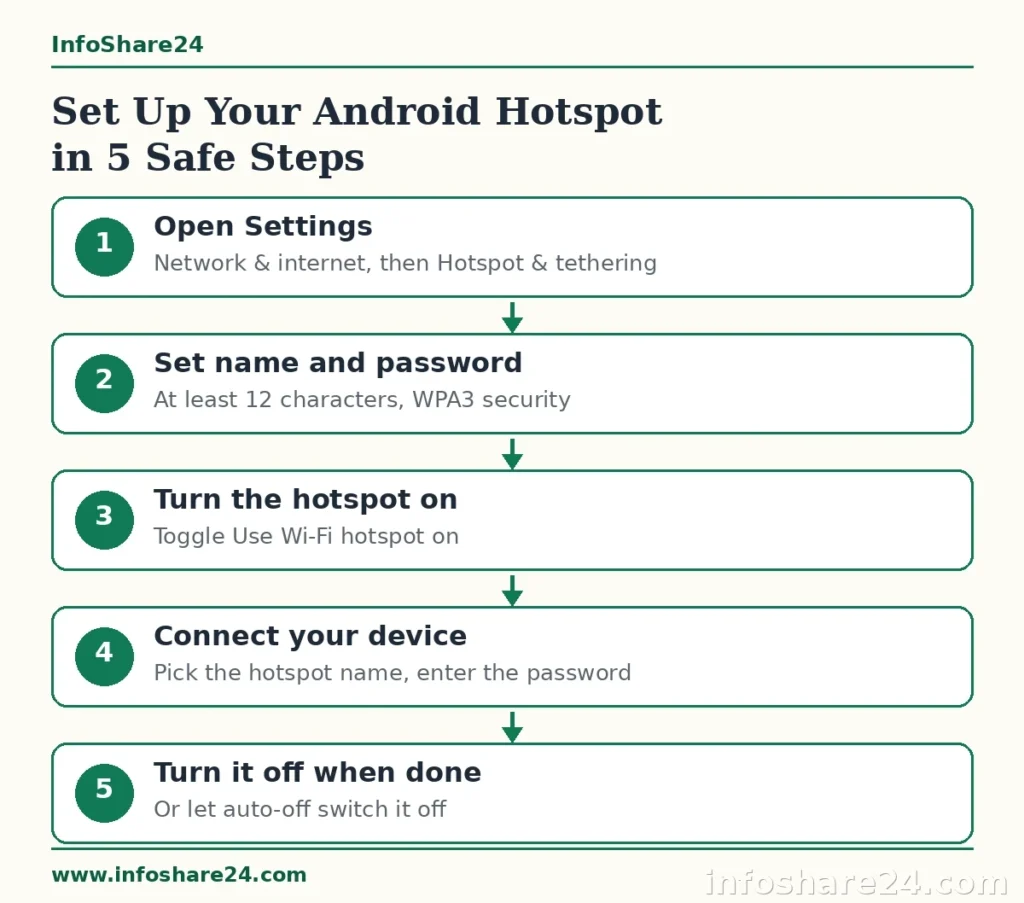
- Open Settings, then tap Network & internet. Tap Hotspot & tethering — or type “hotspot” in the Settings search bar.
- Tap Wi-Fi hotspot. This opens the hotspot screen, with the name, password, and the on switch.
- Give your hotspot a name. Tap Hotspot name and type something simple and neutral, such as “My Hotspot”. Avoid your full name — strangers nearby can see it in their Wi-Fi list.
- Set a strong password. Tap Hotspot password and type at least 12 characters, mixing letters, numbers, and symbols. Do not use your birthday, phone number, or “12345678” — see How to Create a Strong Password for ideas.
- Choose the strongest security your phone offers. Pick WPA3 if you see it. If an older laptop cannot connect, drop back to WPA2. Never choose “None” — that leaves your hotspot with no password.
- Pick a band if your phone offers the choice. Choose 2.4 GHz for range and compatibility, or 5 GHz for faster speed nearby. If unsure, leave it on 2.4 GHz.
- Turn the hotspot on. Switch on “Use Wi-Fi hotspot”. Next time, swipe down twice and tap the Hotspot tile in Quick Settings.
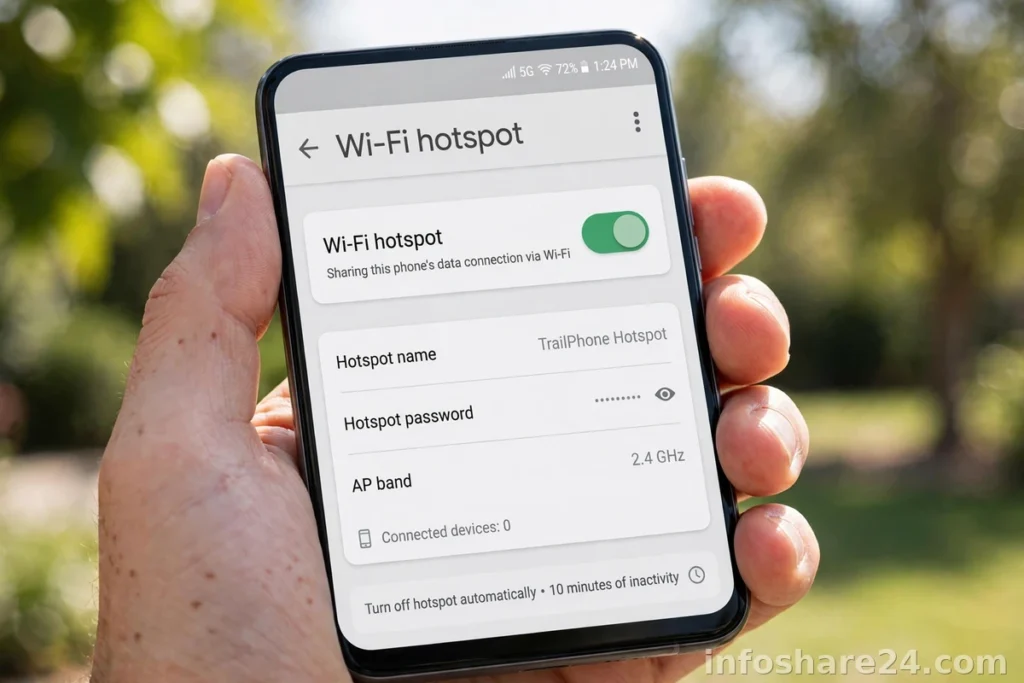
Turn on “Turn off hotspot automatically” too.
How to Connect Another Device to Your Hotspot

Connecting takes only a few seconds, and you only type the password the first time.
- On the other device, open the Wi-Fi list. On a laptop, click the Wi-Fi icon; on a tablet, open Settings and tap Wi-Fi.
- Pick your hotspot name from the list. It is the name you set above, such as “My Hotspot”.
- Type the hotspot password and tap Connect. The device saves it, so next time it joins on its own.
- Check it worked. Open a web page — if it loads, you are online.
The hotspot screen shows how many devices are connected — if you see one you do not recognise, change the password at once. If a device cannot find your hotspot, move it closer.
How to Keep Your Hotspot Safe
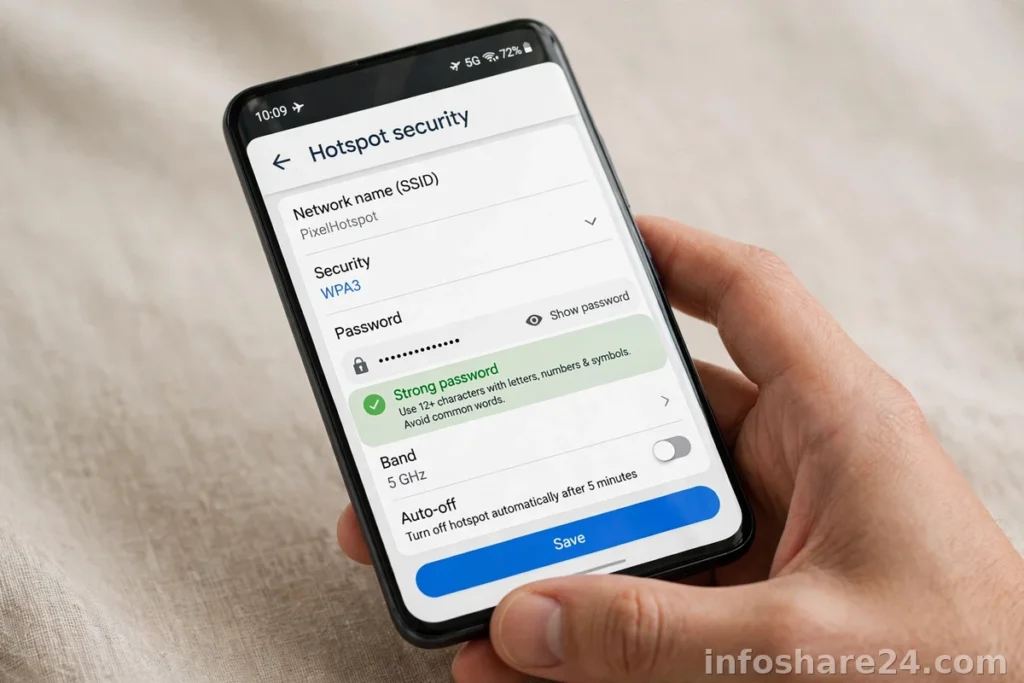
A hotspot is your own private network, but only if you treat it like one.
- Use a strong, unique password — never your email or banking password.
- Keep WPA3 switched on. Only fall back to WPA2 when an older device refuses to connect.
- Keep the name neutral. “My Hotspot” tells strangers nothing.
- Check the connected devices list when you share in a busy place. If the count is higher than you expect, change the password.
- Share the password privately — tell it to the person, or type it in yourself. Never post it in a group chat.
How Much Data Does a Hotspot Use?
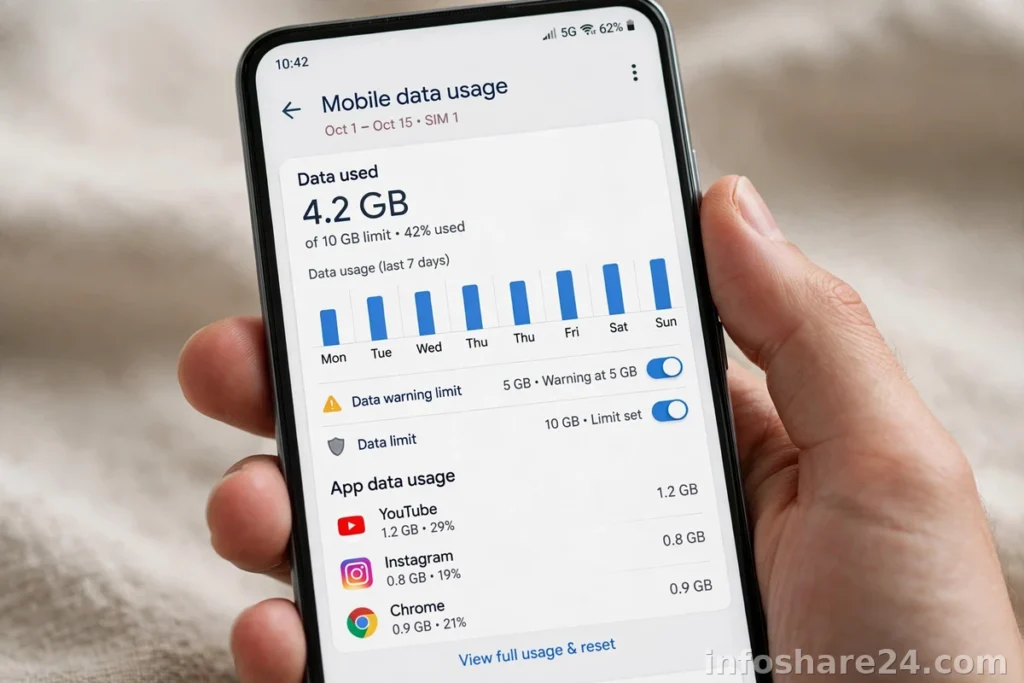
A hotspot uses your phone’s mobile data, and a laptop burns through it far faster than a phone — background updates, cloud sync, and full desktop sites all use more data than their mobile versions.
As a rough guide, one hour of standard video uses about 1 GB, high-definition video up to 3 GB, and video calls roughly 1 GB — while browsing and email use far less.
To watch the meter, go to Settings, then Network & internet, then SIMs, and tap App data usage. Better still, set a warning: turn on “Data warning” below your monthly limit, and “Data limit” so Android cuts mobile data off before you go over. See How to Reduce Mobile Data Usage for more ways to stretch a data pack.
Hotspot Not Working? Try These Fixes
If it will not switch on, or a device will not connect, try these:
- Turn mobile data off, wait ten seconds, and switch it back on.
- Restart your phone — it clears the temporary glitch behind most hotspot failures.
- Check your plan allows tethering — if the hotspot switch is greyed out or missing, your carrier may have blocked it.
- Retype the password carefully — passwords are case-sensitive, and one wrong letter blocks the connection.
- Switch the band to 2.4 GHz — some older laptops cannot see a 5 GHz hotspot at all.
- Check your data limit — if you have hit it, mobile data stops and the hotspot stops with it.
Turn It Off When You Are Done
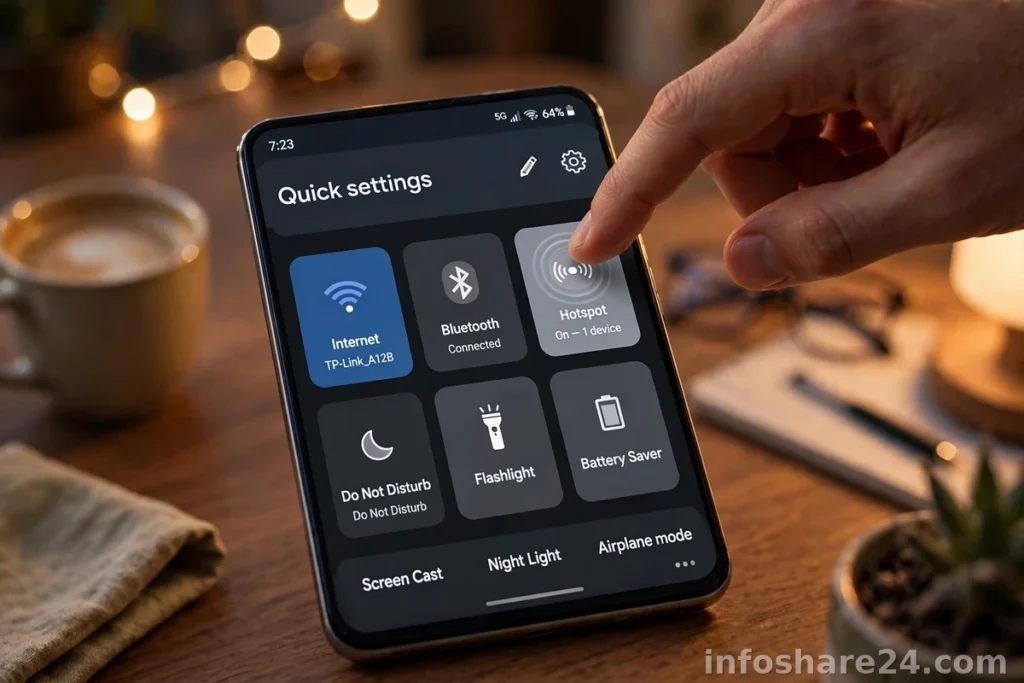
A hotspot is hard work for your phone: it keeps the mobile radio, Wi-Fi radio, and processor busy at once, so the battery drains much faster than normal and the phone may feel warm. See Android Battery Draining Fast? if your phone already struggles with battery life.
Make switching it off a habit: swipe down twice and tap the Hotspot tile, or switch it off on the hotspot screen. “Turn off hotspot automatically” will do it after a few quiet minutes, but do not rely on it alone. For a long session, plug the phone into a charger.
Frequently Asked Questions
Does using a hotspot cost extra?
It depends on your plan. Most plans today include tethering at no extra charge — the hotspot simply uses your normal allowance. Some cheaper plans charge extra or set a separate hotspot limit, so check your carrier’s app first.
Can I use a hotspot while my phone is connected to Wi-Fi?
On most Android phones, no: turning on the hotspot switches Wi-Fi off, because it shares your mobile data, not a Wi-Fi connection.
How many devices can connect at once?
Most Android phones allow 5 to 10 devices, depending on the model. Every extra device shares the same connection, so more devices means slower speed for everyone and a faster-draining battery.
Conclusion
Using your Android phone as a Wi-Fi hotspot is one of your phone’s most useful tricks. Set it up once with a strong password and WPA3, give it a neutral name, and any laptop or tablet can get online in seconds. Remember the two habits that keep it safe: watch your data, and switch the hotspot off when you are done.