Mobile data often runs out at the worst time: during a video call, while opening a map, or when an important message is due. It is frustrating, especially when it happens long before the month ends. The good news is that you usually do not need a bigger data pack. A few simple changes on your Android phone can make the data you already have last much longer.
Many people think a phone uses data only when they are using it. That is not true. Apps work in the background, videos play in high quality, and updates download large files without warning. Once you see where the data goes, you can control it without giving up the apps you love.
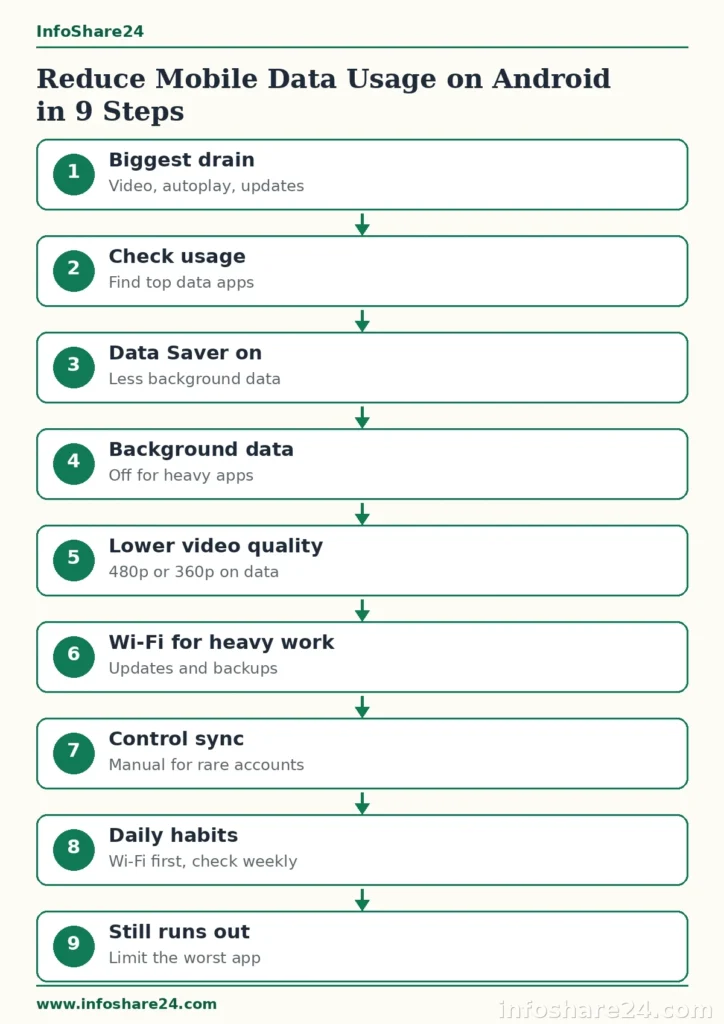
Why Your Mobile Data Runs Out So Fast
- Video is usually the biggest reason. High-definition video uses far more data than reading articles or sending messages.
- Social media apps also load photos and videos automatically as you scroll, even for posts you never stop to watch.
- Add automatic updates, photo backups, and background refreshes, and the total grows fast, invisibly.
First, Find Out Where Your Data Is Going
- Open Settings, then look for Network and internet, Connections, or Mobile network. The name varies by phone brand, but the idea is the same.
- Tap Data usage or Mobile data usage to see your total for the current period, then look at the list of apps below it. Often just two or three apps cause most of the usage, and that is where your savings will come from.
- You can also set a data warning and a data limit here. Set the warning a little below your real limit, so you have time to slow down before the data runs out.
Turn On Data Saver
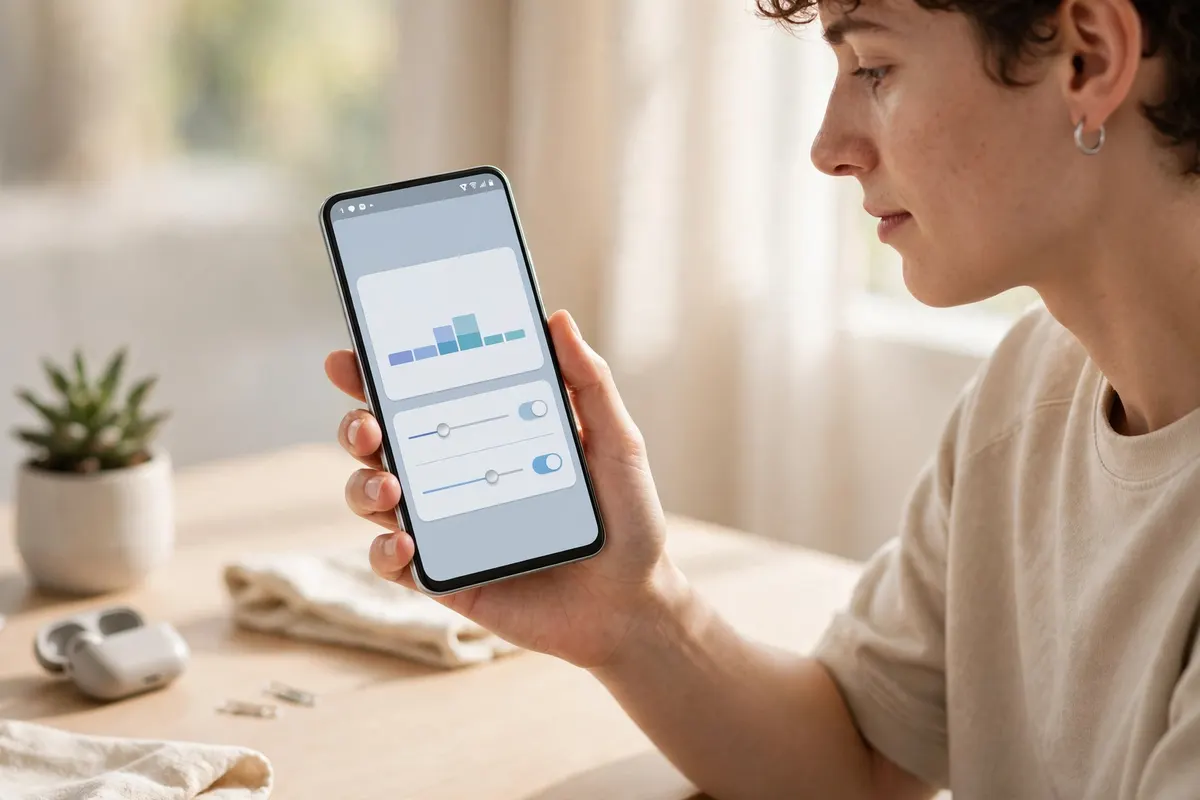
- Data Saver is a built-in Android feature and one of the easiest wins. When it is on, apps use less data in the background, and some load lighter photos and pages.
- Go to Settings, then Network and internet, then Data Saver, and switch it on. On some phones it is under Mobile data or Data usage instead.
- You can allow a few apps, such as your messaging app, to use data without limits, so important messages still arrive on time.
Stop Apps Using Data in the Background
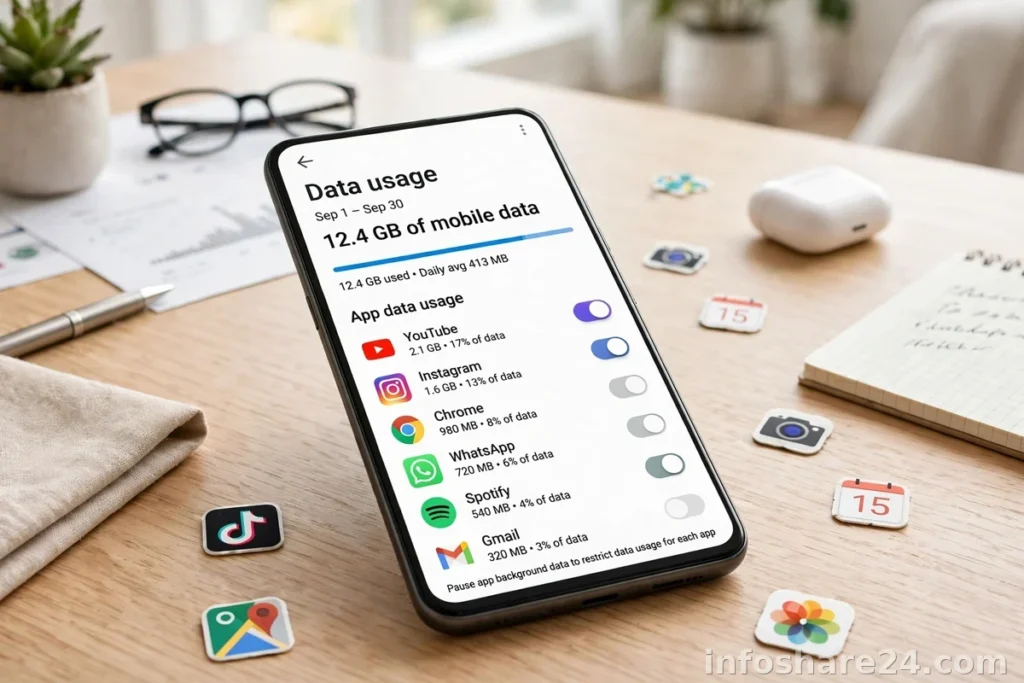
- Background data is data used when you are not actively using an app: a news app refreshing stories, or a social app downloading photos.
- From the data usage list, tap an app that uses a lot of data and turn off Background data. It will then use mobile data only when you open it, though it can still use Wi-Fi in the background.
- Be selective. Keep background data on for your main messaging app. For games, shopping, video, and social apps you open only now and then, turning it off is a safe, simple saving. Also check each app’s own settings and set large downloads to Wi-Fi only.
Watch Videos Without Wasting Data

- Video can use more data than everything else combined, so this step matters most.
- When on mobile data, lower the quality: tap the settings icon while a video plays and choose 480p or 360p instead of 1080p. On a phone screen the difference is often hard to notice, but the saving is large. Many apps also let you set a default quality or a Data Saver mode, so you do not have to change it every time.
- Turn off autoplay, or set it to Wi-Fi only, in social and video apps. Videos that start by themselves use data even if you never meant to watch them. And if you know you will watch a show later, download it over Wi-Fi first.

Use Wi-Fi Wisely and Download on Wi-Fi
- Whenever you are at home, at work, or in another trusted place with Wi-Fi, connect to it and let heavy work happen there.
- In the Play Store, tap your profile icon, go to Settings, then Network preferences, and choose “Over Wi-Fi only” for auto-updates. Set photo backups to Wi-Fi only too. Your photos will still be saved safely; they will just wait until you are on Wi-Fi.
- Free Wi-Fi in cafes, airports, and hotels is convenient, but it is not always safe. Our simple guide on how to stay safe on public Wi-Fi explains the basic precautions in plain language.
Control Updates, Backups, and Sync
- Phones sync emails, contacts, calendars, and photos automatically, but not everything needs to sync every few minutes over mobile data.
- Go to Settings, then Accounts, and turn off sync for accounts you rarely use, or set them to manual, while keeping your main email on. Some browsers also have a data saving or lite mode that compresses pages before loading them.
- If your phone feels full as well as data-hungry, the two problems often go together. Our guide on how to free up storage on Android without losing photos shows a safe way to clear space while keeping your pictures.
Small Daily Habits That Save a Lot
- Connect to Wi-Fi whenever it is available and safe, instead of staying on mobile data out of habit.
- Close video and social apps you are not using, rather than leaving them running in the background. Save long videos for Wi-Fi time when you can, and check your data usage once a week.
- Turn off mobile data at night or when you do not need it, using the quick toggle in the notification panel.
Small savings each day add up to something meaningful by the end of the month.

What If Your Data Still Runs Out?
- Check the data usage list again after a week. If one app still uses far more than the rest, limit it more strictly or use a lighter version if one is available.
- Also check that your data cycle dates in Settings match your real billing cycle, or your warnings may come at the wrong time.
- If you work online, watch a lot of video, or share your connection as a hotspot, you may simply need a bigger pack — but only after cutting the waste first, so you pay for data you actually use.
FAQ
Does Data Saver slow down my phone?
No. It only limits background data use. Browsing, messaging, and calls should still work fine.
Will turning off background data stop my messages?
Leave it on for your main messaging app. For other apps, it only means they refresh when you open them.
Is it safe to lower video quality?
Yes. It only changes how sharp the picture looks, and standard quality is often perfectly clear on a phone screen.
How often should I check my data usage?
Once a week is enough. A quick check takes less than a minute and helps you spot a problem app early.
Do I need a special app to save mobile data?
Usually not. Android already has Data Saver, data warnings, and per-app controls built in.
Conclusion
Reducing mobile data usage on Android is not about giving up your phone. It is about checking your usage, turning on Data Saver, limiting background data, lowering video quality on mobile data, and letting large downloads wait for Wi-Fi. Start with one or two changes today, such as Data Saver and a look at your top apps. After a week, check again — you will probably see the difference, and your pack will be far more likely to last until the end of the month.