Most days fall apart not because we are lazy, but because the day has no shape: a meeting runs long, a message pulls us away, and by evening the important work is still waiting. This guide shows you how to use AI to plan your daily schedule in about 10 minutes, the night before, so tomorrow starts with a plan, not a scramble.
A free AI chatbot such as ChatGPT or Gemini can turn a messy list into a timed plan, with breaks and buffers built in. You stay in charge — the AI only does the arranging.
What AI Can (and Cannot) Do for Your Day

AI is good at the boring part of planning: sorting tasks, guessing how long each one takes, and fitting them around fixed times such as meetings and meals. Give it your list and your limits, and it hands back a schedule in seconds.
What it cannot do is know your life. It does not know that your 9 AM meeting always runs 20 minutes over, or that you are useless for deep work right after lunch. So treat its first plan as a draft — move one or two blocks and it becomes yours.
ChatGPT is the easiest starting point, and its free plan handles daily planning well — if you are new to it, read How to Use ChatGPT for Beginners first. Gemini is the natural pick for Gmail and Google Calendar users, because it can see your real events. Microsoft Copilot fits Outlook and Teams users, but its scheduled prompts need a paid Microsoft 365 Copilot licence — the free Copilot Chat does not include scheduling. Pick the one you already use.
How to Use AI to Plan Your Daily Schedule, Step by Step

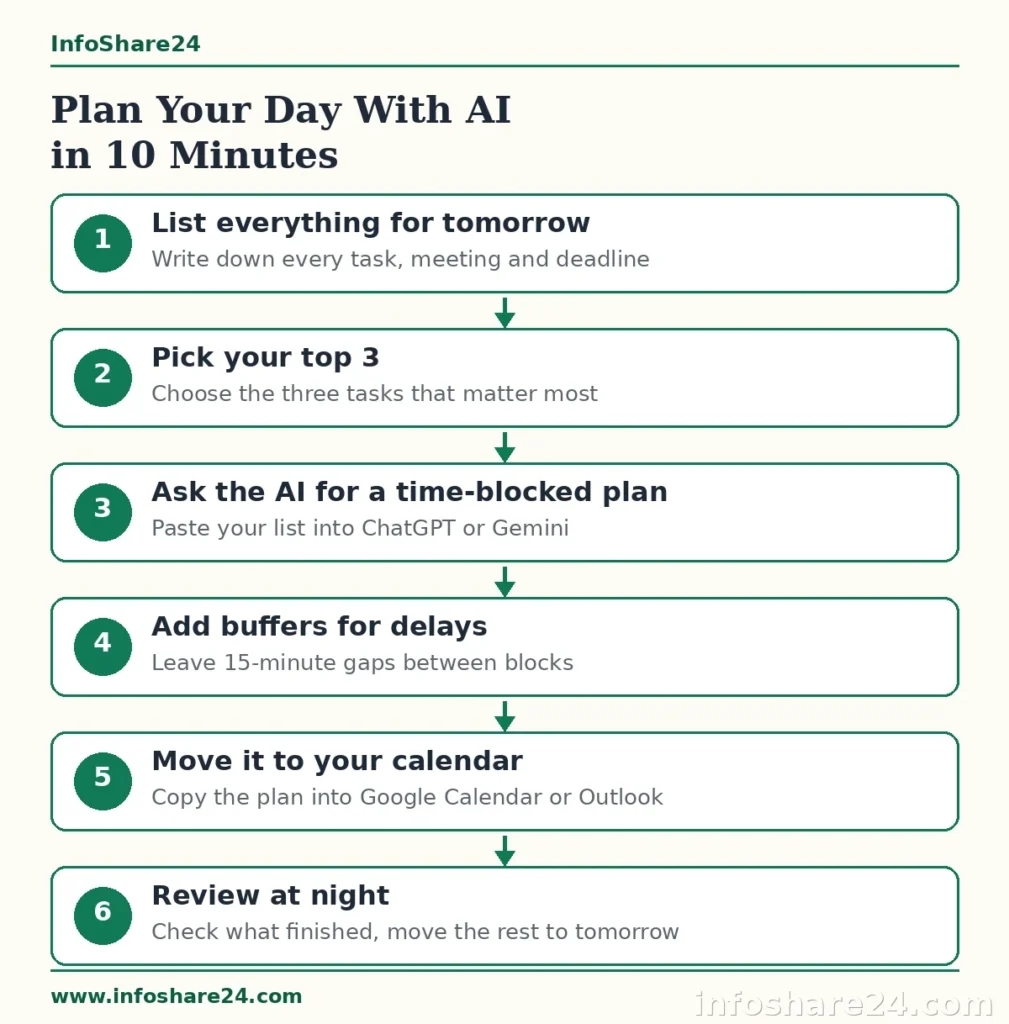
Do this the evening before. The flowchart above shows the whole routine at a glance.
- List everything for tomorrow. Write down every task, meeting and deadline — work, errands, calls, exercise. Do not filter yet; the AI will do the sorting.
- Pick your top 3 tasks. Circle the three that matter most. If only those three get done, the day is still a win. This stops the AI from treating a quick email and a big project as equals.
- Choose your AI tool. Open ChatGPT, Gemini or Copilot — whichever you already have. The free plan of ChatGPT or Gemini is enough. For better prompts in general, our guide How to Write Better Prompts for AI Chatbots: A Beginner’s Guide explains the simple rules.
- Give the AI the details it needs. Paste your list and add your limits: wake-up time, fixed meetings, lunch time, and when you want to stop. Copy and adapt this prompt: “Plan my day from 7 AM to 6 PM: a morning routine, 2 hours of deep work, a short break, lunch at 1 PM, afternoon meetings, and a 30-minute wrap-up at 5 PM. Add a 15-minute buffer between blocks.”
- Ask for time blocks, not a to-do list. A list tells you what to do; a schedule tells you when. Ask the AI for start and end times for each block, like this: 7:00 morning routine, 9:00 deep work, 11:00 break, 1:00 lunch and review, 3:00 meetings, 5:00 wrap-up. If a block looks wrong, say so — “move deep work to 10 AM, I have a call at 9” — and it will redo it.
- Add buffers and breaks. Real days have delays. Keep a 15-minute gap between blocks and a real lunch break. A plan with no breathing room is one you will abandon by 11 AM.
- Move it to your calendar. A plan in a chat window is easy to forget. Copy the blocks into Google Calendar or Outlook as events, with a 10-minute reminder before each one. Gemini can check your calendar while planning, and on a paid ChatGPT plan you can connect Google Calendar so the AI sees your real meetings.
Move the Plan Into Your Calendar
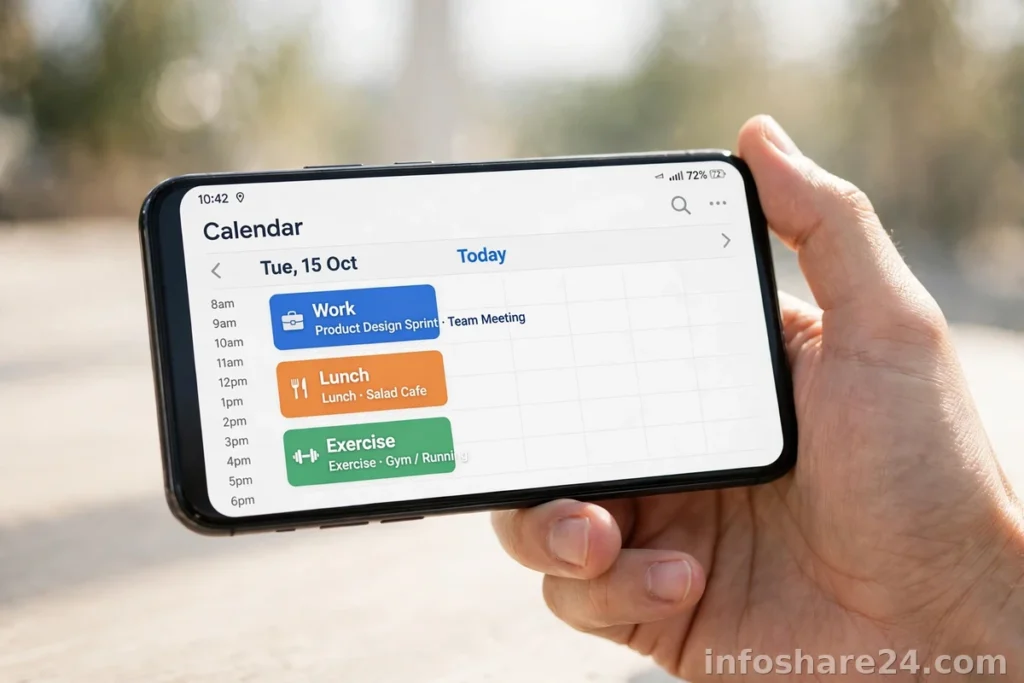
Your calendar is where the plan becomes real. Create one event per block with a clear name — “Deep work: finish report” beats “Work” — and set a reminder. Colour helps: one colour for deep work, one for meetings, one for personal time. At a glance you can see if your day is balanced or just a wall of meetings.
Do this once, and tomorrow you only need to open your calendar, not re-read a chat. If your phone holds your calendar, make sure its events are backed up — Back Up Your Phone in 5 Minutes: Photos, Contacts and Files shows how.
Make the Plan Survive the Real Day

A perfect plan means nothing if the first interruption kills it. Three habits keep it alive. First, protect one deep-work block: phone face down, notifications off, 25 minutes of focus and a 5-minute break. Second, keep a “parking list” — a note where unexpected tasks go, so they do not hijack your current block; deal with it in your next gap. Third, if a block runs over, do not rewrite the whole day. Shift the next block by 15 minutes and carry on.
You can also let the AI remind you. ChatGPT’s scheduled tasks can send a morning briefing or an evening reminder — on the free plan you can keep 3 active tasks, but they run in flexible windows such as morning or evening, not at an exact time; exact times need Plus ($20 a month). Gemini’s scheduled actions work the same way, with up to 10 active at a time. Treat these as a helper on top of your calendar.
One caution: before you trust any AI answer that affects a deadline or a payment, double-check it. Our guide How to Check If an AI Answer Is Accurate Before You Trust It shows the quick checks that take less than a minute.
Review Your Day in 5 Minutes

The plan gets better every day you review it. Each evening, take 5 minutes and ask: what finished, what moved, and why. If deep work keeps slipping to the afternoon, tell the AI tomorrow (“I never do deep work before 10 AM”) and the next plan will fit you better.
Then plan tomorrow the same way. After a week, the AI knows your rhythm: your best focus hours, your real lunch time, and how long tasks actually take. That is when it feels less like a tool and more like an assistant.
Frequently Asked Questions
Is it free to use AI to plan your daily schedule?
Yes. The free plans of ChatGPT and Gemini both handle daily planning, including the prompt in this guide. You only need a paid plan for extras such as exact-time reminders, calendar connections in ChatGPT, or Gemini inside Gmail and Docs.
Which AI is best for daily planning?
The one you already use. ChatGPT is the simplest all-rounder, Gemini is best for Google Calendar and Gmail users, and Copilot fits Outlook and Teams users with a paid licence. The quality of your list matters more than the tool.
What if my day changes halfway through?
Tell the AI what changed and ask it to re-plan the rest of the day. Paste the remaining tasks and the current time, and it will rebuild the afternoon in seconds.
Start Tomorrow, Not Next Monday
You do not need a new app or a perfect morning routine. Tonight, list tomorrow’s tasks, pick your top 3, and ask ChatGPT or Gemini to turn them into a timed plan. Ten minutes now buys you a calmer tomorrow — one that ends with the important work done, not just the urgent work. Try it once, review it in the evening, and let it get smarter with you.