You have a long PDF, five web pages, and a YouTube video to understand before tomorrow. Reading everything would take hours. Gemini Notebook solves this: give it your documents, and it helps you read, question, and summarise them in minutes.
Gemini Notebook is Google’s free AI research notebook, formerly called NotebookLM — older guides using that name mean the same tool. This guide shows you what it does and how to set it up in five steps.
What Is Gemini Notebook?
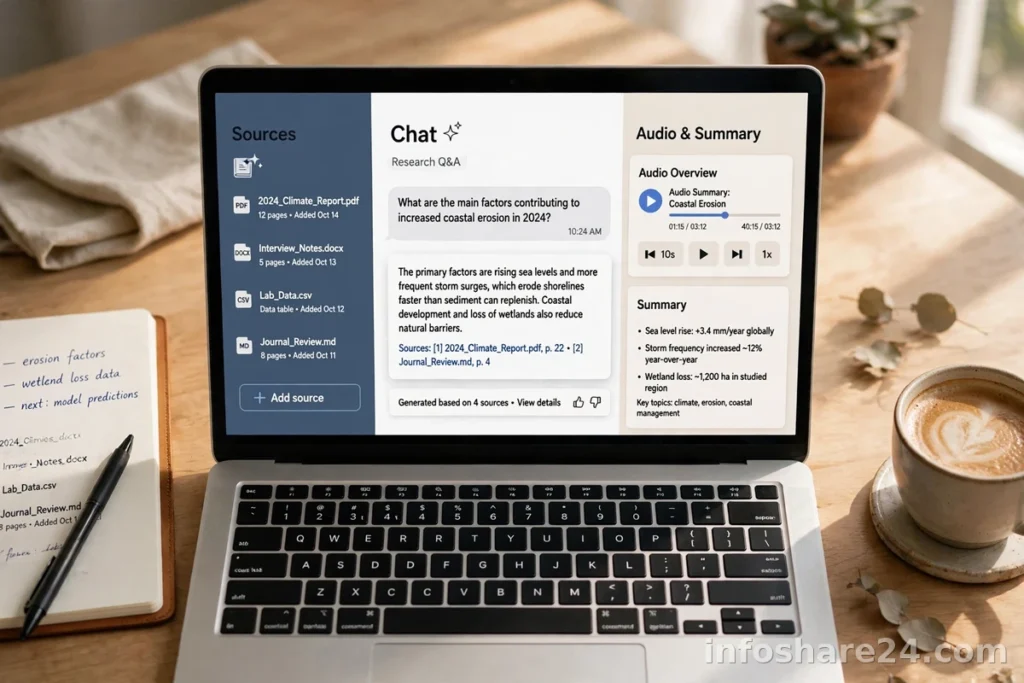
Gemini Notebook is a free tool from Google that works only with the material you give it. You upload your own sources — PDFs, web pages, YouTube videos, and audio — and it answers using those sources, not the whole internet. Every answer comes with citations you can click to see the exact passage it came from.
Unlike a normal AI chatbot, which answers from general knowledge and can sometimes guess details, Gemini Notebook stays inside your documents — and if the answer is not in your sources, it should say so.
On 16 July 2026, Google renamed NotebookLM to Gemini Notebook. It is the same standalone product — your old notebooks and links kept working — and notebooks now also show up in the Gemini app. The address is notebook.google.com, and the old notebooklm.google.com redirects there.
How to Use Gemini Notebook in 5 Steps
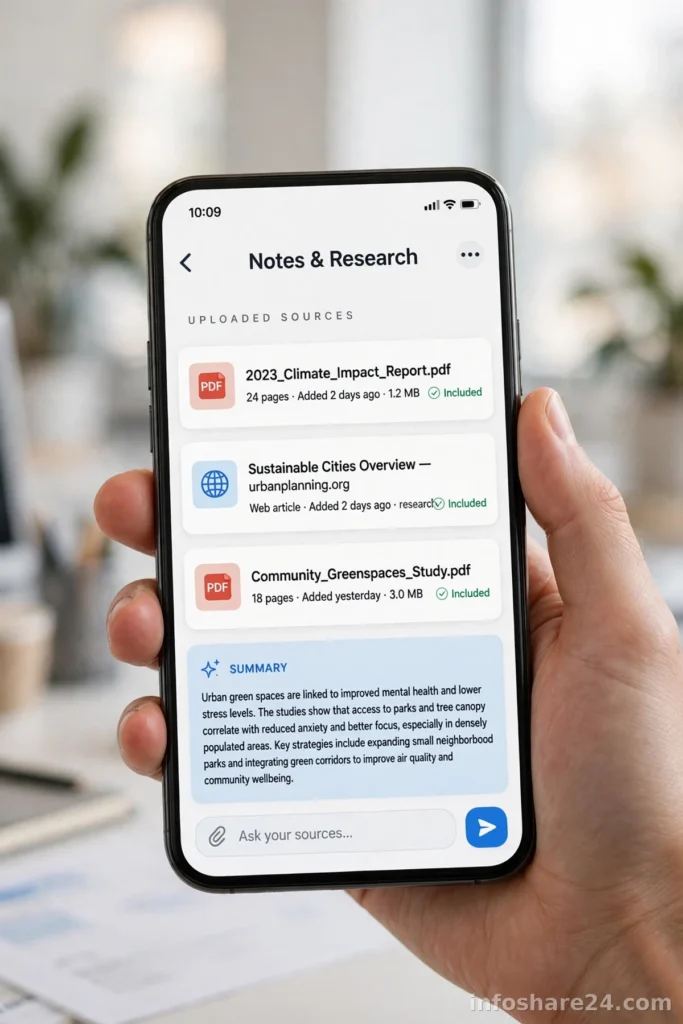
You need only a Google Account and a web browser. There is also a mobile app for Android and iPhone, but the steps below use the website.
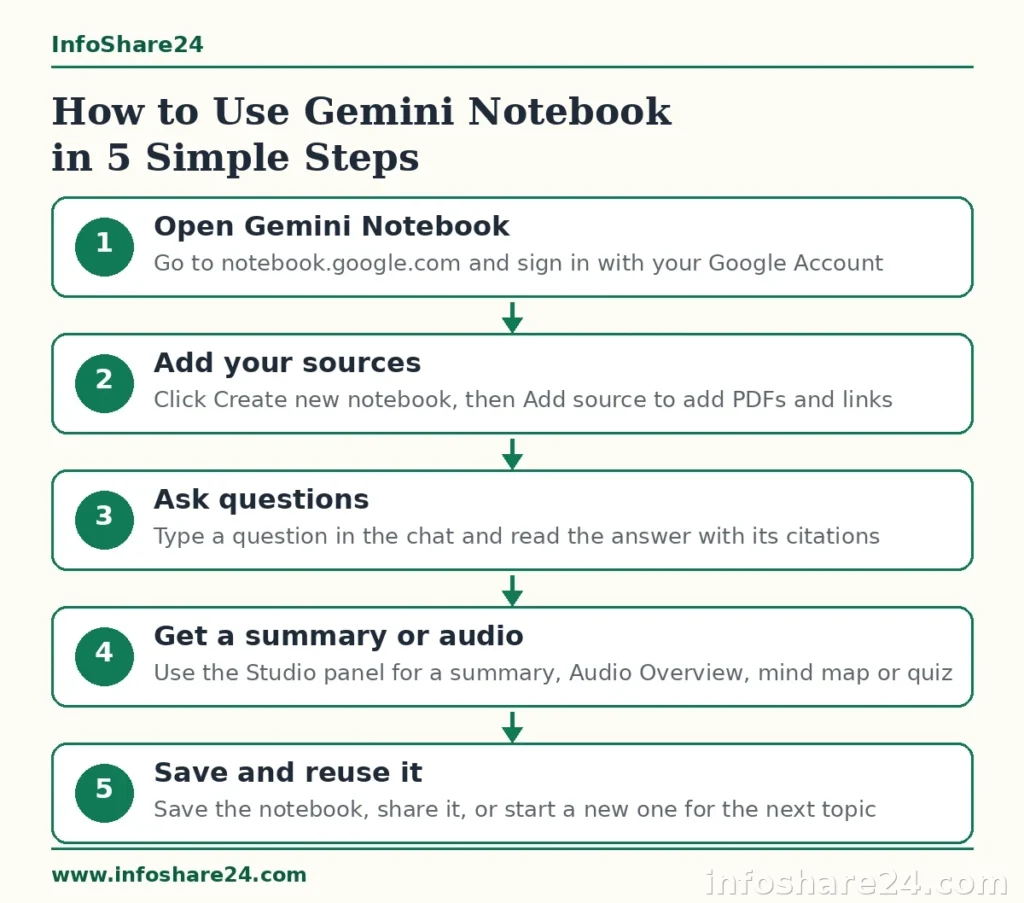
- Open Gemini Notebook and sign in. Go to notebook.google.com, sign in, and click Create new notebook.
- Add your sources. Click Add source: upload a PDF, paste a web link, add a public YouTube video, paste text, or upload an audio file.
- Ask your first question. Type a question in the chat box, for example, “What are the three main points in this report?” It answers using only your sources, with citations you can click.
- Try the Studio panel. It turns the same sources into a summary, an Audio Overview, a mind map, a quiz, flashcards, or a report.
- Save, share, or start again. Your notebook saves automatically. Share it, add sources later, or start a new notebook for your next topic.
That is the whole workflow. The more specific your question, the better the answer — see: How to Write Better Prompts for AI Chatbots: A Beginner’s Guide.
What Can You Add as a Source?
A notebook accepts PDFs, Google Docs, Slides, Sheets, Word and PowerPoint files, text, Markdown, CSV, images, audio, web links, public YouTube links, and ePub files. For YouTube, it works from the video’s transcript, so a video without captions may not work.
Each source can be up to 500,000 words or 200 MB. On the free plan, one notebook can hold up to 50 sources, and you can create up to 100 notebooks.
Add only material relevant to your question. Do not upload private or sensitive documents, because your sources are processed on Google’s servers.
Ask Questions and Check the Citations
Good questions are specific. Instead of “Tell me about this document”, try “What are the five steps in this guide?” Instead of “Summarise everything”, try “Summarise this report in ten bullet points.” You can also ask it to compare sources.
When you get an answer, click at least one citation — it jumps to the exact passage. Build this habit with every AI tool: How to Check If an AI Answer Is Accurate Before You Trust It.
If an answer looks wrong, rephrase the question, point to a specific source, or add a better source. A summary is a starting point, not a replacement for reading the original when details matter.
Turn Your Sources Into Audio, Video and Study Tools

The Studio panel makes Gemini Notebook more than a chat box: the same sources can become several different things.
The most famous is Audio Overview: your sources become a podcast-style conversation between two AI hosts. Choose Deep Dive, Brief, Critique, or Debate. It works in more than 80 languages, and in English an Interactive mode lets you join in and ask the hosts a question — ideal for a commute or a walk.
Video Overviews make a short narrated explainer from your sources — Explainer, Short (about 60 seconds), or Cinematic. The Studio can also make a mind map, flashcards and quizzes, a briefing document, and a slide deck.
Everyday Ways to Use Gemini Notebook

Four everyday uses:
Understand a long document. Upload a contract, a policy, or a paper and ask, “Explain this in simple language.” More: How to Use AI to Summarise Long Articles and PDFs.
Prepare for a meeting or interview. Add the agenda and last month’s report, then ask for the key numbers and open questions. Job hunting? Add your CV and a job description: How to Use AI to Write a Better CV.
Plan a trip. Add travel guides and YouTube videos about a place, then ask for a day-by-day plan and the best areas to stay.
Learn a new topic. Add two or three good articles, ask for a simple explanation, then make flashcards and a quiz. Students, see: AI for Students: Study Notes and Research the Smart Way.
Gemini Notebook Free vs Paid: What Changes?
Gemini Notebook is free with a Google Account, and the free plan is not a trial. You get up to 100 notebooks with up to 50 sources in each, and the full features: chat with citations, summaries, Audio and Video Overviews, mind maps, quizzes, and reports.
What changed on 2 September 2026 is how usage is measured. Before that date, there were fixed daily counts. Now Google uses a compute-based usage limit: chats, overviews, reports, and Deep Research all draw on one allowance, and how fast you use it depends on your questions, chat length, source count, and features. It refreshes every five hours, up to a weekly limit.
Google does not publish the exact size of the free allowance, only how the paid plans compare: Google AI Plus costs $4.99 a month in the US and gives about twice the standard usage; Google AI Pro costs $19.99 a month and gives about four times; Google AI Ultra starts at $99.99 a month and gives five or twenty times the Pro usage. Prices vary by country.
For most beginners, the free plan is enough. Start free and upgrade only if you keep hitting the limit.
5 Beginner Mistakes to Avoid
- Adding too many sources at once. Keep each notebook focused on one topic, with 3 to 10 sources.
- Asking vague questions. Ask one clear question and name the source you mean.
- Trusting answers without checking. Click the citations before you quote a number or a fact to someone else.
- Uploading sensitive documents. Do not upload private medical, financial, or company-confidential files.
- Expecting it to know things outside your sources. If a fact is not in your sources, it cannot reliably tell you.
Frequently Asked Questions
Is Gemini Notebook really free?
Yes, with a Google Account. Higher usage limits come with Google AI Plus, Pro, and Ultra.
Is NotebookLM gone?
No. NotebookLM was renamed Gemini Notebook on 16 July 2026, and notebooklm.google.com now redirects to notebook.google.com. Your old notebooks still work.
Final Thoughts
Gemini Notebook is one of the most useful free AI tools for beginners because it does one job well: it helps you understand your own material. Add a few sources, ask clear questions, and check the citations.
Start small: make one notebook today, add three sources, and make one Audio Overview.