Nothing breaks your focus like an ad over a video, a pop-up covering the screen, or a fake virus warning. The good news is that most unwanted ads on Android come from a setting, a browser permission, or one app — and you can fix them without paying for anything. Many Android users accept this for months, thinking it is normal. It is not. Usually a few settings, one careless permission, or a single app causes it, and you can fix it in under half an hour.
This guide explains how to stop unwanted ads and pop-ups on Android. Start with the easiest fixes, and work through the steps that find the app or setting behind the ads. Keep going until the ads stop, and stop once your phone feels calm.
Why Ads Suddenly Appear Everywhere
- Ads rarely appear from nowhere. Often you installed a free game, photo editor, cleaner app, or wallpaper app. Or you tapped “Allow” when a site asked to send notifications. Or you visited a site that opened several tabs at once.
- Free apps often show ads inside the app, and that is normal.
- Trouble starts when ads appear on your home screen, over other apps, or in notifications — usually too much permission, or a site allowed to send notifications.
First, Tell Browser Ads and App Ads Apart
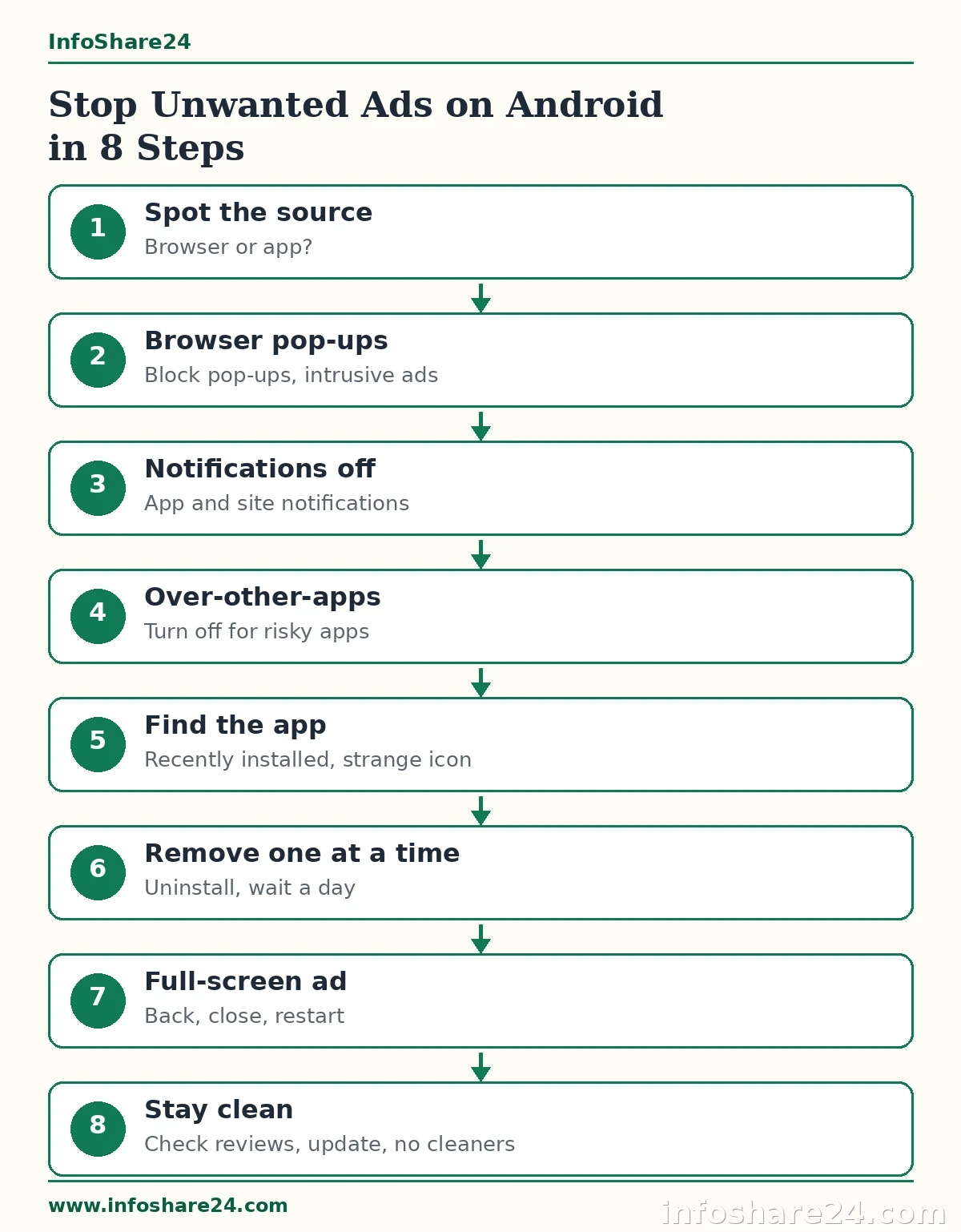
- First, work out where the ads come from. This saves a lot of time.
- If ads appear only while browsing, and stop when you close the browser, the browser is almost certainly the cause. A site may show aggressive pop-ups, or you may have allowed it to send notifications.
- If ads appear on your home screen, lock screen, or over other apps, an installed app is more likely. Unsure? Close all apps, lock your phone, wait a few minutes, then unlock it. An ad before you open anything points to an app.
Stop Pop-ups in Your Browser
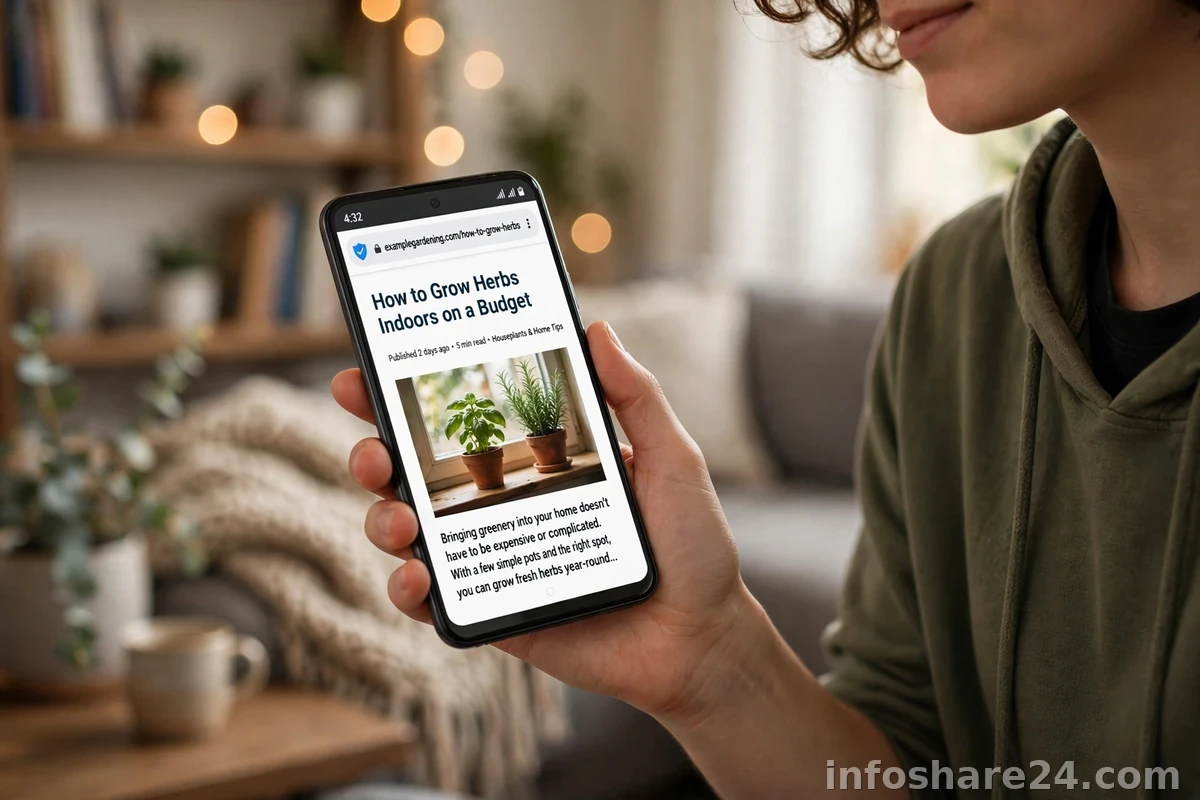
- Most Android phones use Chrome, though other browsers are similar. Pop-ups open on top of a page, sometimes with a fake close button that opens another ad. Blocking them is a fast win.
- Open Chrome, tap the three dots, and open Settings. Go to Site settings, then Pop-ups and redirects, and block pop-ups. Also turn on blocking for Intrusive ads. Next, close tabs you no longer need, as ad-heavy pages can reopen pop-ups later.
- Be careful with “Allow” on websites. Allowing notifications lets a site message your phone any time, even when Chrome is closed. If you are unsure why a site needs this, tap Block. You can change this later in Site settings.
Turn Off Annoying Notifications and Permissions
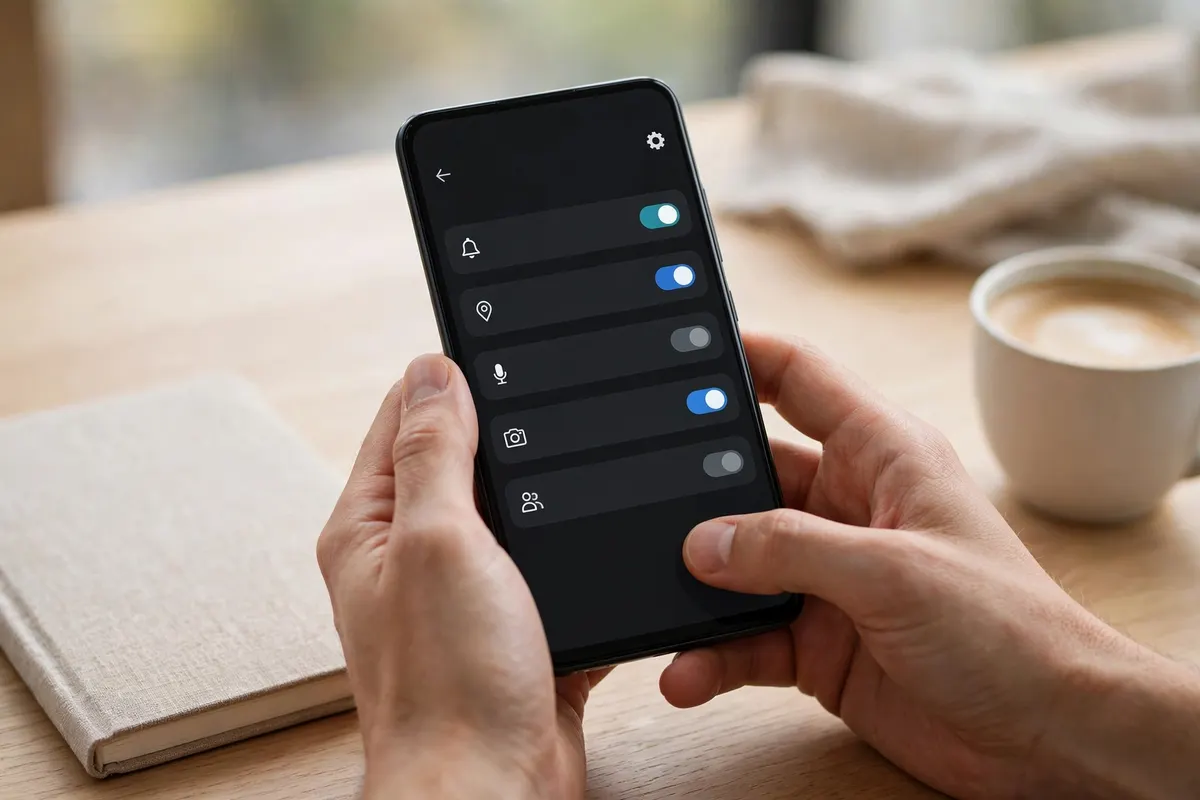
- Ads can still arrive as notifications, advertising games, deals, or fake prizes. You can turn them off one app or site at a time.
- Open Settings, then Notifications, then App notifications. If an app you barely use sends many notifications, turn them off. You can still open the app; it just will not interrupt you.
- For sites, open Chrome, go to Settings, Site settings, then Notifications. Remove permission from sites you do not recognise or that send ads. You can allow a genuine site again later. Also check “Display over other apps” in Settings: this lets an app show a full-screen ad over other apps. Only trusted apps you use on purpose should have it; turn it off for a flashlight, cleaner, or forgotten game. Turning it off deletes nothing.
Find and Remove the App Behind the Ads
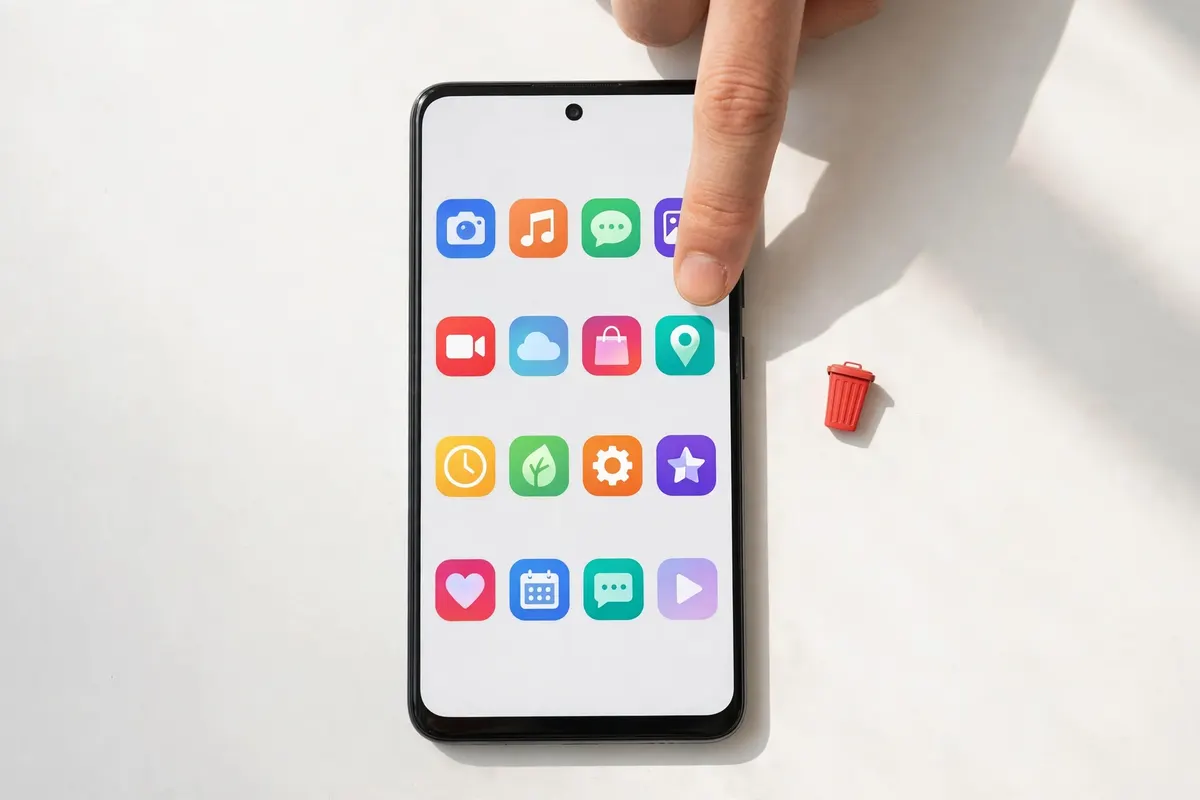
- If ads still appear over other apps or on your home screen, find the app behind them. When did the ads start? Free games, battery savers, cleaners, QR scanners, photo filters, and wallpaper apps are common causes.
- Open Settings, then Apps, and check recently installed apps. A suspect app may have a strange name or blank icon, and one installed just before the ads began is a strong suspect. Leave system apps from Google or your phone maker alone.
- If it is an app you installed and do not need, uninstall it, then use your phone for a day. Remove one app at a time, so you know which one caused the ads. If ads vanish in safe mode, a downloaded app is the cause; restart normally and keep checking. Removing unneeded apps can also free space. See our guide on how to free up storage on Android without losing photos.
What to Do When an Ad Covers Your Whole Screen
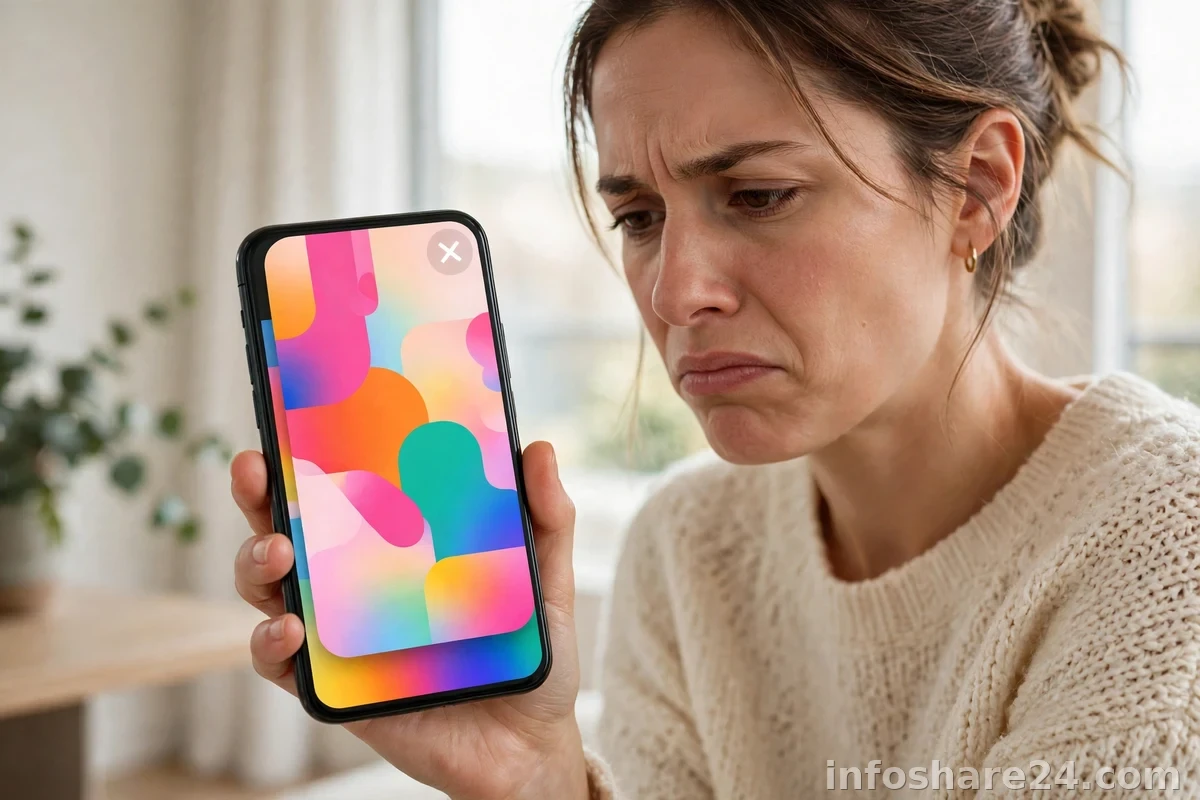
- A full-screen ad feels alarming, especially with no clear way to close it. Do not tap the ad itself. Its close button may be fake, and tapping inside it can open a site, start a download, or trigger another pop-up.
- Use the phone’s own controls instead. Press Back, or swipe back. If that fails, open recent apps and swipe the browser or app away. If the screen is stuck, hold the power button and restart.
- Never enter personal, card, or password details into a pop-up, even if it says your account is locked. Close it first. If worried about a real account, open its official app yourself, or type its address yourself, rather than following an ad link.
Stay Safe: Ad Blockers and Suspicious Pop-ups
- Many people look for an ad blocker, hoping for one fix. It can help in a browser, but scammers are active here, so be careful.
- Never install an unknown “ad blocker” app from outside a trusted store, or from a link inside a pop-up. Such apps can show more ads, collect data, or be hard to remove. Only use a well-known blocker from the Google Play Store, and skip it if it asks for far more access than needed.
- The same care applies to pop-ups claiming a virus, a prize, or an account closing today. They create panic so you tap fast. A genuine warning will not ask you to call a strange number or pay with a gift card. When in doubt, close the page, do not tap, and check through the official app. Our guide on how to spot a phishing message in 30 seconds explains more warning signs.
Keep Your Phone Clean Going Forward
- Check reviews, downloads, and the developer before installing a free app. Skip apps with few reviews or promises that sound too good to be true.
- Review notifications and permissions every few months. Keep your phone and apps updated, as updates often fix security problems.
- Avoid “cleaner” and “booster” apps promising one-tap speed. Android manages memory well alone, and many such apps show heavy ads.
Frequently Asked Questions
Can I block all ads on Android completely?
No honest guide can promise zero ads, as some apps show ads inside themselves to stay free. You can, however, stop browser pop-ups, ads over other apps, home-screen ads, and notification spam.
Are pop-ups a sign of a virus?
Not usually. Most come from a site you visited, a notification you allowed, or an app with too much permission.
Should I pay for an ad blocker?
No. The fixes here — pop-up blocking, notification controls, and removing the app — are free and built into Android.
Will turning off notifications stop important messages?
Not if you are selective. Turn off only ad senders, and keep notifications on for messaging, email, calendar, and banking apps.
What if ads return after a few weeks?
A new app or website permission is usually responsible. Repeat these steps: check browser notifications, recent apps, and “Display over other apps” permissions.
Conclusion
Unwanted ads on Android are annoying, but usually fixable without special tools. Block browser pop-ups, silence notification spam, then check permissions and recent apps. Remove one suspect app at a time, and wait a day after each change.
Above all, stay calm when an ad rushes you. Do not tap suspicious pop-ups, do not install unknown “ad blocker” apps from outside trusted stores, and never share personal details through an ad. With a quick settings check every few months, your phone can stay quiet.