Nothing is more annoying than a laptop that dies in the middle of your work. You charge it in the morning, open a few tabs, and by lunch the battery warning is already flashing. The good news is that you usually do not need a new laptop or battery. A few small settings and habits can add useful extra time to every charge.
This guide explains, in plain language, what drains a laptop battery, which settings matter most, and how to charge in a kinder way. The steps are for Windows laptops, and you can start with the first two in under five minutes.
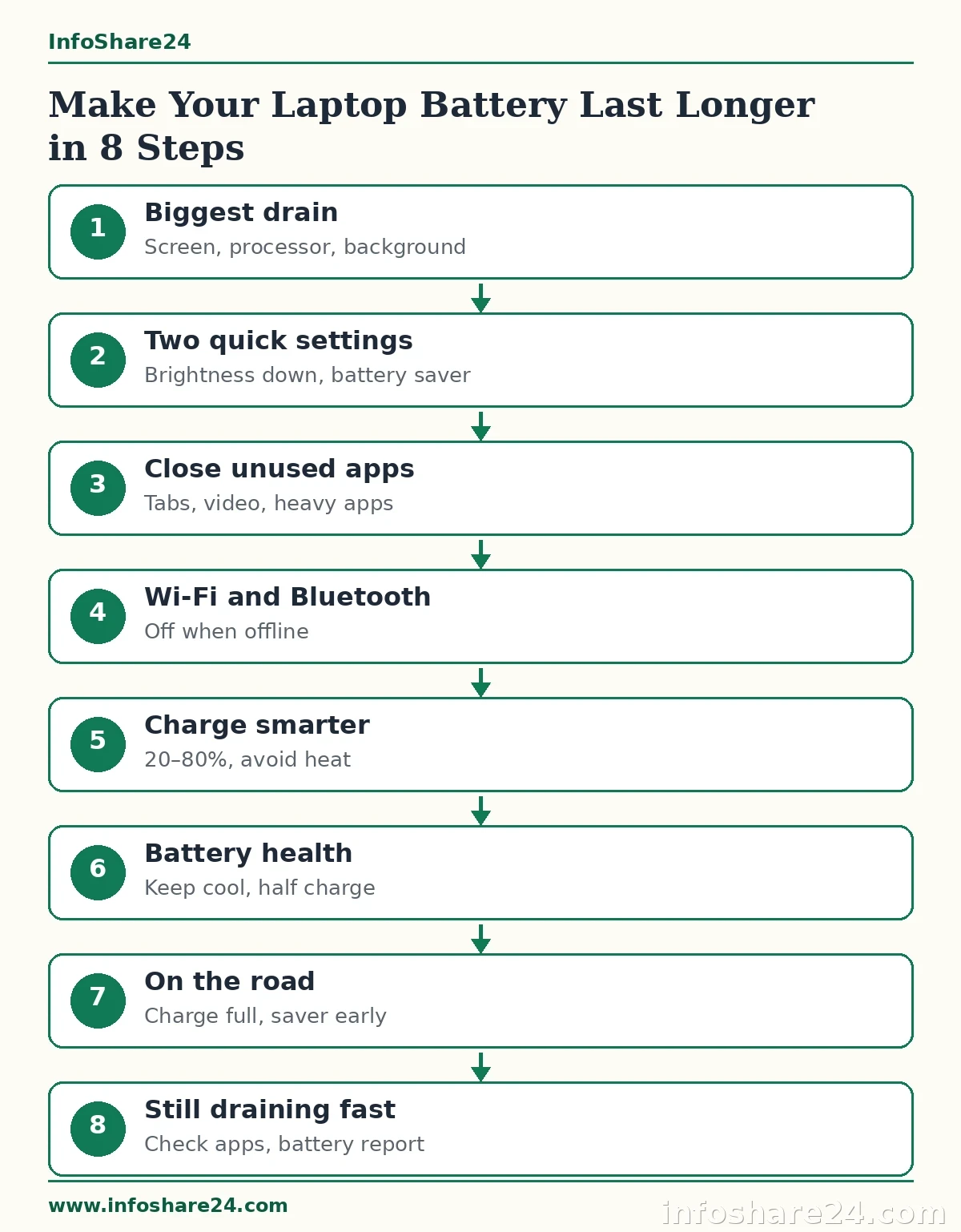
Why Your Laptop Battery Drains So Fast
- A laptop battery is like a small tank of energy. Everything your laptop does draws from it, but some things draw far more than others.
- The screen is usually the biggest user of power, especially at high brightness. After that come the processor, the Wi-Fi connection, and apps running in the background.
- Things you are not actively using can still drain power fast. A video call, a game, or a dozen open browser tabs will use far more energy than writing a document, and background apps such as email and cloud storage keep using power quietly too.
Start With the Two Quick Settings That Save the Most
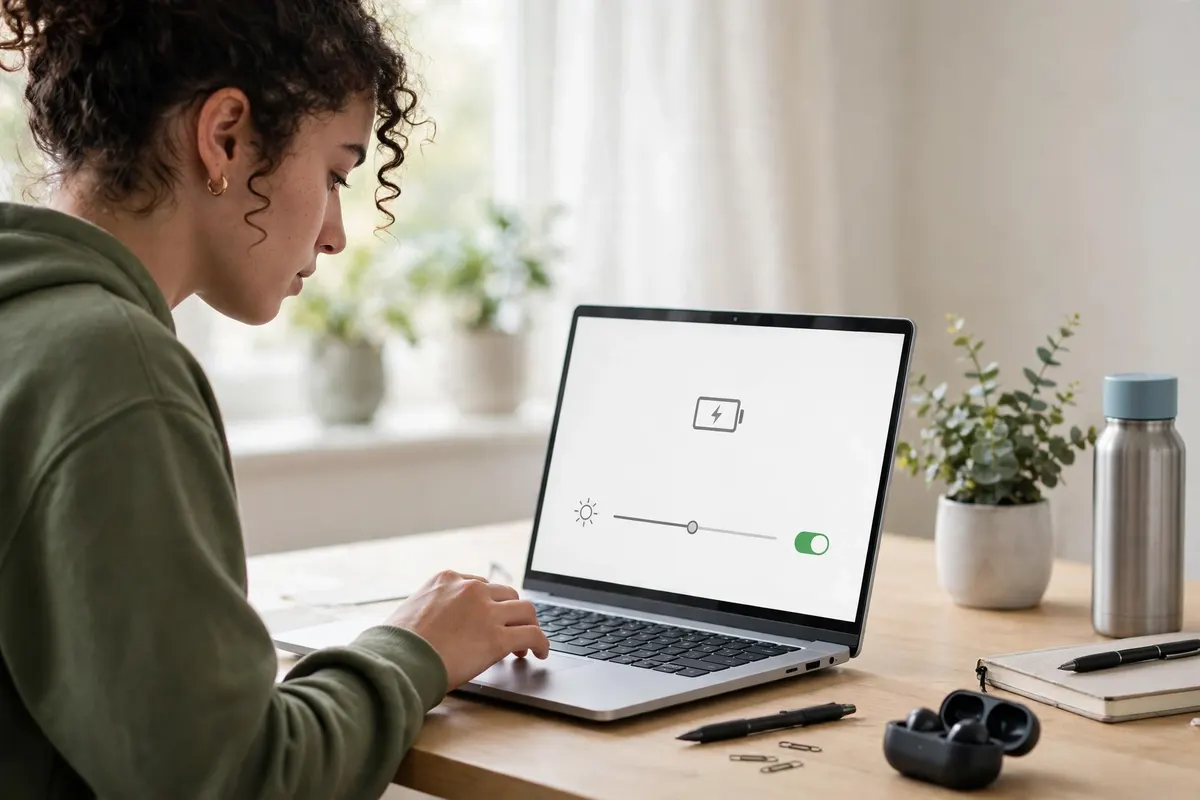
- First, lower screen brightness. On most Windows laptops, do this from the quick settings panel, or with the brightness keys. You do not need a dim, hard-to-read screen. Dropping from full brightness to a comfortable middle level often makes a clear difference, especially indoors.
- Second, turn on battery saver mode when you are away from the charger. On Windows, go to Settings, then System, then Power and battery, and turn on Battery saver.
- You can also set it to switch on automatically when the battery falls below a level you choose, such as 20 percent. Battery saver reduces background activity and lowers brightness a little, but it will not stop you from working.
Close the Apps and Tabs You Are Not Using
- Open programs use power even in the background. Before you blame the battery, check what is running.
- Close browser tabs you have finished with, especially tabs playing video or running heavy web apps. Close programs you opened earlier and forgot about, such as a video editor or a game.
- Check which apps use the most power in Settings, then System, then Power and battery. If one app stands out and you do not need it all the time, close it on battery, or stop it running in the background.

Manage Wi-Fi, Bluetooth and Background Activity
- Wi-Fi and Bluetooth are convenient, but they use power, particularly when your laptop is searching for a network or a device.
- If you are working offline, for example writing a document on a train, turning them off for that period can save a noticeable amount of battery. Turn them back on when you need them again.
- Background activity is another quiet drain, as apps check for updates and sync files even when unused. You do not need to turn everything off. In Windows settings, under Apps, change the background permission for apps you rarely use.
Charge Smarter, Not Longer
- How you charge matters as much as how you use the laptop. A common mistake is leaving the laptop plugged in at 100 percent, on a hot surface, for days at a time. Modern laptops handle this better than older ones, but heat is still the enemy of battery health. If your laptop feels very warm while charging, move it to a cooler, flat surface where air can flow underneath.
- Many experts suggest keeping the charge roughly between 20 percent and 80 percent for everyday use. You do not need to follow this perfectly, and charging to 100 percent is fine when you need a full day away from a socket. But if you mostly work at a desk, unplugging once comfortably charged is kinder.
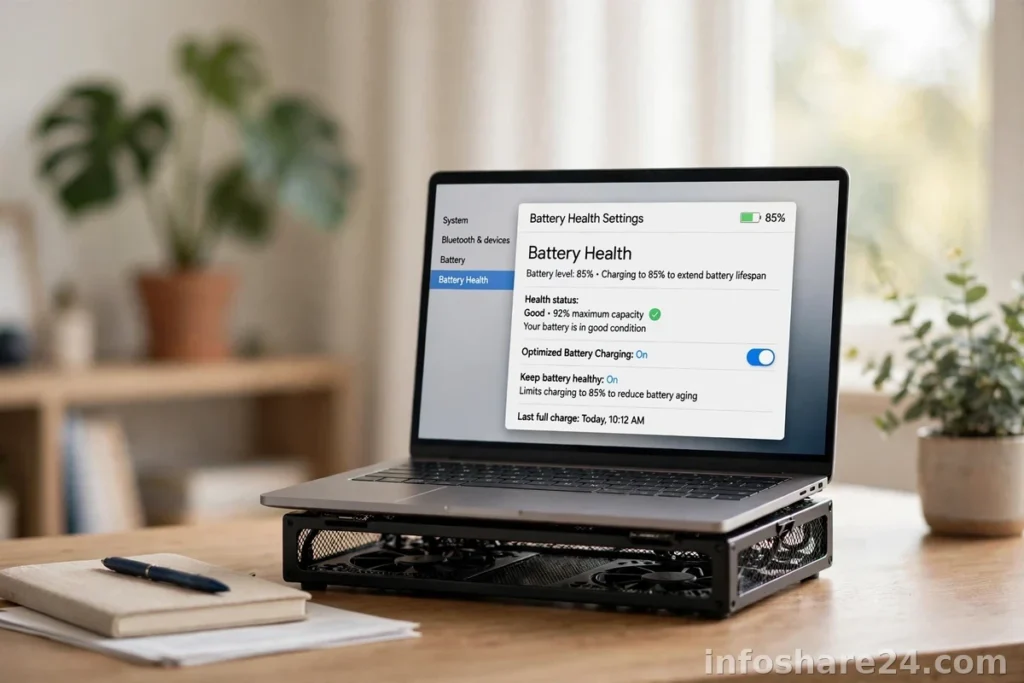
- Some laptops offer a charge limit, often called battery care mode, which caps charging at around 80 percent automatically. Use the charger that came with your laptop when you can, or a trusted replacement made for your model.
Look After Battery Health Over Time
- Keep the laptop cool. Avoid using it on a bed, a blanket, or your lap for long periods, because soft surfaces block the vents underneath. A hard, flat surface, or a simple laptop stand, helps air move.
- Avoid leaving your laptop in a hot car or in direct sunlight for hours. Heat speeds up battery wear more than almost anything else.
- If you will not use the laptop for a few weeks, store it with roughly half a charge in a cool, dry place, rather than fully charged or completely empty.
Make Your Battery Last on the Road

- Travelling is when battery life matters most, because you cannot always find a socket.
- Before you leave, charge the laptop fully, and download any documents or videos you will need, so you are not streaming them over Wi-Fi all day. If you need files from another device, prepare them in advance with our guide on how to transfer files between phone and computer easily.
- On the journey, turn on battery saver from the start, rather than waiting until the battery is nearly empty. Lower brightness, close apps you do not need, and turn off Wi-Fi and Bluetooth while working offline.
When Your Battery Still Drains Very Fast
- First, check for a single app using an unusual amount of power, and update Windows and your apps, because updates often fix power problems.
- Second, check your battery health. On Windows, a battery report shows the original capacity and what the battery can hold now. If it is far below the original, the battery may be worn out, and a replacement from the laptop maker or a trusted repair shop may be the sensible next step.
- While checking your laptop, also review our guide to Windows security settings every user should check first. Unwanted software running in the background can drain power as well as put your files at risk. If the laptop shuts down suddenly, swells, or gets extremely hot, stop using it and get it checked by a professional straight away. A swollen battery is rare, but it should never be ignored.
Frequently Asked Questions
Is it bad to leave my laptop plugged in all the time?
It is not an emergency, and modern laptops manage charging better than older models. But for long-term health, it is better to unplug sometimes, avoid constant heat, and use a charge limit if your laptop offers one.
Should I drain my laptop battery to zero before charging?
No. Modern laptop batteries do not need this, and regular full drains can wear the battery faster. It is better to charge when the battery gets low, roughly around 20 percent.
Does battery saver mode slow down my laptop?
It can reduce performance slightly, because it limits background activity. For writing, browsing, and watching videos, most people will barely notice. For heavy tasks like video editing, you may prefer to stay plugged in.
Conclusion
Making your laptop battery last longer is mostly about small habits. Lower the brightness, turn on battery saver when you unplug, close what you are not using, and avoid constant heat and constant 100 percent charging. Together, they can give you more time on every charge and a healthier battery over the years.
Start with the two quick settings today, then add one or two habits each week, for fewer warnings and more work done wherever you happen to be.