

If you have ever opened Excel, stared at a grid of empty cells, and closed it again, you are not alone. Excel looks technical at first, but most everyday jobs need only a handful of formulas. Three of them — SUM, AVERAGE and COUNT — will carry you through budgets, marks, expenses and simple lists. Once you understand how one formula works, the rest feel much less scary.
This guide is for complete beginners. You do not need maths skills beyond adding and dividing, and every example here uses plain numbers you can type in yourself.
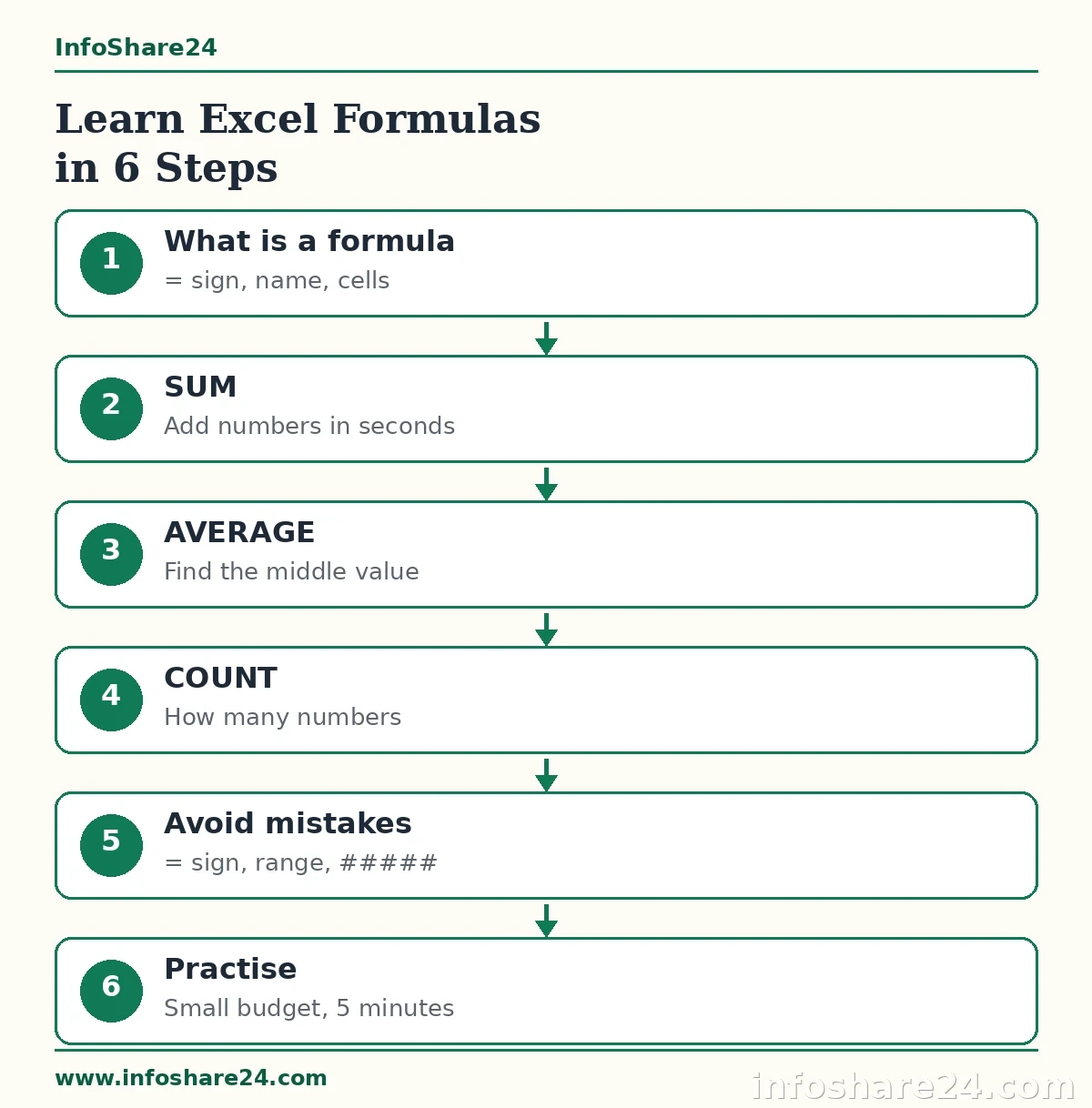
What Is a Formula in Excel?
- A formula is simply an instruction you type into a cell. Every formula starts with an equals sign, like =SUM(A1:A5). The equals sign tells Excel, “Work this out for me, do not just show the text.” After the equals sign comes the name of the job you want done, then the cells it should use, inside brackets.
- Think of a cell address like a map reference. A1 is column A, row 1. A1:A5 means all the cells from A1 down to A5. Excel does the maths and shows the answer in the cell where you typed the formula.
- If you later change a number in that range, the answer updates on its own. That is the whole magic of Excel: type the instruction once, and it keeps working.
SUM: Add Numbers in Seconds
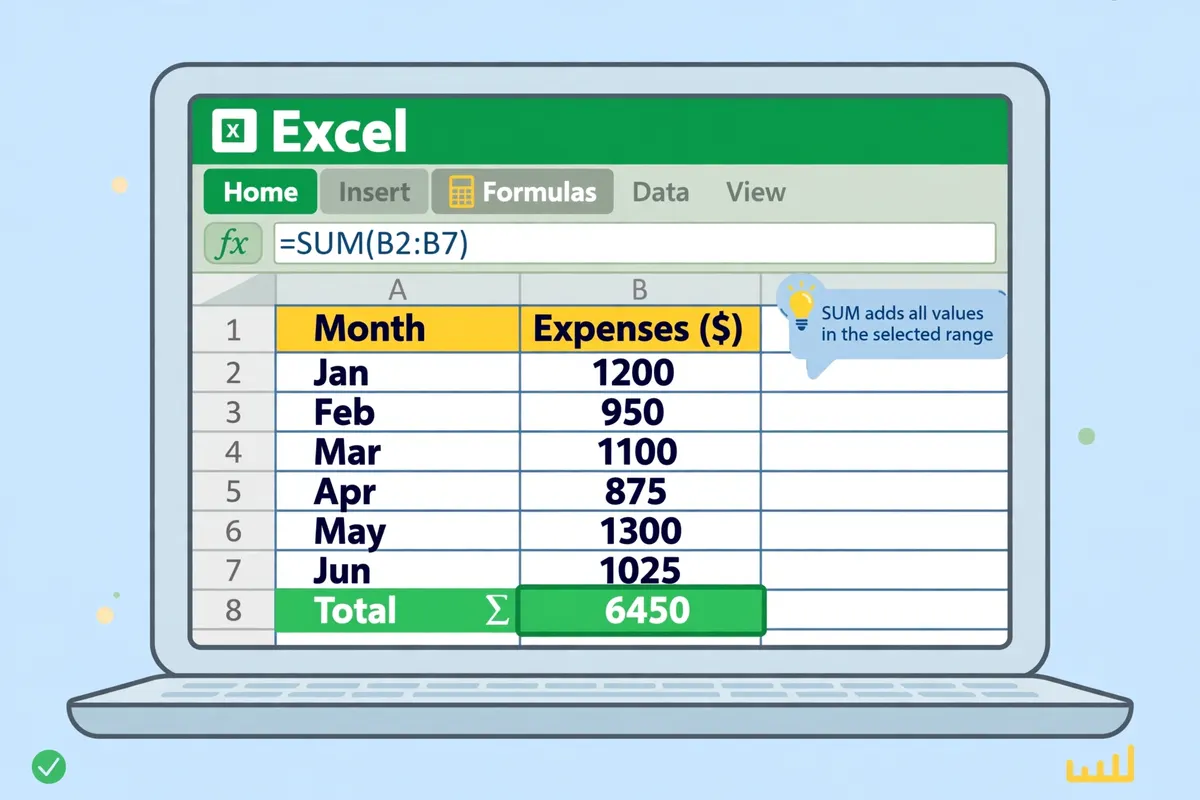
- SUM adds a list of numbers together. Imagine your monthly expenses are in cells B2 to B6: rent, food, transport, phone and internet. Instead of adding them on a calculator, click an empty cell and type =SUM(B2:B6), then press Enter. Excel adds all five numbers at once.
- You can also add cells that are not next to each other, for example =SUM(B2,B4,B6), using commas instead of a colon. A colon means “from this cell to that cell”, while a comma means “and also this cell”. Mixing them up is the most common beginner mistake, so check which one you used if the answer looks wrong.
- SUM is also useful for quick checks. Add a column of shopping prices before you pay, or total the hours you worked in a week. If the total looks far too big or far too small, look for a number typed twice, or a blank cell you expected to be filled.
AVERAGE: Find the Middle Value
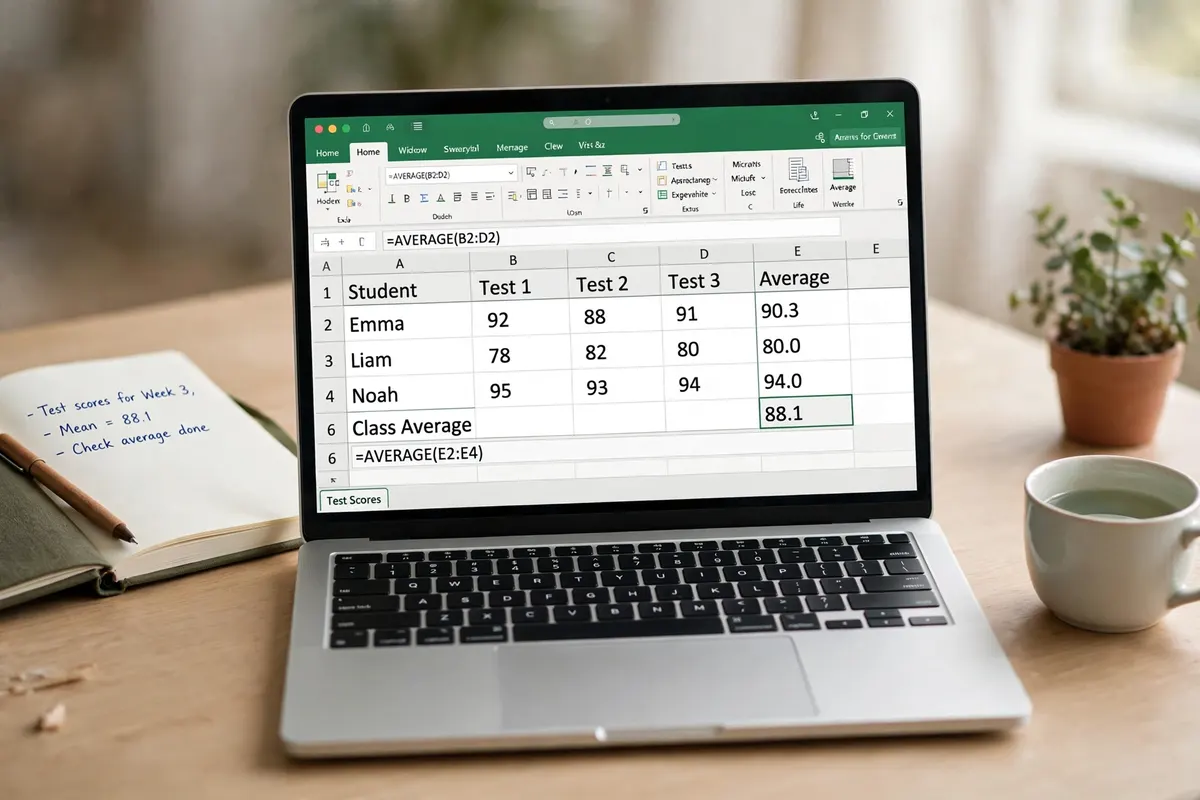
- AVERAGE works out the average of a set of numbers. If five test scores are in cells C2 to C6, type =AVERAGE(C2:C6) in an empty cell and press Enter. Excel adds the scores and divides by how many there are, all in one step.
- Averages are handy for everyday life too. Work out your average weekly spending, your average marks across subjects, or the average temperature over a week. Just remember that an average hides extremes: if four scores are 70 and one is 20, the average will be lower than most of your scores, and that is correct maths, not an error.
- One warning: AVERAGE ignores empty cells, but it counts cells that contain zero. If a student was absent and you type 0, the average drops. If you leave the cell blank instead, Excel ignores it. For marks and attendance, that difference matters, so decide which one you mean before you type.
COUNT: How Many Numbers Are There?
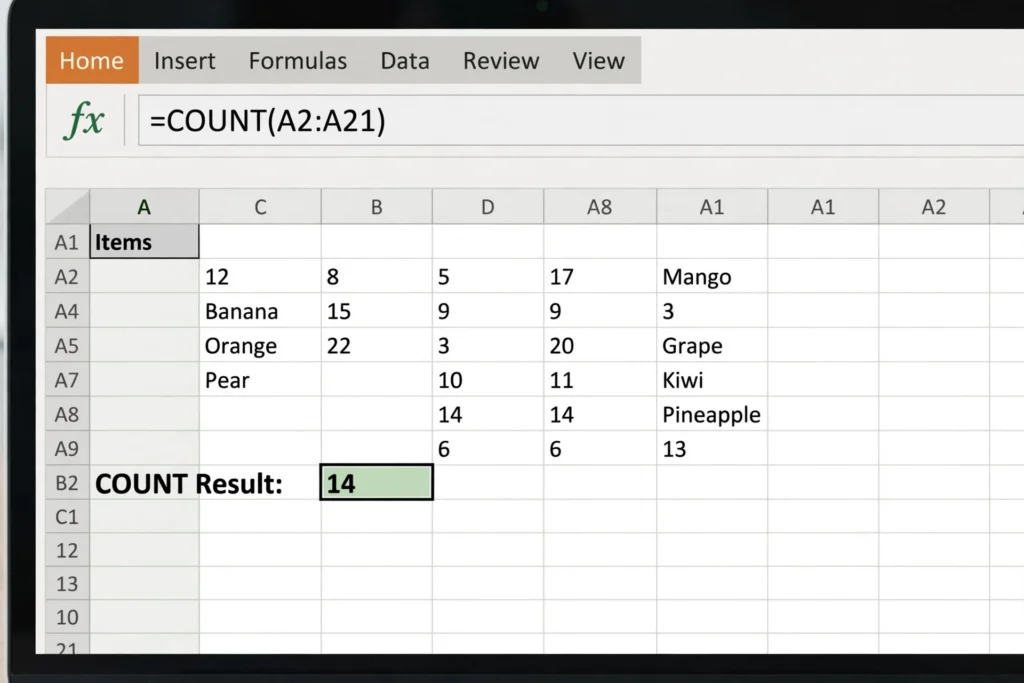
- COUNT tells you how many cells in a range contain numbers. If you have a list of twenty customers but only fourteen have paid, =COUNT(D2:D21) will show 14, because it counts only cells with numbers in them, not text or blanks.
- This is surprisingly useful. Count how many days you exercised this month, how many products are in stock, or how many students submitted homework. If your list has names instead of numbers, COUNT will show 0, which confuses many beginners. That is not a bug: COUNT counts numbers only.
- For counting names and words, Excel has a different formula called COUNTA, which counts any cell that is not empty. Learn COUNT first, and add COUNTA later when you need it.
Common Mistakes and How to Fix Them
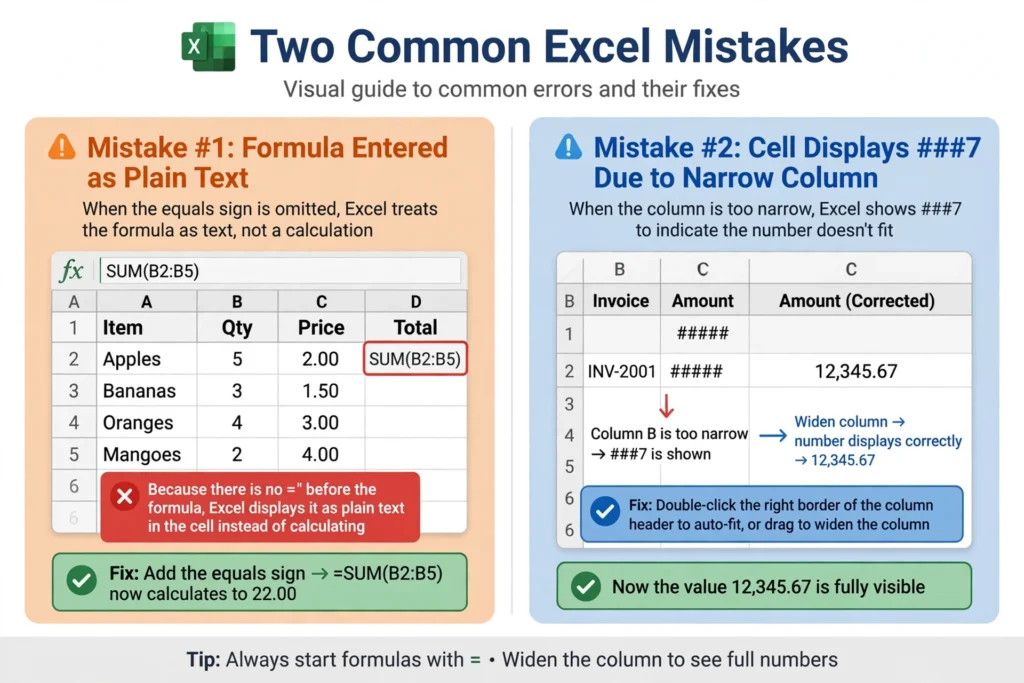
- The first mistake is forgetting the equals sign. Without it, Excel treats your formula as plain text and shows =SUM(A1:A5) on screen instead of an answer. The second is a typing error in a cell address, such as typing A1:A15 when your data ends at A10. Excel will happily include the extra blank cells, but the answer may still look right, so always check your range against your data.
- The third mistake is the hash error, shown as #####. This usually just means the column is too narrow for the answer. Double-click the border between the column letters at the top to widen it, and the number appears. It does not mean your data is lost.
- Finally, never type a number directly into a formula when a cell reference will do. Writing =SUM(100,200,300) works once, but if a price changes, your formula does not. Writing =SUM(B2:B4) and changing the cells is the habit that makes Excel powerful.
Practise with a Small Example

- Open a blank sheet and try this five-minute exercise. In column A, type five items: Rent, Food, Transport, Phone, Internet. In column B next to them, type five amounts you choose, for example 500, 200, 80, 30 and 40. In B7, type =SUM(B2:B6) and check the total. In B8, type =AVERAGE(B2:B6) and see your average expense. In B9, type =COUNT(B2:B6) and confirm it shows 5.
- Now change one amount and watch all three answers update. That moment, when the numbers move by themselves, is when Excel starts to make sense. Save the file with a clear name so you can find it again. Keeping your files organised matters just as much as the formulas inside them, as explained in this guide: How to organise your files and folders on Windows.
- If you want to practise with a free spreadsheet app before buying Excel, there are good free options listed here: Best free software for Windows in 2026: a practical list.
Frequently Asked Questions
Do I need to memorise formulas?
No. Learn SUM, AVERAGE and COUNT well, and look up the rest when you need them. Even regular Excel users search for formula help often.
Why does my formula show text instead of an answer?
You probably missed the equals sign at the start, or the cell is formatted as text. Type the formula again starting with = and it should calculate.
What does ##### mean?
It usually means the column is too narrow to show the number. Widen the column and the value appears. Your data is still there.
Can I use SUM on numbers in different columns?
Yes. Use commas for separate cells, like =SUM(A2,C2,E2), or a range with a colon for cells in a row or column, like =SUM(A2:E2).
Is Excel the same on every computer?
The basic formulas in this guide work the same in modern Excel on Windows and Mac, and in most free spreadsheet apps, though menus may look slightly different.
Conclusion
SUM, AVERAGE and COUNT are small formulas with big everyday value. SUM adds, AVERAGE finds the middle, and COUNT tells you how many numbers you have. Start with one small table, practise the three formulas, and check your ranges before you trust an answer. Once these feel easy, sorting, filtering and simple charts are the natural next steps, and Excel will feel like a tool you own, not a program you fear.


How to Track Changes in Word When Someone Edits Your Document