You have a good photo, but the background ruins it — a messy room behind a portrait, or a cluttered table behind a product. You do not need Photoshop to fix it. This guide shows you how to remove background from photo free, with no sign-up and nothing to install, and what each free tool actually gives you.
That matters: most top results are not guides — they are tool pages that show the price only after you upload.
What Free Really Means When You Remove a Background

“Free” can mean four different things. First, resolution: a free download may be capped at a small size that looks fine on a phone but blurry elsewhere. Second, the sign-up: some tools remove it free, then ask for an account before the download. Third, the watermark: a few stamp their logo on your image. Fourth, the licence: some free results are personal use only.
The file you want is a PNG with a transparent background. In an editor the empty area shows as a grey-and-white checkerboard. A JPG cannot do this, so always pick PNG. Your photo matters too: one clear subject, good light, some space behind it. Curly hair, fur and thin straps are the hardest edges, so zoom in and check them.
The Best Free Tools Compared
Here is what each option gives you free, checked in November 2026.
Adobe Express (Adobe Firefly) — the best free route. Its background remover runs in the browser, no app to install. In recent tests, the first image could be removed and downloaded as a full-size PNG with no login. It accepts JPG, PNG and WebP files up to 50 MB.
remove.bg — the best quality, with a catch. It is the most accurate one-click remover, but free downloads are capped at 0.25 megapixels — about 500 by 500 pixels, too small for print or a large listing. Signing up gives one free full-resolution download. The site is scheduled to close on 1 December 2026 — do not build a workflow on it.
Photopea — best for full control. A Photoshop-style editor in your browser, free with no account, and your files stay on your device. No one-click AI button, but you get selection tools, masks and layers, and full-size exports.
Pixlr — free, but with ads and limits. Its browser editor has a one-click remover and needs no account to start, but the free tier is ad-supported and AI credits run out with heavy use.
Canva — not free for this. Its background remover is a Pro feature, and Pro costs around $120 a year (the current US list price is $144 a year; prices vary by country).
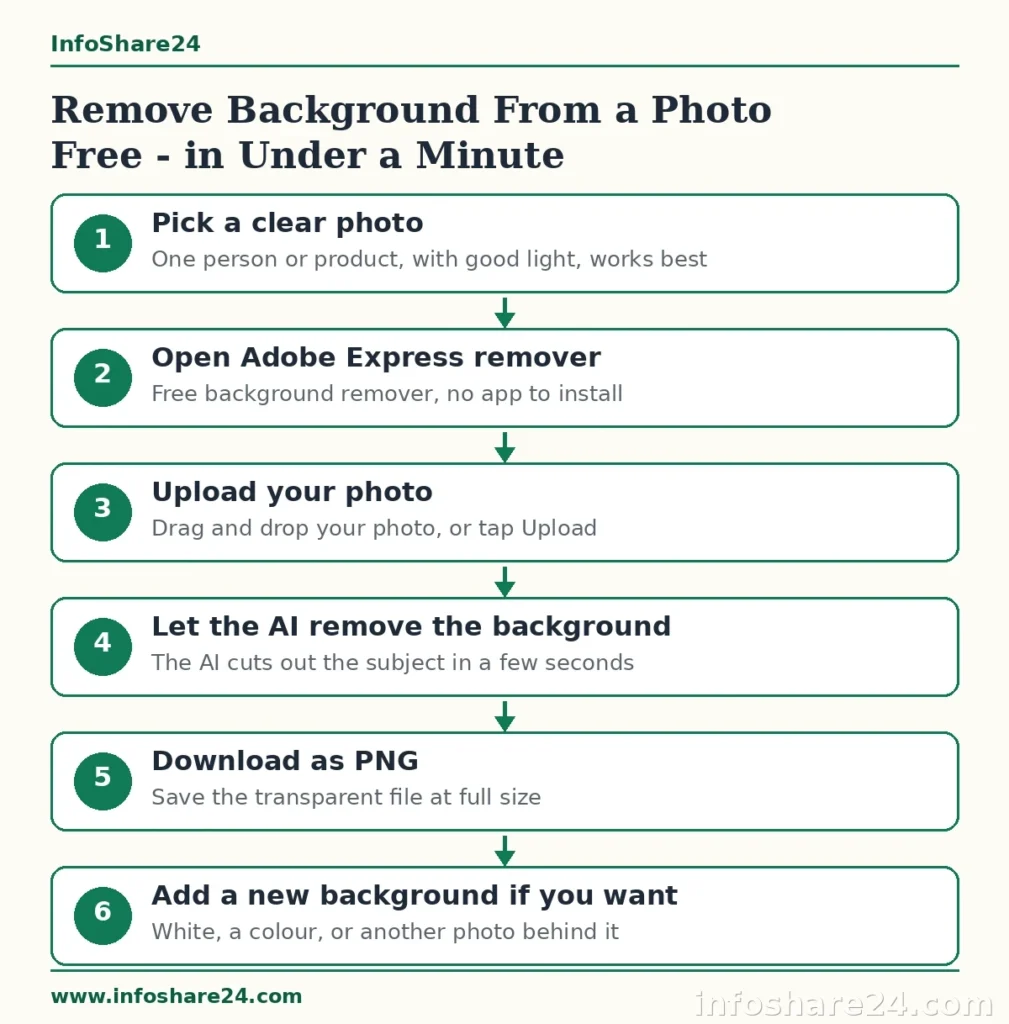
How to Remove Background From Photo Free With Adobe Express
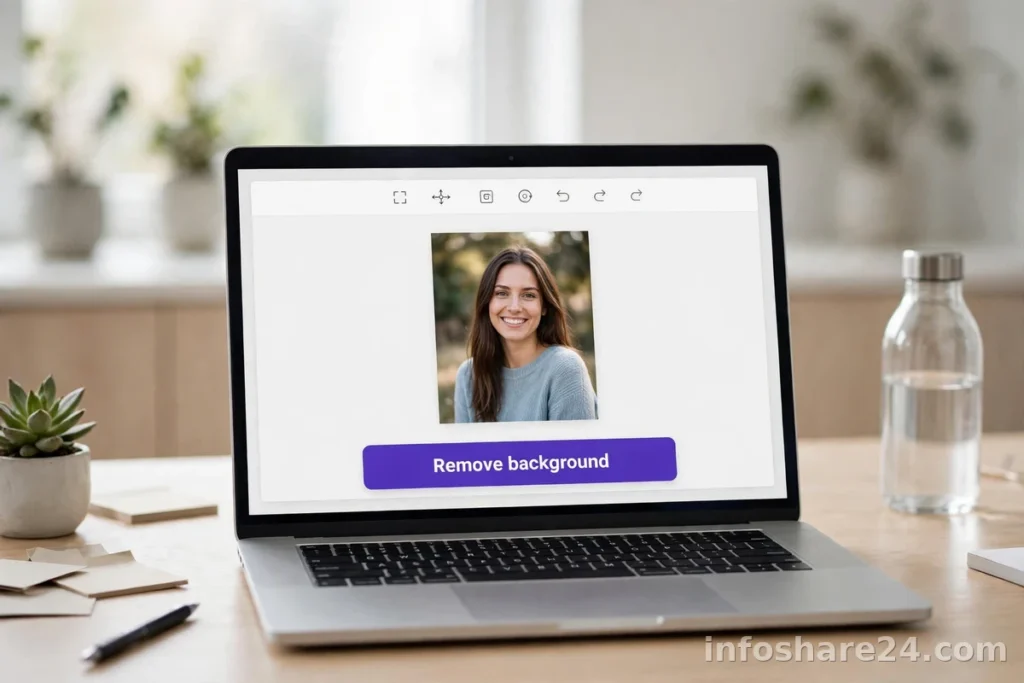
This is the route we recommend: free, no install, and a full-size PNG at the end.
- Open Adobe’s free background remover. Search for “Adobe Express remove background” and open it. No app to install, no account needed.
- Upload your photo. Drag and drop the original photo — not a compressed copy from a chat app — so the edges stay sharp. If your phone is so full you cannot find the original, first read How to Free Up Storage on Android Without Losing Photos.
- Wait a few seconds. The AI finds your subject and erases everything behind it. The cutout appears on a checkerboard background, which means it is now transparent.
- Check the edges. Zoom in on hair, glasses and earrings. Use the erase brush for leftover background, and the restore brush for any missing piece.
- Download the PNG. Click Download. In our checks this worked at full size without logging in — the sign-in wall only appears after several images.
- Keep both files. Save the transparent PNG, and keep your original photo too.
How to Remove a Background With remove.bg
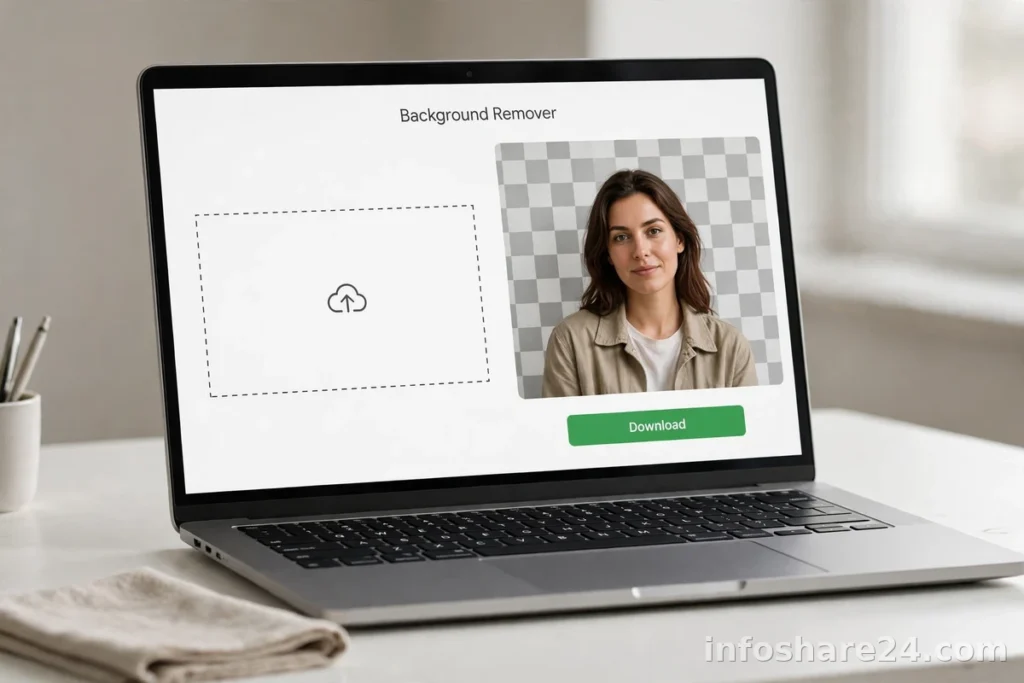
If Adobe’s result looks rough on a tricky photo, try remove.bg — but it closes on 1 December 2026, so treat it as a short-term option.
- Open remove.bg and upload your photo. Drag it onto the page or click Upload Image. No software to install.
- Wait for the cutout. It takes a few seconds. You can add a plain colour background on the site.
- Download, knowing the limit. Free downloads are capped at 0.25 megapixels, so it suits a small profile picture, not a large print. One full-resolution download comes free with an account. Do not pay for credits: with the site closing on 1 December 2026, they are a poor buy.
For Full Control: Remove the Background by Hand in Photopea
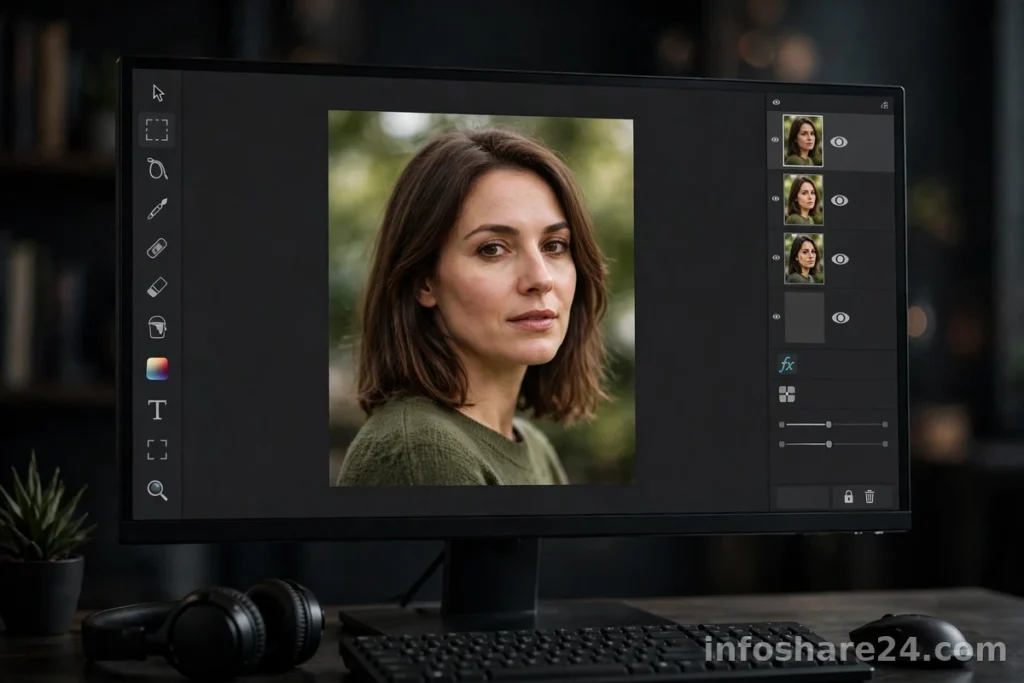
Automatic tools sometimes fail on hair, glass or a subject that blends into its background. A manual editor lets you fix it yourself, free and without an account.
- Open Photopea in your browser. It loads as a web page — nothing to install, no account to create.
- Open your photo. Go to File, then Open.
- Select your subject. Use Select, then Subject, or the Magic Wand tool to click the background. Hold Shift and click to add more areas.
- Turn the selection into a mask. With the background selected, add a layer mask to hide it, or invert the selection first. Zoom in and paint on the mask to clean up hair and edges.
- Export as a PNG. Go to File, then Export as, then PNG. A JPG would fill the empty area with white.
It takes a few minutes to learn, but then no free-tier limit can surprise you.
What to Do After the Background Is Gone
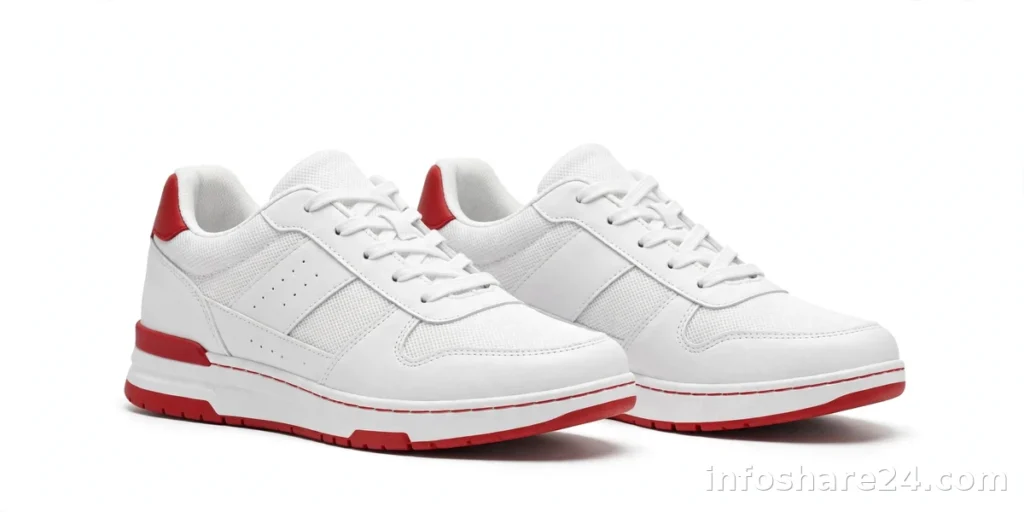
A transparent PNG is only the middle of the job. For a product photo, put it on white — online shops expect it. For a portrait, a soft solid colour beats a busy background. Keep the PNG for editing; if the final image sits on a solid background, export a JPG copy for a smaller file. A clean cutout also makes a sharp CV photo — see How to Use AI to Write a Better CV.
Before you use the result, open it and zoom to 100 percent. If the edges look fine there, they will look fine everywhere.
Tools and Guides to Avoid
Old guides are the biggest trap here — the tools they recommend keep disappearing. Unscreen, the well-known video background remover, closed on 29 June 2026 — its site now sends visitors to Canva’s video background remover, a paid Pro feature. It removed backgrounds from video, not photos, but old “free background remover” lists still name it as if it worked.
The same applies to random remover apps that promise “100% free” and then add a watermark, cap the size, or demand a subscription at the download step. Never pay just for one photo.
Frequently Asked Questions
Can I remove a background from a photo free without signing up?
Yes. Adobe Express lets you download a full-size PNG without an account for the first image, and Photopea needs no account.
Why is my downloaded photo so small?
Because the tool capped the free download — remove.bg, for example, limits free downloads to 0.25 megapixels. Switch to Adobe Express or Photopea for the full size.
Conclusion
To remove background from photo free, start with Adobe Express: upload your photo, let the AI cut out the subject, and download the full-size PNG — no Photoshop, no sign-up, no install. Keep remove.bg as a backup until it closes on 1 December 2026. When an automatic tool fails, Photopea gives you full manual control for free.
Pick your clearest photo, try the free route above, and check the edges at full size. The background is gone in under a minute — checking it is what makes the result look professional.