

Most of us use Google every day, yet most of us use only a small part of it. We type a few words, click the first result, and hope for the best. That works for simple questions, but for a specific document, a trustworthy guide, or a recent news story, a few small tricks can save you a lot of time.
The good news is that you do not need to learn anything technical. The tricks below are simple words and symbols you add to a normal search. Once you try them twice, they become habit, and your searches start giving you what you actually wanted.
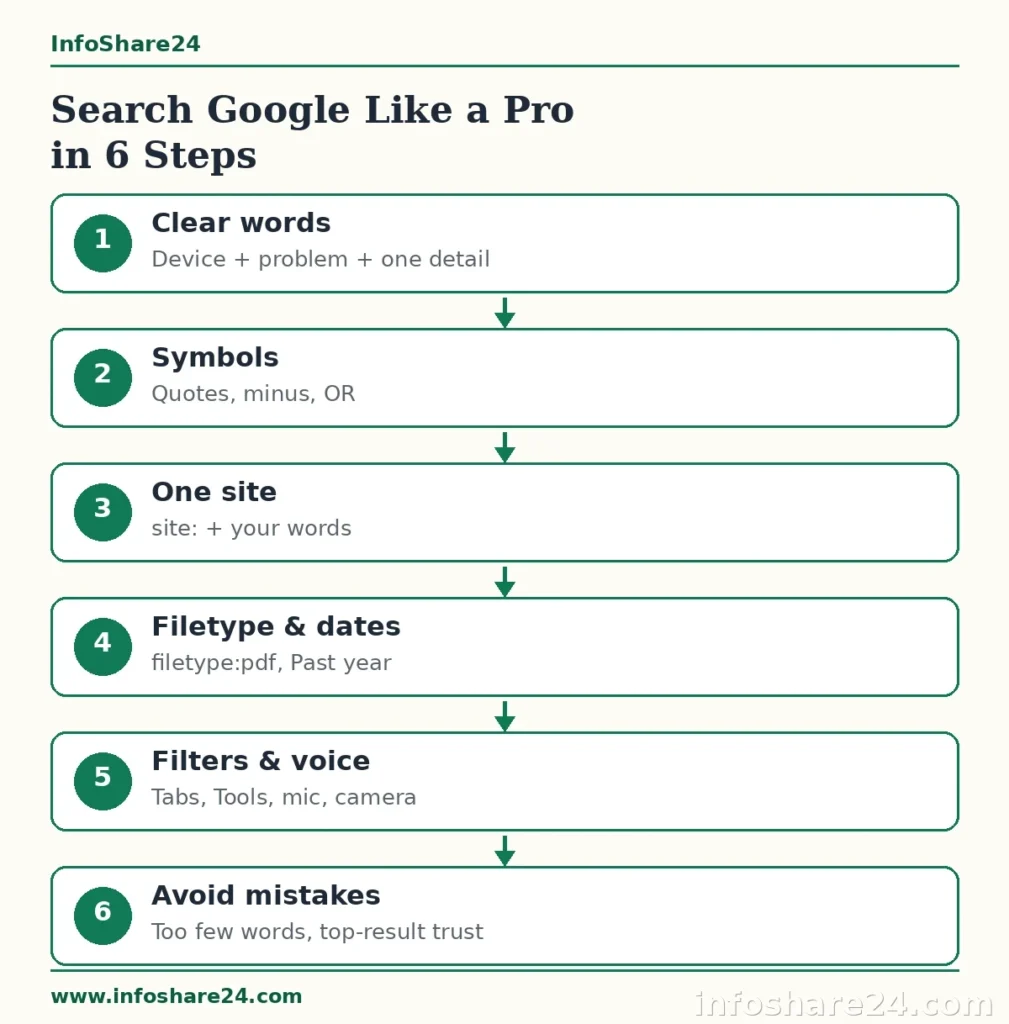
Start With Words Google Understands
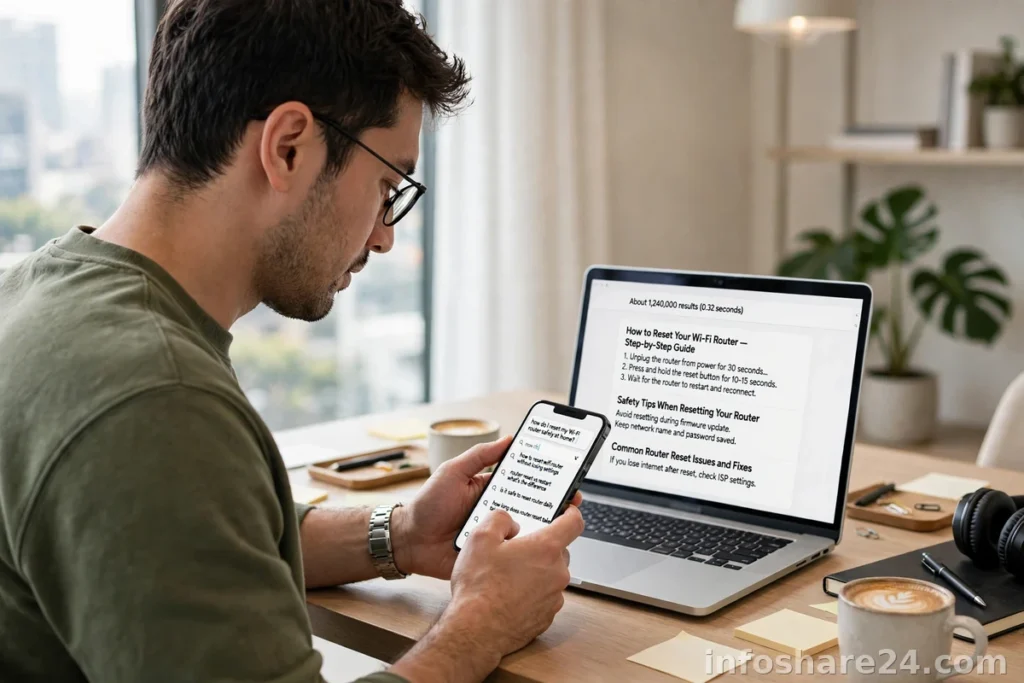
- A vague search like “phone problem” can mean a hundred different things, so Google guesses. A clearer search gives Google a better chance. Instead of “phone problem”, try “Android phone battery drains fast after update” or “iPhone storage full photos not deleting”. Add the device, the problem, and one detail, and the results improve at once.
- It also helps to ask a full question when you want a direct answer. “How do I back up photos on Android?” usually returns step-by-step guides, while “Android backup” returns a mix of apps, news, and adverts.
- If the first search fails, do not keep scrolling through poor results. Change one word, add one detail, or remove one word, and search again. Searching is often a two-step job: the first search shows you the right words, and the second search, using those words, finds the answer.
Search With Symbols: Quotes, Minus and OR
- The first is quotation marks: put a phrase in quotes, and Google looks for those exact words together, in that order. This is useful when you remember part of a title or an error message — put the exact error message in quotes, and you will often find people who had the same problem and solved it.
- The second symbol is the minus sign. Put a minus directly before a word, with no space after it, and Google leaves out pages containing that word. For example, searching for jaguar -car removes car results if you wanted the animal.
- The third is the word OR, written in capital letters, between two options. Searching for Windows OR Android screenshot guide returns pages about either one. You can also use brackets for this, but plain OR is enough for everyday use. These three symbols — quotes, minus, and OR — are the core of what people call search operators, and they are worth practising because they work in almost every search.

Search Inside One Website
- Type site: followed by the website address, then your words. For example, site:infoshare24.com Wi-Fi finds Wi-Fi guides on that site only. This is much faster than using a site’s own search box, which is often weaker, and it is perfect for large sites, forums, and documentation pages.
- A similar trick is filetype:. Add filetype:pdf to a search to find PDF guides and manuals, which is useful for official instructions. Searching for a phone model plus filetype:pdf often finds the real user manual, not a blog post about it. You can combine these tricks too: site:example.com filetype:pdf plus your topic narrows results to PDFs on one site.
- Dates matter too. For prices, app features, or recent rules, an old guide can mislead you. Use the Tools option to choose a time range such as Past year, or add the year to your search, and always check the date on the page itself.

Use the Filters Google Already Gives You
- Below the search box, Google offers tabs such as Images, News, Videos, Shopping, and more. Many people ignore them, but they are powerful.
- If you want a picture, go straight to Images instead of scrolling through web pages that happen to contain pictures. If you want a tutorial, Videos often shows a step-by-step demonstration faster than reading a long article. If you want what happened today, News filters out old blog posts.
- The Tools button, near the top of the results, adds more control. It lets you filter by time, and for images, by size and colour — handy if you need a large image rather than a small, blurry one. You can also sort videos by duration when you want a quick explanation rather than an hour-long lecture.

Search by Voice, Photo and Image
- On your phone, tap the microphone in the Google app or search bar and speak your question naturally, just as you would ask a friend. Voice search is ideal when your hands are busy or spelling a long word is tricky.
- Image search works the other way round. If you have a photo of something — a plant, a product, or a landmark — tap the camera icon in the Google app, choose or take a photo, and Google will try to identify it and find similar pages.
- As with typed searches, check who published the result before acting on it, especially about money, health, or security.

Mistakes That Give You Poor Results
- The most common mistake is searching with too few words. One or two words give Google too little to work with, so the results are broad and often dominated by adverts. Add a second detail — the device, the app name, or the year — and the results sharpen quickly.
- The opposite mistake is also common: typing a whole paragraph. Google ignores many small words in very long searches, so a long sentence can actually confuse it. Keep your search to the important words: the topic, the device or app, and the problem.
- Another mistake is trusting the top result without question. Top results are often adverts, marked with a small “Sponsored” label, or simply the most popular pages, not the most accurate ones. Compare two or three sources, and prefer official help pages and recent guides. If a result promises something impossible, treat it with suspicion — learn how to spot a phishing message in 30 seconds before you click anything risky.
Finally, do not forget safety when you search away from home. Searching on a cafe or hotel network is convenient, but it is worth knowing how to stay safe on public Wi-Fi so a search session does not expose more than it should.
Frequently Asked Questions
Do I need to memorise all these tricks?
No. Start with just two: exact phrases in quotes and site: for searching inside a website. Those two alone make a big difference. Once they feel natural, add the minus sign, then filters and filetype:. You do not need all of them at once.
Why do my results differ from a friend’s results?
Google personalises results based on location, language, and past searches. If a result looks odd, try the same search in a private window, or add the location or the year to narrow it down.
Are the top results always the best?
Not always. Sponsored results appear first because someone paid for them, and popular pages appear first because many people visit them. For health, money, or technical advice, check an official source or a recent guide before you act.
Conclusion
Better searching is about clarity. Use specific words, put exact phrases in quotes, leave out words with a minus sign, search inside a site with site:, and use the filters, voice search, and image search Google provides. Each trick takes seconds to learn and saves minutes on every difficult search.



[…] on the phone, and read both parts aloud. Reading also improves when you search well: the ideas in Google Search Tricks Most People Don’t Know can help you find simple articles, dialogues, and example sentences. Keep it short — one article […]