WhatsApp chats hold far more than casual messages: family news, work details, addresses, receipts, photos of children growing up, and voice notes from people you love. If your phone is lost, broken, or replaced without a backup, those chats can disappear in a moment, even though setup takes only a few minutes.
On Android, WhatsApp can back up your chats to Google Drive automatically. Once set up, you do not need to think about it daily. This guide shows how to turn it on, choose the right settings, decide about photos and videos, restore chats on a new phone, and fix a backup that will not work.
Step 1: Turn On Google Drive Backup
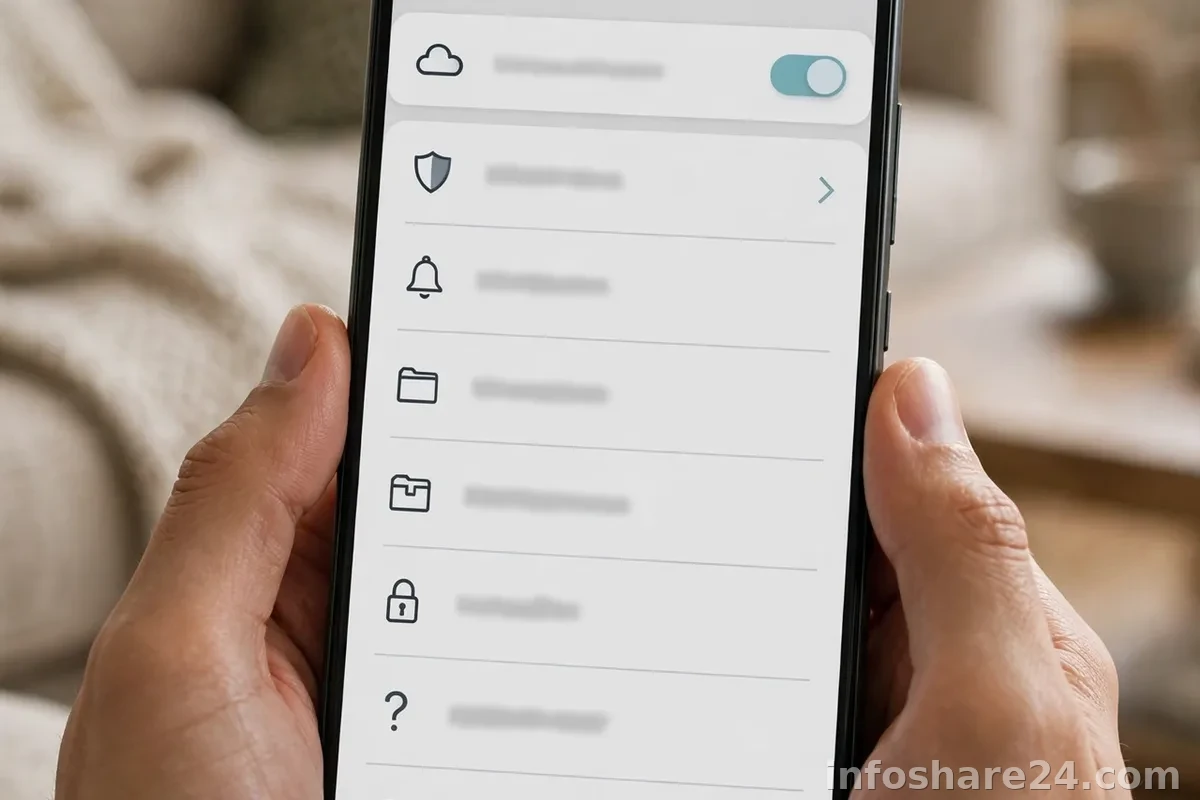
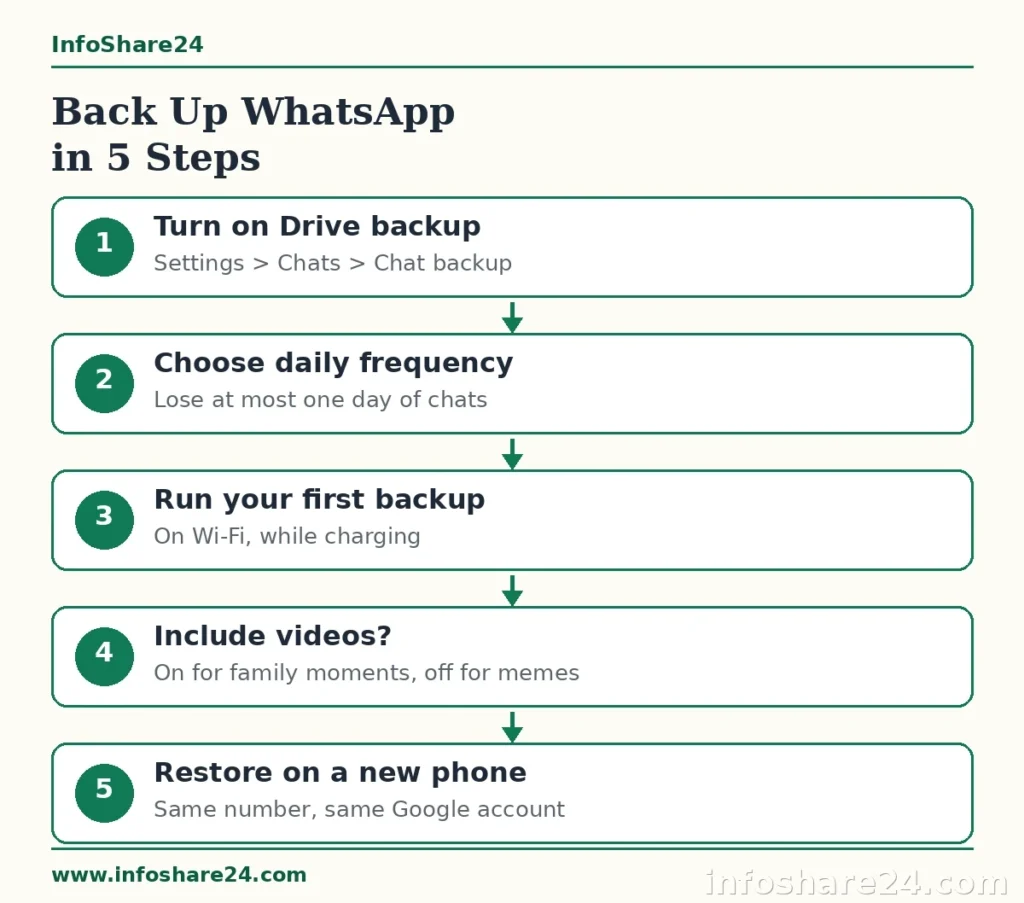
- Open WhatsApp, tap the three dots in the top corner, then Settings, then Chats, then Chat backup. This one screen controls your whole backup, so it is worth getting familiar with it.
- Tap “Back up to Google Drive” and choose a frequency. For most people, daily is best, as explained below.
- Tap “Google Account” and choose the account you want to use. Your backup is tied to this account and to your phone number, so use an account you can still sign in to later, not a work account you might lose.
- Check “Back up over” and set it to Wi-Fi only if you want to avoid using mobile data. A chat backup with photos and videos can be large, and uploading it over mobile data can eat through a data pack quickly.
Step 2: Run Your First Backup
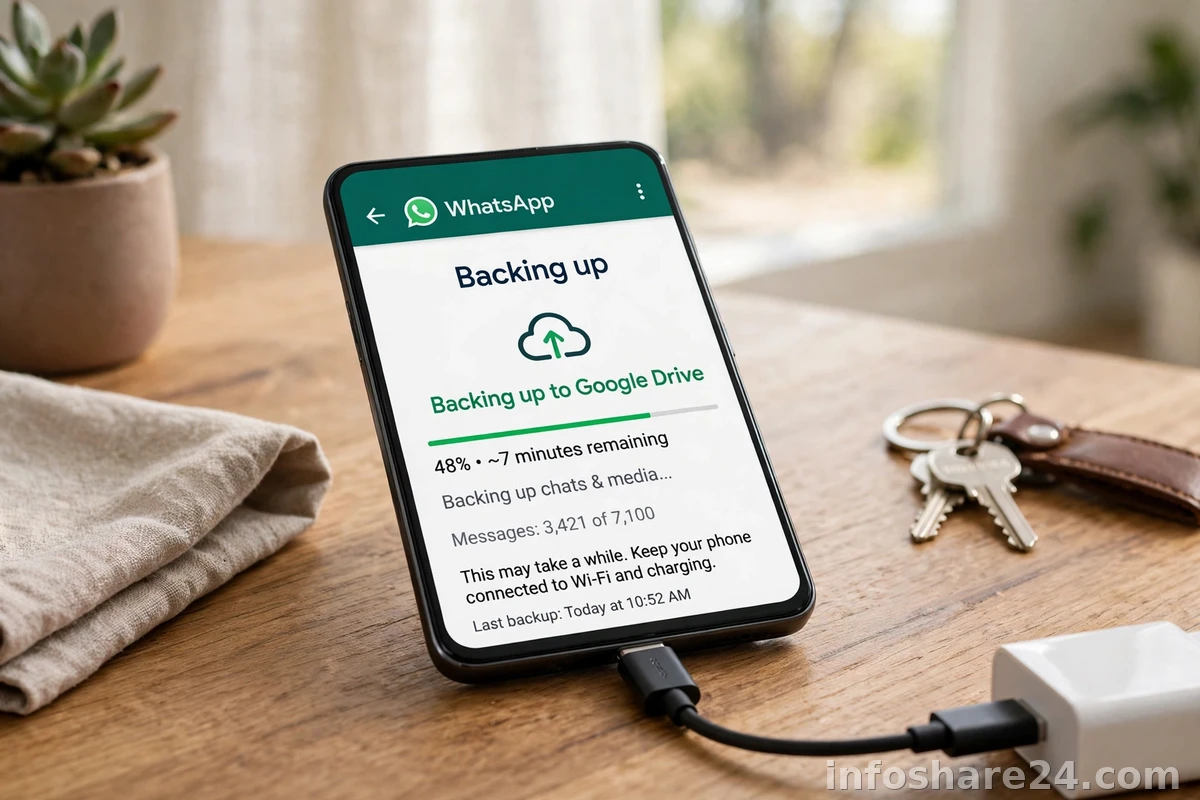
- Tap “Back Up” on the Chat backup screen right now, while you are on Wi-Fi and, ideally, while your phone is charging. A first backup can take a while if you have years of chats and media, so give it time and do not close WhatsApp halfway through.
- Check the date and size of the last backup when it finishes. That date is your proof: if it shows today, your chats are safely in Google Drive. Glance at that date once a month from now on, since a backup that stopped months ago will not help you when you need it.
Choose the Right Backup Frequency
- Choose daily — the best choice for most people, because it limits what you can lose to at most one day of chats. If your phone is lost on a Friday, a daily backup means you lose, at worst, Friday’s messages, not a whole month.
- Weekly is a reasonable compromise if your chats rarely matter, but you could lose up to a week of messages.
- Avoid monthly and manual-only. Monthly backup is too long for most people, and manual-only backup is riskiest, because it depends on you remembering. Daily backup does not mean uploading everything every day: later backups usually upload only what has changed, so they are much smaller and faster.
Should You Include Photos and Videos?

On the Chat backup screen you will see an option called “Include videos”. Turning it on means videos in your chats are backed up too; turning it off means only messages, photos and other files are backed up. The right choice depends on what your videos mean to you and how much Google Drive space you have.
- Turn videos on if your WhatsApp videos include family moments or work clips you cannot get back. They are often the most precious part of a chat, and the hardest to replace. The cost is size: videos make backups much larger, and they use more of your free Google Drive storage, shared with Gmail and Google Photos.
- Leave videos off if your chats are full of forwarded jokes and memes. It keeps the backup small and fast. You can still save the few videos that matter by downloading them to your gallery. Photos are included by default, and that is right for most people: they take less space than videos, and are usually the memories people regret losing most.
Restore Your Chats on a New Phone
- Install WhatsApp on the new phone and verify the same phone number you used before. WhatsApp will look for a Google Drive backup for that number and account.
- When it finds one, tap “Restore” and wait for it to finish before you start using WhatsApp.
- Use the same Google account and the same phone number. If either one is different, WhatsApp will not find your backup, and it will start with empty chats. If you have changed your number, use WhatsApp’s “Change number” feature on the old phone before you switch, if you still can. After chats restore, media will download in the background, so give it time on Wi-Fi.
Backing up WhatsApp is one part of protecting your whole phone. For photos, contacts and files beyond WhatsApp, this general guide is also useful: Back Up Your Phone in 5 Minutes: Photos, Contacts and Files.
What If Your Backup Will Not Work?
- If storage is full, free up Google Drive space by deleting large files you no longer need, or drop videos from the backup, as discussed above. Then tap “Back Up” again and check that the date updates. Free Google storage is shared across Gmail, Drive and Photos, so if it is full, WhatsApp backups pause quietly.
- Check the Google account shown on the Chat backup screen. If WhatsApp picked your other Google account, the backup may be going somewhere you are not checking.
- Use stable Wi-Fi, keep the phone charged, and try again. If it still errors, restart the phone and update WhatsApp from the Play Store.
For the few chats and photos you truly cannot afford to lose, keep a second copy outside WhatsApp too, such as photos saved to your computer. Moving files between phone and computer is simpler than many people expect: How to Transfer Files Between Phone and Computer Easily.
Frequently Asked Questions
Does WhatsApp backup use my mobile data?
It can, unless you set “Back up over” to Wi-Fi only, the best setting for most people.
Will I lose my chats if I change my phone number?
You can, if you start WhatsApp with a new number, because the backup is tied to your old number. Use “Change number” on your old phone first.
Can I restore a backup to a phone with a different Google account?
No. The backup belongs to the Google account you chose during setup. Sign in to that same account on the new phone before restoring.
How do I know my backup actually worked?
Go to Settings, then Chats, then Chat backup, and check the last backup date. A recent date is your proof; check it once a month.
Does deleting WhatsApp delete my Google Drive backup?
Not immediately, but do not rely on that. If you plan to leave WhatsApp, save important chats first, while you still have access.
Conclusion
Backing up WhatsApp chats on Android takes a few minutes once: turn on Google Drive backup, choose daily frequency, back up over Wi-Fi, decide about videos, and check the last-backup date monthly. On a new phone, use the same number and Google account, and restore during setup. Do that today, and your chats will be waiting on your next phone.