Your phone is full of photos, videos and documents, and your computer has more space and a bigger screen. Moving files between them sounds simple, but many people get stuck: the phone does not appear on the computer, the cable only charges, or the transfer stops halfway. You do not need any special skill to fix this. You only need to pick the right method and follow a few clear steps.
This guide shows three easy methods: a USB cable, cloud storage, and wireless sharing over Wi-Fi.
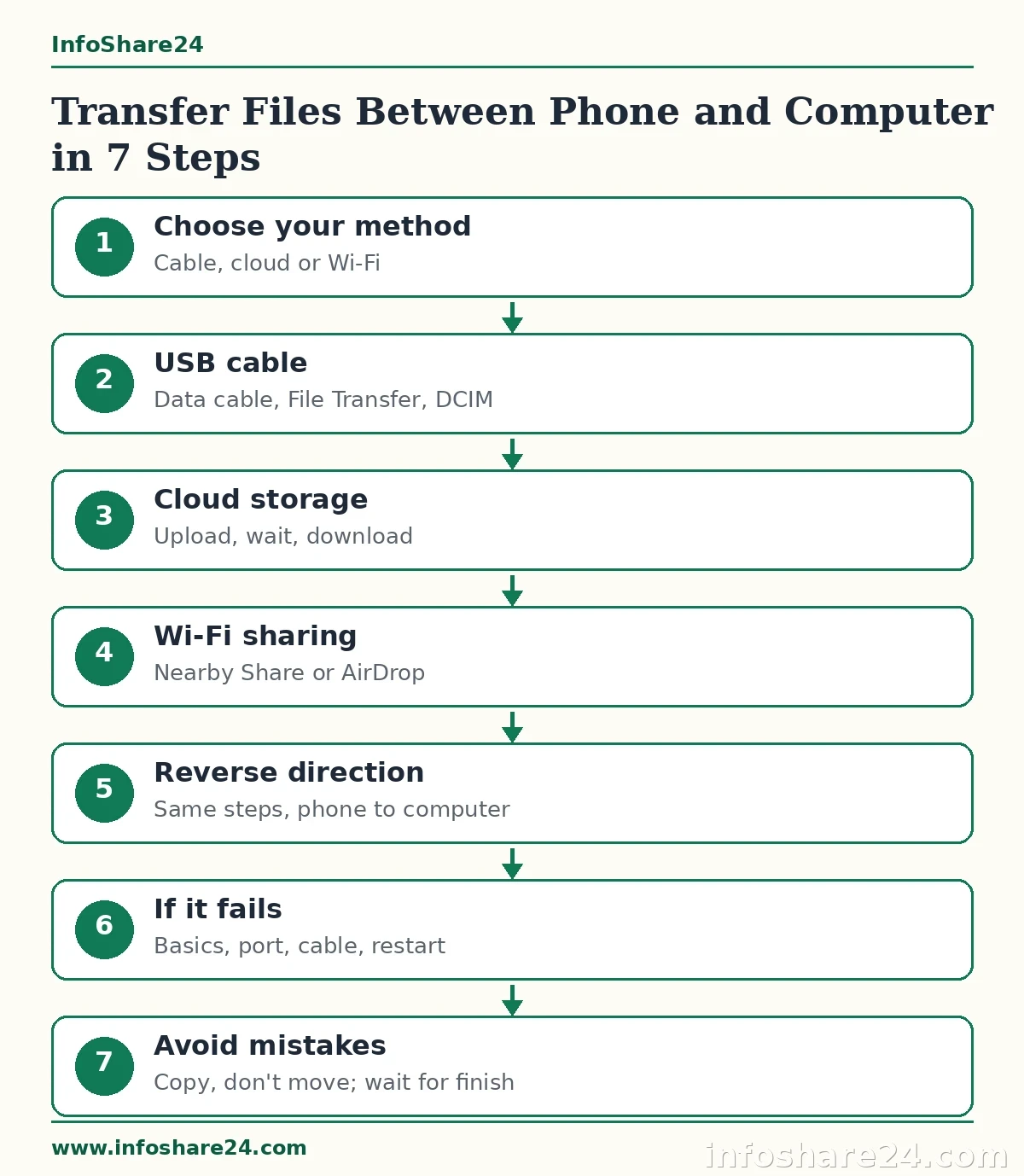
First, Choose the Right Method for You
- Use a USB cable when you have a lot of large files, such as a whole holiday album or long videos, and you want the fastest, most reliable transfer.
- Use cloud storage when you want your files available on both devices without a cable, and you are happy to wait a little while for uploads.
- Use wireless sharing when you have no cable nearby and only a few files to send. Before you start, check where your files are. On a phone, photos and videos are usually in the gallery or photos app, while documents may be in a files app or downloads folder. On your computer, make a new folder on the desktop called “From Phone”, so you can find everything later. If your phone is running low on space, our guide on how to free up storage on Android without losing photos can help you make room first.
Method 1: Use a USB Cable
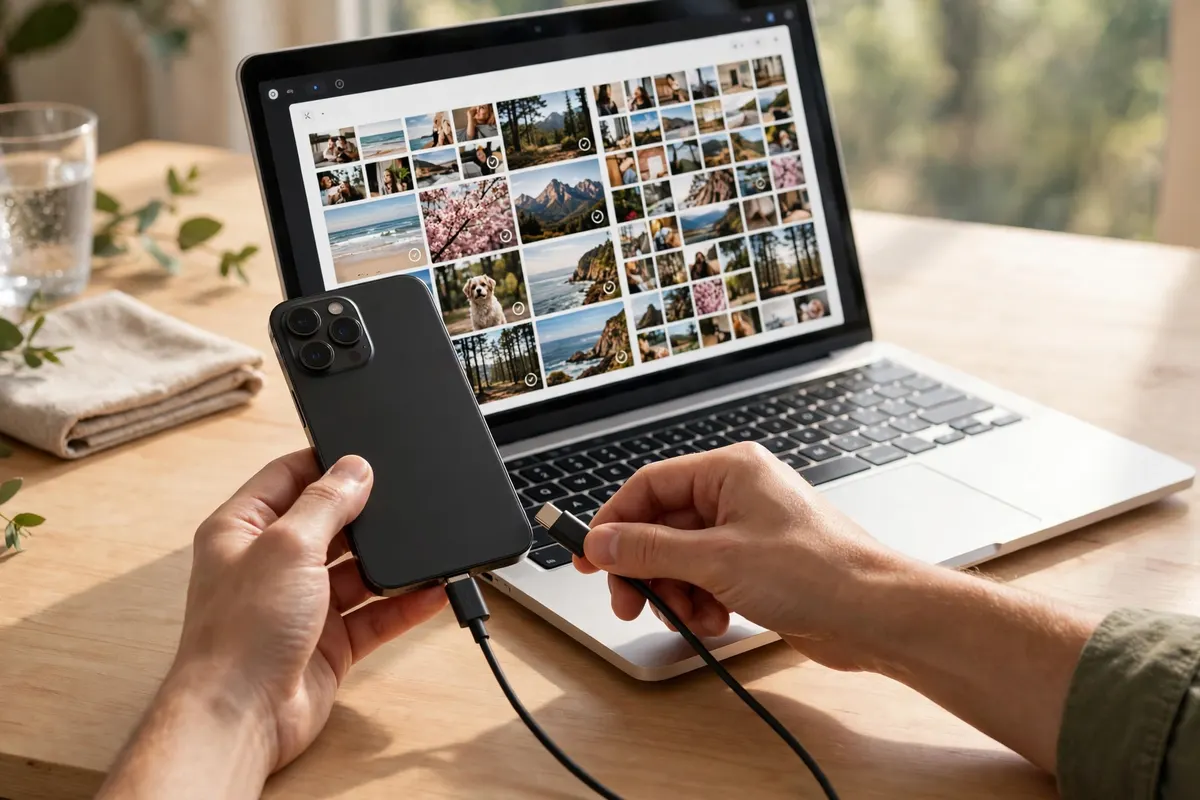
- Connect your phone to your computer with a proper data cable. Some cheap cables only charge the phone and cannot transfer data, so if nothing happens, try a different cable, ideally the one that came with your phone. Next, unlock your phone. On most Android phones, a notification will appear asking what the USB connection is for. Tap it and choose “File Transfer”. On an iPhone, tap “Trust” when asked whether to trust the computer, and enter your passcode if asked.
- Now open the file manager on your computer. On Windows, open File Explorer and look for your phone under “This PC”. On a Mac, your phone should appear in Finder, or you may need the free Android File Transfer tool for an Android phone. Open the phone, then look for the DCIM folder for photos and videos, or the Documents and Downloads folders for other files. Select the files you want, copy them, and paste them into a folder on your computer.
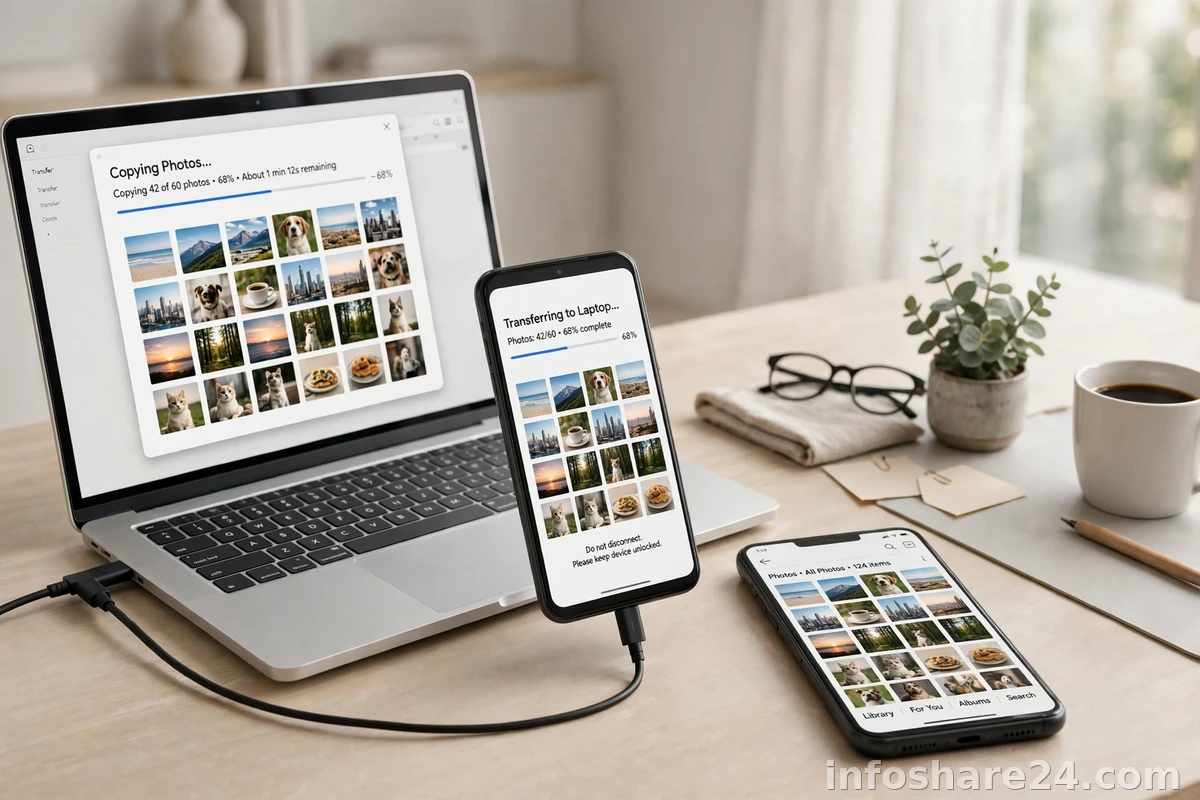
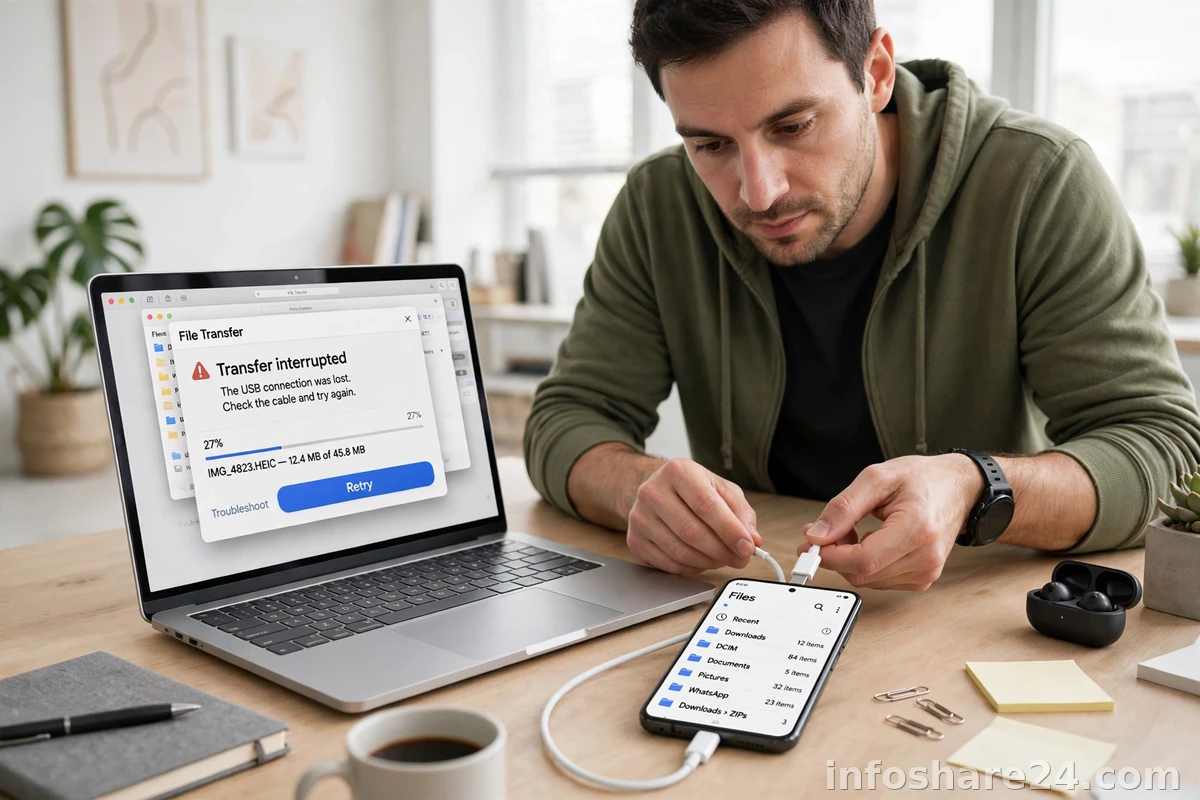
- Wait until the transfer finishes before you unplug the cable. Pulling it out early is the most common cause of half-copied or broken files. When the progress bar is gone, safely eject the phone if your computer offers that option, then disconnect.
Method 2: Use Cloud Storage
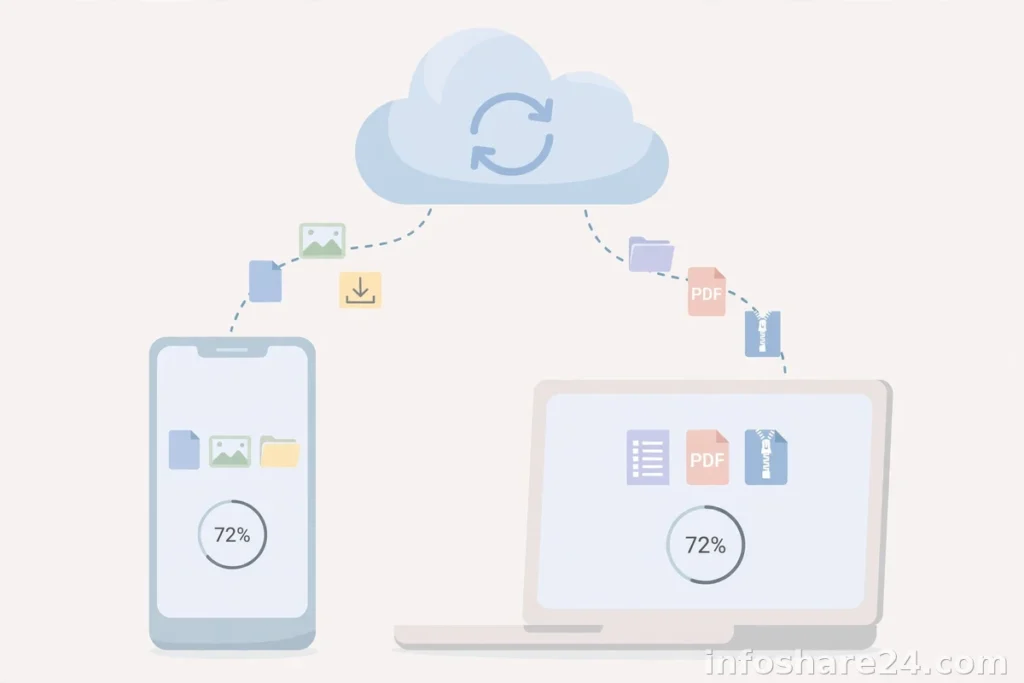
- To move a file, open the cloud app on your phone, tap upload, and choose the photos, videos or documents you want. Give the upload time to finish, especially for videos, and keep your phone connected to Wi-Fi until it is done. Then open the same cloud app or website on your computer, sign in to the same account, and download the files you need.
- Cloud storage is also a safety net for important photos. Before a big move, read our guide on how to back up your phone in 5 minutes.
- One thing to watch is storage space. Free cloud accounts have a limit, often 15 GB or less. If you are out of space, the upload will fail or stop. In that case, delete files you no longer need from the cloud, or move the biggest videos by cable instead.
Method 3: Share Over Wi-Fi Without a Cable
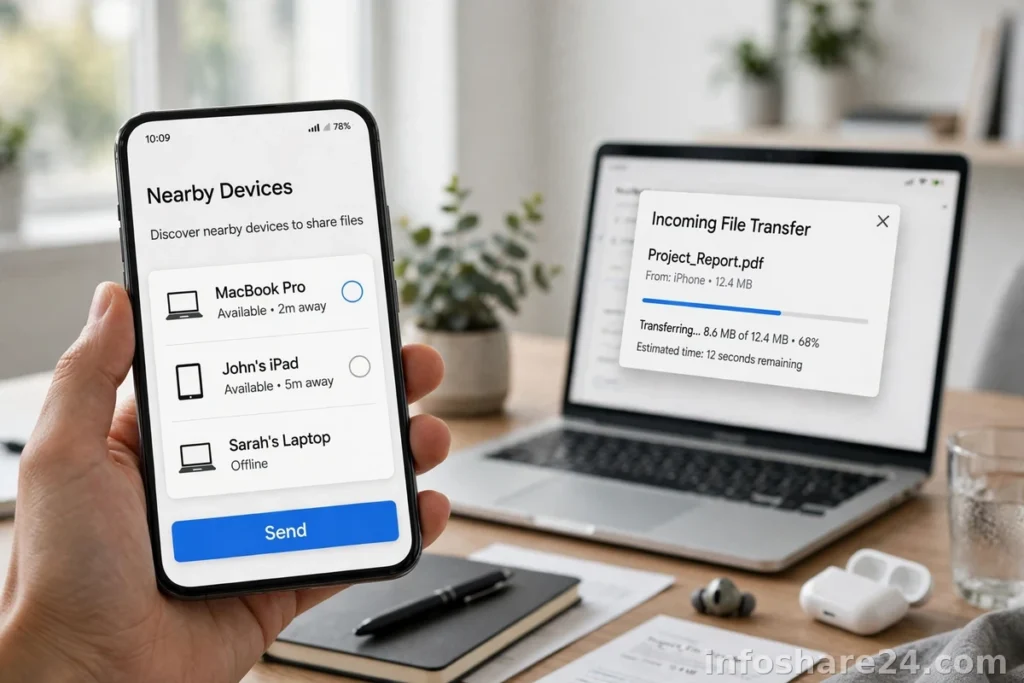
- On Android, look for “Nearby Share” or “Quick Share” in the share menu. On an iPhone or Mac, the similar feature is called AirDrop.
- The steps are the same: turn on Wi-Fi and Bluetooth on both devices, keep them close together, select the file on your phone, tap Share, and choose your computer from the list of nearby devices. Then accept the transfer on the computer.
- Wireless sharing is convenient, but it is slower than a cable and works best for smaller batches. If you are sending hundreds of photos, it may stop or take a very long time, so go back to the cable method for that job. Only accept transfers from devices you recognise.
How to Transfer Files From Computer to Phone
- With a cable, copy files from your computer and paste them into a folder on your phone, such as Pictures, Music, or Downloads.
- With cloud storage, upload from your computer and open the cloud app on your phone to download them.
- With wireless sharing, choose the file on your computer, share it to your phone, and accept it there. Keep file names clear where it matters: “Family trip beach photo” is much easier to find later than “IMG_4821”.
If the Transfer Does Not Work, Try These Fixes
- First, check the basics. Is the cable fully plugged in at both ends? Is the phone unlocked? Did you choose “File Transfer” instead of “Charge only”? Did you tap “Trust” on an iPhone? These small steps solve most problems.
- If the phone still does not appear, try a different USB port, a different cable, and restarting both devices.
- For cloud uploads that will not finish, check your Wi-Fi connection and free storage space. For wireless sharing that cannot find your computer, make sure both devices are on the same Wi-Fi network with Bluetooth on.
Common Mistakes to Avoid
- The first mistake is unplugging the cable too early. Always wait for the transfer to finish completely.
- The second is moving files instead of copying them. If you cut and paste, and something goes wrong, the file may be lost from both places. Copy first, check the copy opens on the computer, and only then delete the original from your phone if you need the space.
- The third mistake is transferring files on a public or shared computer without care. Avoid leaving your cloud account signed in there, and delete any files you copied afterwards. Finally, never use a random cable left in a public place for data transfer. Use your own cable, from a source you trust.
Frequently Asked Questions
Why does my phone only charge and not transfer files? You are probably using a charge-only cable or the phone is set to “Charge only”. Switch to a proper data cable and choose “File Transfer” on Android, or tap “Trust” on an iPhone.
Can I transfer files without the internet? Yes. A USB cable works without the internet, and wireless sharing over Wi-Fi Direct or Bluetooth also works offline. Cloud storage needs the internet.
Conclusion
Transferring files between your phone and computer is easy once you know the right method. For big files, use a cable. For access on any device, use the cloud. For a quick send, use wireless sharing. Pick the method that fits your situation and your files will be where you need them.